Dashboard
The Dashboard is the Portal’s home page. This section covers the panels it presents, how it is accessed, and the menu options used to reach the rest of the Portal.
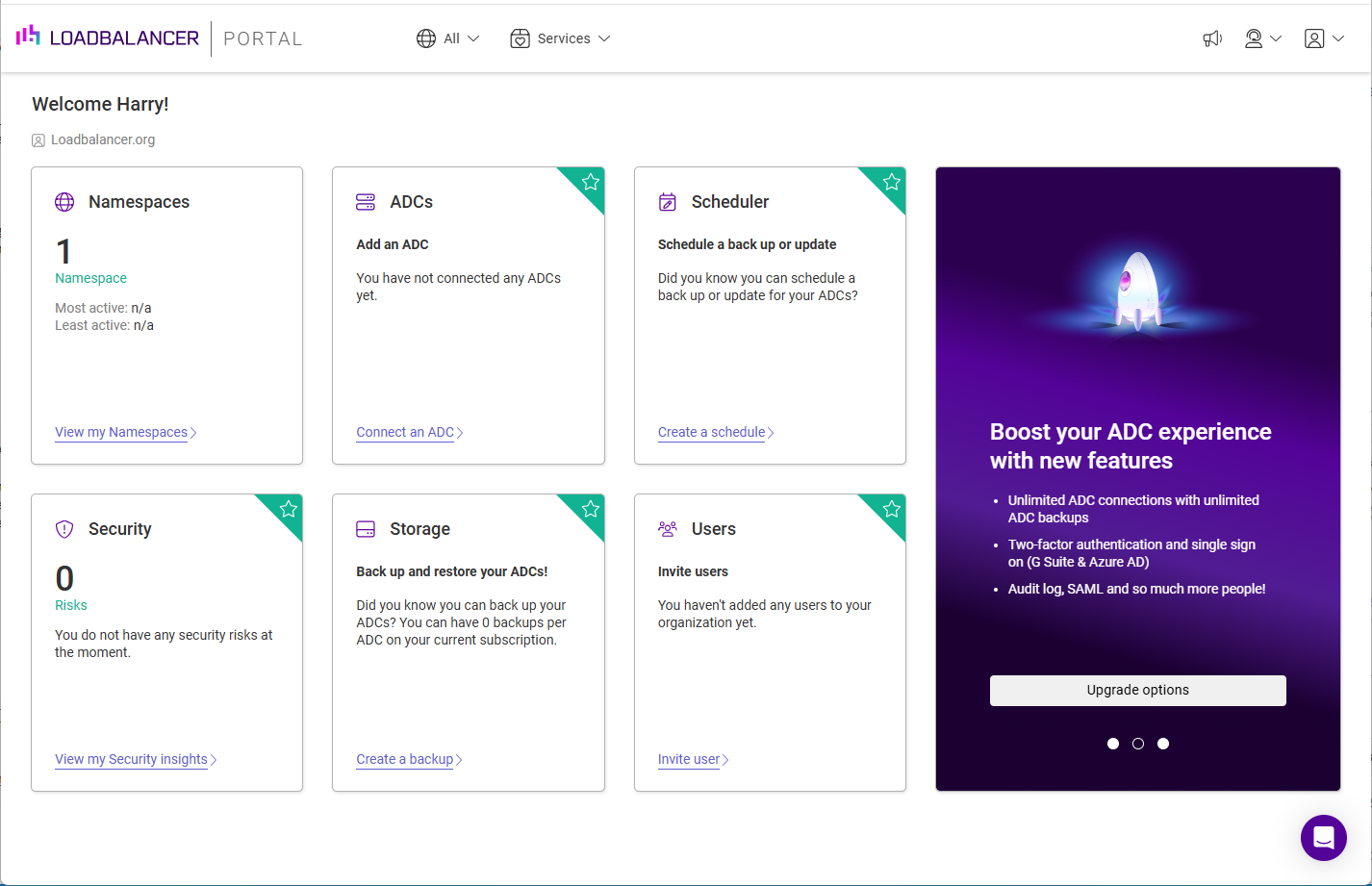
Each panel summarises one area and provides a link straight to it:
| Panel | Contents |
|---|---|
Namespaces |
The number of Namespaces defined, together with the most and least active. View my Namespaces opens Namespace Management. |
ADCs |
The number of ADCs in each state - Online, Offline, Pending and Generic - and the total held. View my ADCs opens Viewing & Managing ADCs. |
Scheduler |
The number of schedules configured and when the next one is due to run. View my Schedules opens Schedules. |
Security |
The total number of risks found across all ADCs. View my Security insights opens Security Insights. |
Storage |
The number of backups held and how many ADCs they cover. View my Backups opens Storage & Backups. |
Users |
An invitation to add users to the organisation. Invite user opens the Invite user form, see Adding Users. |
| Until the first schedule or backup exists, the Scheduler and Storage panels invite you to create one instead of reporting the figures above, offering Create a schedule and Create a backup respectively. |
Accessing the Dashboard
The Dashboard is displayed by default after logging in to the Portal. It can also be accessed at any time by selecting Dashboard at the top of the menu to the left.
Menu Options
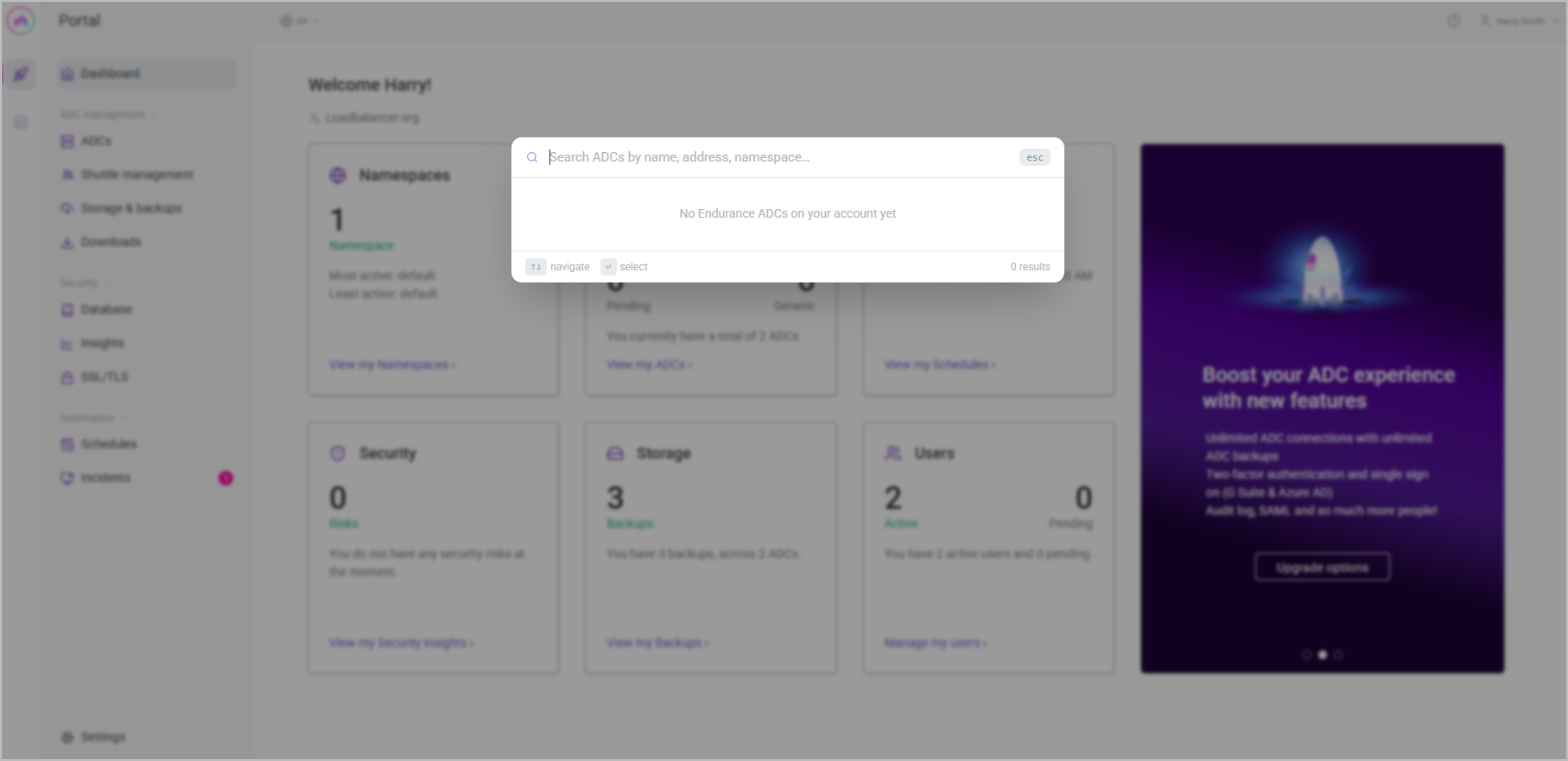
A narrow bar on the far left switches between Portal - the main navigation described below - and ADC connect, which opens a search box for finding an Endurance ADC by name, address or Namespace. Support for Endurance ADCs is coming soon, so ADC connect reports No Endurance ADCs on your account yet until then.
The menu to the left is the Portal’s main navigation. It is grouped as follows:
| Group | Options |
|---|---|
(top) |
Dashboard - the ADC Portal Dashboard. |
ADC management |
|
Security |
|
Automation |
|
(bottom) |
Settings - account and organisation settings. |
| The ADC management, Security and Automation group headings can be clicked to collapse and expand the group. |
Selecting Settings replaces the main navigation with the settings menu, which is grouped as follows:
| Group | Options |
|---|---|
Account |
Profile and Security & access - the latter expands to Single sign-on (SSO), Two factor authentication and Encryption & keys. |
Organisation |
Organisation settings, Users & groups (see also Roles & Groups), Namespace management, SAML, Sessions and Audit log. |
Administration |
Click Back at the top of the settings menu to return to the main navigation.
The following options are available along the top of the screen:
| Option | Purpose |
|---|---|
Portal |
The Portal name at the top left - returns to the Dashboard from any page. |
Toggle sidebar |
Hides and restores the menu to the left, leaving only the narrow icon rail so that the page has the full width of the window. This option is only shown when the browser window is too narrow to display the menu alongside the page. |
Namespace |
Filters the Portal by Namespace - see Namespace Management. The default is All. |
Support |
Contact support and Service status, see Technical Support. |
User |
The logged in user’s email address - Security and access, Profile settings and Log out. |
| Throughout the Portal, list pages share a common layout. A Search… box is provided above the list, the total number of entries is shown below it, and a Download CSV link to the right of the total exports the list. Where a list has an Actions menu (⋮) at the end of each row, this provides the actions available for that entry. |