Security
This section covers the security monitoring the Portal provides - the continuous CVE monitoring of every ADC available through Security Insights, and the SSL/TLS certificate monitoring that highlights certificates which have expired or are due to expire.
Security Insights
The ADC Portal provides continuous, real-time CVE (Common Vulnerabilities and Exposure) monitoring of all ADCs and ensures that any issues found are highlighted so that swift action can be taken.
The Portal automatically scans for CVEs affecting each ADC by querying the NIST National Vulnerability Database. Vulnerabilities are matched to each ADC using both CPE lookups and keyword-based searches, the latter helping surface relevant CVEs before they’ve been fully categorised by NIST. Results include AI-generated summaries explaining what each vulnerability means, its technical impact, and recommended mitigations.
To view security insights for all ADCs:
-
Click LOADBALANCER | PORTAL in the main menu bar to view the Dashboard.
-
The number of risks detected is displayed in the Security Panel.
-
Click View my Security insights to view details of any risks found.
Each ADC is listed with a recommendation of what action should be taken, as shown in the example below:
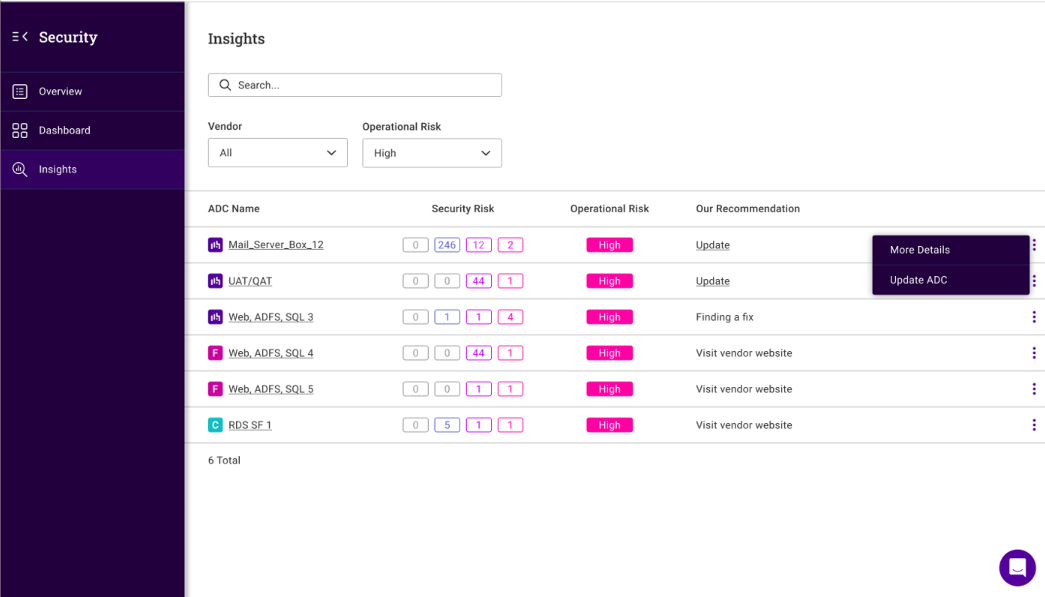
The following details are shown for each ADC:
-
ADC name
-
Security risk - the number of CVEs found at each severity, shown as four counters. The Security panel on the Dashboard shows the same totals for all ADCs, with each counter labelled Critical, High, Medium and Low
-
Operational risk - the overall risk rating for the ADC
-
Our recommendation - the recommended action
Click the ADC name to see the individual CVEs for that ADC. Each is listed with its Vulnerability ID, Severity score and Vulnerability info. The Update ADC button starts a software update, and Need help? opens a support request.
To view security insights for a particular ADC:
-
Click LOADBALANCER | PORTAL in the main menu bar to view the Dashboard.
-
In the ADCs panel, click View my ADCs.
-
Click the three dots menu next to the ADC to be viewed and select View security risks.
| The Dashboard option in the Security menu is coming soon. |
SSL Certificates
All SSL/TLS certificates installed on each ADC can be viewed from the Portal (not available with the Free Portal subscription level). This enables proactive monitoring to help ensure that expiring certificates are renewed or replaced before they expire.
To view all certificates for a particular ADC:
-
Click LOADBALANCER | PORTAL in the main menu bar to view the Dashboard.
-
In the Security panel, click View my Security insights.
-
In the menu to the left, select Certificates.
-
Select the ADC you’d like to view.
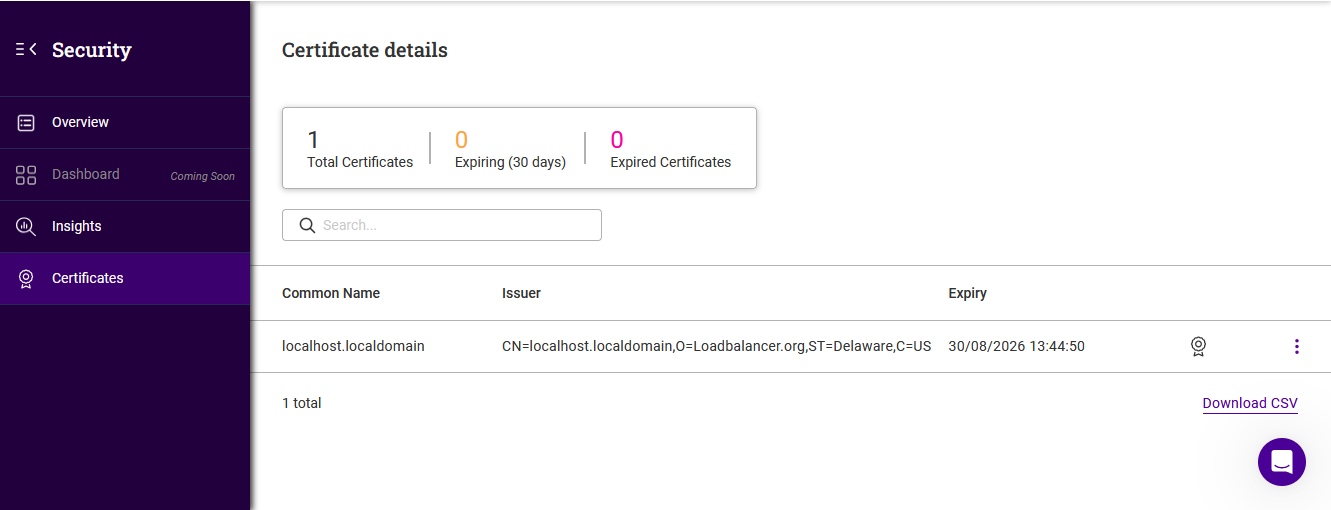
A summary of all installed certificates is displayed at the top - Total certificates, Expiring (30 days) and Expired certificates. Full details of each certificate are displayed below, showing the Common name, Issuer and Expiry as shown in the example below: