Getting started
This section covers what must be in place before the Portal can be used - the outbound firewall access your organisation needs to allow, and the process for creating an organisation and activating the first user account.
Firewall Rules
To enable access to the ADC Portal and ensure full functionality, your organisation’s firewall must allow the following outbound access:
-
Portal access :
portal.loadbalancer.orgon TCP port 443 -
Appliance updates :
update.loadbalancer.orgon TCP ports 80 & 443 -
Shuttle/Gateway updates :
europe-west1-yum.pkg.devon TCP port 443
Organisation & Account Creation
| If a new user requires access to an existing organisation, the user must be created within that organisation. For more details, see User Management. |
| Each email address can only be associated with one organisation. To enable access to an additional organisation, an email alias can be added to your email account which can then be associated with the second organisation. |
-
Navigate to: https://www.loadbalancer.org/get-started/adc-portal/.
-
Enter your First Name, Last Name, Work Email and Phone Number, together with anything you’d like to add under Any Questions?, then click Get Portal Free Forever Now.
-
An initial email will be sent to the address provided to confirm that your new organisation will be created.
-
Once the organisation has been created, a second email will be sent inviting you to activate your account.
If either email doesn’t arrive, be sure to check in any spam folders. Both emails will come from info@loadbalancer.org. -
Click the Activate Your Portal link in the second email.
-
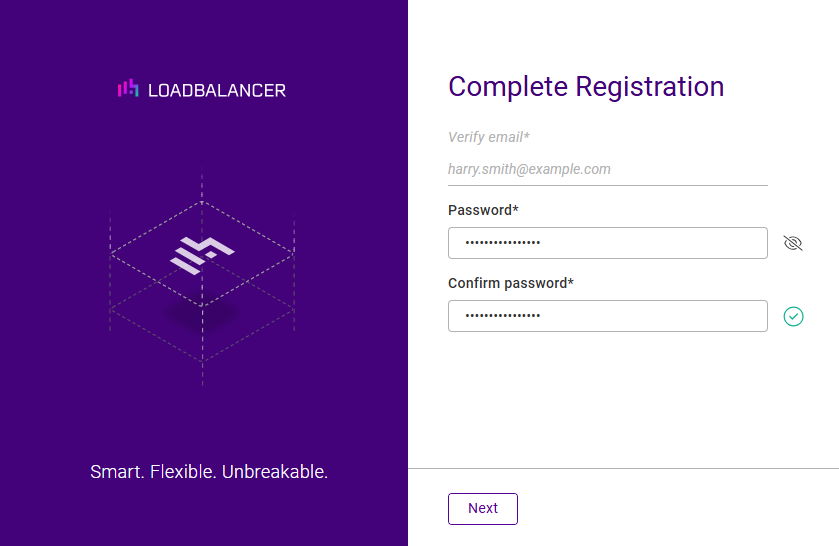
You’ll be prompted to choose a password to complete the registration.
-
Specify and confirm a password, then click Next.
-
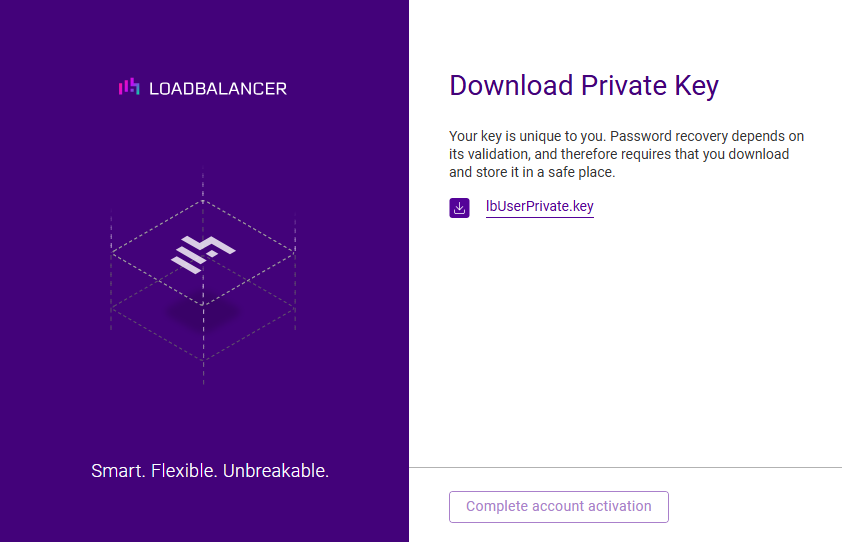
Download the private key for your new user account by clicking on the download link. Be sure to store the key in a safe place.
Ensure that the private key file is stored in a safe location. Resetting user passwords requires the user’s private key. -
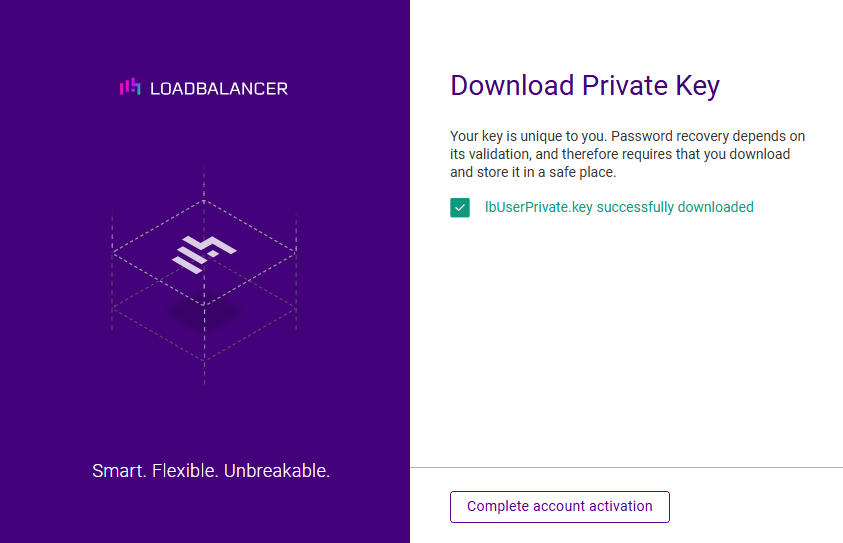
Once your private key has been downloaded, the Complete account activation button can be clicked to complete the account activation process.
-
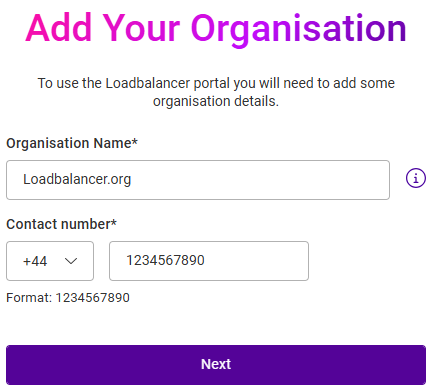
Once clicked, you’ll be prompted to enter details about your organisation.
-
Enter the name and contact phone number for the organisation and click Next.
-
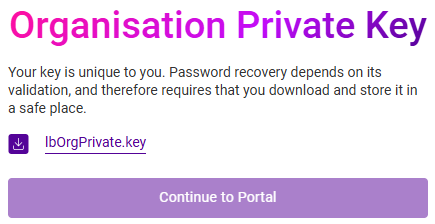
Download the private key for the new organisation by clicking on the download link. Enter the account password when prompted.
Ensure that the private key file is stored in a safe location. -
Once the organisation’s private key has been downloaded, the Continue to Portal button can be clicked to finish the process.
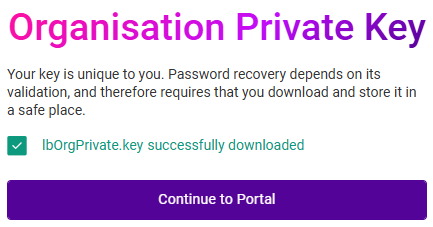
Once clicked, the ADC Portal Dashboard will be displayed.
Shortly after, you’ll also receive a welcome email with links to various useful resources to help you get started.