Storage
This section covers the backups held in the Portal - how they’re accessed and listed, and how an individual backup is downloaded for storage elsewhere or deleted.
Backups can be easily viewed and either restored, downloaded for storage elsewhere, or deleted. All backups are encrypted and securely stored in the Loadbalancer.org ADC Portal.
To access storage:
-
Click LOADBALANCER | PORTAL in the main menu bar to view the Dashboard.
-
In the Storage panel:
-
If there are currently no backups, click Create a backup.
-
The Create Schedule form will be displayed. For more details, see Task Scheduler.
-
-
If backups already exist, click View my Backups.
-
-
Existing backups will be listed:
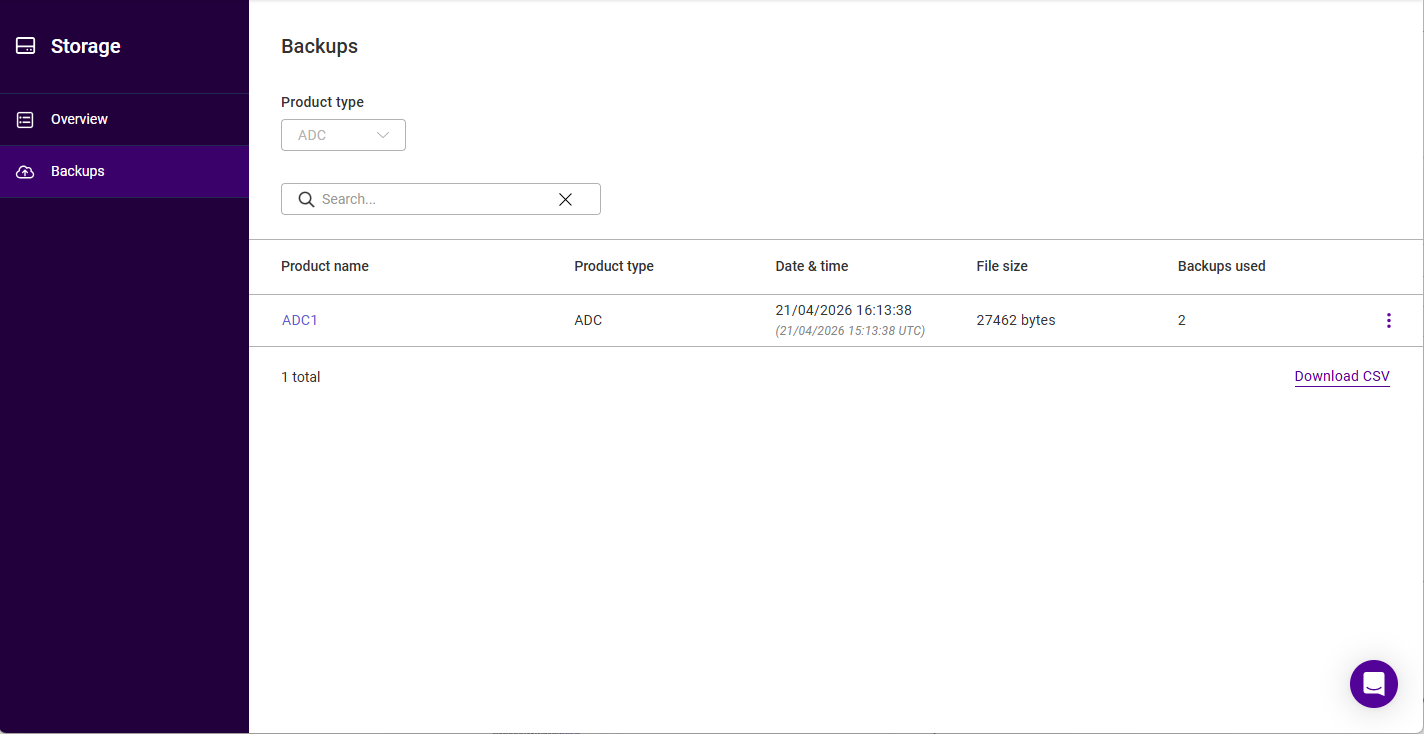
The following details are shown for each entry: Product name, Product type, Date & time (shown in both local time and UTC), File size and Backups used. A Product type dropdown above the list can be used to filter the entries shown.
-
In this example, 2 backups have been created for ADC1.
-
To view all backups, click on the Product name, in this case ADC1.
-
The Backup For <name> screen will be displayed. This lists each individual backup with its Date & time (shown in both local time and UTC) and File size, and shows the number of backups used against the subscription limit above the list.
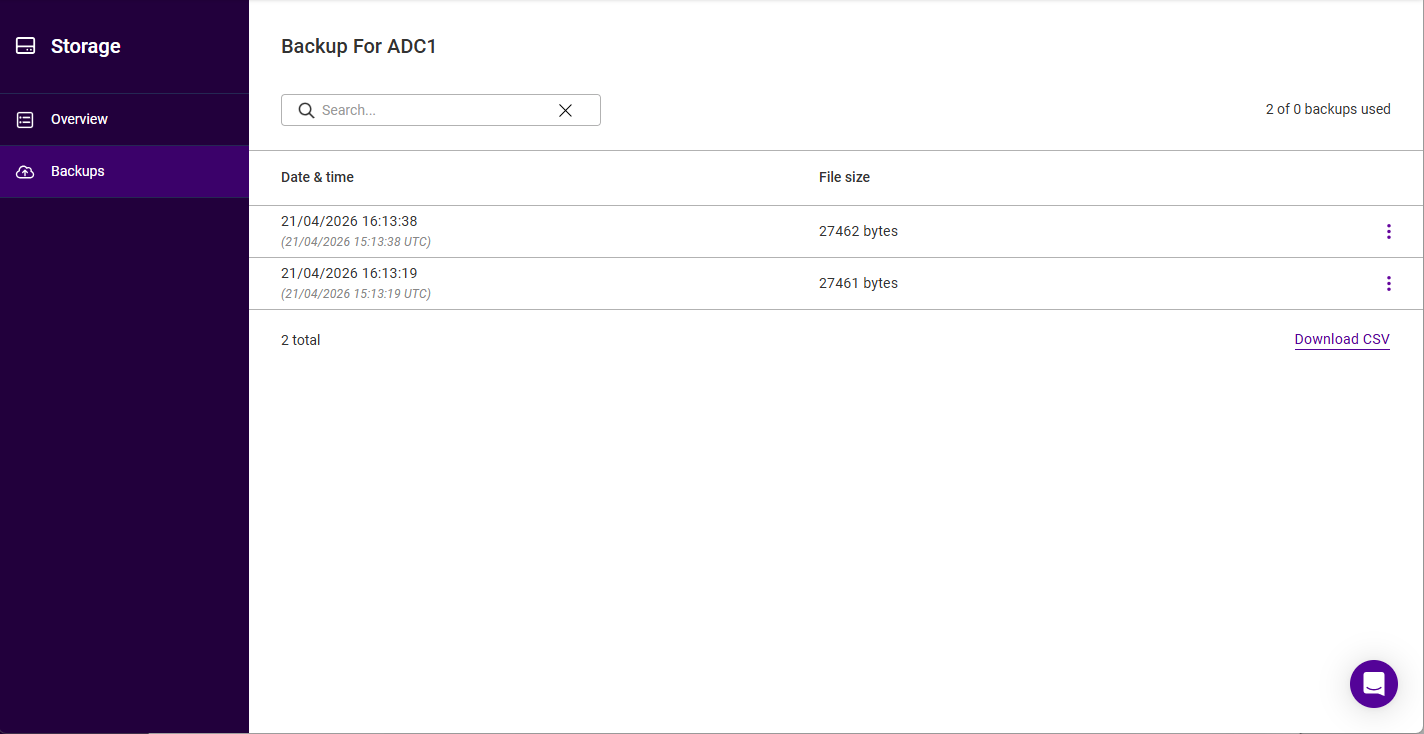
To download a backup:
| Depending on permissions granted, access to the OrgPrivateKey may be required when downloading backups. For more information on accessing the OrgPrivateKey, see Encryption & Keys. |
-
Click the three dots menu next to the backup to be downloaded.
-
Select Download.
-
Enter your password in order to decrypt and download the backup and click Submit.
-
Note the Backup Archive Password (ADC appliance ID) that is displayed on screen. This is required as a password for the encrypted file.
To delete a backup:
-
Click the three dots menu next to the backup to be deleted.
-
Click Delete, then click Confirm to delete the backup.