Storage & backups
Every backup taken by the ADC Portal is encrypted and stored securely. This section covers the backups held for each ADC - viewing them, downloading an individual backup for storage elsewhere, and deleting one.
Viewing Backups
To view the backups held in the Portal:
-
Using the Portal, navigate to ADC management > Storage & backups.
-
Existing backups will be listed:
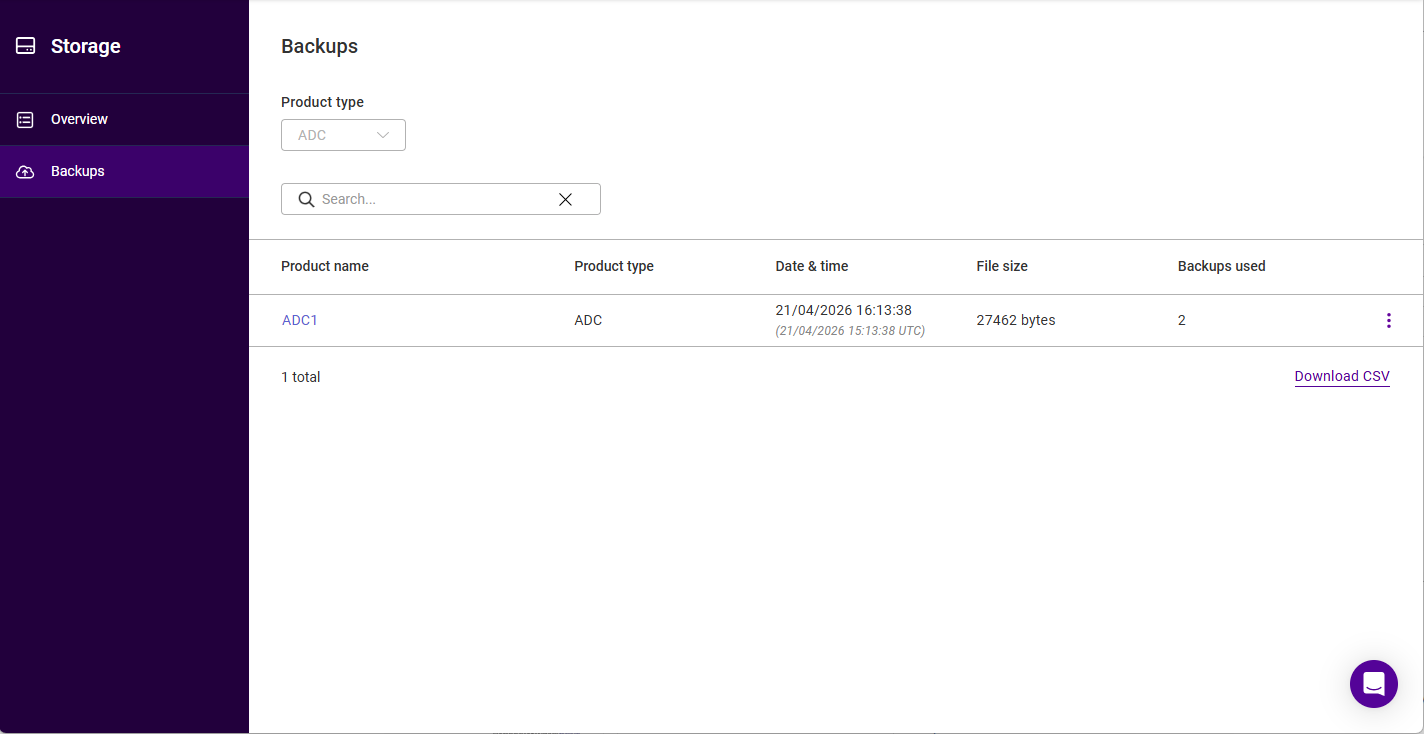
The list shows the following information for each backup:
Column Description Product name
The name of the ADC the backups belong to. Click it to list the individual backups held.
Product type
The type of product, i.e. ADC.
Date & time
When the most recent backup was taken, shown in both local time and UTC.
File size
The size of that backup.
Backups used
The number of backups currently held for the ADC.
A Product type dropdown above the list can be used to filter the entries shown - it’s greyed out when only one product type has backups. The Actions menu at the end of each row offers Download latest and Delete.
| Until the first backup is taken, the page reports No backups added yet. in place of the list and the Product type dropdown is not shown. |
Each entry covers a single ADC - in the example above, 2 backups have been created for ADC1. To view the individual backups held for an ADC:
-
Click the Product name, in this case ADC1.
-
The Backup for <name> screen will be displayed. This lists each individual backup with its Date & time (shown in both local time and UTC) and File size.
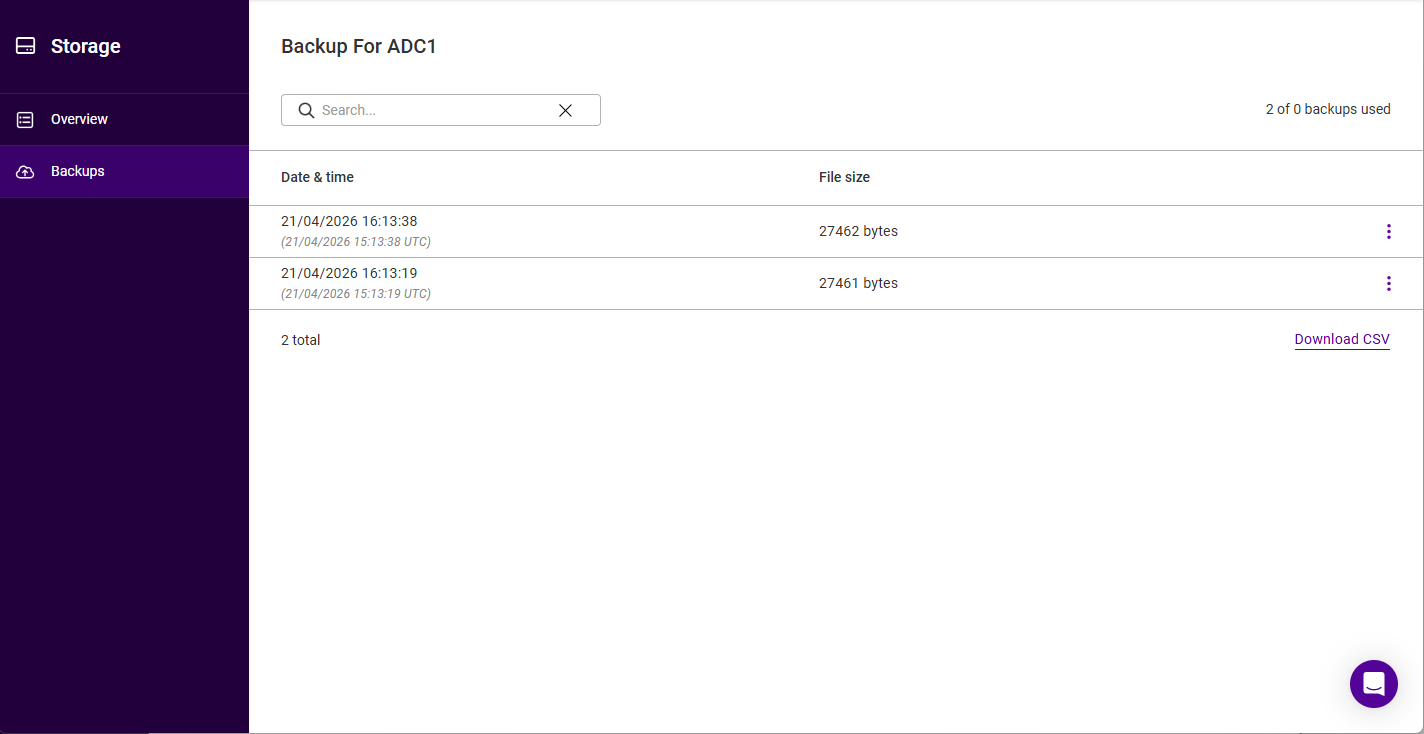
To order the list by a particular column, click the column heading. The sort order (ascending or descending) is indicated by the arrow - click the column heading again to change it.
The backups for an ADC can also be reached from the ADC itself, using View backups on its Actions menu. To have backups taken automatically, see Schedules.
Downloading a Backup
Each backup is downloaded individually, as an encrypted archive.
| Depending on permissions granted, access to the organisation private key may be required when downloading backups. For more information on accessing the organisation private key, see Encryption & Keys. |
To download a backup:
-
Open the list of backups for the ADC, as described in Viewing Backups.
-
Click the Actions menu next to the backup to be downloaded.
-
Select Download.
-
Enter your password in order to decrypt and download the backup and click Submit.
-
The Backup archive password dialog displays the ADC appliance ID that is required as a password for the encrypted file. Copy it using the copy icon provided and store it safely - the Ok button is greyed out until the ID has been copied.
-
Click Ok.
Deleting a Backup
To delete a backup:
-
Open the list of backups for the ADC, as described in Viewing Backups.
-
Click the Actions menu next to the backup to be deleted.
-
Click Delete, then click Confirm to delete the backup.