Accessing the Appliance WebUI
-
Using a browser, navigate to the following URL:
https://<IP-address-configured-during-the-network-setup-wizard>
You’ll receive a warning about the WebUI’s SSL certificate. This is due to the default self signed certificate that is used. If preferred, you can upload your own certificate. -
Log in to the WebUI using the following credentials:
Email: <configured-during-network-setup-wizard>
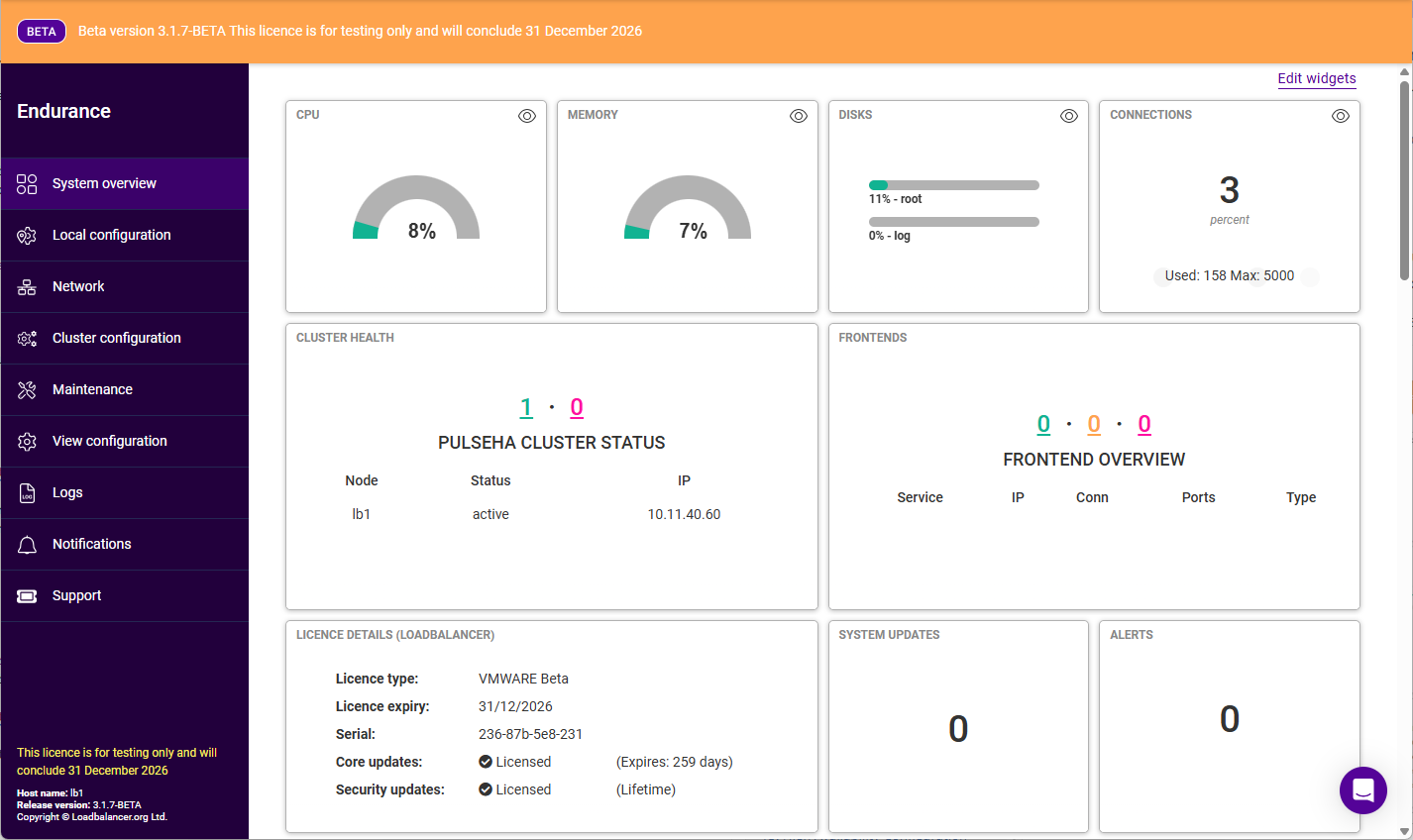
Password: <configured-during-network-setup-wizard>Once logged in, the WebUI will be displayed as shown below:
Menu Options
The main menu is comprised of a primary and secondary menu. By default, the primary menu is always open. This can be customised to suit your preferences under Maintenance > Account Settings.
The primary menu options are:
-
System Overview - Main system dashboard - includes key system information and summary of all load balanced services
-
Local Configuration - Configure local host settings such as data & time, WebUI settings and SNMP
-
Network - Configure network settings such as IP address, IP groups (subnets) DNS server(s)
-
Cluster Configuration - Configure load balanced services, SSL certificates, HA and health checks
-
Maintenance - Perform maintenance tasks such as backup and restore, service restarts and software updates
-
View Configuration - Display the on-disk configuration for all settings configured
-
Logs - View all system logs
-
Notifications - View all system notifications
-
Support - Create a support download, contact the support team & access useful resources