Advanced configurations
The Advanced configurations page provides access to the global settings for the Layer 4 and Layer 7 load balancing services. These settings apply to all Services of the corresponding type and rarely need to be changed from their defaults.
The settings are split across two tabs - Layer 4 and Layer 7.
To configure the global settings:
-
Using the WebUI, navigate to Cluster Configuration > Advanced configurations.
-
Select the Layer 4 or Layer 7 tab as required.
-
Configure the settings as described in the sections below.
-
Click Submit.
Layer 4
The Layer 4 tab configures the global settings for the Layer 4 (LVS/ldirectord) services.
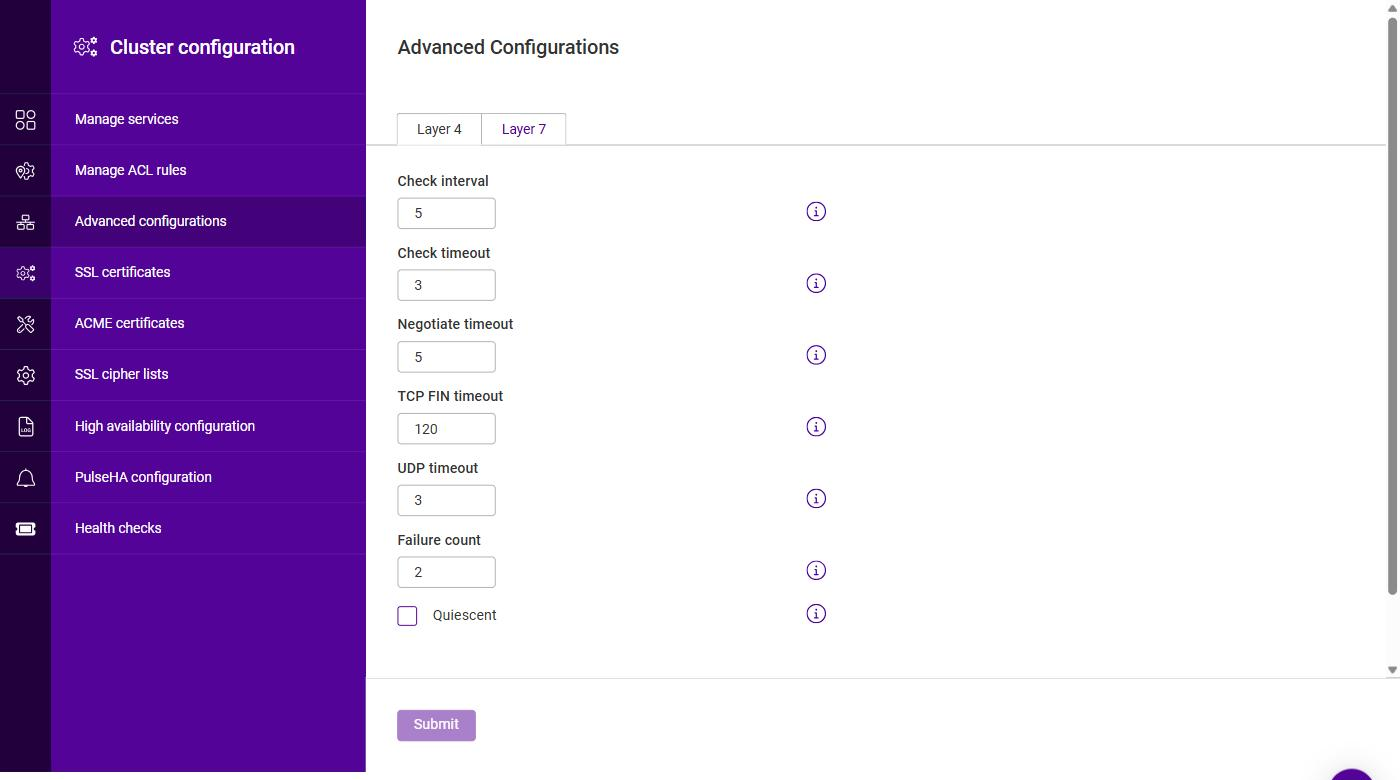
| Setting | Description |
|---|---|
Check interval |
The Layer 4 (ldirectord) health check interval, in seconds. If this value is too low, you may experience unexpected Real Server downtime. |
Check timeout |
The Layer 4 (ldirectord) health check timeout, in seconds. If this value is too low, you may induce unexpected Real Server downtime. |
Negotiate timeout |
The Layer 4 (ldirectord) negotiate health check timeout, in seconds. Negotiate checks may take longer to process as they involve more server-side processing than a simple TCP socket connect check. If this value is too low, you may induce unexpected Real Server downtime. |
TCP FIN timeout |
The time to remember a TCP session for after seeing a FIN packet. |
UDP timeout |
The time to remember a session for after seeing a UDP packet. The timeout is reset on every UDP packet received. |
Failure count |
The Layer 4 (ldirectord) number of times a check has to fail before taking a server offline. The time to detect a failure and take a server down will be (check interval + check timeout) x failure count. |
Quiescent |
Determines what happens when a Real Server fails its health check. When enabled (checked), the Real Server is not removed from the load balancing table on a health check failure - instead its weight is set to 0. Persistent connections continue to be routed to the failed server, but no new connections are accepted. When disabled (unchecked), the server is completely removed from the load balancing table on a health check failure; persistent connections are broken and sent to a different Real Server. |
| Quiescent only applies to health checks - it has no effect on taking Real Servers offline in the System Overview. To manually force a Real Server to be removed from the table, disable Quiescent and arrange for the server to fail its health check. This can be done, for example, by shutting down the daemon or service, changing the negotiate check value, or shutting down the server. |
Layer 7
The Layer 7 tab configures the global settings for the Layer 7 (HAProxy) services. The settings are grouped into a number of sections as described below.
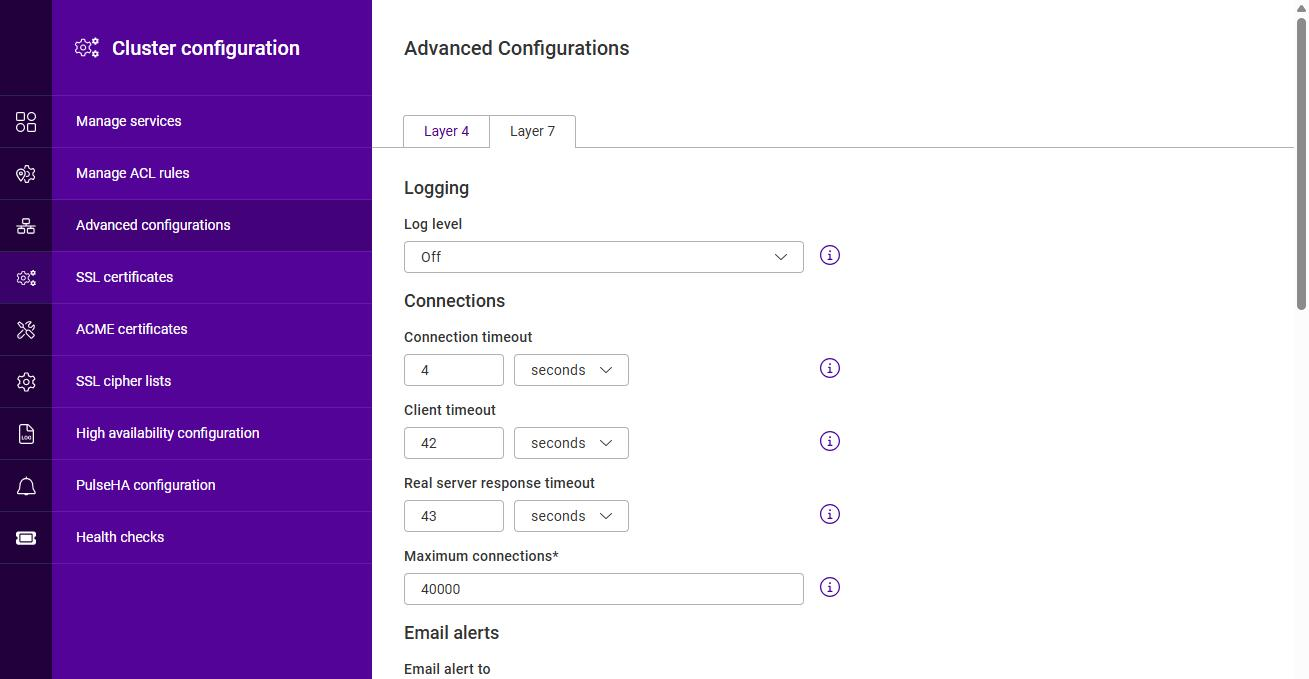
Logging
| Setting | Description |
|---|---|
Log level |
Sets the logging level for the Layer 7 (HAProxy) service. The options are Off, Health Check, Errors and Debug. Logs are written to /var/log/haproxy.log. |
| By default, the Layer 7 (HAProxy) service logs service state, restarts, reloads and health checks only. Setting the log level to Errors or Debug logs errors or individual connections respectively. Logging every connection on a busy Service is likely to rapidly exhaust the available log space. |
Connections
| Setting | Description |
|---|---|
Connection timeout |
The maximum time HAProxy waits for a connection attempt to a Real Server to succeed. Enter a value and select the unit (seconds, minutes, hours or days). This setting should not normally require changing. |
Client timeout |
The global client inactivity timeout. Enter a value and select the unit. This setting should not normally require changing. |
Real server response timeout |
The global Real Server response timeout. Enter a value and select the unit. This setting should not normally require changing. |
Maximum connections |
The per-process maximum number of concurrent connections. This setting should not require changing unless you are running a high volume site. |
Email alerts
| Setting | Description |
|---|---|
Email alert to |
The address that email alerts are sent to. |
Email alert from |
The "from" address used for email alerts. |
Email server address |
The email server address, entered as either an IP address or FQDN. |
Email server port |
The TCP port of the email server. The default is 25. |
Statistics page
Enable the Enable stats page checkbox to activate the HAProxy web-based statistics report. When enabled, the following additional settings are displayed:
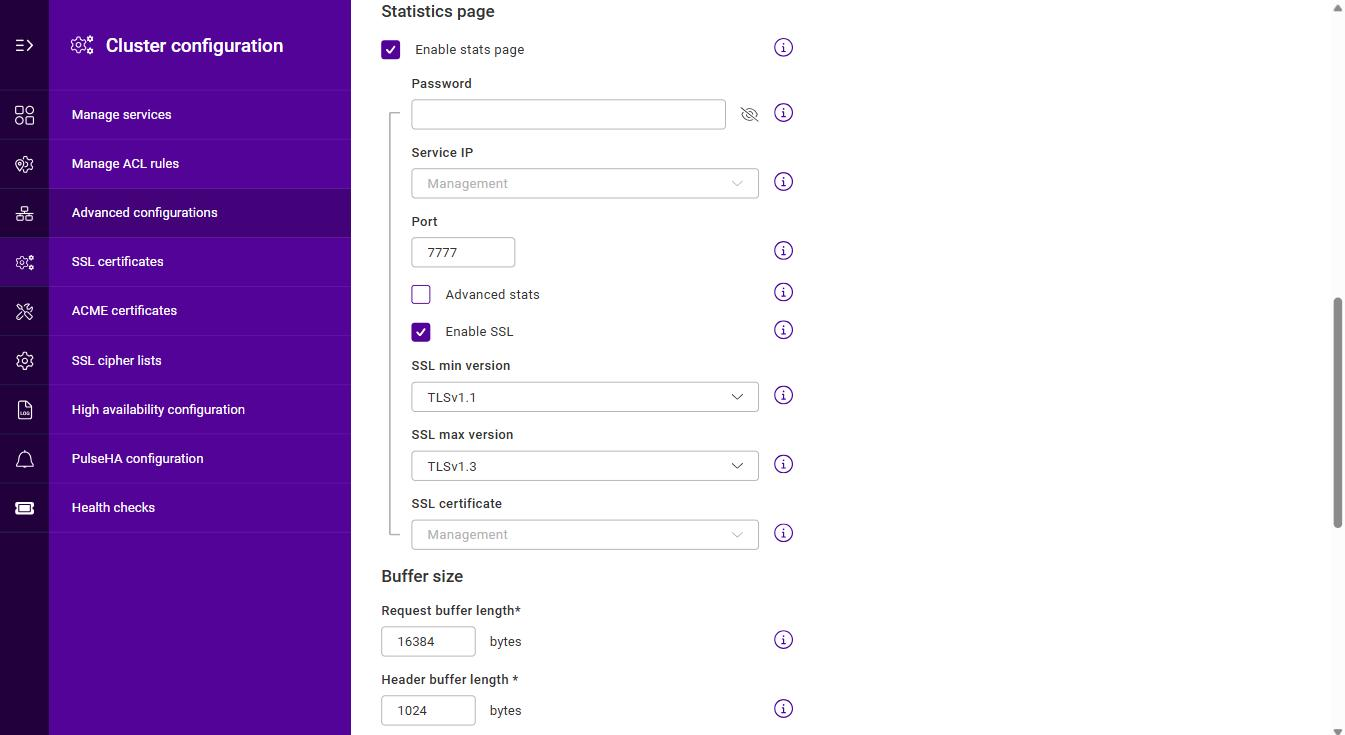
| Setting | Description |
|---|---|
Password |
The password used to access the HAProxy statistics report. |
Service IP |
The listening IP for the HAProxy statistics report, selected from the configured Service IPs. |
Port |
The listening port for the HAProxy statistics report. The default is 7777. |
Advanced stats |
When enabled, additional actions (such as enabling/disabling servers) are available on the HAProxy stats page. |
Enable SSL |
When enabled, the statistics page is served over SSL/TLS. |
SSL min version |
The minimum SSL/TLS version accepted for the statistics page, e.g. TLSv1.1. |
SSL max version |
The maximum SSL/TLS version accepted for the statistics page, e.g. TLSv1.3. |
SSL certificate |
The certificate used to secure the statistics page, selected from the configured SSL Certificates. |
Buffer size
| Setting | Description |
|---|---|
Request buffer length |
The request buffer length, in bytes. The default value is 16384 bytes. |
Header buffer length |
The header buffer length, in bytes. The header buffer is a section of the request buffer, reserved for the addition and rewriting of request headers. The default value is 1024 bytes. Most applications only require a small header buffer, as few headers are added or rewritten. |
| Changing the request buffer length affects the performance of HAProxy - do not make changes unless you know exactly what you are doing. Lower values allow more sessions to coexist in the same amount of RAM, and higher values allow some applications with very large cookies to work. It is strongly recommended not to change this from the default value, as very low values will break some services such as the statistics page, and values larger than the default will increase memory usage, possibly causing the system to run out of memory. Consider reducing the Maximum connections value if the request buffer is increased. |
Persistence table replication
When configured, HAProxy’s persistence tables are replicated to the peer appliance in an HA pair.
| Setting | Description |
|---|---|
Persistence replication service IP |
The Service IP used for persistence table replication. |
Persistence replication port |
The TCP port used for persistence table replication. The default is 7778. |
Multi threading
| Setting | Description |
|---|---|
Enable Max threads |
Enables or disables multi-threading for the Layer 7 (HAProxy) service. Multi-threading can improve performance if connection limits are being reached. |
Number of threads |
The maximum number of worker threads started per HAProxy process. |
| Multi-threading is enabled by default and the number of threads is set automatically based on the number of detected CPUs / vCPUs. |