Virtual Appliance Deployment
Currently, Endurance is available in ISO format with full support for VMware. Additional platforms and deployment formats are coming soon.
The latest ISO file can be downloaded from the Endurance download page if not done so already.
| There are 2 Platform options on the download page: ISO and VMware. Selecting "VMware" provides an image that includes VMware Tools, selecting "ISO" provides an image without VMware Tools which can be used with other hypervisors but with limited hypervisor integration. |
To create a VA using vSphere:
-
Login to vSphere client and upload the ISO file to an appropriate datastore.
-
Create a 64bit Rocky Linux VA, customize the Hardware as shown below:
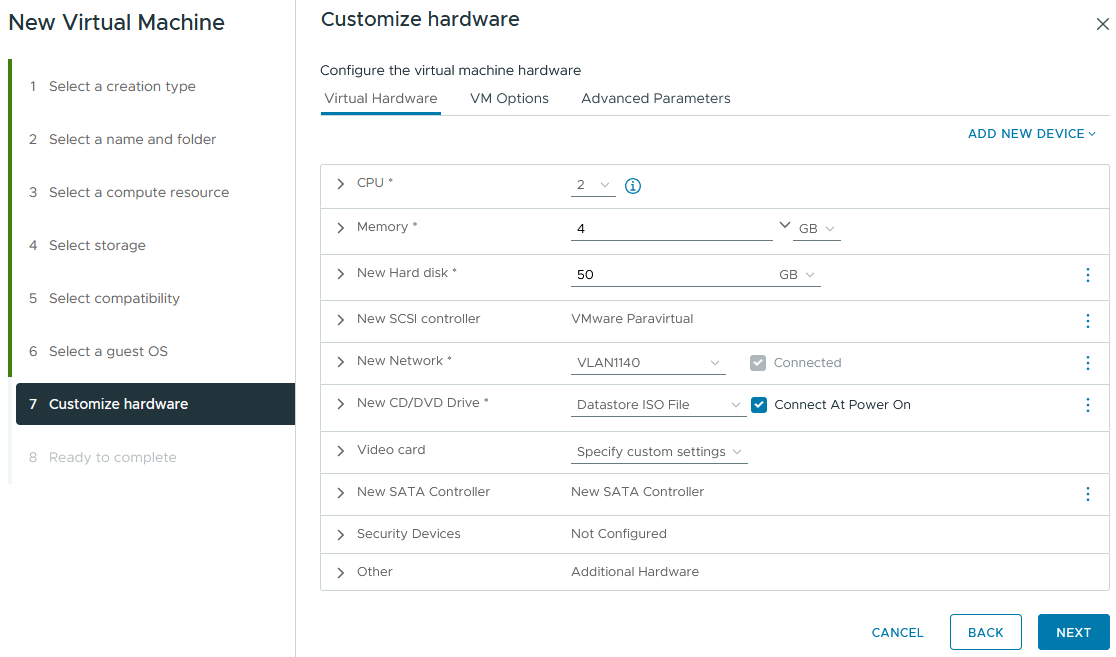
-
Configure the following vCPU, RAM, hard disk and network resources:
-
2 vCPUs
-
4 GB RAM
-
50 GB drive
-
Use the ADD NEW DEVICE option to add additional network adapters if needed
In a production environment, separate interfaces are normally used for management and workload traffic. In a test environment a single interface can be used for both if preferred.
-
-
Connect the network adapter(s) to an appropriate network.
-
Set the appliance’s virtual CD/DVD drive to Datastore ISO File and browse to & select the ISO file download previously. Ensure that Connect At Power On is enabled.
-
Click Next then Finish to create the VA.
-
Power up to the appliance.
-
At the console, select Test this media & install LBOS 3.2.0-BETA and hit Enter to start the installation.
-
Once complete, hit Enter to quit the installer and start Endurance.