Health checks
The Health checks page holds the library of health check scripts available to the appliance. These scripts are used by the External Script health check when configuring services:
-
For Layer 4 Services and Layer 7 Services, a script is selected in the _External check script field when the Health check type is set to External Script.
-
For GSLB Services, a script is selected in the _Healthcheck script field when the Healthcheck mode is set to External Script or External Dynamic Weight (see GSLB Health Check Scripts).
The appliance ships with a comprehensive set of built-in scripts covering many common applications and protocols. Custom scripts can also be added to support bespoke health checks.
To view the configured health checks:
-
Using the WebUI, navigate to Cluster Configuration > Health checks.
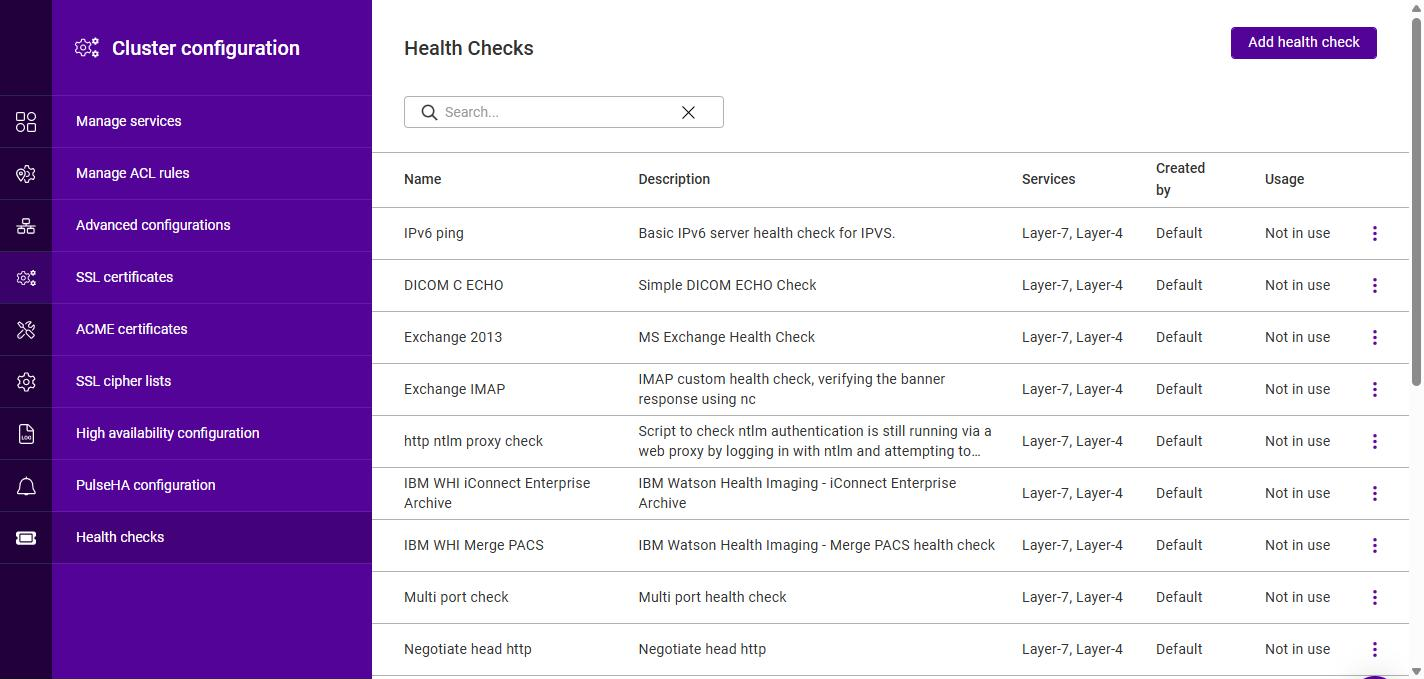
The list shows the following information for each health check:
Column Description Name
The name of the health check script.
Description
A short description of the script’s purpose.
Services
The service type(s) the script applies to - Layer-7, Layer-4 and/or GSLB.
Created by
The origin of the script - Default for the built-in scripts supplied with the appliance, or User for scripts that have been added on this appliance.
Usage
Whether the script is currently referenced by a service. A script that is not assigned to any service shows Not in use.
| Use the Search box above the list to filter the health checks by name or description. |
Adding a health check
To add a custom health check script:
-
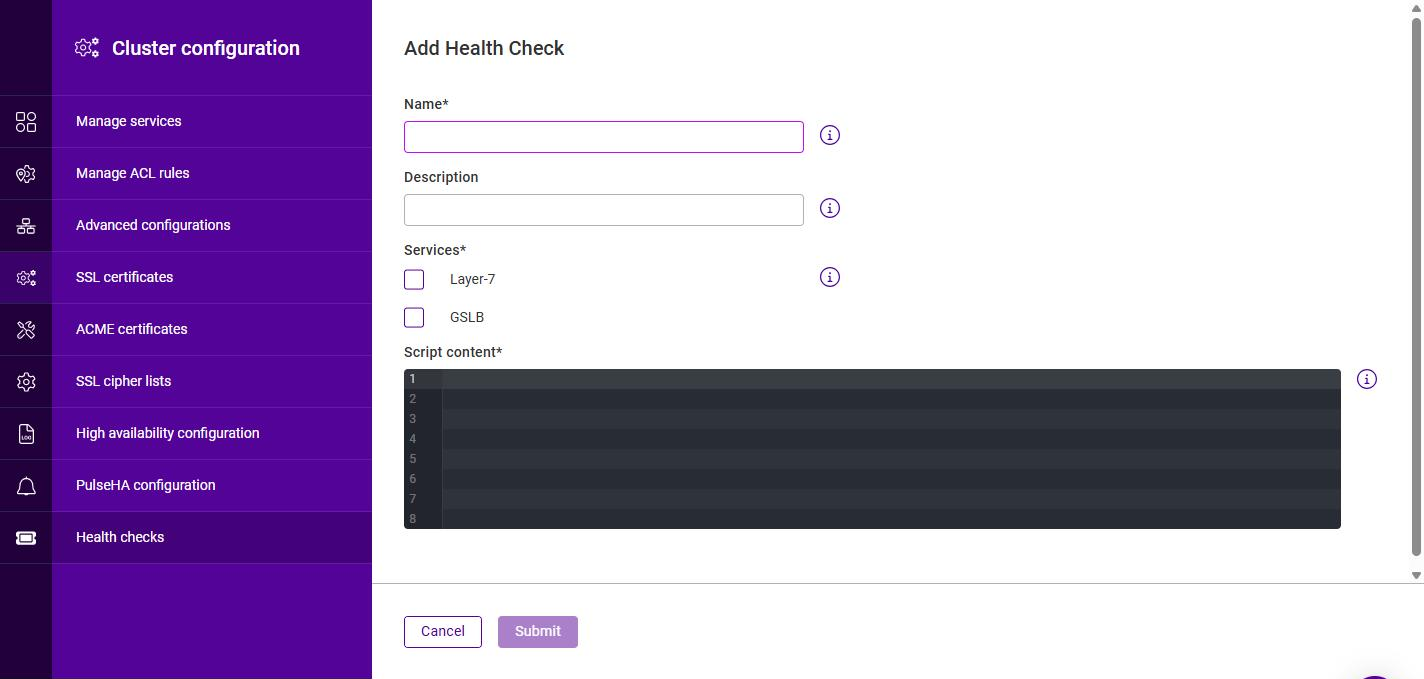
Using the WebUI, navigate to Cluster Configuration > Health checks and click Add health check.
-
Configure the health check:
Field Description Name
A name for the health check script. Only the characters 0-9, A-Z and a-z are permitted (no spaces or special characters).
Description
An optional, meaningful description of the script’s purpose.
Services
Script content
The contents of the script, entered in the code editor. The exit status of the script determines whether the Real Server is considered up or down.
-
Click Submit.
Once added, the script appears in the Health Checks list with Created by set to User and becomes available for selection in the relevant service wizards.
| The code editor theme (light or dark) is set under Maintenance > Account settings. |
Viewing, duplicating, editing & deleting health checks
The actions available from a health check’s three-dots menu depend on how the script was created.
Default scripts (those supplied with the appliance) cannot be modified or deleted. The menu offers:
-
View - display the script content (read-only).
-
Duplicate - create an editable copy of the script to use as the starting point for a custom check. The copy is pre-populated with the original’s description, services and script content. Specify a new Name (following the naming rules above), adjust the settings and content as required, then click Submit. The new script is added as a User script.
User scripts (those added on this appliance) can be modified and removed. The menu offers:
-
Edit - modify the script’s name, description, services and content.
-
Delete - permanently remove the script. A confirmation dialog is displayed; click Confirm to delete.