Manage ACL Rules
By default, an ACL is automatically configured when a Virtual Service is created. This links the frontend to the backend.
Additional ACLs can be created to control and direct traffic based on a set of defined rules. This functionality is also known as URL rewriting, URL redirection, URL forwarding or content switching.
ACLs are read as a sentence: from a frontend, if a part of the request matches (or does not match) a value, then an action is taken. Some match types and actions depend on information from the application layer and so are only available for HTTP mode (Layer 7) Virtual Services.
| Layer 4 Virtual Services can only have a single ACL rule (the default rule that links the frontend to its backend). The full range of match types and actions described below applies to Layer 7 (HTTP mode) Virtual Services. |
Adding an ACL Rule
To add a new ACL:
-
Using the WebUI, navigate to Cluster Configuration > Manage ACL rules.
-
Either:
-
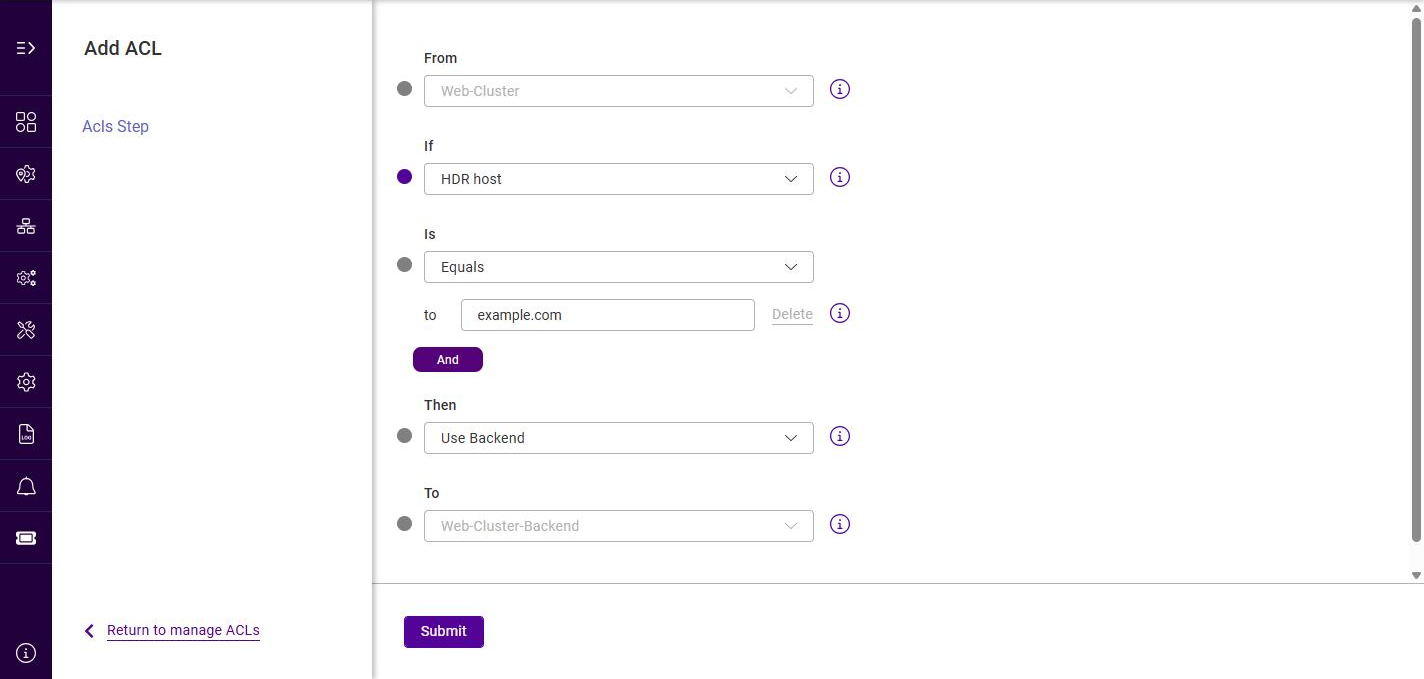
Click the frontend where you’d like to add ACL(s), e.g. Web-Cluster, then click Add ACL, or
-
Click Add ACL, then using the From dropdown, select the relevant frontend, e.g. Web-Cluster.
-
-
Using the If dropdown, select the match type to test the request against (see section_acl_match_types).
-
For the Custom HDR begins, HDR, Query, URL parameter and Response header types, a Header/param field is shown - enter the name of the header or parameter to match against, e.g. Content-Type.
-
Using the Is dropdown, select the condition:
Condition Description Equals
Perform the action if the request matches the value entered.
Not Equals
Perform the action if the request does not match the value entered.
-
Enter the value to match against in the to field, e.g. example.com.
-
To require more than one condition for the same rule, click And and add a further match. Use the Delete link next to a match to remove it.
-
Using the Then dropdown, select the action to take (see section_acl_actions).
-
Depending on the action selected, complete the additional field(s) shown - for example, choose the target backend from the To dropdown, or enter a URL, header value or server name in the value field.
-
Click Submit.
ACL Match Types (the If dropdown)
The match types available in the If dropdown are listed below. The Header/param column indicates whether a header or parameter name must also be supplied.
| Match type | Description | Header/ param | Example value |
|---|---|---|---|
IP Address or CIDR |
Match against the source IP address of the request. CIDR notation and multiple comma-separated values may be used. |
No |
|
Port |
Match against the destination TCP port of the request. |
No |
|
Always False |
A condition that never matches. Useful for temporarily disabling a rule. |
No |
- |
Default |
The default rule, applied when no other ACL matches. Typically routes to the default backend. |
No |
|
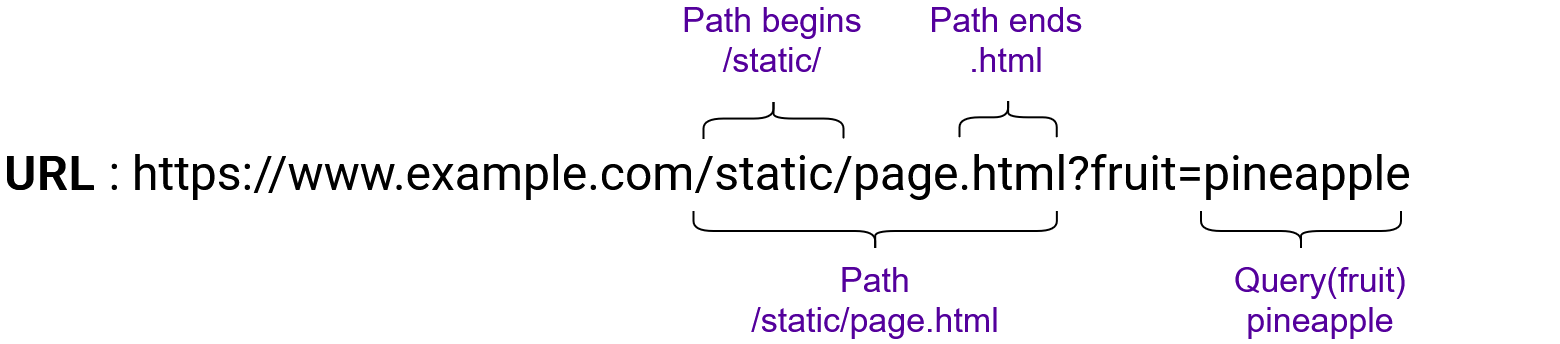
Path begins |
Match against the beginning of the request’s URL path. |
No |
|
Path substring |
Match against any substring within the request’s URL path. |
No |
|
Path ends |
Match against the end of the request’s URL path. |
No |
|
Path regex |
Match the request’s URL path against a regular expression. |
No |
|
Path |
Match against the request’s full URL path (from the first slash up to the optional question mark that begins the query string). |
No |
|
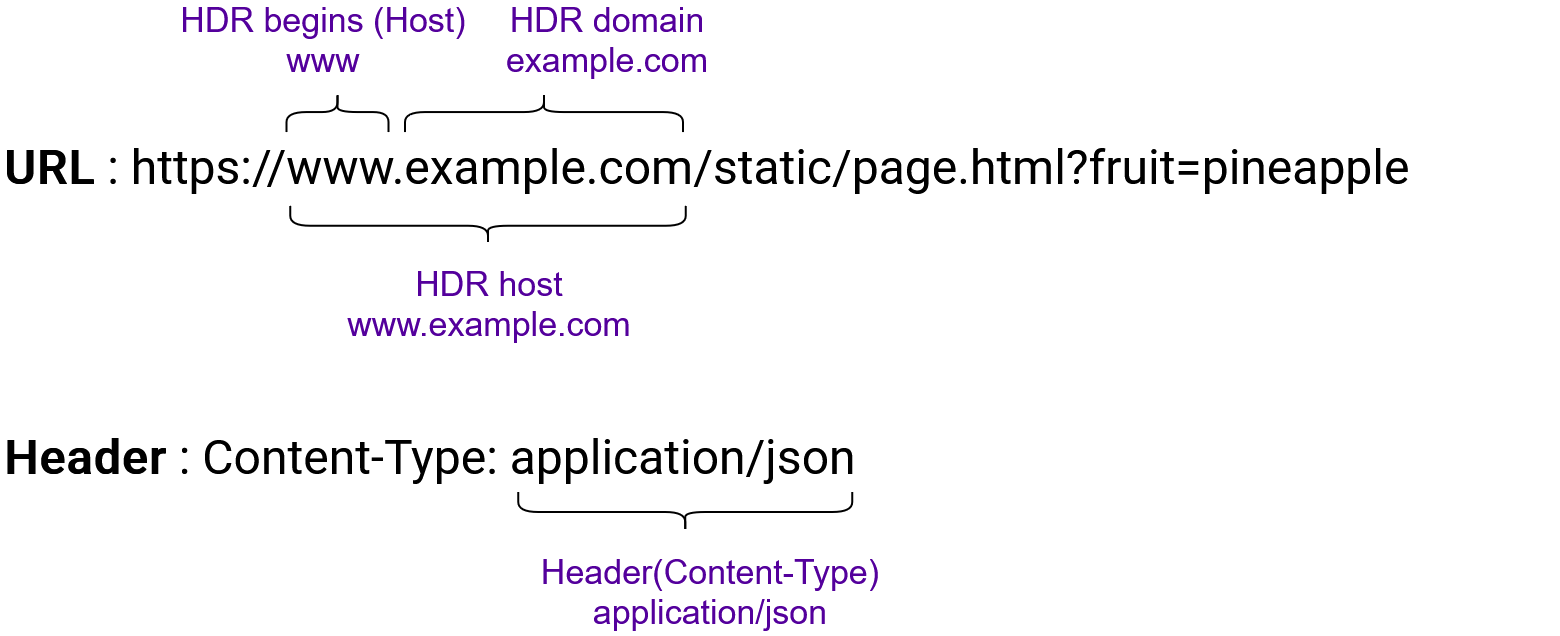
HDR host |
Match against the request’s full Host header. |
No |
|
HDR begins (Host) |
Match against the beginning of the request’s Host header. |
No |
|
Custom HDR begins |
Match against the beginning of a named request header. |
Yes |
|
HDR domain |
Match against the domain portion of the request’s Host header. |
No |
|
HDR |
Match against a named request header. |
Yes |
|
Query |
Match against a named query-string parameter. |
Yes |
|
URL parameter |
Match against a named URL parameter. |
Yes |
|
HTTP method |
Match against the request’s HTTP method. |
No |
|
Response status |
Match against the HTTP status code of the response. |
No |
|
Response header |
Match against a named response header. |
Yes |
|
Response cookie |
Match against a response cookie. |
No |
|
ACL Actions (the Then dropdown)
When a rule matches (or, with Not Equals, does not match), the selected action is taken. The action’s target - a URL, IP, backend/real server name or header value - is entered in the value field unless noted otherwise.
| Action | Description | Additional fields |
|---|---|---|
None |
No action is taken when the rule matches. |
- |
Drop |
Stop and immediately close the connection without sending a response. |
- |
TCP Reject |
Immediately close the TCP connection by sending a TCP Reset (RST) packet, causing the client to fail instantly. |
- |
Use Backend |
Use the specified backend, or another Virtual Service, to handle the request. |
Select the target from the To dropdown. |
Use Server |
Use the specified real server to handle the request. |
Enter the server name in the value field. |
Capture Header |
Capture the contents of a named request header so that it is recorded in the logs. |
Redirect param (header name, e.g. X-Custom-Header) and Capture length (maximum characters to capture, default 64). |
Deny |
Stop and immediately deny the request, returning the chosen HTTP status code as a response. |
Redirect with code (HTTP status code - see section_acl_deny_codes). |
URL location |
Redirect the request to the exact location specified, using a 301 Moved Permanently status code. |
- |
URL prefix |
Redirect the request to the URL path originally requested, prefixed with the specified string, using a 301 Moved Permanently status code. |
- |
HTTPS |
Perform a trivial HTTP-to-HTTPS redirect. |
- |
Set Path |
Rewrite the path of the request to the value specified. |
- |
Response Redirect |
Return an HTTP redirect response to the location specified. |
- |
Set Request Header |
Set (or add) a request header before the request is forwarded. |
Redirect param (header name); enter the header value in the value field. |
Replace Path |
Replace the request’s URL path with the value specified. |
Redirect param (the path or expression to match). |
Deny - Redirect with Code
When the Deny action is selected, the Redirect with code dropdown sets the HTTP status code returned to the client. The available codes are: 200 OK, 400 Bad Request, 401 Unauthorized, 403 Forbidden, 404 Not Found, 405 Method Not Allowed, 407 Proxy Authentication Required, 408 Request Timeout, 410 Gone, 425 Too Early, 429 Too Many Requests, 500 Internal Server Error, 502 Bad Gateway, 503 Service Unavailable and 504 Gateway Timeout.
Modifying or Deleting an ACL Rule
To change or remove an existing ACL:
-
Using the WebUI, navigate to Cluster Configuration > Manage ACL rules.
-
Click the frontend whose ACLs you want to manage, e.g. Web-Cluster. The Manage <frontend> ACL page lists each rule with its Path Type, Condition, Value, Redirect, Location and Code.
-
Click the actions (⋮) menu at the end of the relevant row and choose:
-
Edit - reopens the rule in the ACL editor so that any of its settings can be changed. Click Submit to save.
-
Delete - removes the rule.
-
| Layer 4 frontends can only have a single ACL rule, so additional rules cannot be added to them. |
ACL Examples
Example 1
A Virtual Service occasionally sees requests for a retired domain, www.foo.com. These requests need
to be redirected to the new domain: www.bar.com. For example, a request for
https://www.foo.com/static/diagram.svg must be redirected to
https://www.bar.com/static/diagram.svg.
-
Match type to use: HDR host, with the condition Equals and the value
www.foo.com. -
Action to use: URL prefix, with the prefix
https://www.bar.com.
Example 2
A web service has been moved: previously, all of its resources were located under /web-service/,
but now everything is located under /legacy/web-service/. Any requests for old locations, whose
paths start with /web-service/, must be redirected to the correct new locations.
-
Match type to use: Path begins, with the condition Equals and the value
/web-service/. -
Action to use: URL prefix, with the prefix
/legacy.
Example 3
It’s necessary to force the use of a particular real server in some scenarios. This must be achieved
by setting a particular query-string parameter to the name of the server. For example,
http://192.168.0.10/?server_override=apache_srv_dev should trigger the override condition and send
the request to the chosen server.
-
Match type to use: Query, with the Header/param set to
server_override, the condition Equals and the valueapache_srv_dev. -
Action to use: Use Server, with the server name
apache_srv_dev.