Notifications
This chapter covers the appliance’s notifications - the record it keeps of significant events such as configuration changes, licensing messages and service warnings or errors, and how those events are reviewed, filtered, searched and deleted.
The Notifications page provides a single place to review, filter, search and manage these events.
A bell icon is displayed in the top navigation bar. Clicking the icon opens the Notifications page.
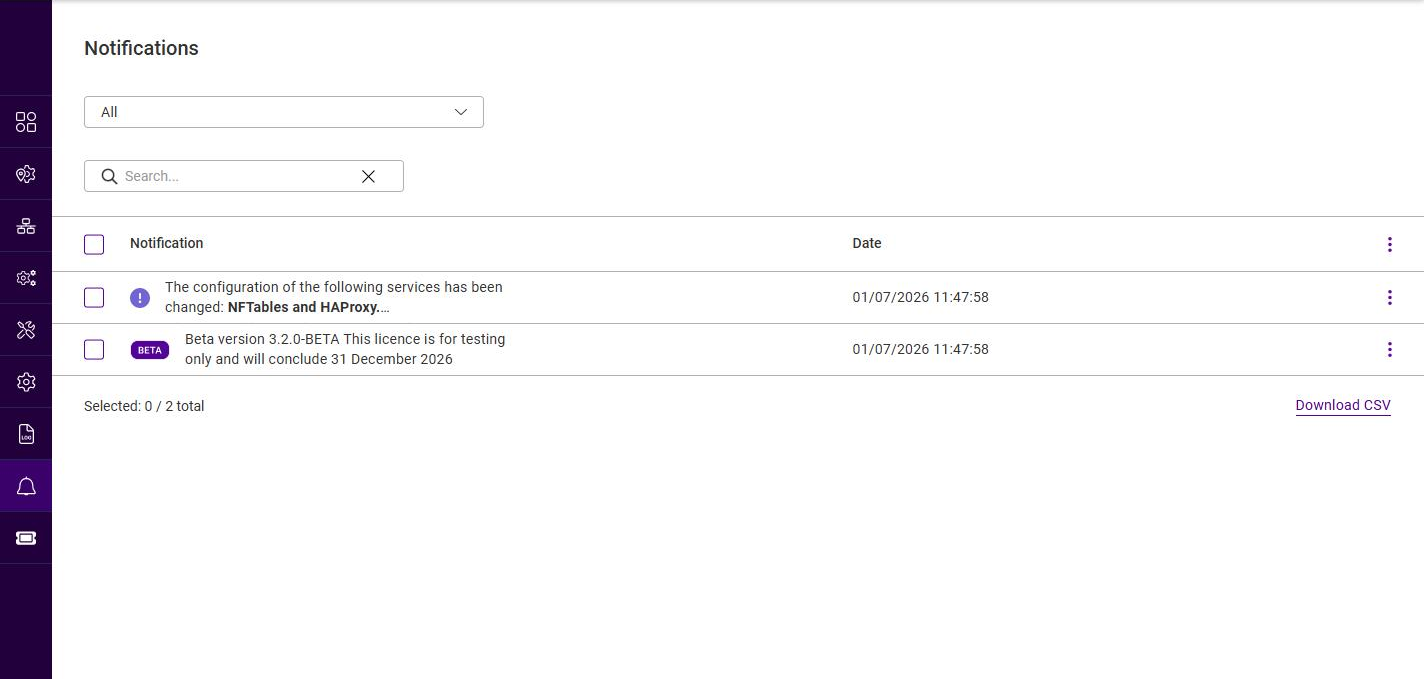
Each notification is listed on its own row, showing the following:
| Column | Description |
|---|---|
(checkbox) |
Selects the notification, so that several can be deleted together - see Deleting Notifications. The checkbox in the table header selects every notification in the list. |
Notification |
The notification message, preceded by an icon indicating its severity - Error, Warning, Success or Info. |
Date |
The date and time the notification was raised, in m/d/yyyy h:mm:ss AM/PM format. |
(actions) |
The three dots menu used to delete the individual notification. |
The notifications seen on a healthy appliance - the trial/license reminder and the "There are n system updates available!" message - are informational and do not respond to a click.
| Pending configuration changes are not recorded here. Adding or changing a service raises a banner and a toast naming the services that need applying, and those are applied from Settings > System services - see System services. |
The total number of notifications, and the number currently selected, is shown at the bottom left of the list (for example, Selected: 0 / 2 total). The list can be exported by clicking the Download CSV link at the bottom right.
Filtering & Searching Notifications
The list can be narrowed to make specific notifications easier to find:
-
Filter by severity - use the drop-down above the list to display only notifications of a particular severity. The available options are:
Option Description All
Display notifications of every severity (the default).
Error
Display error notifications only.
Warning
Display warning notifications only.
Success
Display success notifications only.
Info
Display informational notifications only.
-
Search - type into the Search box to filter the list to notifications whose text matches the entered term. Click the X to clear the search and show all notifications again.
Deleting Notifications
Notifications can be removed once they are no longer required.
To delete a single notification:
-
Click the three dots menu at the end of the notification’s row.
-
Click Delete.
To delete several notifications at once:
-
Select (check) the box at the start of each notification to be deleted. To select every notification in the list, check the box in the table header.
-
Click the three dots menu in the table header.
-
Click Delete selected notifications.