ACL rules
This chapter covers the features used to support and control configured services, grouped under Manage services in the WebUI:
-
ACL Rules - content-based rules that steer or manipulate traffic for Layer 7 services.
-
High availability - clustering two or more appliances for resilience.
-
SSL/TLS - central management of SSL certificates, ACME certificates and cipher lists.
-
Healthchecks - custom health check scripts used to monitor Real Server availability.
An ACL (Access Control List) rule is read as a sentence: from a frontend, when an incoming request matches one or more conditions, then an action is taken. ACL rules are used to steer traffic to a particular backend and to inspect, rewrite, redirect or reject requests - functionality that is also known as content switching, URL rewriting, URL redirection and URL forwarding.
When a Virtual Service is created, a Default ACL rule is added automatically. This rule links the frontend to its backend and needs no further configuration. Additional rules can then be added to route or manipulate traffic based on the properties of each request.
Using the WebUI, navigate to ACL Rules to open the Manage ACLs page. This lists each frontend that has ACL rules configured:
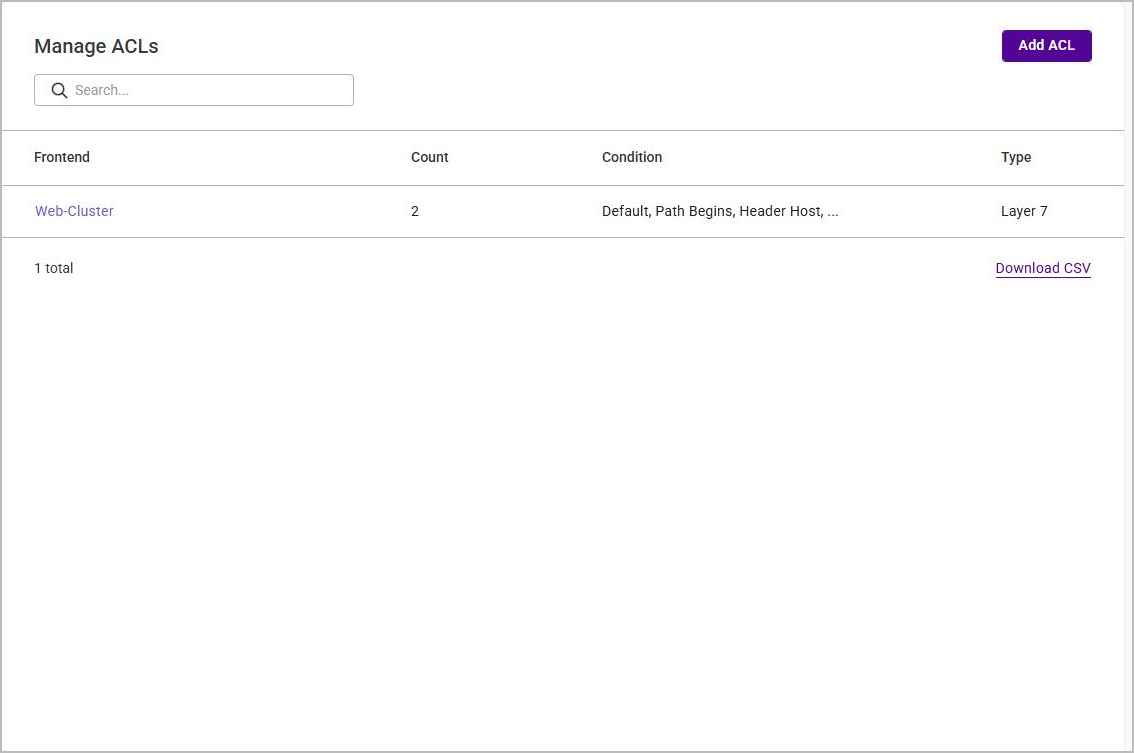
| Column | Description |
|---|---|
Frontend |
The name of the frontend the rules belong to. Click the name to manage the rules of that frontend. |
Count |
The number of ACL rules configured on the frontend, including the default rule. |
Condition |
A summary of the condition types used by the rules on the frontend. |
Type |
The layer the frontend operates at - Layer 4 or Layer 7. |
The Search field filters the list, and Download CSV exports it. To create a rule, click Add ACL - see Adding an ACL Rule.
If any backends, ACL rules or Real Servers exist that are not associated with a parent object, additional Hanging backends, Hanging ACLs and Hanging real servers buttons are also shown - see Hanging Backends, ACL Rules & Real Servers.
| Layer 4 frontends can only have a single ACL rule - the default rule that links the frontend to its backend. The condition types and actions described below are available in full for Layer 7 (HTTP mode) Virtual Services. |
Managing the ACL Rules of a Frontend
To view and manage the rules of a frontend, use the WebUI to navigate to ACL Rules, then click the name of the frontend, e.g. Web-Cluster. The Manage <frontend> ACL page is displayed:
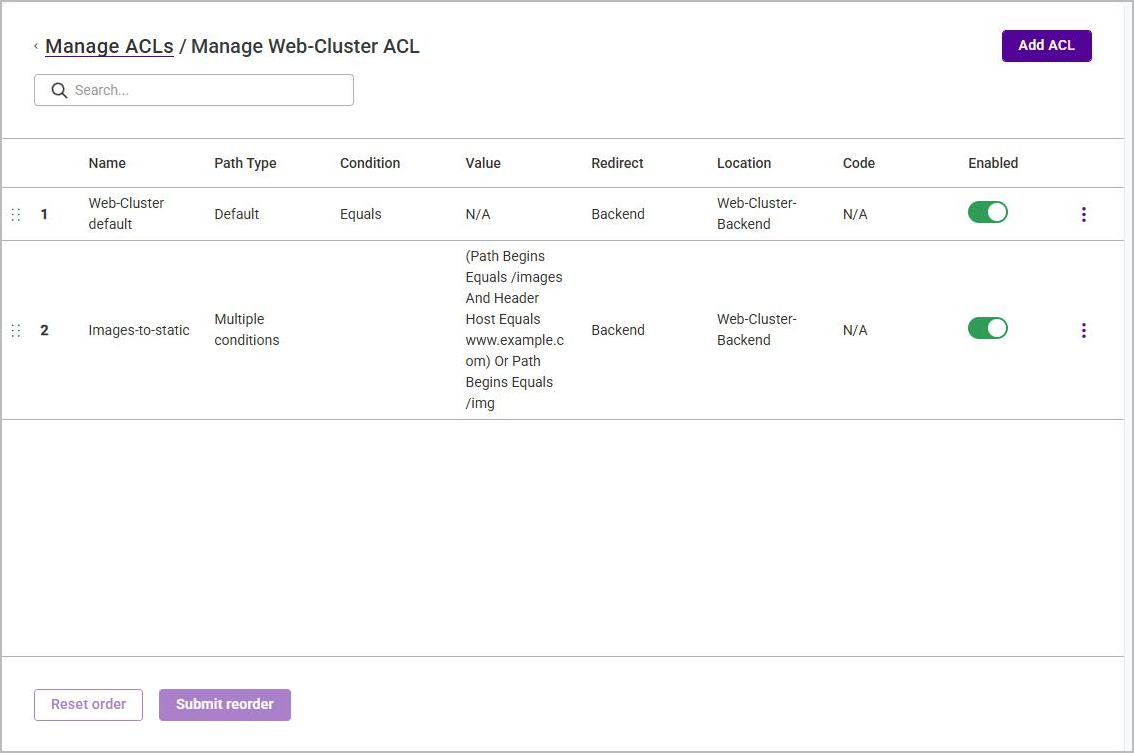
| Column | Description |
|---|---|
(number) |
The position of the rule in the evaluation order - see Rule Order & Evaluation. |
Name |
The name given to the rule. |
Path Type |
The condition type the rule tests, e.g. Path Begins. Rules that combine more than one condition are shown as Multiple conditions. |
Condition |
The comparison used by the rule, e.g. Equals. |
Value |
The value the request is matched against. For a rule with several conditions, the complete
condition set is shown in a readable form, e.g.
|
Redirect |
The action taken when the rule matches, e.g. Backend. |
Location |
The target of the action, e.g. the name of the backend traffic is sent to. |
Code |
The HTTP status code returned by the action, where the action uses one. |
Enabled |
A toggle that enables or disables the rule - see Enabling & Disabling a Rule. |
To change or remove a rule, click the actions (⋮) menu at the end of the relevant row and choose:
-
Edit - reopens the rule in the ACL editor so that any of its settings can be changed. Click Submit to save the changes.
-
Delete - removes the rule.
Enabling & Disabling a Rule
The Enabled toggle in each row turns an individual rule on or off. The change is saved as soon as the toggle is clicked and the row is greyed out while the rule is disabled.
A disabled rule is retained in the configuration database but is omitted from the generated load balancer configuration, so it has no effect on traffic. This makes it possible to take a rule out of service temporarily without deleting it and having to recreate it later.
Rule Order & Evaluation
The rules of a frontend are written to the load balancer configuration in the order they are listed and are evaluated from the top of the list downwards. Where more than one rule could route the same request to a backend, the first rule that matches takes effect, so the order of the rules determines which backend is used.
To change the order:
-
Drag a row by the handle at the left of the row to its new position in the list.
-
Click Submit reorder to save the new order, or Reset order to discard the change and restore the previous order.
| The Default rule does not need to be placed last. It is written to the configuration as the frontend’s default backend, which the load balancer only uses when no other rule has matched, so it always acts as the fallback regardless of its position in the list. |
Adding an ACL Rule
To add a new ACL rule:
-
Using the WebUI, navigate to ACL Rules.
-
Either:
-
Click the frontend where you’d like to add the rule, e.g. Web-Cluster, then click Add ACL, or
-
Click Add ACL on the Manage ACLs page.
If the appliance has Layer 4 frontends that do not yet have an ACL rule, a Select ACL layer dialog is displayed first. Select layer4 or layer7 to choose which type of rule to create.
-
-
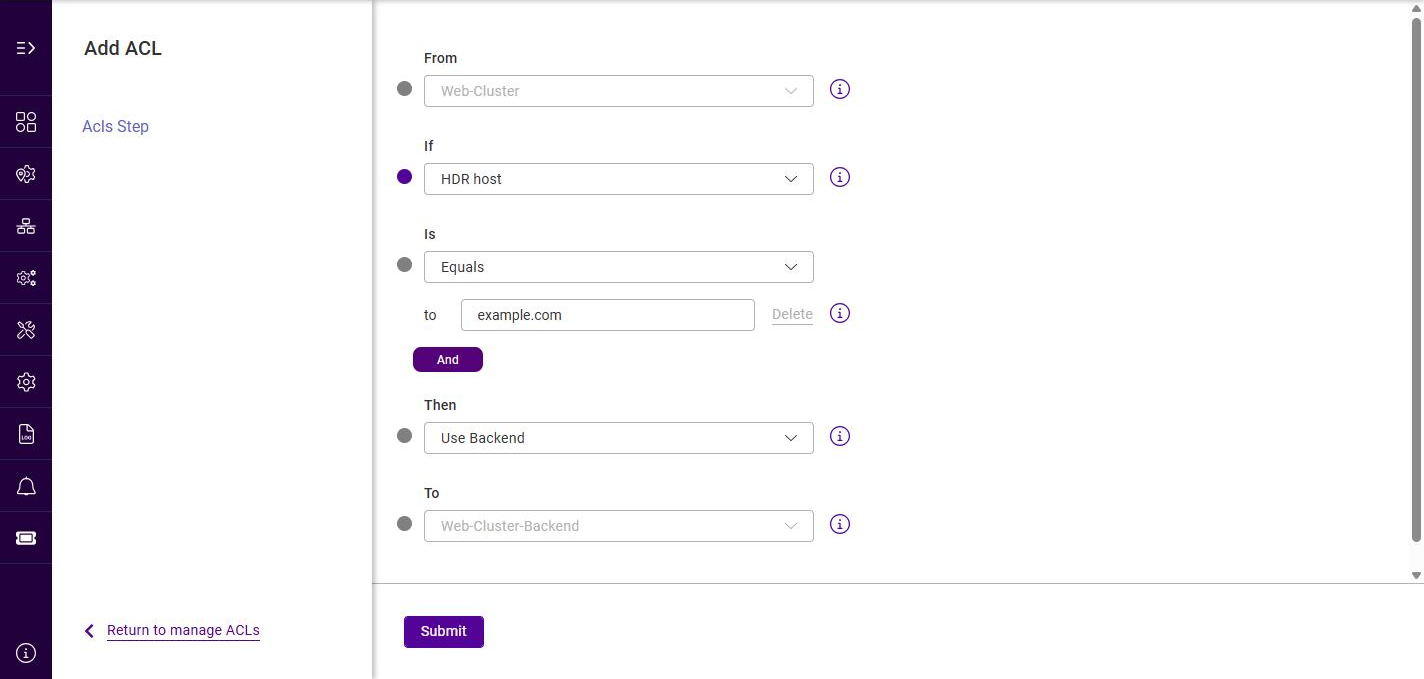
The Add ACL page is displayed:
-
Specify a Name for the rule (required). The name must be unique.
A rule created automatically with the service is named <frontend name> default- for a frontend called Web-Cluster, Web-Cluster default. That name can be changed afterwards from this page like any other rule. -
The From field shows the frontend the rule belongs to. If more than one compatible frontend is available, use the dropdown to select the required frontend.
-
Under When an incoming request matches…, define the condition(s) the request is tested against - see ACL Conditions.
-
Under Then…, select the action to take when the rule matches, and complete any additional field(s) that are displayed for that action - see ACL Actions.
-
Optionally, click Preview expression to check the configuration the rule will generate - see Previewing & Editing the Expression.
-
Click Submit.
ACL Conditions
A condition consists of three parts: the part of the request to examine (the condition type), the comparison to make, and the value to compare against.
Condition Types
The condition types available are listed below. The Header/param column indicates whether the name of a header or parameter must also be supplied in the Header/param field that is displayed alongside the condition.
| Condition type | Description | Header/ param | Example value |
|---|---|---|---|
IP Address or CIDR |
Match against the source IP address of the request. An individual address or a subnet in CIDR notation can be specified. |
No |
|
Source Region |
Match the source IP address of the request against a configured Region. This option is only selectable when at least one Region has been defined - see Regions. |
No |
- |
Port |
Match against the destination TCP port of the request. |
No |
|
Default |
The default rule, applied when no other rule has matched. This option is not offered if the frontend already has a default rule. |
No |
|
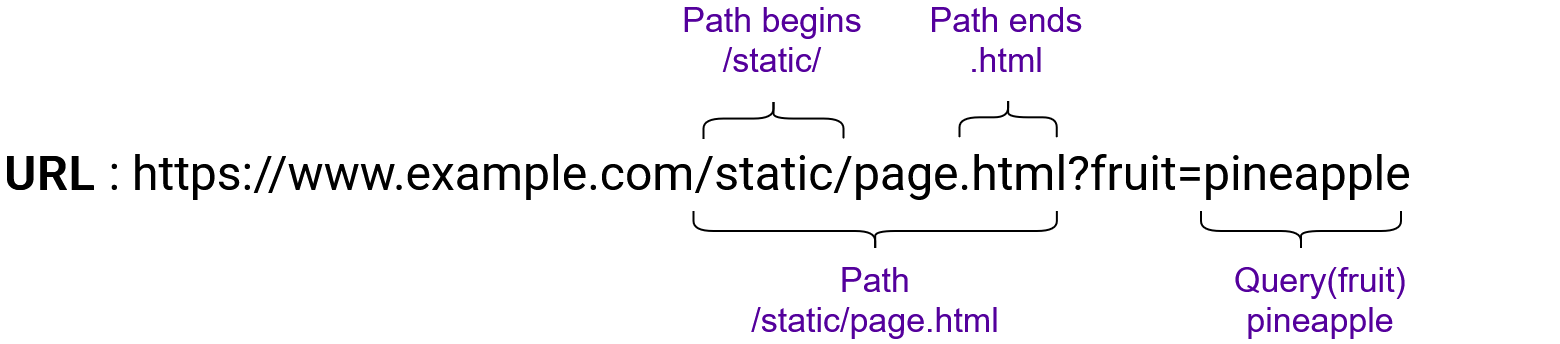
Path begins |
Match against the beginning of the request’s URL path. |
No |
|
Path substring |
Match against any substring within the request’s URL path. |
No |
|
Path ends |
Match against the end of the request’s URL path. |
No |
|
Path |
Match against the request’s full URL path (from the first slash up to the optional question mark that begins the query string). |
No |
|
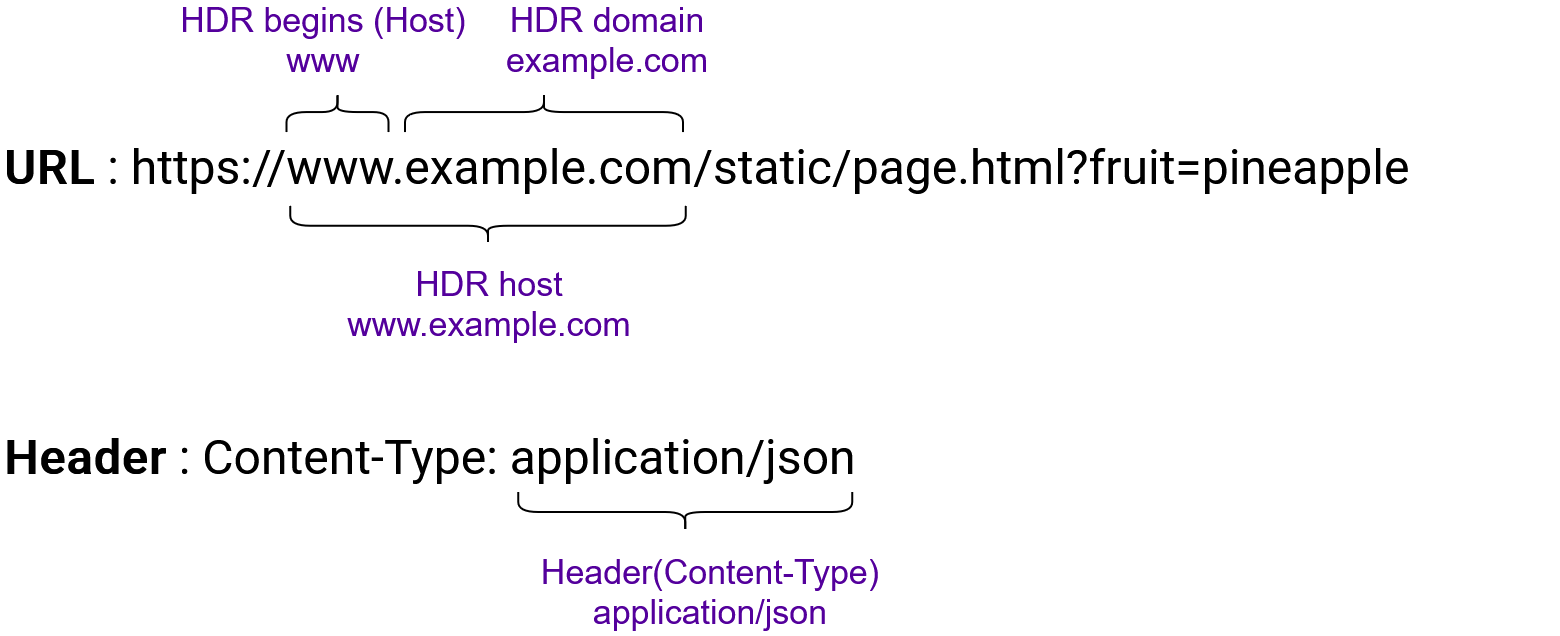
HDR host |
Match against the request’s full Host header. |
No |
|
HDR begins (Host) |
Match against the beginning of the request’s Host header. |
No |
|
HDR |
Match against a named request header. |
Yes |
|
Query |
Match against a named query-string parameter. |
Yes |
|
SSL SNI |
Match against the server name (SNI) presented by the client during the TLS handshake. This option is only available on frontends where SSL/TLS is enabled. |
No |
|
| The condition types offered depend on the frontend the rule belongs to. The path, header and query condition types require the frontend to be running in HTTP mode and are not offered for a frontend in TCP mode or for a Layer 4 frontend. |
Comparisons
The dropdown alongside the condition type sets the comparison to make:
| Comparison | Description |
|---|---|
Equals |
Perform the action if the request matches the value entered. |
Not Equals |
Perform the action if the request does not match the value entered. |
Combining Conditions
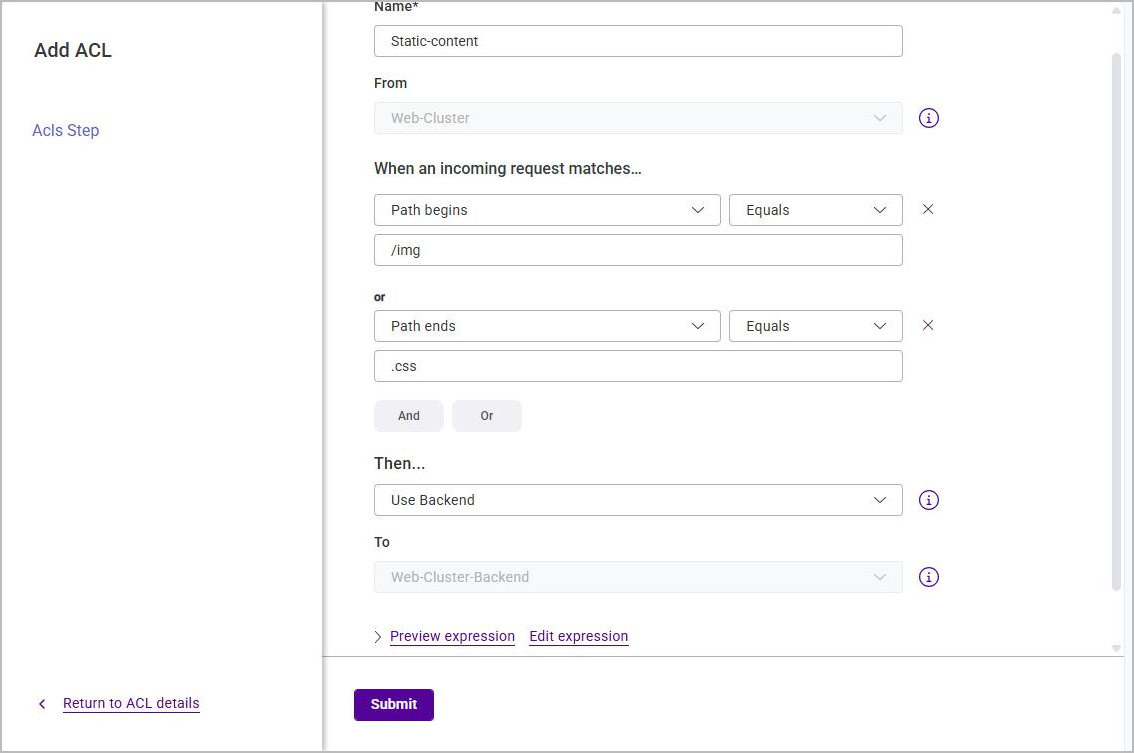
A single rule can test more than one property of a request. Use the And and Or buttons below the condition rows to add a further condition, and the (✕) button at the end of a row to remove one:
-
And - the rule only matches if this condition and the preceding condition(s) are met.
-
Or - the rule matches if this condition or the preceding condition(s) are met.
Conditions joined with And are grouped together and are evaluated before conditions joined with Or. For example, the condition set A And B Or C matches a request when both A and B are met, or when C is met.
The following restrictions apply to a condition set:
-
A rule can contain a maximum of 32 conditions.
-
A Default condition must be the only condition of the rule.
ACL Actions
When a rule matches, the action selected in the Then… dropdown is taken. Depending on the action, one or more additional fields are displayed that define the target of the action.
| Action | Description | Additional fields |
|---|---|---|
Drop |
Stop processing and close the connection without sending any response to the client. |
- |
TCP Reject |
Close the connection immediately by sending a TCP Reset (RST) packet, causing the client to fail instantly. |
- |
Use Backend |
Send the request to the specified backend. |
To - the target backend. |
Capture Header |
Capture the contents of a named request header so that it is recorded in the logs. |
Header name (e.g. |
Expect Proxy |
Expect the client to send a PROXY protocol header at the start of the connection, and take the client’s address from it. |
- |
Deny |
Stop processing and deny the request, returning the chosen HTTP status code to the client. |
Redirect with code - see Deny - Redirect with Code. |
URL location |
Redirect the request to the exact location specified, using a 301 Moved Permanently status code. |
Redirect location |
URL prefix |
Redirect the request to the URL path originally requested, prefixed with the string specified, using a 301 Moved Permanently status code. |
Redirect location |
HTTPS |
Redirect the request to its HTTPS equivalent. |
Redirect location |
Set Path |
Replace the path of the request with the value specified. |
Replacement path (e.g.
|
Response Redirect |
Return an HTTP redirect response to the location specified. |
Redirect location
(e.g. |
Set Request Header |
Set (or add) a request header before the request is forwarded. |
Header name
(e.g. |
Replace Path |
Rewrite the path of the request using a regular expression. |
Match regex (e.g.
|
Replace Header |
Rewrite the value of a named request header using a regular expression. |
Replacement (e.g. |
Set Variable |
Store the result of a fetcher expression in a variable so that it can be used by other rules. |
Fetcher expression (e.g. |
| The actions offered depend on the mode of the frontend and on the condition types used by the rule. The actions that manipulate an HTTP request are only available on a frontend running in HTTP mode, and TCP Reject, Expect Proxy and Response Redirect are not offered when the rule tests a property of the HTTP request (a path, header or query condition). Those three are offered only alongside the connection-level conditions IP Address or CIDR, Source Region and Port. |
Deny - Redirect with Code
When the Deny action is selected, the Redirect with code dropdown sets the HTTP status code returned to the client. The available codes are: 200 OK, 400 Bad Request, 401 Unauthorized, 403 Forbidden, 404 Not Found, 405 Method Not Allowed, 407 Proxy Authentication Required, 408 Request Timeout, 410 Gone, 425 Too Early, 429 Too Many Requests, 500 Internal Server Error, 502 Bad Gateway, 503 Service Unavailable and 504 Gateway Timeout.
Previewing & Editing the Expression
Each ACL rule is translated into a block of load balancer configuration. The links at the bottom of the Add ACL / Edit ACL page make this block visible and, if required, editable.
Previewing the Expression
Click Preview expression to display the configuration the current rule will generate:
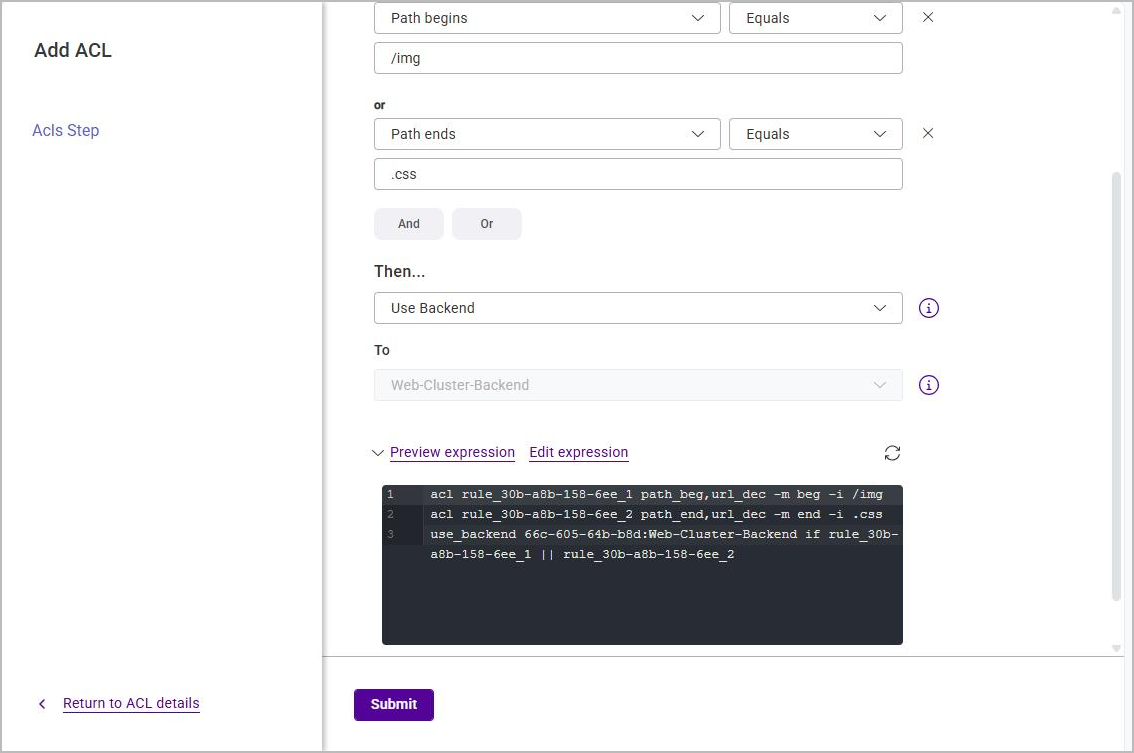
Each condition becomes a named acl line, and the action becomes the statement that references
them. Conditions joined with And appear separated by a space, and conditions joined with Or
appear separated by ||.
Click the refresh icon at the top right of the preview to regenerate it after changing the rule.
Editing the Expression by Hand
Click Edit expression to switch the rule into free-type mode, where the generated block can be edited directly:
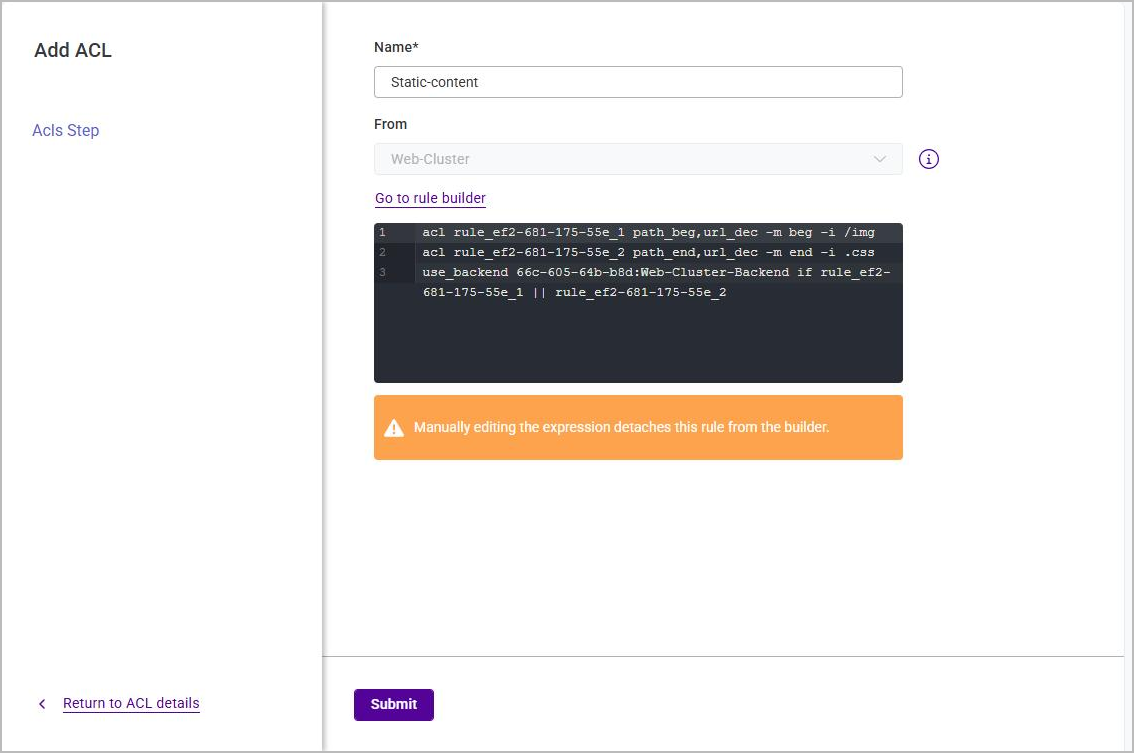
This is intended for expressions that cannot be built from the condition types available in the rule builder. The message "Manually editing the expression detaches this rule from the builder" is shown beneath the editor. Once the expression has been edited by hand the rule is no longer linked to the rule builder: in the rules list its Path Type reads Expression, the generated configuration is shown in the Value column, and a warning icon beside the rule name carries the tooltip "Free-type expression rule".
Click Go to rule builder to return to the builder. If the expression has been edited by hand, a Discard manual edits? prompt is displayed - clicking Discard & continue discards the manual changes and rebuilds the expression from the conditions.
| A hand-edited expression is written to the load balancer configuration as it is entered. Take care to check the expression, as an invalid expression may prevent the load balancer service from restarting. |
Hanging Backends, ACL Rules & Real Servers
A hanging object is a backend, an ACL rule or a Real Server that is no longer associated with a parent object - for example because the frontend it belonged to has been deleted. Hanging objects are not used by any service and have no effect on traffic.
Where hanging objects exist, the Manage services and Manage ACLs pages display the additional buttons listed below. Each page shows only the buttons that apply to it - Hanging backends appears on both pages, while Hanging real servers appears on Manage services only. The number of objects found is shown in brackets alongside each button, and each button opens a dialog listing the objects concerned.
-
Hanging backends - "Below is a list of backends that are not associated to a frontend. You can create rules to assign them or delete them". The list shows the Service name, Service, Service mode and number of Real servers for each backend. To remove one, select (check) its row, then click the three dots menu in the table header and select Delete selected hanging backends. A confirmation dialog is displayed - click Confirm to delete. The Delete entry on an individual row’s own menu does nothing until the row has been selected.
-
Hanging ACLs - lists the ACL rules that are not associated with a frontend. Rules can be selected and removed using Delete selected hanging ACLs.
-
Hanging real servers - "Below is a list of real servers that are not associated to a service". The list shows the Service name, Type, IP/Domain, Port and Assign to a backend for each Real Server. Select (check) the Real Servers concerned, then use the three dots menu in the table header to Assign to a backend or to Delete selected real servers.
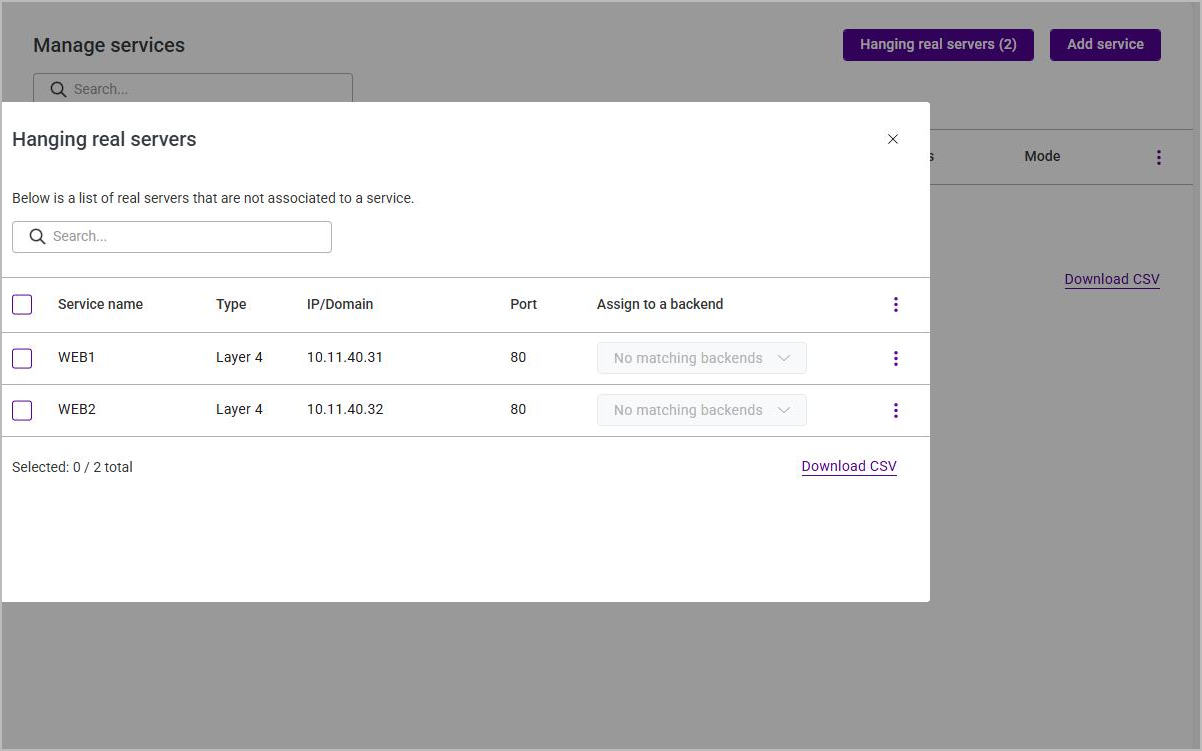
| Hanging objects cascade. Deleting a frontend leaves its backend hanging; deleting that backend in turn leaves the backend’s Real Servers hanging. When clearing up after a deleted service, check all three lists. |
ACL Examples
Example 1
A Virtual Service occasionally sees requests for a retired domain, www.foo.com. These requests need
to be redirected to the new domain: www.bar.com. For example, a request for
https://www.foo.com/static/diagram.svg must be redirected to
https://www.bar.com/static/diagram.svg.
-
Condition to use: HDR host, with the comparison Equals and the value
www.foo.com. -
Action to use: URL prefix, with the Redirect location
https://www.bar.com.
Example 2
A web service has been moved: previously, all of its resources were located under /web-service/,
but now everything is located under /legacy/web-service/. Any requests for old locations, whose
paths start with /web-service/, must be redirected to the correct new locations.
-
Condition to use: Path begins, with the comparison Equals and the value
/web-service/. -
Action to use: URL prefix, with the Redirect location
/legacy.
Example 3
Requests for the administrative area of an application, /admin, must only be served to clients on
the internal network, 10.1.0.0/16. Requests for /admin from any other client must be rejected
with a 403 Forbidden response.
-
Conditions to use: Path begins, with the comparison Equals and the value
/admin, then click And and add IP Address or CIDR, with the comparison Not Equals and the value10.1.0.0/16. -
Action to use: Deny, with Redirect with code set to
403 Forbidden.
Example 4
Requests for static content must be sent to a dedicated backend, Static-Backend. Static content is
identified either by a path that starts with /img, or by a path that ends with .css.
-
Conditions to use: Path begins, with the comparison Equals and the value
/img, then click Or and add Path ends, with the comparison Equals and the value.css. -
Action to use: Use Backend, with To set to
Static-Backend.