Firewall marks
Firewall marks are used to group ports and protocols into a single Virtual Service. For example, firewall marks can be used to bundle HTTP connections on port 80 and secure HTTPS connections on port 443 for an e-commerce site. By assigning the same firewall mark to each protocol, state information for the transaction can be preserved because the load balancer forwards all requests from a particular client to the same Real Server.
Firewall marks can also be used as a match condition when defining Policy Based Routing (PBR) routes.
To add a firewall mark:
-
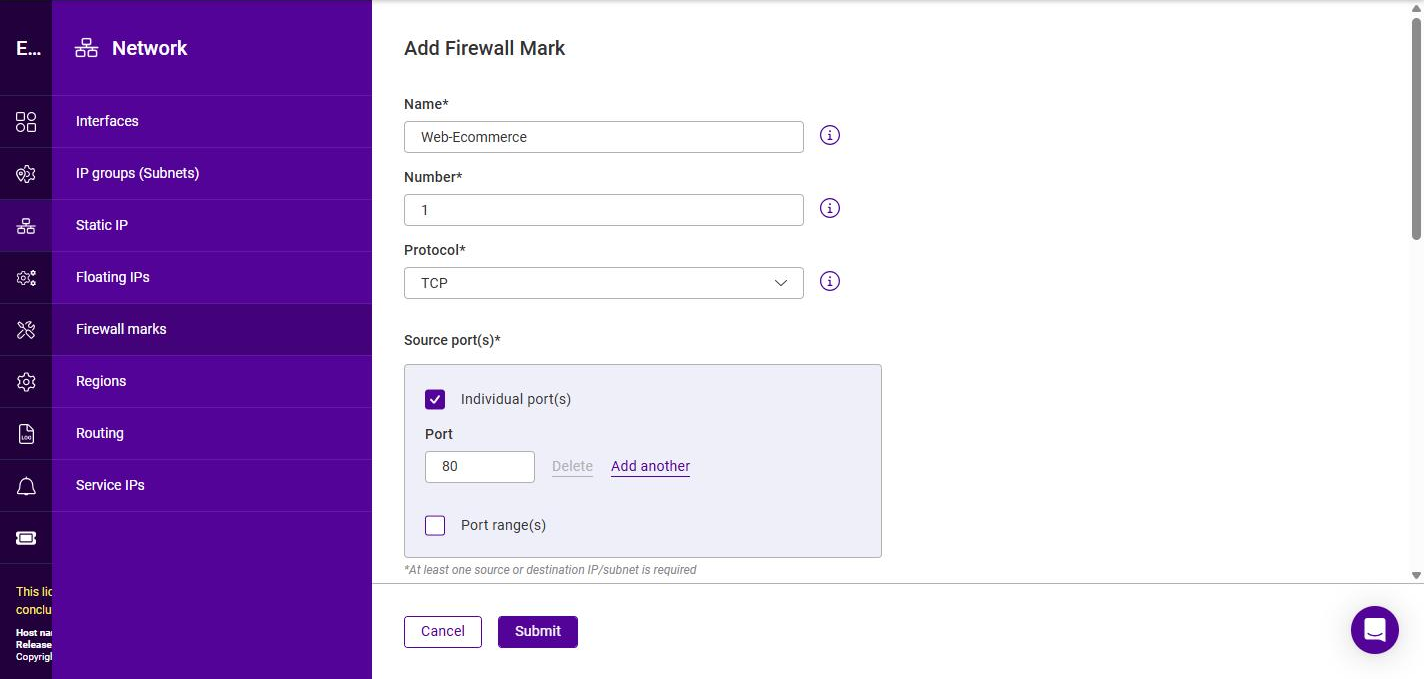
Using the WebUI, navigate to Network > Firewall marks and click Add firewall mark.
-
Specify a relevant Name.
-
Specify the Number - the firewall mark value to apply to matching packets.
-
Select the required Protocol, the options are None, TCP and UDP. Selecting TCP or UDP reveals additional Source port(s) and Destination port(s) sections; for each, specify the Individual port(s) and/or Port range(s) to match.
-
Configure the traffic to match. At least one Source IP/subnet or Destination IP/subnet must be specified. For each, select the Type and specify the Value:
Type Value Manual IP
A single IP address entered manually.
Manual Subnet
A subnet in CIDR notation entered manually.
Floating IP
An existing Floating IP, selected from a drop-down.
IP Group (Subnet)
An existing IP group, selected from a drop-down.
-
To match on more than one address, click Add another under the relevant section. To remove an entry, click Delete.
-
Click Submit.