DR mode considerations
DR Mode Considerations
The ARP Problem
DR mode works by changing the MAC address of the inbound packets to match the Real Server selected by the load balancing algorithm. To enable DR mode to operate:
-
The load balanced application/service/daemon running on each Real Server must be able to accept traffic destined for the VIP address and the Real Server’s own IP address (RIP). This is because in DR mode the destination address of load balanced packets is the VIP address, whilst for other traffic such as health checks, administration traffic etc. it’s the Real Server’s own IP address (the RIP).
-
Each Real Server must be configured so that it does not respond to ARP requests for the VIP address - only the load balancer should do this.
Configuring the Real Servers in this way is known as "Solving the ARP Problem". The steps required depend on the particular operating system being used.
Solving the ARP Problem for Linux
There are two different approaches on how to configure a Linux server for correct operation when DR mode load balancing is in use:
-
Modifying the server’s ARP behavior and adding the relevant VIP addresses to the loopback interface
-
Using NAT to convince the server to accept and reply to packets addressed to the relevant VIP addresses
Four independent methods are described below along with instructions. Each method follows one of the two approaches above. The specific method chosen will depend on technical requirements, the Linux distribution in use, and personal preferences.
The first method involves setting kernel parameters to alter the server’s ARP behavior and adding IP addresses to the loopback interface. This method should be universally applicable to any Linux server making this the preferred method.
If setting kernel parameters and adding IP addresses is not possible for some reason, the remaining three methods describe setting up a server for DR mode operation by using NAT via the redirect target/statement. The specific instructions depend on the packet filtering framework and tooling in use, which varies between Linux distributions. Methods are presented for iptables, nftables, and the firewall-cmd tool.
Method 1: ARP Behavior and Loopback Interface Changes
This is the preferred method as it should be applicable to any Linux server and doesn’t require any additional packet filtering or NAT considerations.
Each real server needs the loopback interface to be configured with the virtual IP addresses (VIPs) of the relevant load balanced services. This is often just a single VIP address, but the logic described below can be extended to cover multiple VIPs on a server. Having the VIPs on the loopback interface allows the server to accept inbound load balanced packets that are addressed to a VIP.
The server must not respond to ARP requests for the VIP addresses. The server also must not use ARP to announce the fact that it owns the VIP addresses. This is necessary to prevent IP address conflicts, as all of the real servers and the load balancer will own the VIP addresses. Only the load balancer should announce ownership of the VIPs.
To configure the behavior described above, follow all of the steps below on each real server.
Step 1 of 4: Re-configuring ARP behavior
This step is only applicable if IPv4-based virtual services are in use.
Add the following lines to the file /etc/sysctl.conf (create this file if it does not already exist):
net.ipv4.conf.all.arp_ignore=1
net.ipv4.conf.eth0.arp_ignore=1
net.ipv4.conf.eth1.arp_ignore=1
net.ipv4.conf.all.arp_announce=2
net.ipv4.conf.eth0.arp_announce=2
net.ipv4.conf.eth1.arp_announce=2
Adjust the commands shown above to suit the server’s network configuration, e.g. a different number of network interfaces or a different interface naming convention.
For Linux distros such as Debian 12+, Ubuntu 24.10+ and OpenSUSE that are using systemd and are running systemd-sysctl, /usr/lib/sysctl.d/50-default.conf should be modified rather than /etc/sysctl.conf.
|
|
For reference, the effect of these kernel parameter changes on the server is as follows:
|
Step 2 of 4: Re-configuring duplicate address detection (DAD) behavior
This step is only applicable if IPv6-based virtual services are in use.
Add the following lines to the file /etc/sysctl.conf (create this file if it does not already exist):
net.ipv6.conf.lo.dad_transmits=0
net.ipv6.conf.lo.accept_dad=0
For Linux distros such as Debian 12+, Ubuntu 24.10+ and OpenSUSE that are using systemd and are running systemd-sysctl, /usr/lib/sysctl.d/50-default.conf should be modified rather than /etc/sysctl.conf.
|
|
For reference, the effect of these kernel parameter changes on the server is as follows:
|
Step 3 of 4: Applying the new settings
To apply the new settings, either reboot the real server or execute the following command to immediately apply the changes:
/sbin/sysctl -p
|
Steps 1, 2, and 3 can be replaced by instead modifying the necessary kernel variables by writing directly to their corresponding files under Execute the following commands (as root) to implement these temporary changes (adapting the number of interfaces and interface names as needed): echo 1 > /proc/sys/net/ipv4/conf/all/arp_ignore echo 1 > /proc/sys/net/ipv4/conf/eth0/arp_ignore echo 1 > /proc/sys/net/ipv4/conf/eth1/arp_ignore echo 2 > /proc/sys/net/ipv4/conf/all/arp_announce echo 2 > /proc/sys/net/ipv4/conf/eth0/arp_announce echo 2 > /proc/sys/net/ipv4/conf/eth1/arp_announce echo 0 > /proc/sys/net/ipv6/conf/lo/dad_transmits echo 0 > /proc/sys/net/ipv6/conf/lo/accept_dad |
Step 4 of 4: Adding the virtual IP addresses (VIPs) to the loopback interface
Each of the VIP addresses must be permanently added to the loopback interface. VIPs must be added with a network prefix of /32 for IPv4 addresses or /128 for IPv6 addresses. The IP addresses can be added using the usual configuration files and tools for modifying network interfaces, which vary between different Linux distributions.
As an alternative, the ip command can be used as a universal way to add IP addresses to any Linux server. Note that addresses added in this way will not persist across reboots. To make these addresses permanent, add the ip commands to an appropriate startup script such as /etc/rc.local.
Execute the following ip command for each IPv4 VIP:
ip addr add dev lo <IPv4-VIP>/32
Execute the following ip command for each IPv6 VIP:
ip addr add dev lo <IPv6-VIP>/128
To check that the VIPs have been successfully added, execute the command:
ip addr ls
To remove an IPv4 VIP from the loopback adapter, execute the command:
ip addr del dev lo <IPv4-VIP>/32
To remove an IPv6 VIP from the loopback adapter, execute the command:
ip addr del dev lo <IPv6-VIP>/128
Method 2: NAT "redirect" via iptables
iptables can be used on each real server to identify incoming packets that are addressed to a virtual IP address (VIP) and redirect those packets to the server itself. This is achieved using the REDIRECT target in iptables, which performs the necessary NAT to make this possible. This allows a real server to accept packets addressed to a VIP without the server owning the VIP.
Execute the following command to put the necessary iptables rule in place to redirect traffic for a single IPv4 VIP address. Note that iptables rules added in this way will not persist across reboots. To make such a rule permanent, either add the rule to an iptables firewall script, if one is provided with the Linux distribution in question, or add the command to an appropriate startup script such as /etc/rc.local on each real server.
iptables -t nat -A PREROUTING -d <IPv4-VIP> -j REDIRECT
The VIP address should be changed to match the virtual service in question, for example:
iptables -t nat -A PREROUTING -d 10.0.0.21 -j REDIRECT
The example above will redirect any incoming packets destined for 10.0.0.21 (the virtual service) locally, i.e. to the primary address of the incoming interface on the real server.
If a real server is responsible for serving multiple VIPs then additional iptables rules should be added to cover each VIP.
For an IPv6 VIP address, a command like the following should be used:
ip6tables -t nat -A PREROUTING -d <IPv6-VIP> -j REDIRECT
The VIP address should be changed to match the virtual service in question, for example:
ip6tables -t nat -A PREROUTING -d 2001:db8::10 -j REDIRECT
| Method 2 may not be appropriate when using IP-based virtual hosting on a web server. This is because an iptables REDIRECT rule will redirect incoming packets to the primary address of the incoming interface on the web server rather than any of the virtual hosts that are configured. Where this is an issue, use method 1 instead. |
Method 3: NAT "redirect" via nftables
nftables is the modern Linux kernel packet filtering framework. It is supported on all major Linux distributions and has replaced iptables as the default framework on most major distributions.
nftables can be used on each real server to identify incoming packets that are addressed to a virtual IP address (VIP) and redirect those packets to the server itself. This is achieved using the redirect statement in nftables, which performs the necessary NAT to make this possible. This allows a real server to accept packets addressed to a VIP without the server owning the VIP.
Use a script like the following to put the necessary nftables structures in place to redirect traffic for both IPv4 and IPv6 VIP addresses. To make such a configuration permanent, either add the inet nat table to an nftables firewall script, if one is provided with the Linux distribution in question, or configure a script like the following to execute as a startup script on each real server.
#!/usr/sbin/nft -f

table inet nat {
    chain prerouting {
        comment "Allow server to accept packets destined for VIP addresses";
        type nat hook prerouting priority -100; policy accept;
        ip daddr <IPv4-VIP> redirect comment "Description"
        ip6 daddr <IPv6-VIP> redirect comment "Description"
    }
}
The VIP addresses and comments should be changed to match the virtual services in question, for example:
#!/usr/sbin/nft -f

table inet nat {
    chain prerouting {
        comment "Allow server to accept packets destined for VIP addresses";
        type nat hook prerouting priority -100; policy accept;
        ip daddr 10.0.0.21 redirect comment "VIP 1: HTTP"
        ip6 daddr 2001:db8::10 redirect comment "VIP 2: HTTPS"
    }
}
The example above will redirect any incoming packets destined for 10.0.0.21 or 2001:db8::10 (the virtual services) locally, i.e. to the primary address of the incoming interface (for each IP version) on the real server.
Note that Linux kernels prior to 5.2 may not support performing NAT (which is required for the redirect statement) in an inet family table. In this scenario, use either an ip or an ip6 family table instead, or both if a mixture of IPv4 and IPv6 VIPs are in use on the same server. Also note that older kernels may not support the use of comments in chains.
Note that Linux kernels prior to 4.18 require explicitly registering both prerouting and postrouting chains in order for the implicit NAT of the redirect statement to be correctly performed in both the inbound and outbound directions.
A legacy-friendly setup may look like the following:
#!/usr/sbin/nft -f

table ip nat {
    chain prerouting {
        type nat hook prerouting priority -100; policy accept;
        ip daddr 10.0.0.21 counter redirect comment "VIP 1: HTTP"
    }

    chain postrouting {
        type nat hook postrouting priority 100; policy accept;
    }
}

table ip6 nat {
    chain prerouting {
        type nat hook prerouting priority -100; policy accept;
        ip6 daddr 2001:db8::10 counter redirect comment "VIP 2: HTTPS"
    }

    chain postrouting {
        type nat hook postrouting priority 100; policy accept;
    }
}
| Method 3 may not be appropriate when using IP-based virtual hosting on a web server. This is because an nftables redirect statement will redirect incoming packets to the primary address of the incoming interface on the web server rather than any of the virtual hosts that are configured. Where this is an issue, use method 1 instead. |
Method 4: NAT "redirect" via firewall-cmd
Some recent versions of Linux distributions make use of firewalld as a high-level firewall configuration framework. In this case, while it may actually be iptables performing the work at a lower level, it may be preferred to implement the iptables NAT solution described in method 2 in firewalld, as opposed to directly manipulating iptables. This is achieved by using the firewall-cmd tool provided by firewalld and executing a command like the following on each real server:
firewall-cmd --permanent --direct --add-rule ipv4 nat PREROUTING 0 -d <IPv4-VIP> -j REDIRECT
The VIP address should be changed to match the virtual service in question, for example:
firewall-cmd --permanent --direct --add-rule ipv4 nat PREROUTING 0 -d 10.0.0.50 -j REDIRECT
To apply the new configuration, reload the firewall rules like so:
firewall-cmd --reload
Configuration applied in this way will be permanent and will persist across reboots.
| Method 4 may not be appropriate when using IP-based virtual hosting on a web server. This is because an iptables REDIRECT rule will redirect incoming packets to the primary address of the incoming interface on the web server rather than any of the virtual hosts that are configured. Where this is an issue, use method 1 instead. |
Solving the ARP Problem for Solaris
For Solaris v11 and later, run the following command on each Real Server:
ipadm create-addr -a <VIP>/32 lo0
The configuration survives a reboot so there’s no need to add this command to a startup script.
Solving the ARP Problem for Mac OS X/BSD
OS X is BSDish, so you need to use BSDish syntax:
ifconfig lo0 alias <VIP> netmask 255.255.255.255 -arp up
You’ll need to add this to the startup scripts on all of your Real Servers.
| Don’t forget that the service on the Real Servers needs to listen on both the RIP address and VIP address as mentioned previously. |
| Failure to correctly configure the Real Servers to handle the "ARP Problem" is the most common issue when using DR mode. |
Solving the ARP Problem for Windows Servers
Windows Server 2012 & Later
Windows Server 2012 and later support Direct Routing (DR) mode through the use of the Microsoft Loopback Adapter that must be installed and configured on each load balanced (Real) Server. The IP address configured on the Loopback Adapter must be the same as the Virtual Service (VIP) address. This enables the server to receive packets that have their destination set as the VIP address. If a Real Server is included in multiple DR mode VIPs, an IP address for each VIP must be added to the Loopback Adapter.
In addition, the strong/weak host behavior must be configured on each Real Server. The weak host model allows packets with any IP to be sent or received via an interface. The strong host model only allows packets with an IP belonging to the interface to be sent or received.
| The following 3 steps must be completed on all Real Servers associated with the VIP. |
Step 1 of 3: Install the Microsoft Loopback Adapter
-
Click Start, then run hdwwiz to start the Hardware Installation Wizard.
-
Once the Wizard has started, click Next.
-
Select Install the hardware that I manually select from a list (Advanced), click Next.
-
Select Network adapters, click Next.
-
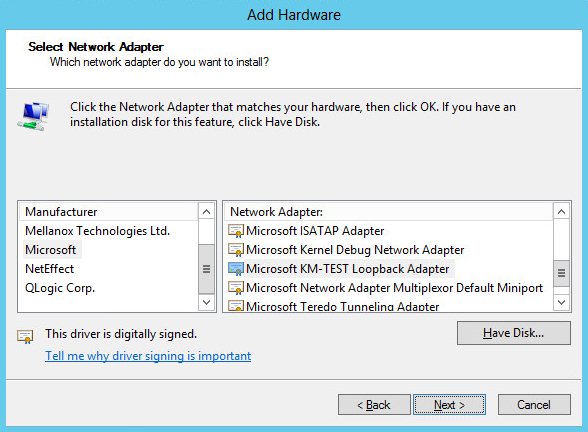
Select Microsoft & Microsoft KM-Test Loopback Adapter, click Next.
-
Click Next to start the installation, when complete click Finish.
Step 2 of 3: Configure the Loopback Adapter
-
Open Control Panel and click Network and Sharing Center.
-
Click Change adapter settings.
-
Right-click the new Loopback Adapter and select Properties.
| You can configure IPv4 or IPv6 addresses or both depending on your requirements. |
IPv4 Addresses
-
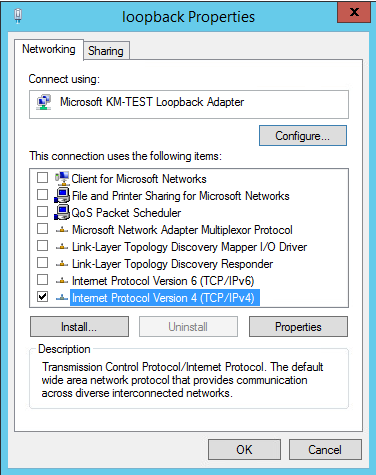
Uncheck all items except Internet Protocol Version 4 (TCP/IPv4) as shown below:
-
Ensure that Internet Protocol Version (TCP/IPv4) is selected, click Properties and configure the IP address to be the same as the Virtual Service address (VIP) with a subnet mask of 255.255.255.255, e.g. 192.168.2.20/255.255.255.255 as shown below:
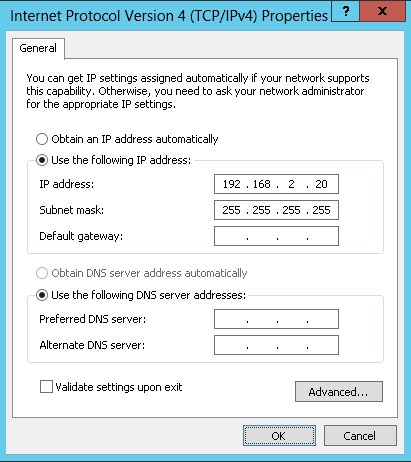
192.168.2.20 is an example, make sure you specify the correct VIP address. If a Real Server is included in multiple DR mode VIPs, an IP address for each VIP must be added to the Loopback Adapter. -
Click OK then click Close to save and apply the new settings.
IPv6 Addresses
-
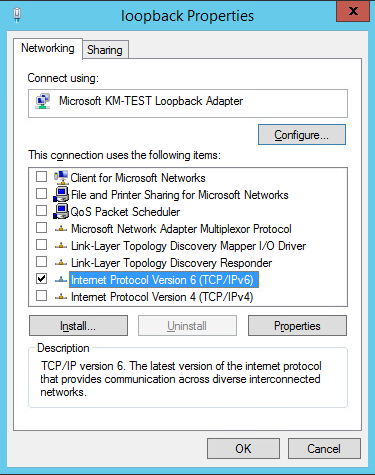
Uncheck all items except Internet Protocol Version 6 (TCP/IPv6) as shown below:
-
Ensure that Internet Protocol Version (TCP/IPv6) is selected, click Properties and configure the IP address to be the same as the Virtual Service (VIP) and set the Subnet Prefix Length to be the same as your network setting, e.g. 2001:470:1f09:e72::15/64 as shown below:
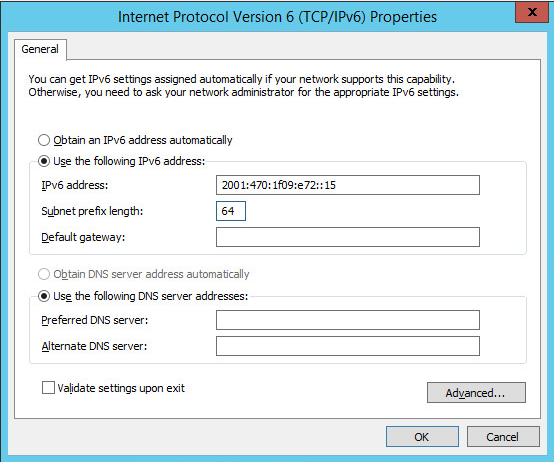
2001:470:1f09:e72::15/64 is an example, make sure you specify the correct VIP address. If a Real Server is included in multiple DR mode VIPs, an IP address for each VIP must be added to the Loopback Adapter. -
Click OK then click Close to save and apply the new settings.
Step 3 of 3: Configure the strong/weak host behavior
The strong/weak host behavior can be configured using either of the following 2 methods:
-
Option 1 - Using network shell (netsh) commands
-
Option 2 - Using PowerShell cmdlets
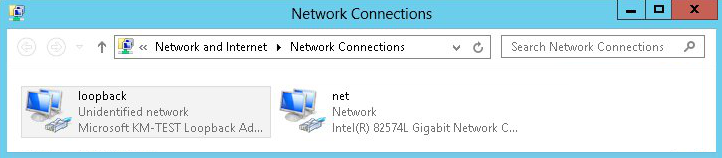
The commands in this section assume that the LAN Adapter is named "net" and the Loopback Adapter is named "loopback" as shown in the example below:
|
Either adjust the commands to use the names allocated to your LAN and loopback adapters, or rename the adapters before running the commands. Names are case sensitive so make sure that the interface names used in the commands match the adapter names exactly. |
Option 1 - Using Network Shell (netsh) Commands
To configure the correct strong/weak host behavior run the following commands:
For IPv4 addresses:
netsh interface ipv4 set interface "net" weakhostreceive=enabled
netsh interface ipv4 set interface "loopback" weakhostreceive=enabled
netsh interface ipv4 set interface "loopback" weakhostsend=enabled
For IPv6 addresses:
netsh interface ipv6 set interface "net" weakhostreceive=enabled
netsh interface ipv6 set interface "loopback" weakhostreceive=enabled
netsh interface ipv6 set interface "loopback" weakhostsend=enabled
netsh interface ipv6 set interface "loopback" dadtransmits=0
Option 2 - Using PowerShell Cmdlets
For IPv4 addresses:
Set-NetIpInterface -InterfaceAlias loopback -WeakHostReceive enabled -WeakHostSend enabled -AddressFamily IPv4
Set-NetIpInterface -InterfaceAlias net -WeakHostReceive enabled -AddressFamily IPv4
For IPv6 Addresses:
Set-NetIpInterface -InterfaceAlias loopback -WeakHostReceive enabled -WeakHostSend enabled -DadTransmits 0 -AddressFamily IPv6
Set-NetIpInterface -InterfaceAlias net -WeakHostReceive enabled -AddressFamily IPv6
Verify the Strong/Weak Host Configuration
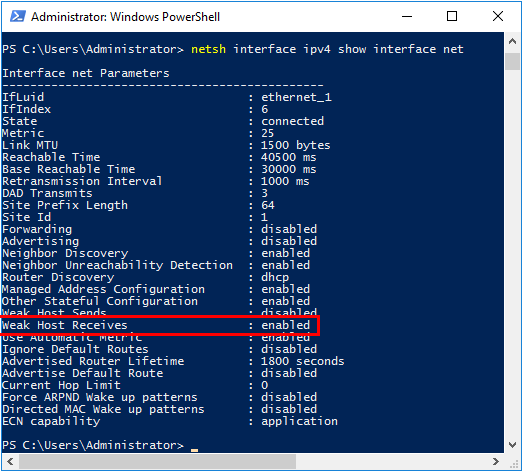
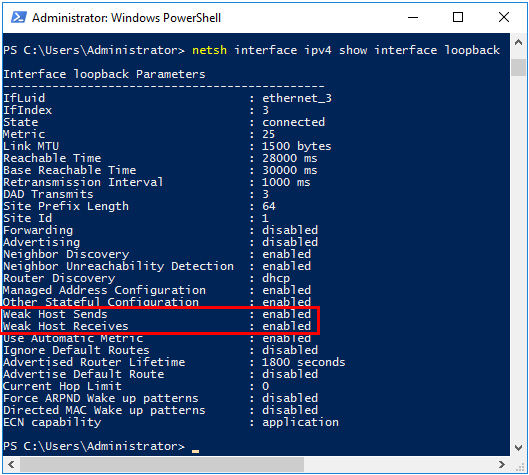
The following PowerShell Cmdlets can be used to verify the settings:
The "net" interface:
netsh interface ipv4 show interface net
The "loopback" interface:
netsh interface ipv4 show interface loopback
| For IPv6, replace "ipv4" with "ipv6" in the above commands. |
For Windows 2012 & later you can also use the following PowerShell Cmdlets to verify the settings:
To view both IPv4 and IPv6:
Get-NetIpInterface -InterfaceAlias loopback | FL
for IPv4 only:
Get-NetIpInterface -InterfaceAlias loopback -AddressFamily IPv4 | FL
for IPv6 only:
Get-NetIpInterface -InterfaceAlias loopback -AddressFamily IPv6 | FL
| Failure to correctly configure the Real Servers to handle the "ARP Problem" is the most common issue when using DR mode. |
Solving the ARP Problem - Possible Side Effect for Windows 2012 & Later
With DR Mode, the source IP address of return traffic from a Real Server will be the IP address assigned to the loopback adapter, which is the same as the VIP address that the client connected to. For traffic initiated by a Real Server, the source IP address should under normal circumstances be the Real Server’s own IP address, i.e. the address assigned to the standard network adapter.
However, due to the way the network adapters are configured to solve the "ARP Problem", and the way that Windows selects the source IP address, it’s possible under certain circumstances for the source IP address of traffic initiated by a Real Server to be the IP address configured on the loopback adapter rather than the Real Server’s own IP address. Please refer to this Microsoft article for more information on how Windows selects the source IP address.
To prevent the IP address(es) assigned to the loopback adapter being used in this way, the skipassource flag must be set for each IP assigned to the loopback adapter.
To check the current skipassource setting for all IPs associated with the loopback adapter, use the following command:
Get-NetAdapter -name loopback | Get-NetIPAddress | select ipaddress, skipassource
-
If your loopback adapter is not named "loopback" modify the command accordingly
Example output:
ipaddress       skipassource
---------       ------------
192.168.111.180        false
This shows that for the 192.168.111.180 address, the skipassource flag is not set.
To set the skipassource flag for the 192.168.111.180 address, use the following command:
Set-NetIPAddress –IPAddress 192.168.111.180 –SkipAsSource $True
To clear the skipassource flag for the 192.168.111.180 address, use the following command:
Set-NetIPAddress –IPAddress 192.168.111.180 –SkipAsSource $False
To set the skipassource flag for all IP addresses associated with the loopback adapter, the following two PowerShell commands can be used:
[array]$IPs = Get-NetIPAddress -InterfaceAlias loopback
Set-NetIPAddress -IPAddress $IPs.IPAddress -InterfaceAlias loopback -SkipAsSource $true
-
The first command gathers all IP addresses assigned to the loopback adapter
-
The second command then sets the SkipAsSource flag for all IPs found
-
If your loopback adapter is not named "loopback" modify the commands accordingly
| Make the sure that the same settings are configured on all Real Servers. |
Other Windows Settings that May Cause Issues
Receive Segment Coalescing (RSC)
RSC is a stateless offload technology that helps reduce CPU utilization for network processing on the receive side by offloading tasks from the CPU to an RSC-capable network adapter. In rare cases it has been discovered that RSC can adversely effect performance when using DR mode. In these cases the performance issue was addressed by disabling RSC.
To check the current RSC settings for all RSC compatible interfaces, use the following command:
Get-NetAdapterRsc
Example output:
Name  IPv4Enabled  IPv6Enabled  IPv4Operational IPv6Operational IPv4FailureReason IPv6FailureReason
                                State           State
----  -----------  -----------  --------------- --------------- ----------------- -----------------
net   True         True         True            True            NoFailure         NoFailure
-
In this example IPv4Operational State and IPv6Operational State are set to True which shows that RSC is enabled for both IPv4 and IPv6
RSC can be disabled and enabled using the GUI or by using PowerShell commands.
Using the GUI
RSC for IPv4 (Recv Segment Coalescing (IPv4)) and for IPv6 (Recv Segment Coalescing (IPv6)) can be configured using the NIC’s advanced properties tab as shown in the example below:
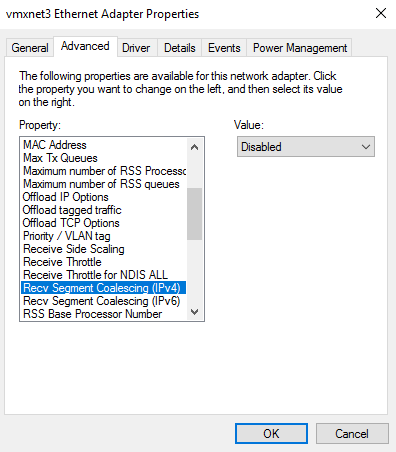
To access the adapter’s advanced properties using Windows 2016 (other versions may be slightly different) go to: Start > Settings > Network and Internet > Change adapter options, right click the adapter, select Properties, click Configure and then select the Advanced tab.
Using PowerShell
To disable RSC:
Disable-NetAdapterRsc -Name "net" -IPv4

or for IPv6

Disable-NetAdapterRsc -Name "net" -IPv6
To enable RSC:
Enable-NetAdapterRsc -Name "net" -IPv4

or for IPv6

Enable-NetAdapterRsc -Name "net" -IPv6
-
If your network adapter is not named "net" modify the command accordingly
Configuring Your Application to Respond to Both the RIP and VIP
For DR & TUN modes, it’s important to make sure that your application (IIS in this example) responds to both the VIP and RIP.
By default, IIS listens on all configured IP addresses as shown in the example below. As can be seen, the IP address field is set to "All Unassigned".
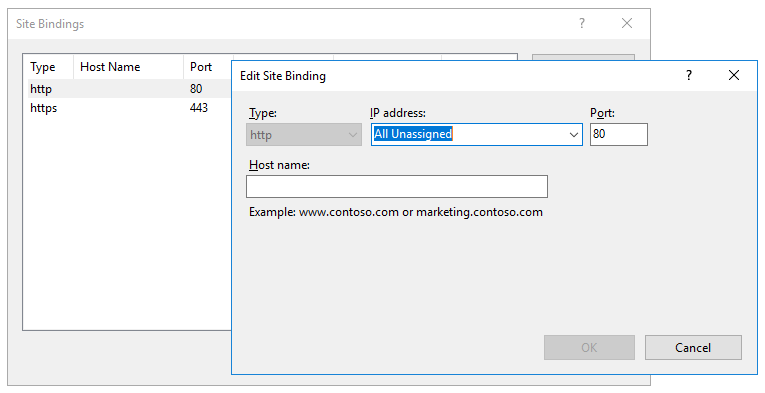
If the default setting is not changed, no further IIS configuration is required. If you do change the IP address in the bindings from "All Unassigned" to a specific IP address, then you need to make sure that you also add a binding for the Virtual Service IP address (VIP) as shown in the example below:
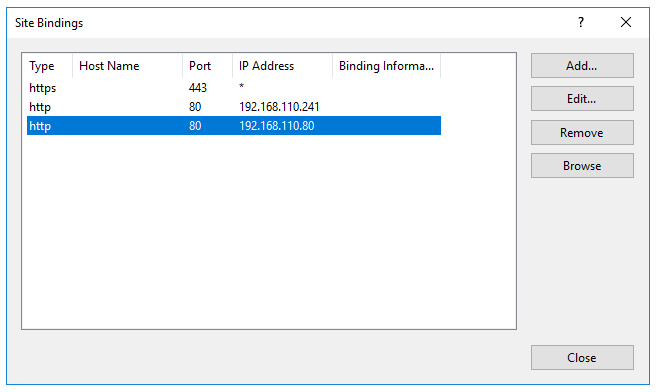
| This example illustrates how IIS must be configured to ensure that it’s listening on both the RIP and VIP address. Remember that this applies to ALL applications when using DR mode. |
Windows Firewall Settings
When IIS is installed, default rules are created that allow inbound traffic on port 80 and 443. By default, these rules apply to the Domain, Public and Private profiles and all interface types. If the rules are changed, make sure that inbound traffic can still reach both the LAN interface and the loopback adapter.