GSLB services
GSLB (Global Server Load Balancing) enables traffic to be load balanced across multiple geographically dispersed servers. When used in conjunction with the failover and high availability features of the appliance, GSLB enables highly available, multi-site load balanced environments to be created. GSLB functionality is provided using the open source Polaris GSLB.
Introduction
GSLB enables the load balancer(s) to provide intelligent DNS responses to inbound client queries for one or more sub domains. The responses given depend on the health of each endpoint and, if a topology (region) is configured, the location of those endpoints relative to the client making the request. Where GSLB is deployed alongside application load balancing, the endpoints are usually the VIPs that are configured at each site. Where application load balancing is not used and only GSLB is configured, the endpoints are normally the Real Servers.
DNS delegation is used to delegate responsibility for the sub domain(s) to the GSLB service on the load balancers. Once delegated, it is the GSLB service on the load balancers that is responsible for providing the response to DNS queries for that sub domain.
In a two site setup with a highly available multi-node cluster of load balancers in each site, once GSLB and DNS delegation are correctly configured, the load balancers act as intelligent name servers for the sub domains specified.
Key features
-
Reliable health checking service supporting TCP, HTTP(S) and custom external checks so that only healthy members/endpoints are returned on lookups.
-
Failover, round robin and also a topology method that directs clients to servers in the same location.
-
Can return single or multiple (up to 1024) answers at once.
-
Option to fall back to any healthy server or refuse the query.
| For additional information, see our GSLB blog. |
In Endurance, a GSLB Service is configured using the same template-based wizard used for Layer 4 and Layer 7 Services. The wizard is split into 2 stages: Frontend Configuration (the sub domain that GSLB responds to) and Backend Configuration (the pool of endpoints that DNS queries are answered with, along with the health check and load balancing method).
The following table shows how the GSLB concepts map onto the wizard:
| Concept | Where it is configured |
|---|---|
Global name |
The Domain specified on the Frontend step. |
Pool |
The Backend - the General step defines the load balancing method and the Healthcheck step defines the health check. |
Members / endpoints |
The Real Servers added on the Backend > Real servers step. |
Topologies |
Regions. A Region is assigned to each Real Server, and Regions are defined under Network > Regions. For more details, see Regions. |
Adding a GSLB Service
The wizard can be run in 2 modes, selected using the drop-down at the top of the left-hand menu:
| Mode | Description |
|---|---|
Default Mode |
Displays only the most commonly used settings. Recommended for a quick, standard deployment. |
Advanced Mode |
Displays all available settings. |
| The steps below use Advanced Mode so that all available settings are described. When using Default Mode, the advanced settings are hidden and sensible defaults are applied automatically. |
| The GSLB service needs a Service IP to listen on before a GSLB service can be saved. This is set under Settings > Configurations > GSLB. Until one is configured, the wizard displays the warning "GSLB has no Service IP yet. Choose one in GSLB settings first, or saving a global name with a real server will be refused." on its Frontend step. |
To add a new GSLB Service:
-
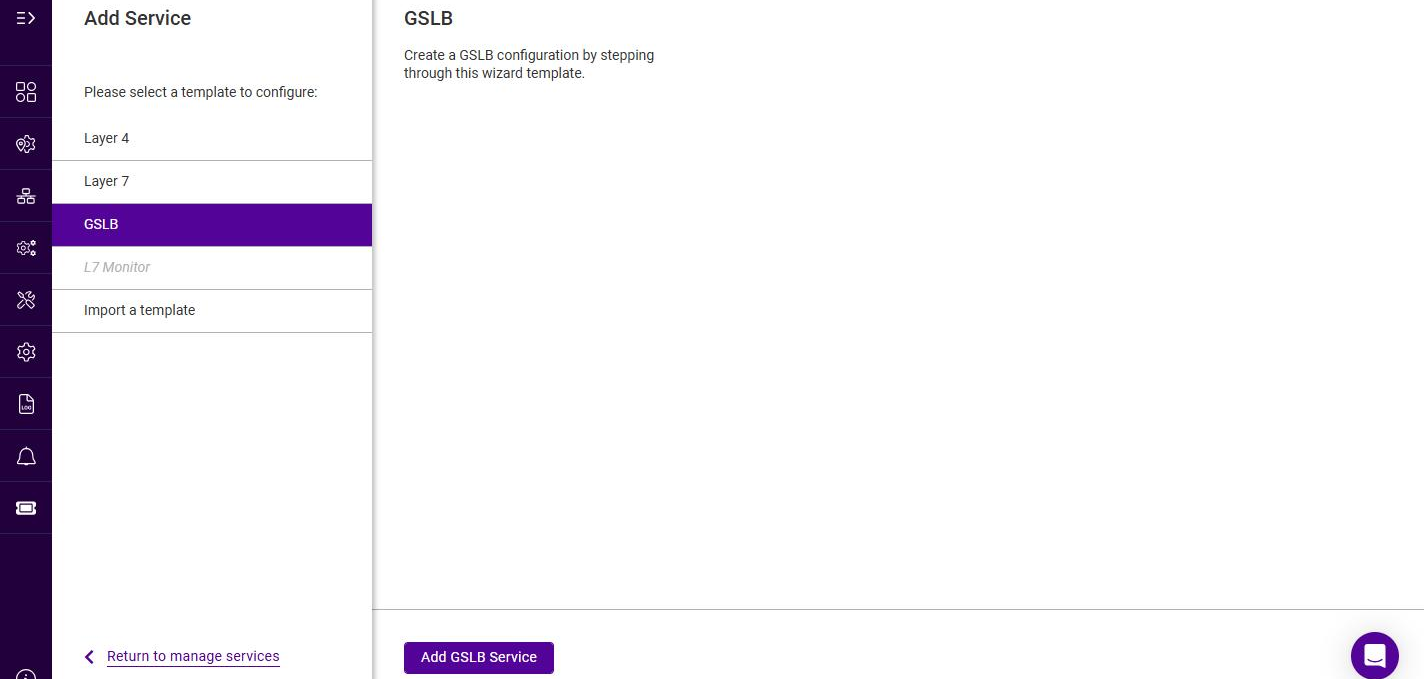
Using the WebUI, navigate to Services and click Add service.
-
Select the GSLB template, then click Add GSLB Service.
-
To display all settings, change the mode drop-down from Default Mode to Advanced Mode.
Frontend Configuration - General
-
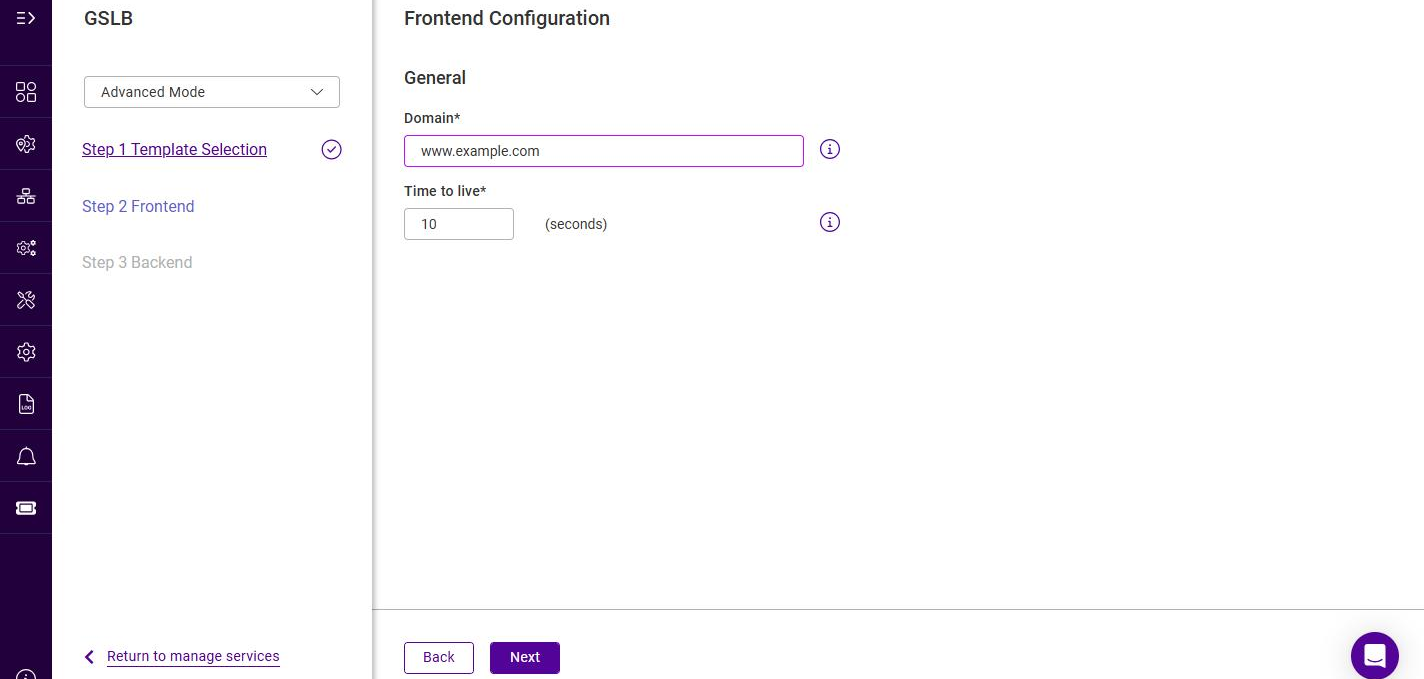
Configure the frontend:
Setting Description Domain
The sub domain that GSLB responds to, for example www.example.com.
Time to live
How long to cache the DNS response. Enter a value and select the unit - seconds, minutes, hours, days or weeks. The default is 0.
-
Click Next.
Backend Configuration - General
-
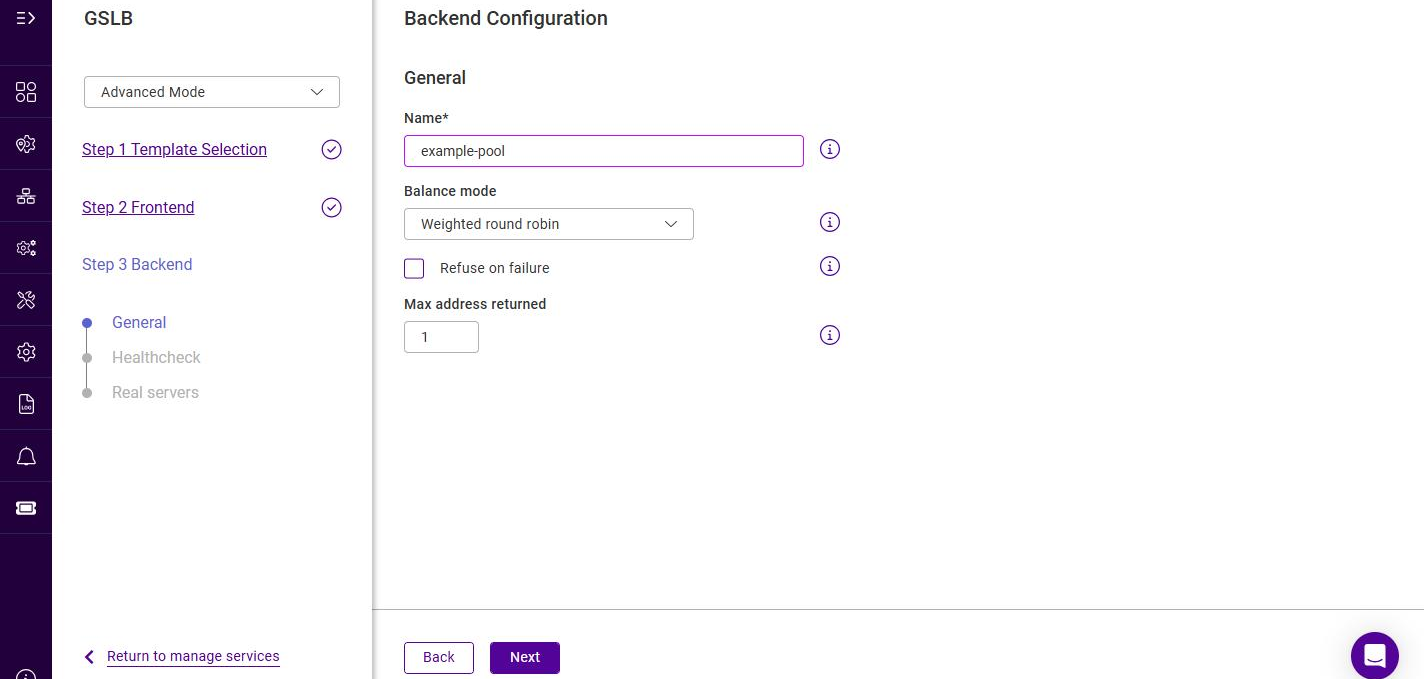
Configure the backend:
Setting Description Name
A suitable name for the backend, e.g. example-pool.
Balance mode
The load balancing method to use. The options are described in the table below.
Refuse on failure
Determines the resolution behavior when all members of the pool are down (Advanced Mode only). When unchecked (default), the appliance distributes queries among all configured members that have a non-zero weight, ignoring their health status. When checked, all queries are refused.
Note: leaving this unchecked with all member weights set to 0 results in a NOERROR response with no answer section data.Max address returned
The maximum number of A records to return in a response (Advanced Mode only). Large responses are sent over TCP. Valid values are 1 to 1024; the default is 1.
The Balance mode options are:
Balance mode Description Weighted round robin
Round robin with weighting. The default option.
Topology weighted round robin
As above, but the topology (region) information is also considered, to direct clients to endpoints in the same region / data center.
Failover Group
The first healthy endpoint is handed out continuously unless it becomes unhealthy, in which case the next healthy endpoint is used, and so on. Can be used for active-backup scenarios. When this method is used, the order in which the Real Servers are listed should match the order in which they are intended to be used.
-
Click Next.
Backend Configuration - Healthcheck
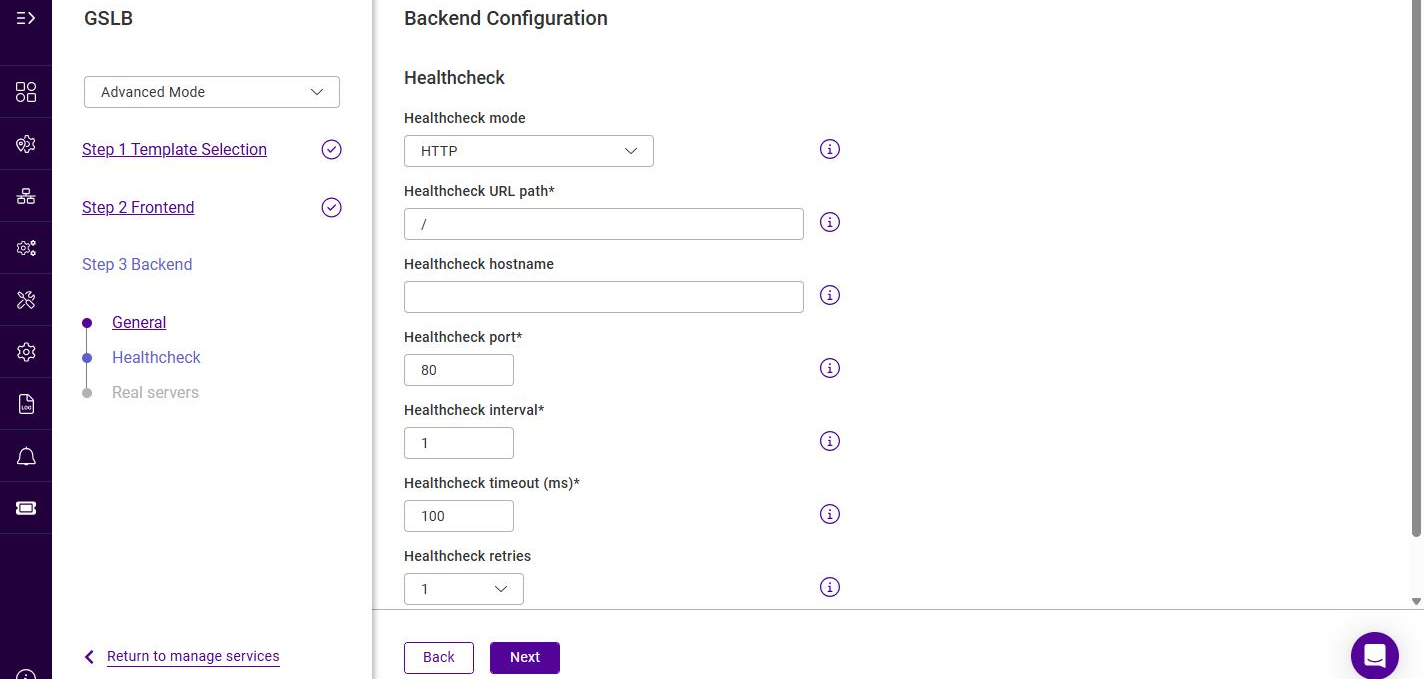
This step configures the health check the load balancer uses to decide whether each endpoint is available. Only healthy endpoints are returned in DNS responses.
-
Select the required Healthcheck mode. The options are:
Healthcheck mode Description HTTP
Performs an HTTP GET request. The check succeeds if the expected response is returned.
HTTPS
As HTTP, but the request is made over SSL/TLS.
TCP
Attempts a TCP connection to the check port. Optionally, a string can be sent and the response matched against a regular expression.
No checks, always on
Disables active health checking. The endpoints are not probed; instead they are all held at the state chosen in the Healthcheck status field, which defaults to Up.
External Script
Runs a custom health check script on the appliance. The check receives the endpoint’s IP address and port, together with any additional parameters that are passed.
External Dynamic Weight
Runs a custom script that dynamically adjusts the weight of the endpoint based on its output. The script should output a value between 0 and 10, where 10 is the highest priority and 0 removes the endpoint from the pool.
-
Complete the fields for the selected mode. The available fields are:
Setting Description Healthcheck URL path
For HTTP / HTTPS. The URL path to request, appended after the endpoint’s IP address. The default is
/.Healthcheck hostname
For HTTP / HTTPS. The hostname to supply in the HTTP
Hostheader. When using HTTPS this is also supplied in SNI.Healthcheck send string
For TCP. A string to send after connecting to the port.
Healthcheck match RE
For TCP. A regular expression (not case sensitive) to match in the response.
Healthcheck script
For External Script / External Dynamic Weight. The health check script to run, selected from the drop-down. To add a script, see GSLB Healthcheck Scripts.
Healthcheck expected codes
For External Script / External Dynamic Weight. A string to match in the script’s output for the check to succeed.
Parameters
For External Script / External Dynamic Weight. A comma separated list of additional parameters to pass to the script.
Healthcheck status
For No checks, always on. The state that every endpoint in the backend is held at. The options are Up (the default) and Down.
Healthcheck port
For HTTP / HTTPS / TCP. The port to check. The default is 80.
Healthcheck interval
How often the check is performed. Enter a value and select the unit (seconds, minutes or hours); the default is 1 second.
Healthcheck timeout
How long to wait for a response. Enter a value and select the unit (milliseconds or seconds); the default is 100 milliseconds.
Healthcheck retries
The number of times to retry a failed check before marking the endpoint down, selected from a drop-down offering 1 to 5. The default is 1.
Healthcheck interval, Healthcheck timeout and Healthcheck retries are shown for every mode. The remaining fields depend on the mode selected, as indicated above. -
Click Next.
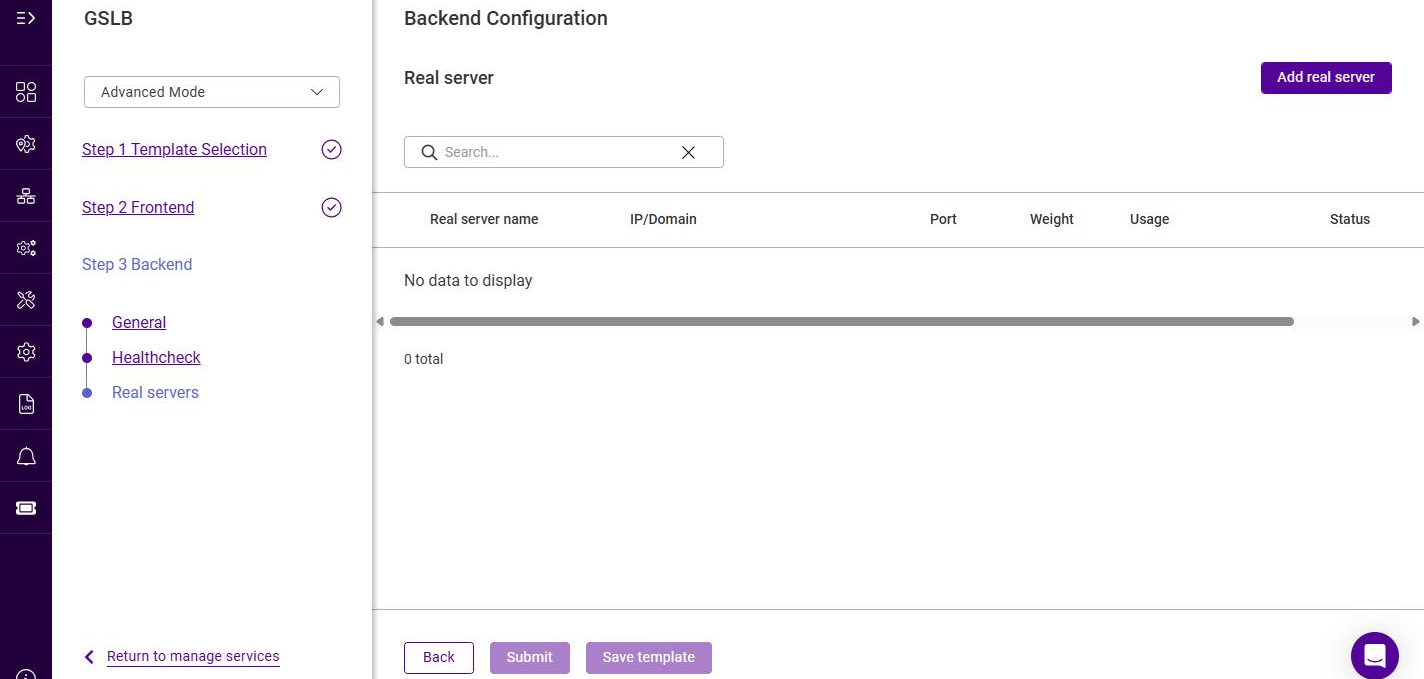
Backend Configuration - Real servers
The Real Servers are the endpoints that are returned to clients in DNS responses.
-
Click Add real server.
-
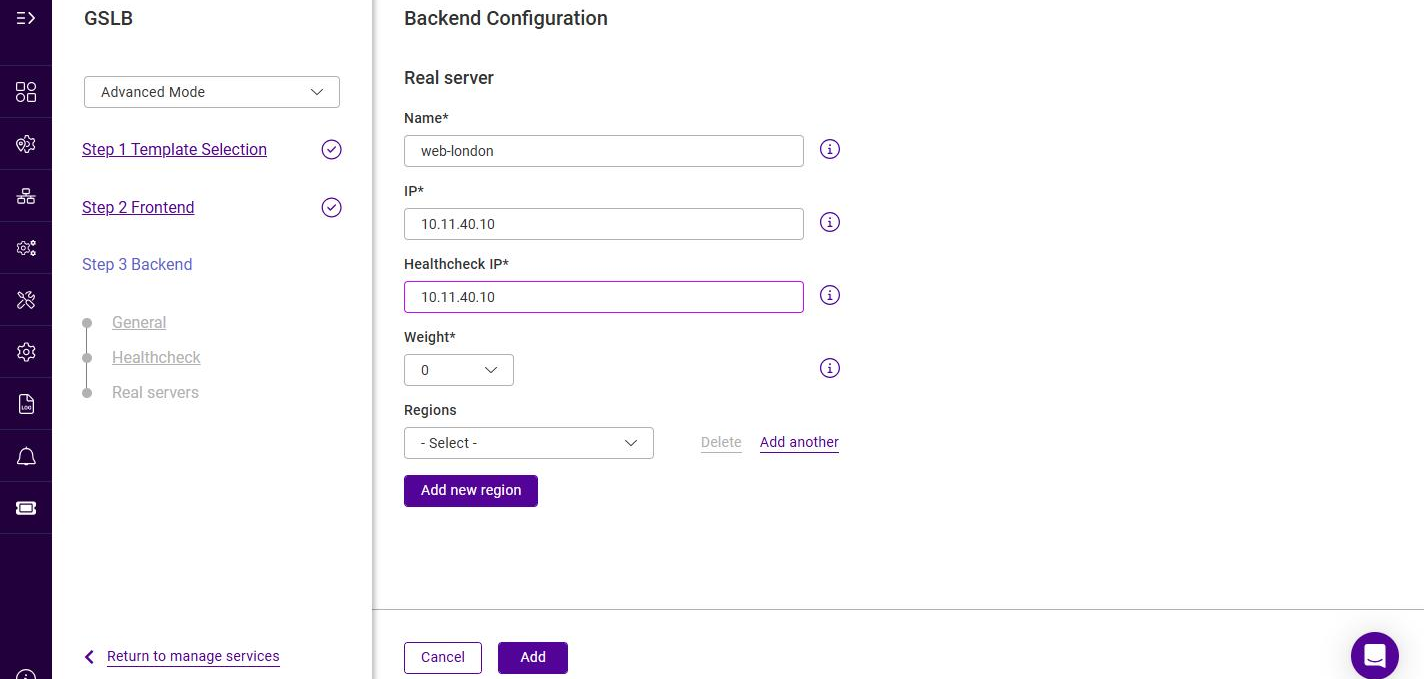
Configure the Real Server:
Setting Description Name
A suitable name for the Real Server, e.g. web-london.
IP
The IP address of the endpoint that is returned in DNS responses, e.g. 10.11.40.10.
Healthcheck IP
The IP address that is health checked. This is normally the same as the IP.
Weight (Advanced)
The weight of the endpoint, selected from a drop-down. Valid values are 0 to 10; a weight of 0 disables the endpoint. This field is only shown in Advanced Mode.
Regions
Assigns the Real Server to one or more Regions, used by the Topology weighted round robin balance mode to direct clients to endpoints in the same region. Select an existing Region, or click Add new region to create one. Regions are managed under Network > Regions - for more details, see Regions.
-
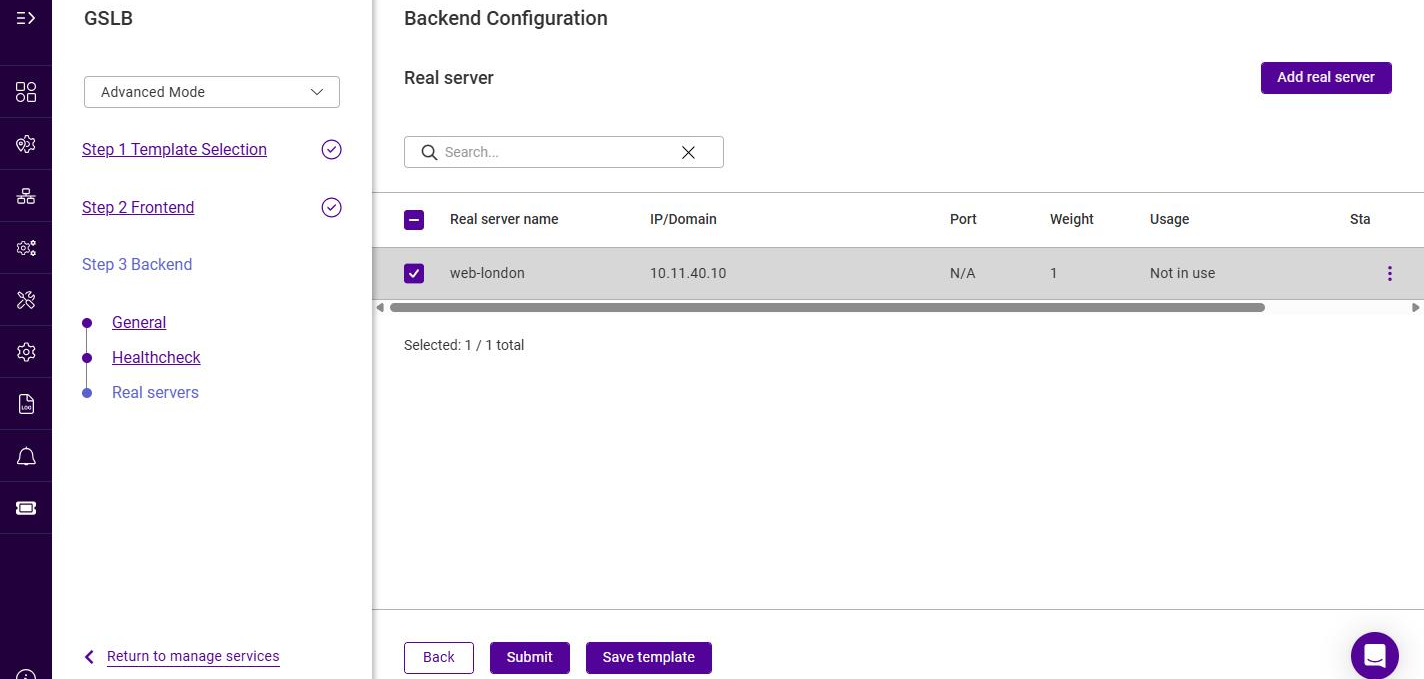
Click Add, then repeat to add additional Real Servers.
-
Ensure the required Real Servers are selected (checked).
Submitting the Service
-
Once all Real Servers have been added, click Submit to create the service.
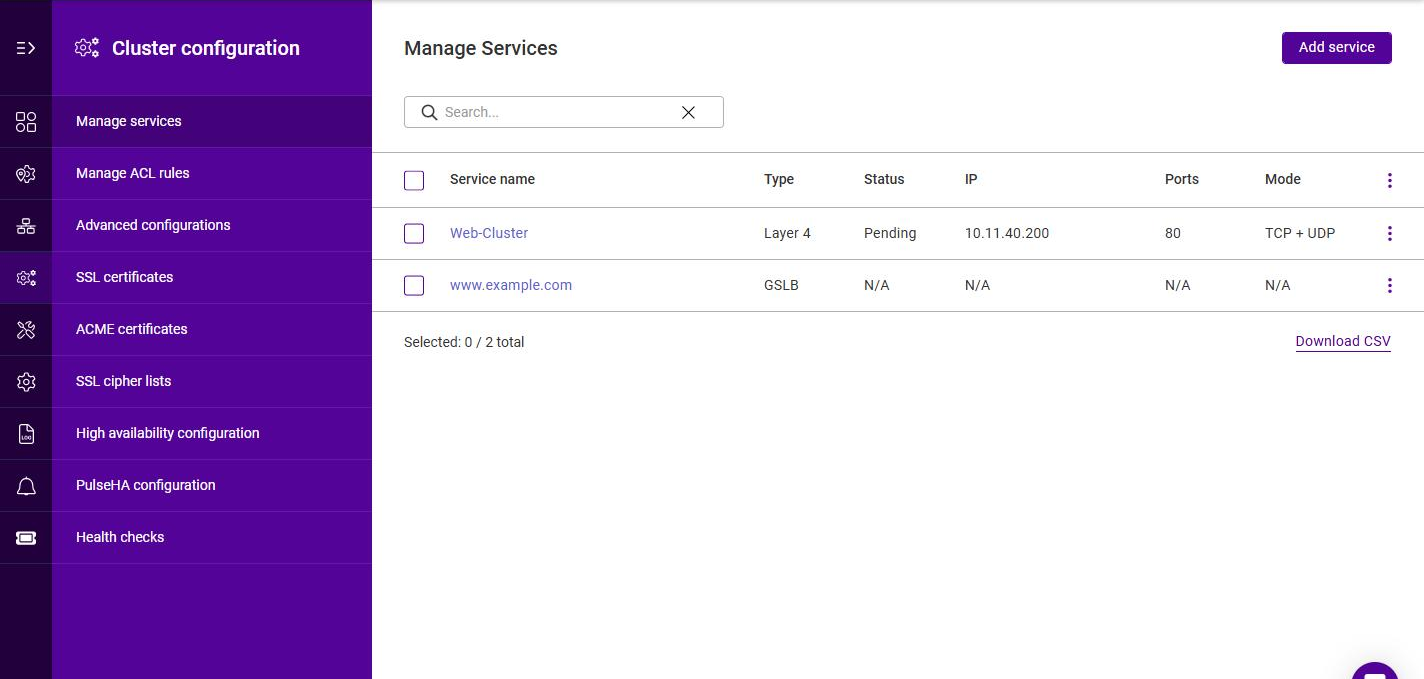
The new GSLB Service is now listed under Services with a Type of GSLB. Because GSLB answers DNS queries rather than presenting a Virtual Service on a Floating IP, its Status, IP, Ports and Mode columns all read N/A.
|
When the service is created, a notification indicates that the configuration of one or more services has changed. To apply the changes:
For more details, see System services. The same update can also be applied directly from the Services list, using the Action required option on the service’s actions menu. |
| The GSLB service listens on the Service IP address(es) and port set under Settings > Configurations > GSLB. The port applies to both TCP and UDP, and defaults to 53. |
GSLB Healthcheck Scripts
Custom GSLB health checks can be created using the WebUI, then selected on the Backend > Healthcheck step when the Healthcheck mode is set to External Script or External Dynamic Weight.
To add a GSLB health check script:
-
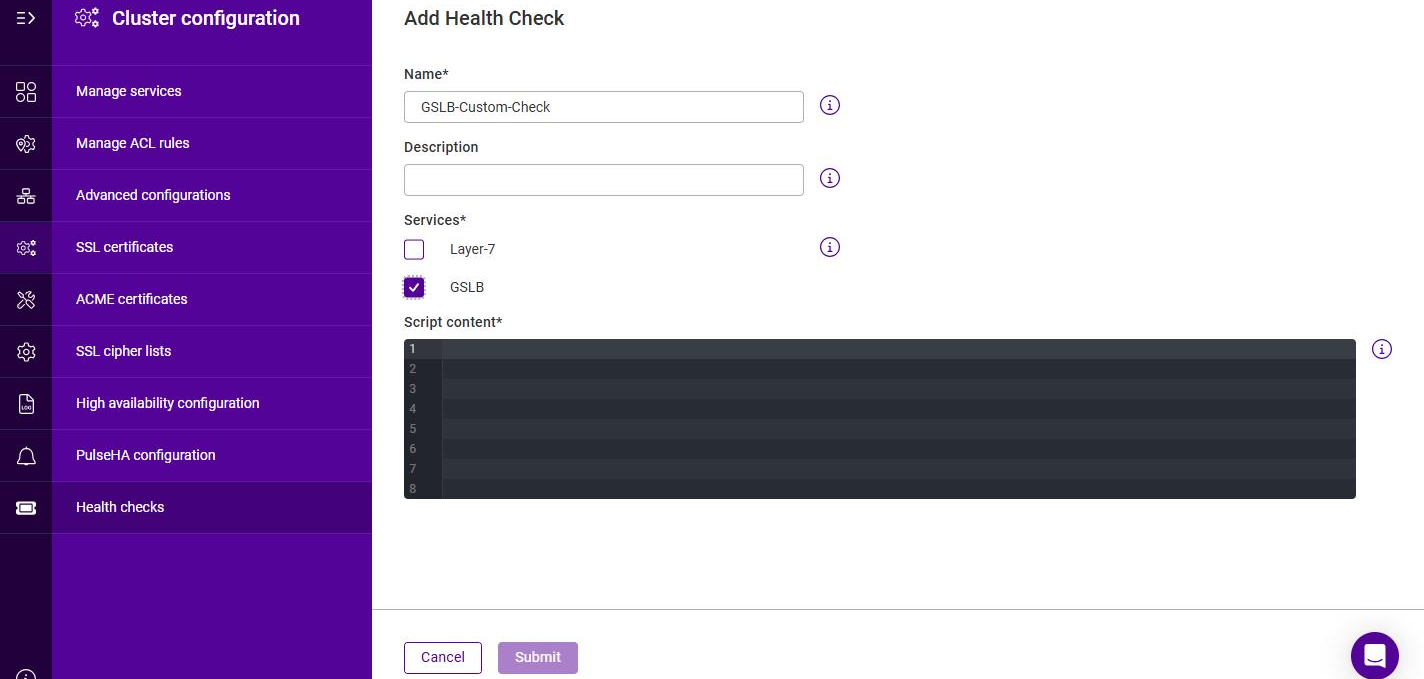
Using the WebUI, navigate to Manage services > Healthchecks and click Add healthcheck.
-
Specify a suitable Name for the health check, e.g. GSLB-Custom-Check.
-
Optionally specify a Description.
-
Under Services, enable the GSLB checkbox.
-
Enter the script in the Script content editor.
-
Click Submit.
Once added, the health check appears in the Healthchecks list and in the Healthcheck script drop-down on the Backend > Healthcheck step.
| The "Feedback_Agent_Weight" GSLB template can be used to create a dynamic weight health check script that interacts with the Loadbalancer.org Feedback Agent. For more details on health check scripts, see Healthchecks. |
Viewing the GSLB Configuration
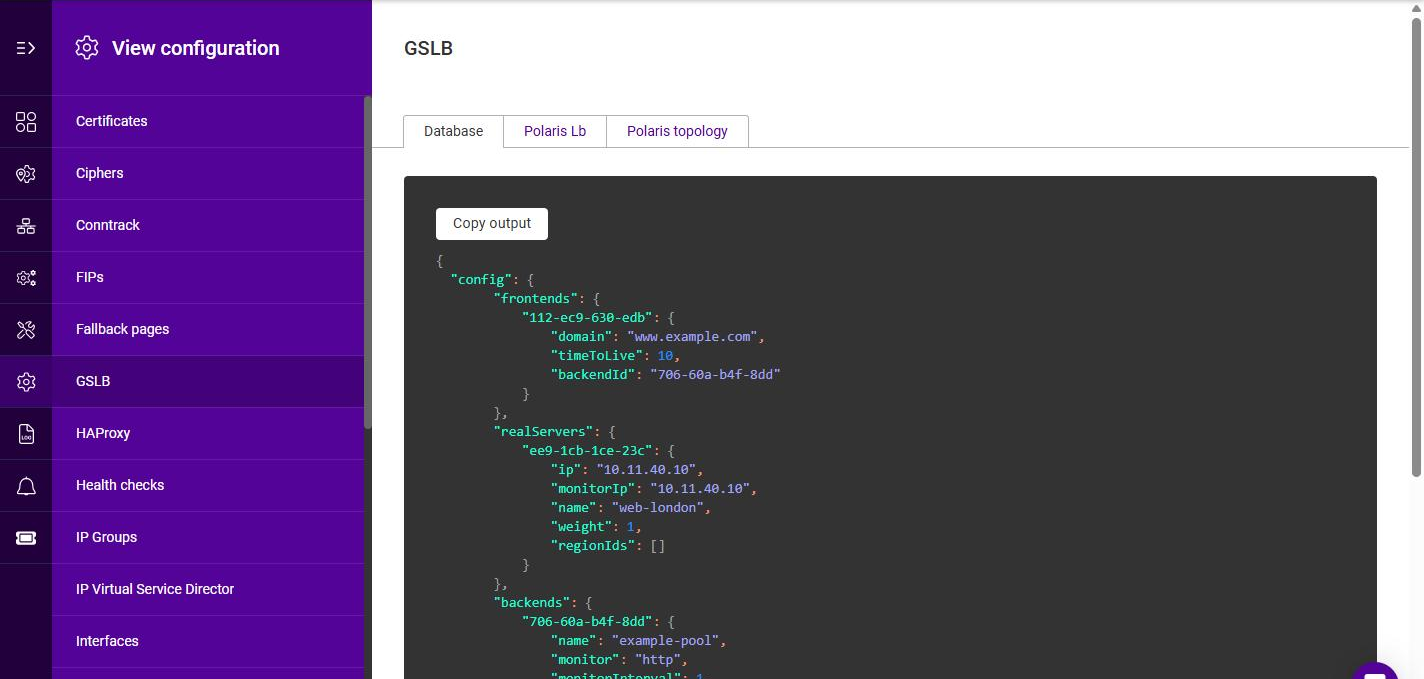
The generated GSLB configuration can be viewed (read-only) using the WebUI menu option View Configuration > GSLB. Three tabs are available:
-
Database - the GSLB configuration database, showing the configured frontends, backends and Real Servers.
-
Polaris Lb - the Polaris load balancing configuration file.
-
Polaris topology - the Polaris topology (region) configuration file.