Interfaces
This chapter covers the appliance’s own network configuration, grouped under Network in the WebUI - the interfaces it presents, together with the bonds, VLANs and subnets built on them, and the Static, Floating and Service IP addresses used by the appliance and its services. It also covers the regions used by GSLB, the appliance routing table, the firewall marks used to group ports and protocols into a single service, and the logs written by the appliance’s services.
The appliance is supplied as an ISO image. When a virtual appliance (VA) is created from the ISO within a hypervisor, a single network interface is added by default. Additional interfaces must either be added at the point the VA is created within the hypervisor, or added later via the hypervisor once the VA exists.
The number of interfaces required depends on the deployment:
-
For a proof of concept (PoC), a single interface is sufficient. Both management and workload traffic can share the one interface.
-
For a production deployment, management traffic normally has a dedicated interface, keeping management and workload traffic separated. This requires a second interface to be added.
-
For a two-arm deployment, a further interface is required, making a total of three.
| The screenshots throughout this section show an appliance with 4 interfaces. For these screenshots, 3 additional interfaces were added when the VA was created, giving a total of 4. |
Each interface can be used for any purpose. Subnets are created and associated with an interface, Static IPs and Floating IPs can then be created within each subnet. Multiple interfaces can be bonded if required, VLANs can be configured for an interface or bond. This architecture allows subnets/IP addresses to be easily moved between interfaces.
Overview
To view all interfaces:
-
Using the WebUI, navigate to Network > Interfaces > Overview.
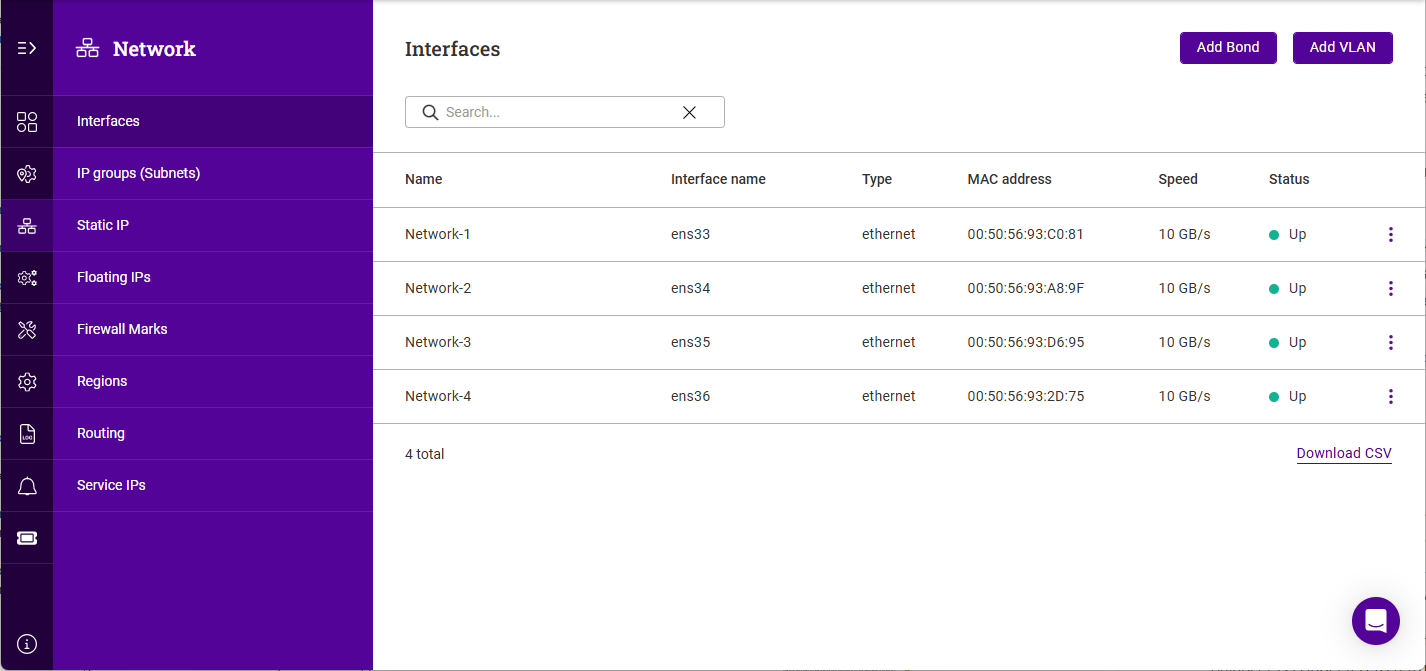
The list shows the following information for each interface, bond and VLAN:
Column Description Name
The friendly name given to the interface. This can be changed - see below.
Interface name
The underlying device name assigned by the operating system, e.g.
enp1s0. This cannot be changed, and varies according to the hypervisor or hardware platform.Type
The interface type - for example ethernet for a physical or virtual NIC, or the corresponding type for a bond or VLAN.
MAC address
The interface’s hardware (MAC) address.
Speed
The negotiated link speed.
Status
Whether the interface is currently Up or Down.
To view/edit an interface:
-
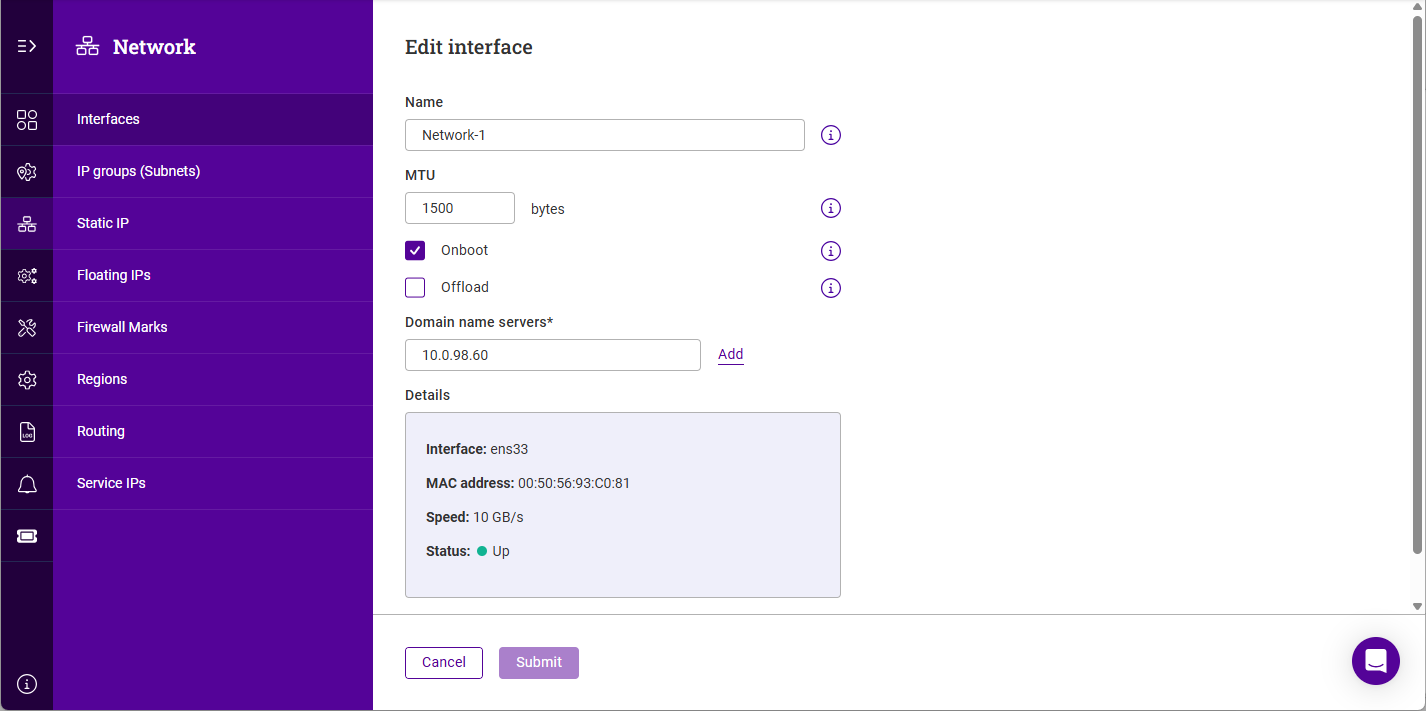
Click the three dots menu next to the interface you’d like to view or edit, and click Edit interface.
-
Update the Name if required.
-
Update the MTU if required.
-
Enable (check) the Onboot checkbox to enable the interface on boot up.
-
Enable (check) the Offload checkbox to enable hardware NIC offloading (where available).
-
Configure the required Domain name servers for the interface. Click Add to add a further server, or Delete alongside an entry to remove it.
-
Click Submit to save any changes.
| A read-only Details block at the foot of the form repeats the interface’s device name (Interface), MAC address, Speed and Status. |
Bonding
To Configure bonding:
-
Using the WebUI, navigate to Network > Interfaces > Overview.
-
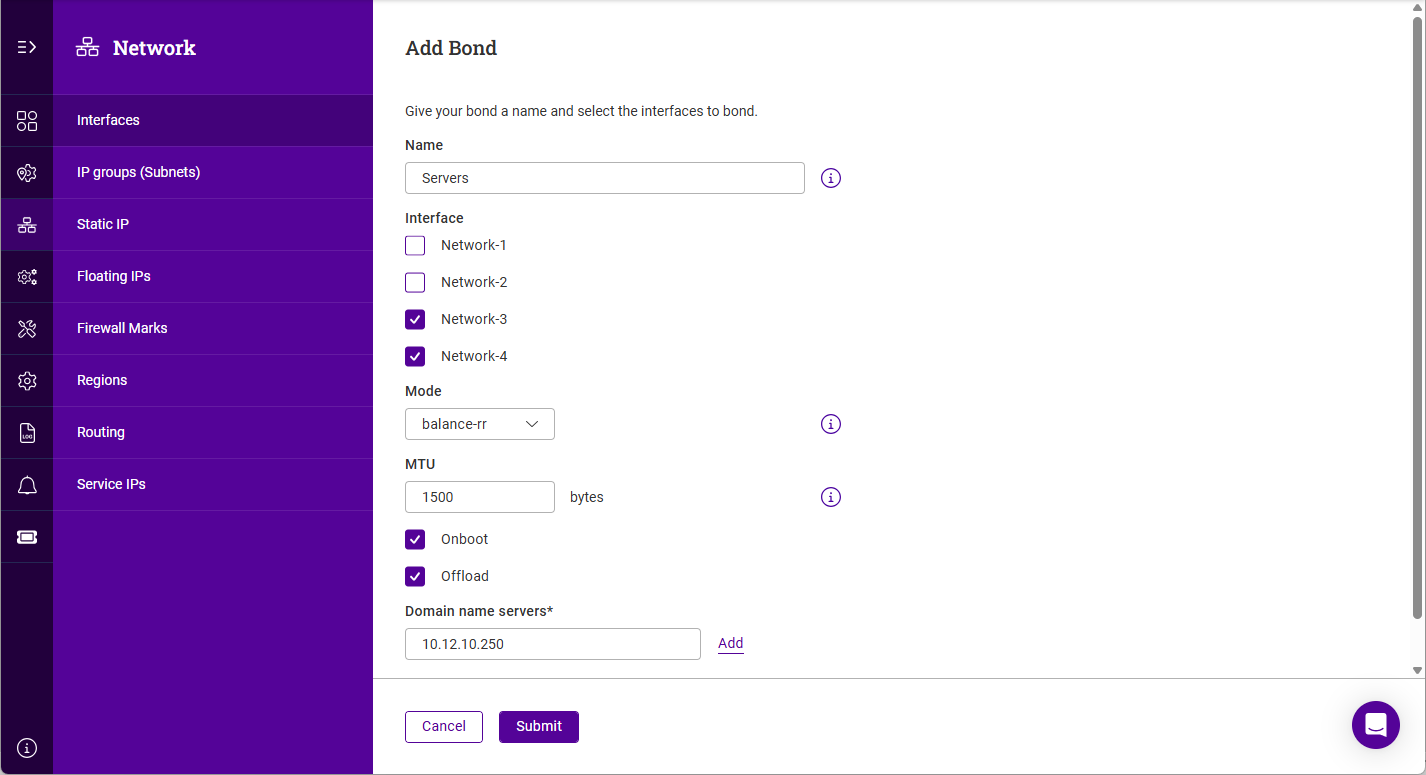
Click Add bond.
-
Specify a Name for the bond.
-
Under Interface, select (check) the interfaces to be bonded.
-
Select the bonding Mode, the options are:
-
balance-rr - balance round robin. Transmits packets in a numerical order from the first available Secondary through to the last.
-
active-backup - This places one of the adapters in a backup state and will only become active if the link is lost to the active adapter. This mode provides fault tolerance.
-
802.3ad - Dynamic link aggregation mode. This mode requires a switch that supports IEEE 802.3ad.
-
-
Update the MTU if required.
-
Enable (check) the Onboot checkbox to enable the bond on boot up.
-
Enable (check) the Offload checkbox to enable hardware NIC offloading (where available).
-
Configure the required Domain name servers for the bond.
-
Click Submit.
| For multiple nodes in HA mode, configure bonding in the same way on each node. |
VLANs
802.1Q VLAN tagging allows the appliance to send and receive traffic for multiple VLANs over a single interface or bond.
In access mode switch ports are dedicated to one VLAN. The switch handles all the tagging and de-tagging of frames - the station connected to the port does not need to be configured for the VLAN at all.
In trunk mode the switch passes on the raw VLAN frames - the station connected must be configured to handle them. Trunk mode is usually used to connect two VLAN-carrying switches, or to connect a server or router to a switch.
If the load balancer is connected to an access mode switch port, no VLAN configuration is required. If the load balancer is connected to a trunk port, then all the required VLANs must be configured on the load balancer.
To add a VLAN:
-
Using the WebUI, navigate to Network > Interfaces > Overview.
-
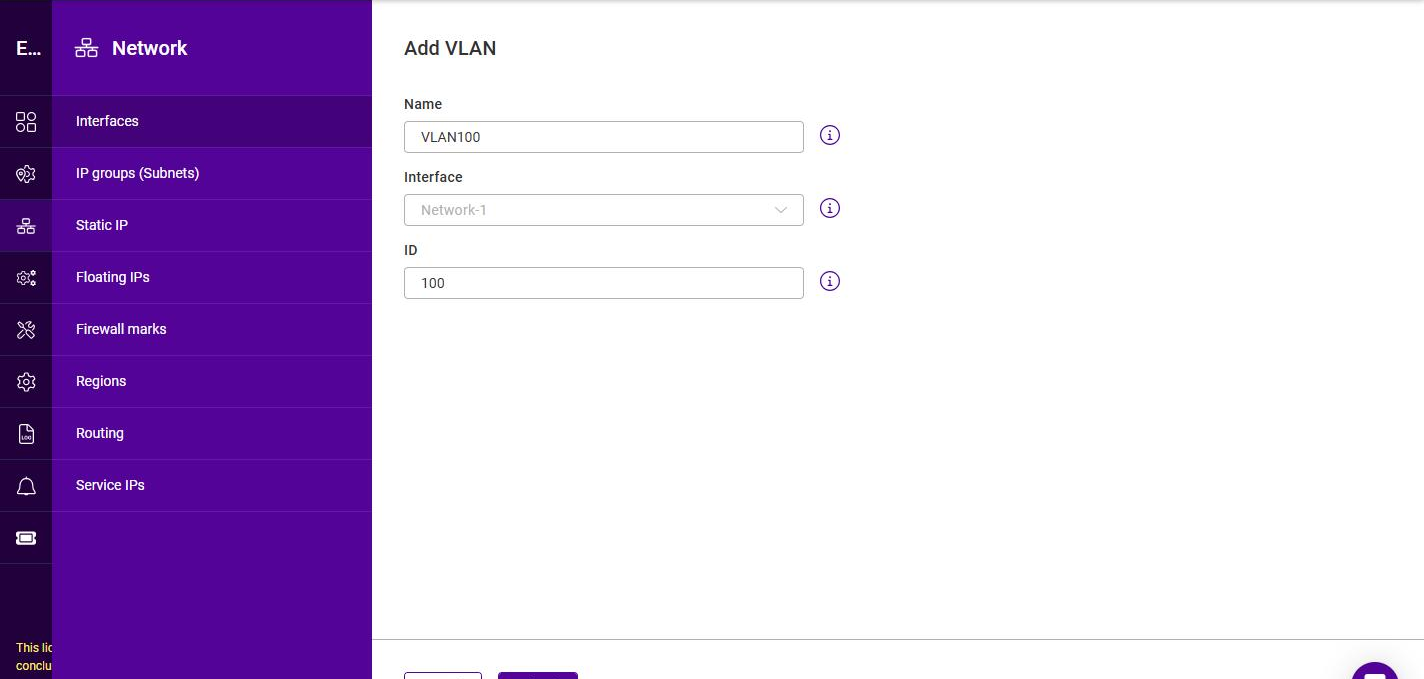
Click Add VLAN.
-
Specify a Name for the VLAN.
-
Select the Interface (or bond) to which the VLAN should be added.
-
Specify the VLAN ID (a value between 0 and 4095).
-
Click Submit.
| For multiple nodes in HA mode, configure VLANs in the same way on each node. |
Subnets
To view the configured subnets:
-
Using the WebUI, navigate to Network > Interfaces > Subnets.
The IP groups (Subnets) list shows the following information for each subnet:
Column Description Name
The name given to the IP group.
Network address
The subnet in CIDR notation, e.g.
10.11.40.0/24.Interface
The interface the subnet is associated with, shown as the friendly name followed by the device name, e.g. Network-1 (enp1s0).
Gateway
The gateway address for the subnet.
Default gateway
Whether this subnet’s gateway is the appliance’s default gateway.
Usage
Whether the subnet is currently referenced by any other object. A subnet that is not in use shows
Not in use.
To add a subnet:
-
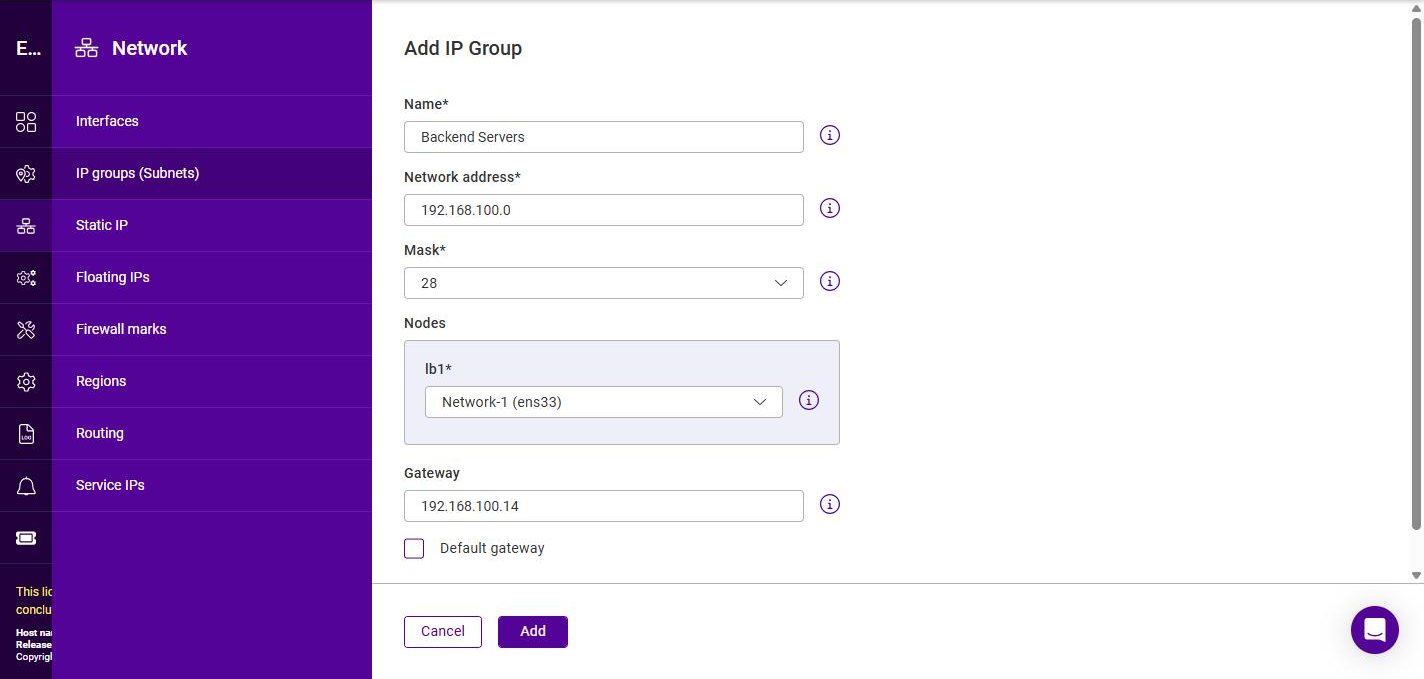
Using the WebUI, navigate to Network > Interfaces > Subnets and click Add IP group.
-
Specify a relevant Name, e.g. Backend Servers.
-
Specify the Network Address, e.g. 192.168.100.0.
-
Select the Mask from the drop-down, e.g. 28.
-
Under Nodes, select the Interface to use for this IP group on each node. For a single appliance only one node (e.g. lb1) is listed; for a highly available multi-node cluster, select the interface on each node.
-
Specify the Gateway, e.g. 192.168.100.14.
-
To use this gateway as the appliance’s default gateway, enable (check) the Default gateway checkbox.
-
Click Add.
| CIDR notation is used to specify the mask. For information on CIDR notation, see Appliance IPv4 Address Format (CIDR notation). |