Dashboard
This chapter covers the Dashboard - the widgets it presents, the detailed metric graphs reached from them, and how the layout is customized.
The Dashboard is the first page displayed after logging in to the WebUI. It presents a real-time, at-a-glance summary of the appliance’s health and status through a set of widgets, and provides drill-down access to detailed historical performance graphs.
To display the Dashboard:
-
Using the WebUI, navigate to Dashboard.
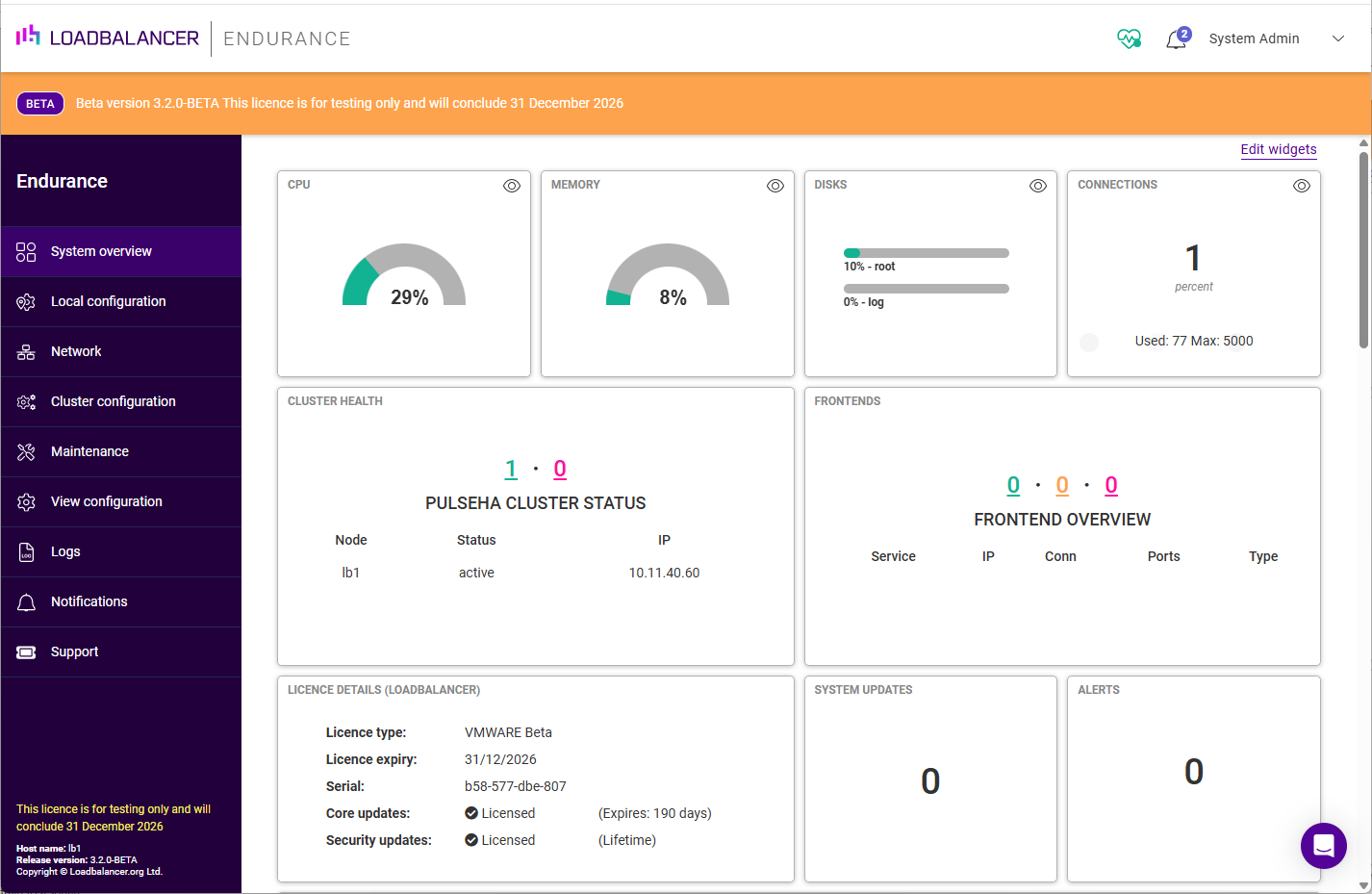
The dashboard is fully customizable - individual widgets can be moved, resized, added and removed as described in Customizing the Dashboard.
The Top Bar
The bar across the top of the WebUI appears on every page, not only the Dashboard. The appliance name is shown on the left, and five icons are grouped on the right:
| Icon | Purpose |
|---|---|
Cluster role |
The cluster role of the appliance you are logged in to - Active, Passive, or Not in a cluster on a standalone appliance. Opens the High availability page, see High availability. |
System lock |
Whether the configuration is locked against changes - Unlocked or Locked. Opens the System lock page, see System lock. |
Notifications |
A bell icon, which opens the Notifications page, see Notifications. |
Support |
Opens a menu offering Contact support, Service status and Support download, see Technical Support. |
User |
The name of the logged-in user. Opens a menu offering Profile settings, which opens the Account settings page (see Account settings), and Log out. |
| The first two icons double as status indicators - the appliance reports its cluster role and lock state on every page, without either page having to be opened. |
Dashboard Widgets
Each widget presents a specific aspect of the appliance’s status. The available widgets are described in the table below.
| Widget | Description |
|---|---|
CPU |
A gauge showing current CPU utilization as a percentage. |
Memory |
A gauge showing current memory (RAM) utilization as a percentage. |
Disks |
Horizontal bars showing the percentage of disk space used on each partition, e.g. root and log. |
Connections |
The current number of connections expressed as a percentage of the configured maximum, together with the number of connections currently in use and the maximum permitted, e.g. Used: 35 Max: 5000. |
Cluster Health |
Displays the PulseHA Cluster Status - a count of the cluster nodes by state, followed by a table listing each Node, its Status (e.g. Active) and its IP address. On a healthy standalone appliance this reads 1. For more information on HA clustering, see High availability. |
Services |
Displays the Service overview - a count of the configured services by health status, followed by a table listing each Service, IP address, current number of connections (Conn), Ports and Type (Layer 4 or Layer 7). A status is only shown when at least one service is in it: Online is green, Pending - a service whose configuration has not yet been applied - is amber, and Failure is magenta. The counts are of services, not of Real Servers, and a partly degraded service is counted in none of them - it simply leaves the Online figure. See Using the Dashboard. |
License Details |
Shows the appliance license information - the License type, the License expiry date, the appliance’s Device ID and the status of Updates (whether licensed, and when they expire). See Appliance Licensing. |
System Updates |
The number of system updates currently available for the appliance. |
Alerts |
The number of active alerts. |
Network Graph (kbs) |
A real-time line graph of network throughput in kb/s, showing the transmit (tx) and receive (rx) rate for each interface. |
System Load Average (%) |
A line graph of the system load average over time. |
System Memory Usage (Mb) |
A line graph of memory usage in Mb over time. |
| The status counts shown in the Cluster Health and Services widgets are links - click a count to jump to the relevant page for more detail. |
Viewing Detailed Metrics
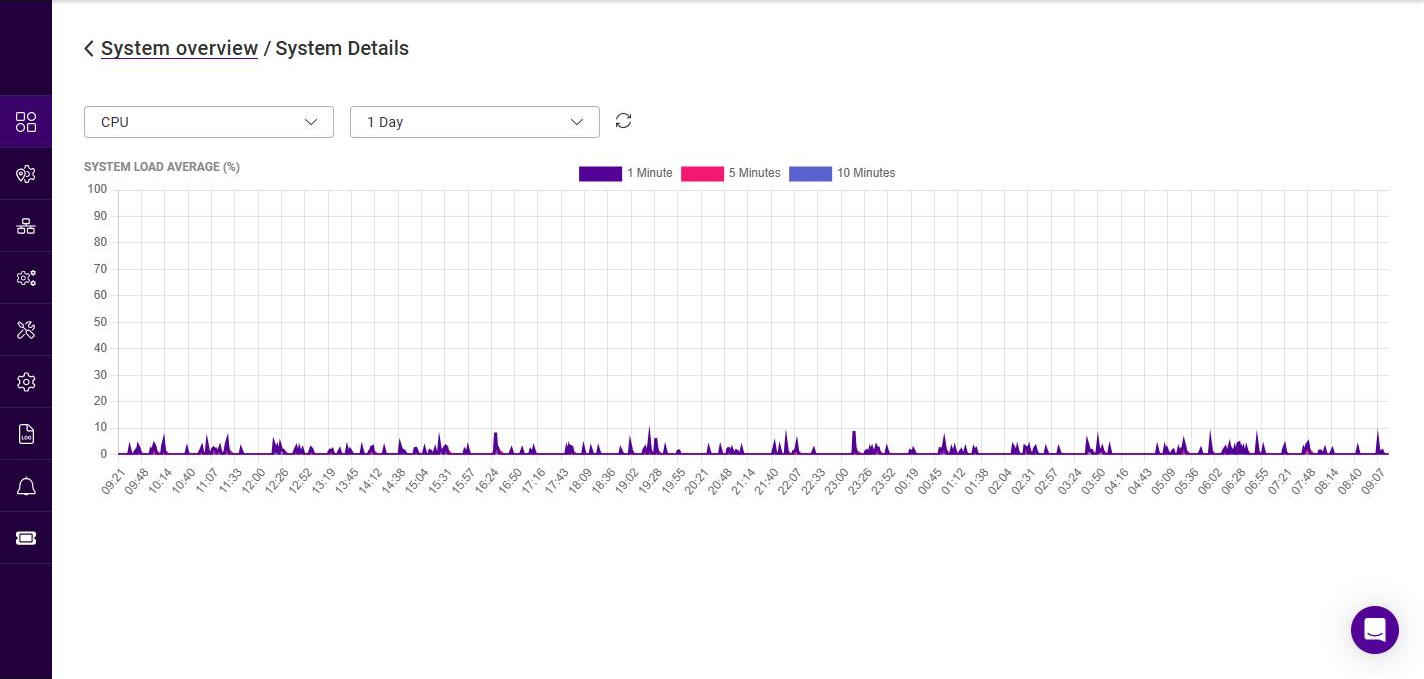
The resource and graph widgets (CPU, Memory, Disks, Connections and the graph widgets) include an eye icon in their top-right corner. Clicking this icon opens the Dashboard details view, which displays a larger, historical graph for the selected metric.
-
On the required widget, click the eye icon.
-
Select the metric to display from the first drop-down, the options are:
Metric Description CPU
System load average, shown as a percentage.
Memory
Memory (RAM) utilization.
Disks
Disk space usage per partition.
Interfaces
Per-interface throughput.
Connections
Connection counts.
-
Select the time period to display from the second drop-down. The options are 1 Hour, 1 Day (the default), 1 Week, 1 Month and 1 Year.
-
Click the refresh icon to reload the graph with the latest data.
-
To return to the dashboard, click the Dashboard breadcrumb.
Customizing the Dashboard
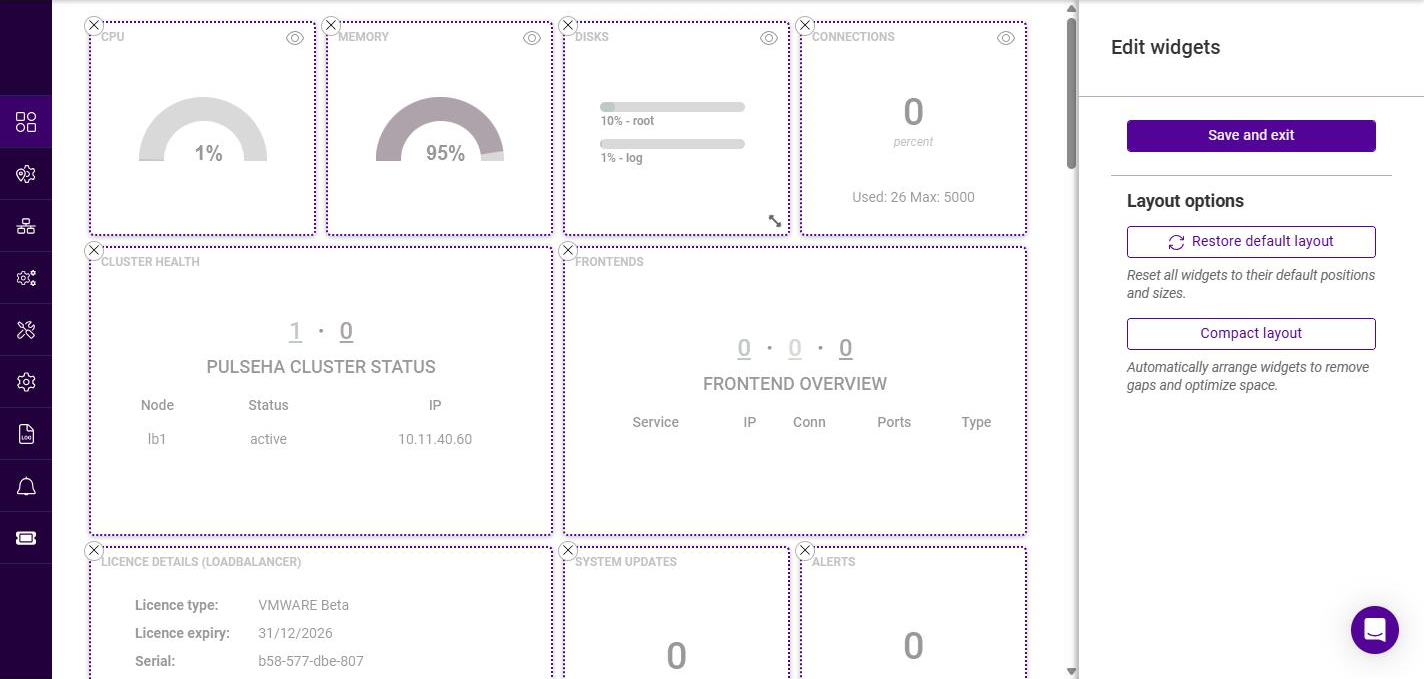
The dashboard layout can be tailored to suit your requirements. Widgets can be repositioned, resized and removed, and the layout can be reset or automatically compacted.
To customize the dashboard:
-
Using the WebUI, navigate to Dashboard.
-
Click Edit widgets (top-right of the page).
-
Edit the layout as required:
-
To move a widget, drag it to the required position.
-
To resize a widget, drag its bottom-right corner.
-
To remove a widget, click the X in its top-left corner.
-
-
The following Layout options are available in the panel on the right:
Option Description Restore default layout
Resets all widgets to their default positions and sizes.
Compact layout
Automatically arranges the widgets to remove gaps and optimize the use of space.
-
To add a widget back, use the Available widgets section of the same panel. This section only appears once at least one widget has been removed, and lists every removed widget under the instruction "Click on a widget to add it to the overview:". Click a widget’s name to return it to the dashboard. Removing a widget is therefore not destructive - it is the only route back, so a widget that has been removed can always be restored either from here or with Restore default layout.
-
Once the required changes have been made, click Save and exit to save the layout and return to the dashboard.