General
The General group holds the appliance-wide configuration: the per-service Configurations, the Log settings that control how much log data is retained and where it is forwarded, and Stats tracking.
Configurations
The Configurations menu contains advanced settings for the cluster (PulseHA), for connection tracking, for the Layer 4 and Layer 7 load balancing engines, and for GSLB.
Cluster
The clustering (PulseHA) behavior is tuned under Settings > Configurations > Cluster.
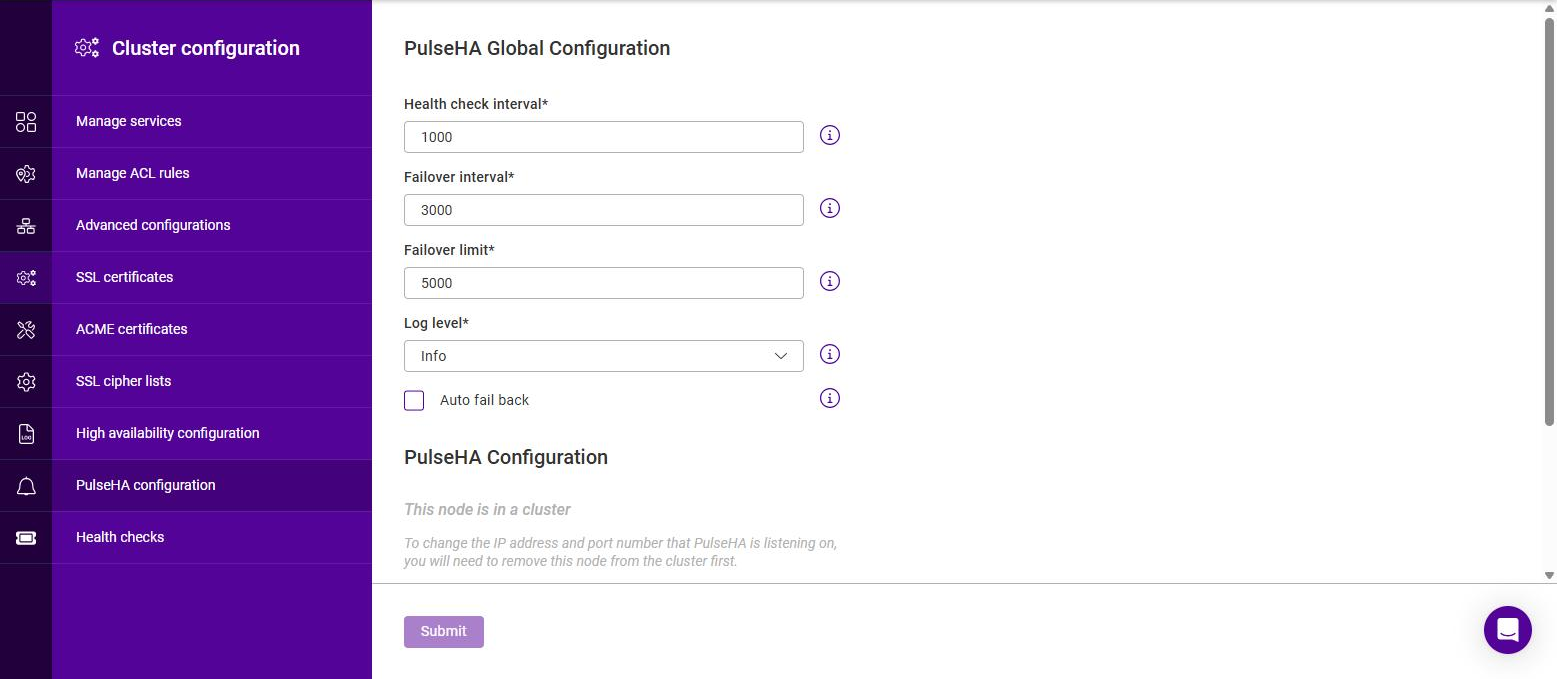
The PulseHA Global Configuration section provides the following settings:
| Field | Description |
|---|---|
Healthcheck interval |
The rate at which PulseHA sends health checks to determine whether a node is available. Enter a value and select the unit (milliseconds or seconds); the default is 1 second. This value should be consistent across all nodes. |
Failover interval |
The rate at which PulseHA checks confirmed health checks to determine whether a node has become unavailable and a failover recovery should be attempted. Enter a value and select the unit (milliseconds or seconds); the default is 3 seconds. This value may vary per node depending on your configuration. |
Failover limit |
The total time (in milliseconds) allowed to elapse since the last confirmed health check before the node is considered unavailable and a failover is performed. The default is 5000. |
Log level |
The granularity of the logs PulseHA writes to journalctl. The available options are Info (the default) and Debug. |
Auto fail back |
Controls the cluster behavior when a failed node returns to service. When enabled, the recovered node automatically returns to active status, taking back the floating IP addresses from the node that took over. When disabled, the node that took over remains active and retains the floating IP addresses; failover back must then be performed manually using the Promote option (see Viewing the HA Configuration and Status). |
Click Submit to apply any changes.
The PulseHA configuration section at the foot of the page shows the IP address and PulseHA port that PulseHA is listening on. The port defaults to 9083.
| While the appliance is part of a cluster both fields are greyed out and the section displays the message "This node is in a cluster - To change the IP address and port number that PulseHA is listening on, you will need to remove this node from the cluster first." On the standalone appliance shown above the fields are editable, although the IP address drop-down is still greyed while the appliance has only one Static IP to offer. |
Connection tracking
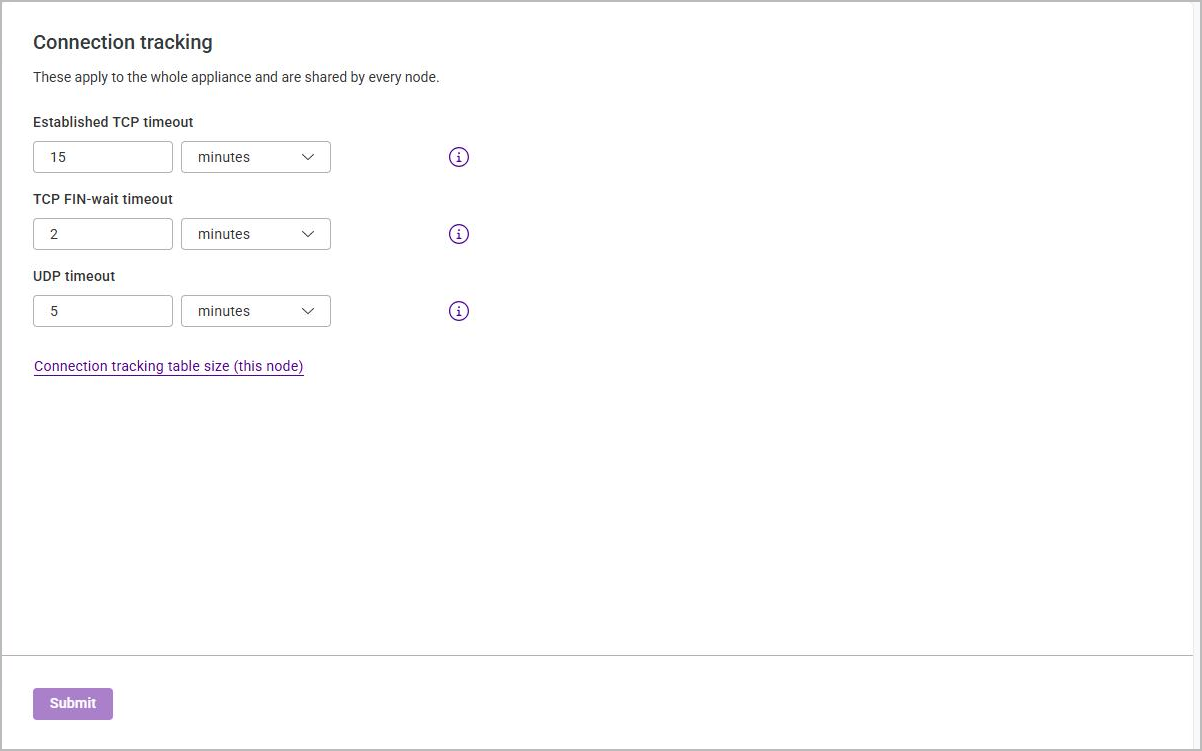
The Settings > Configurations > Connection tracking page configures how long the appliance remembers connection state. As the page itself notes, these settings apply to the whole appliance and are shared by every node in the cluster.
| Setting | Description |
|---|---|
Established TCP timeout |
How long an established TCP connection is remembered in the connection tracking table. Enter a value and select the unit. The default is 15 minutes. |
TCP FIN-wait timeout |
How long a TCP session is remembered for after seeing a FIN packet. Enter a value and select the unit. The default is 2 minutes. |
UDP timeout |
How long a session is remembered for after seeing a UDP packet. The timeout is reset on every UDP packet received. Enter a value and select the unit. The default is 5 minutes. |
Click Submit to apply any changes.
| The three timeouts above are appliance-wide. The size of the connection tracking table is set per node - the Connection tracking table size (this node) link at the foot of the page opens the Connection tracking section of Physical advanced config, where it is configured. |
Layer 4
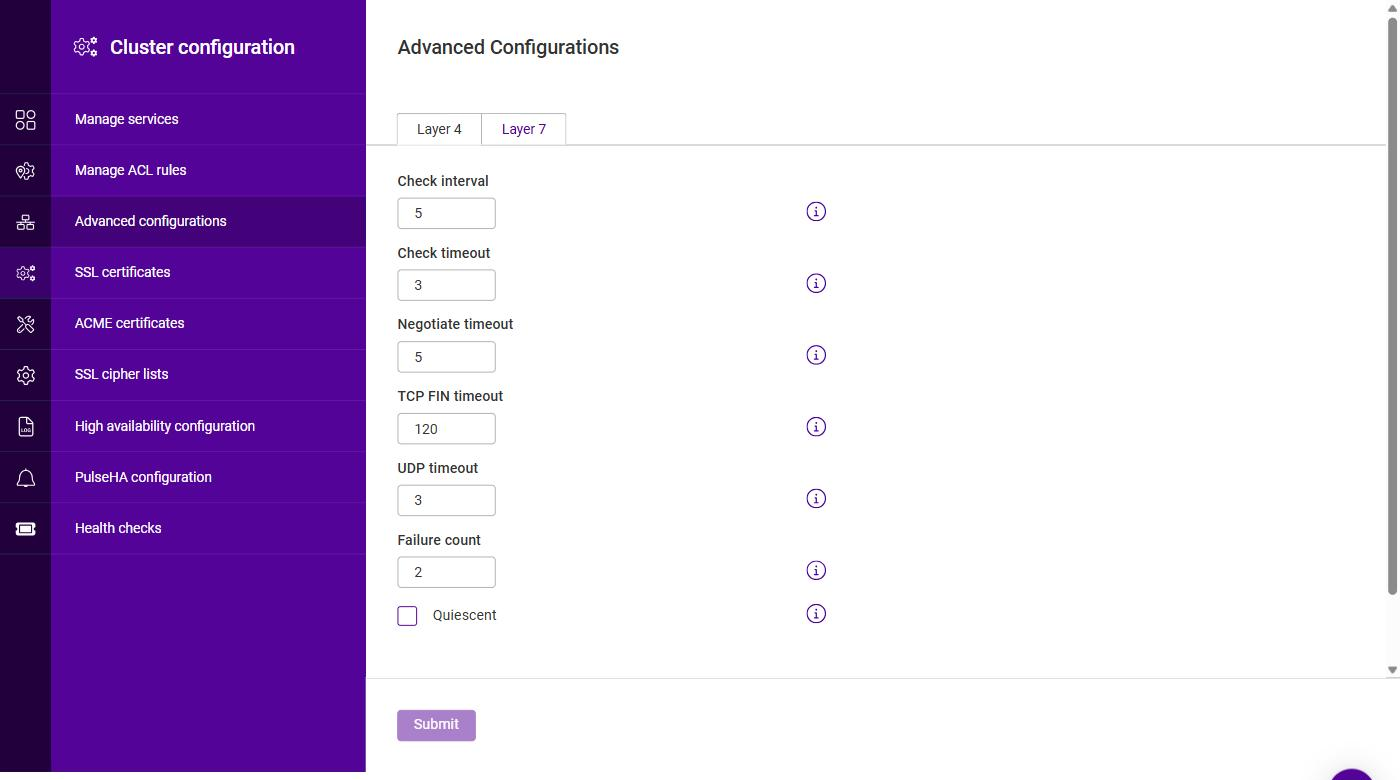
The Settings > Configurations > Layer 4 page configures the global settings for the Layer 4 (LVS) services, which are run by the IP Virtual Service Director.
| Setting | Description |
|---|---|
Check interval |
The Layer 4 health check interval. Enter a value and select the unit (seconds or minutes); the default is 5 seconds. If this value is too low, you may experience unexpected Real Server downtime. |
Check timeout |
The Layer 4 health check timeout. Enter a value and select the unit (seconds or minutes); the default is 3 seconds. If this value is too low, you may induce unexpected Real Server downtime. |
Failure count |
The number of times a Layer 4 check has to fail before taking a server offline. The default is 2. The time to detect a failure and take a server down will be (check interval + check timeout) x failure count. |
Quiescent |
Determines what happens when a Real Server fails its health check. When enabled (checked), the Real Server is not removed from the load balancing table on a health check failure - instead its weight is set to 0. Persistent connections continue to be routed to the failed server, but no new connections are accepted. When disabled (unchecked), the server is completely removed from the load balancing table on a health check failure; persistent connections are broken and sent to a different Real Server. |
| Quiescent only applies to health checks - it has no effect on taking Real Servers offline in the Dashboard. To manually force a Real Server to be removed from the table, disable Quiescent and arrange for the server to fail its health check. This can be done, for example, by shutting down the daemon or service, changing the negotiate check value, or shutting down the server. |
Autonat
Autonat rewrites the source address of traffic leaving the chosen interface, so that a Real Server using the appliance as its gateway can reach a network beyond it without that network needing a route back to the Real Server.
The setting names an interface by its device name, and it is that name which reaches the firewall rule. The drop-down offers the interfaces the appliance currently has as a convenience only - a name that does not yet exist is accepted deliberately, so that the setting can be made before an interface comes up, and so that it survives a backup restored onto hardware whose interfaces are named differently.
| Setting | Description |
|---|---|
Autonat interface |
The interface whose outgoing traffic has its source address rewritten to that of the appliance - normally the interface that faces the Real Servers. Select Off to disable autonat; no source addresses are then rewritten and the remaining autonat settings are not displayed. The drop-down lists Off followed by each configured interface, by the Name it is given under Interfaces (e.g. Network-1) rather than its device name. |
Autonat applies to |
Narrows the traffic the rewrite is applied to. Only shown once an interface has been selected. The options are Everything leaving the interface (the default), Real Servers only, A subnet only and Everything except this appliance. |
Autonat subnet |
The subnet, in CIDR notation (e.g. |
Click Submit to apply any changes.
Layer 7
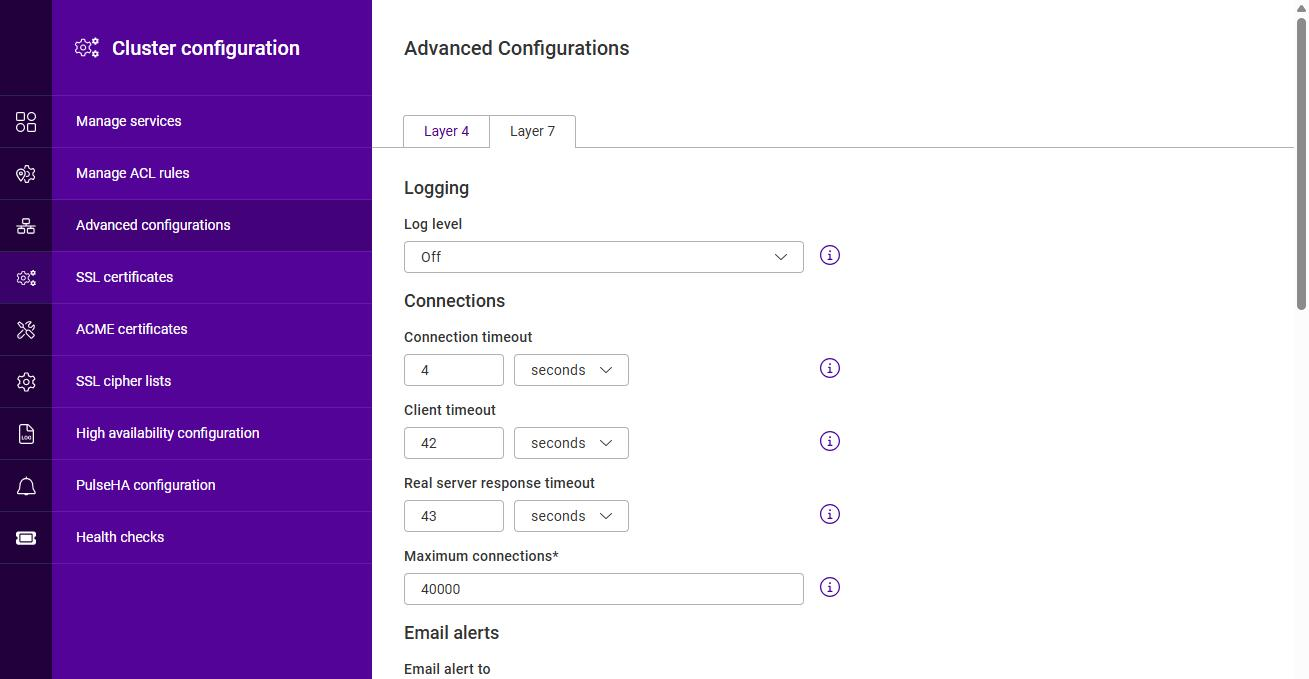
The Settings > Configurations > Layer 7 page configures the global settings for the Layer 7 (HAProxy) services. The settings are grouped into a number of sections as described below.
Logging
| Setting | Description |
|---|---|
Log level |
Sets the logging level for the Layer 7 (HAProxy) service. The options are Off, Healthcheck, Errors and Debug. Logs are written to /var/log/haproxy.log. |
| By default, the Layer 7 (HAProxy) service logs service state, restarts, reloads and health checks only. Setting the log level to Errors or Debug logs errors or individual connections respectively. Logging every connection on a busy Service is likely to rapidly exhaust the available log space. |
Connections
| Setting | Description |
|---|---|
Connection timeout |
The maximum time HAProxy waits for a connection attempt to a Real Server to succeed. Enter a value and select the unit (microseconds, milliseconds, seconds, minutes, hours or days). The default is 4 seconds. This setting should not normally require changing. |
Client timeout |
The global client inactivity timeout. Enter a value and select the unit. The default is 42 seconds. This setting should not normally require changing. |
Real server response timeout |
The global Real Server response timeout. Enter a value and select the unit. The default is 43 seconds. This setting should not normally require changing. |
Maximum connections |
The per-process maximum number of concurrent connections. The default is 40000. This setting should not require changing unless you are running a high volume site. |
| All four settings in this section are required - the page cannot be submitted with any of them left empty. |
Resolvers
Controls how HAProxy resolves the hostnames used by Layer 7 services.
| Setting | Description |
|---|---|
Enable System Resolvers |
When enabled, HAProxy uses the appliance’s system DNS resolvers to resolve hostnames at runtime, rather than resolving them only once at start-up. Enabled by default. |
Resolver Preference |
The address family preferred when a hostname resolves to both an IPv4 and an IPv6 address. The options are IPv4 (the default) and IPv6. |
Email alerts
| Setting | Description |
|---|---|
Email alert to |
The address that email alerts are sent to. |
Email alert from |
The "from" address used for email alerts. |
Email server address |
The email server address, entered as either an IP address or FQDN. |
Email server port |
The TCP port of the email server. The default is 25. |
Statistics page
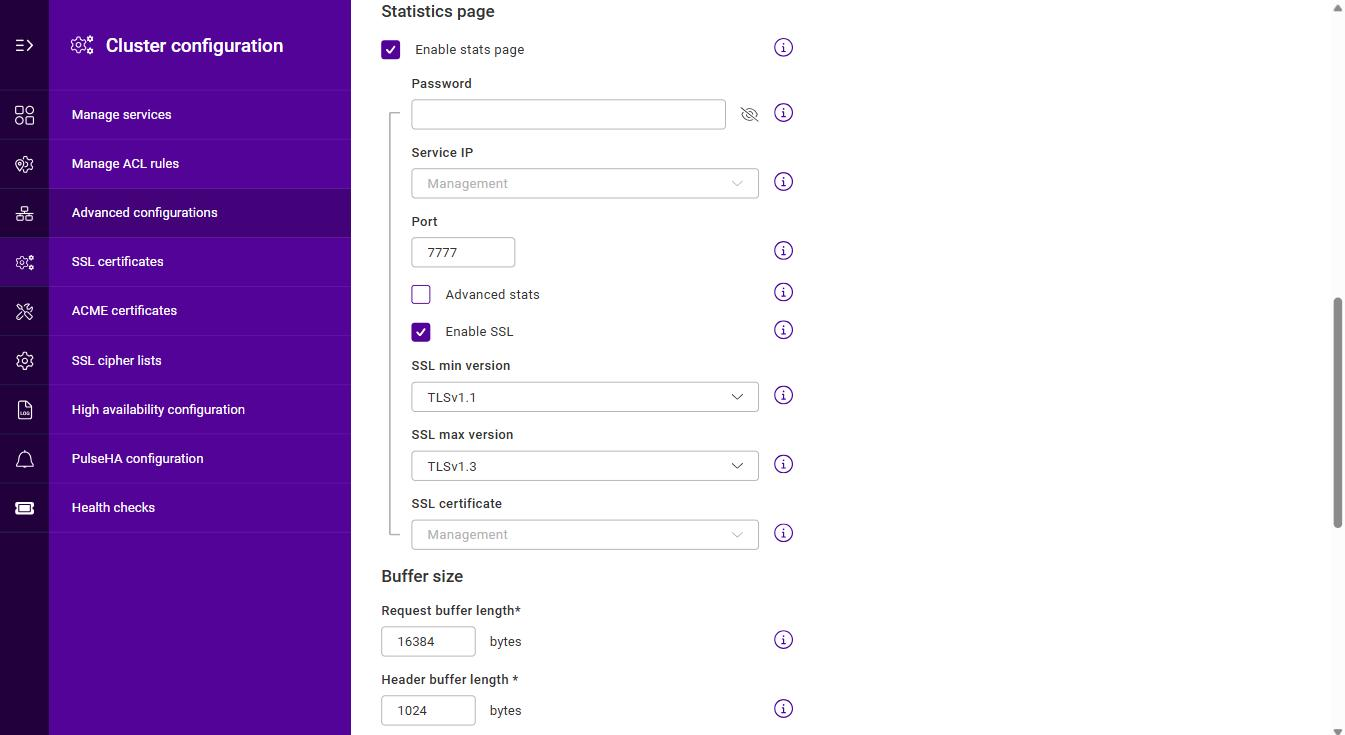
Enable the Enable stats page checkbox to activate the HAProxy web-based statistics report. When enabled, the following additional settings are displayed:
| Setting | Description |
|---|---|
Password |
The password used to access the HAProxy statistics report. |
Service IP |
The listening IP for the HAProxy statistics report, selected from the configured Service IPs. |
Port |
The listening port for the HAProxy statistics report. The default is 7777. |
Advanced stats |
When enabled, additional actions (such as enabling/disabling servers) are available on the HAProxy stats page. |
Enable SSL |
When enabled, the statistics page is served over SSL/TLS. |
SSL min version |
The minimum SSL/TLS version accepted for the statistics page, e.g. TLSv1.1. |
SSL max version |
The maximum SSL/TLS version accepted for the statistics page, e.g. TLSv1.3. |
SSL certificate |
The certificate used to secure the statistics page, selected from the configured SSL certificates. |
Buffer size
| Setting | Description |
|---|---|
Request buffer length |
The request buffer length, in bytes. This field is required. The default value is 16384 bytes. |
Header buffer length |
The header buffer length, in bytes. This field is required. The header buffer is a section of the request buffer, reserved for the addition and rewriting of request headers. The default value is 1024 bytes. Most applications only require a small header buffer, as few headers are added or rewritten. |
| Changing the request buffer length affects the performance of HAProxy - do not make changes unless you know exactly what you are doing. Lower values allow more sessions to coexist in the same amount of RAM, and higher values allow some applications with very large cookies to work. It is strongly recommended not to change this from the default value, as very low values will break some services such as the statistics page, and values larger than the default will increase memory usage, possibly causing the system to run out of memory. Consider reducing the Maximum connections value if the request buffer is increased. |
Persistence table replication
When configured, HAProxy’s persistence tables are replicated to the other nodes in a highly available multi-node cluster.
| Setting | Description |
|---|---|
Persistence replication service IP |
The Service IP used for persistence table replication. |
Persistence replication port |
The TCP port used for persistence table replication. The default is 7778. |
Multi threading
| Setting | Description |
|---|---|
Enable Max threads |
Enables or disables multi-threading for the Layer 7 (HAProxy) service. Multi-threading can improve performance if connection limits are being reached. |
Number of threads |
The maximum number of worker threads started per HAProxy process. |
| Multi-threading is enabled by default and the number of threads is set automatically based on the number of detected CPUs / vCPUs. |
SSL cache options
Controls the shared SSL/TLS session cache used when terminating SSL on the appliance. Reusing a cached session lets a returning client complete an abbreviated handshake, reducing CPU load and connection latency.
| Setting | Description |
|---|---|
SSL cache lifetime |
How long an SSL/TLS session is retained in the cache. Enter a value and select the unit (seconds, minutes, hours or days); the default is 5 minutes. |
SSL cache size |
The size of the SSL/TLS session cache, in bytes. |
GSLB
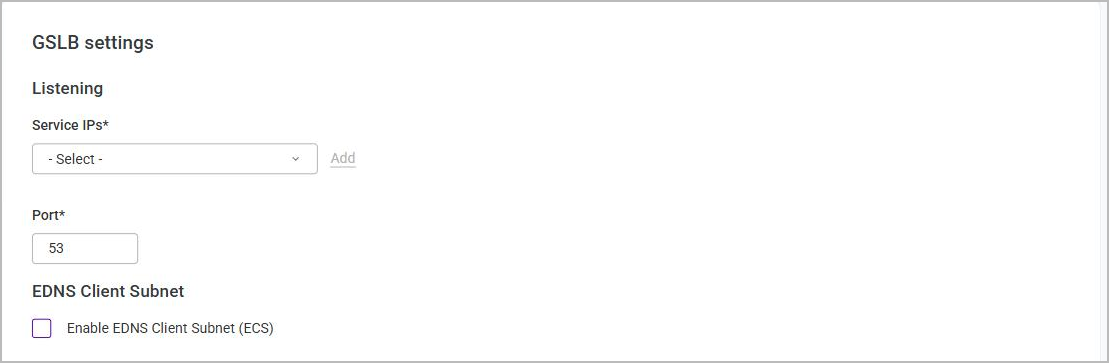
The Settings > Configurations > GSLB page configures the global GSLB (Polaris) settings. These settings apply to all GSLB global names configured on the appliance, and are grouped into two sections - Listening and EDNS Client Subnet.
Listening
These settings determine where the GSLB service answers DNS queries.
| Setting | Description |
|---|---|
Service IPs |
The Service IP address(es) that the GSLB service listens on. This field is required. Select an address from the drop-down, then click Add if GSLB should listen on more than one - Add stays greyed out until an address has been selected. |
Port |
The port that the GSLB service listens on, for both TCP and UDP. This field is required. The default is 53. |
| A Service IP must be selected here before a GSLB service can be saved - see Adding a GSLB Service. |
EDNS Client Subnet
| Setting | Description |
|---|---|
Enable EDNS Client Subnet (ECS) |
Forwards part of the requesting client’s IP subnet to the authoritative name servers, so that GSLB can route based on the end user’s location rather than the location of their DNS resolver. |
Restrict ECS to global names managed by this appliance |
Limits the use of the forwarded client subnet to the global names this appliance is authoritative for. This checkbox is only displayed once Enable EDNS Client Subnet (ECS) has been enabled, and is enabled by default. |
Click Submit to apply any changes.
Log settings
The Log settings menu controls the appliance’s logging configuration and external (remote) logging.
Log configuration
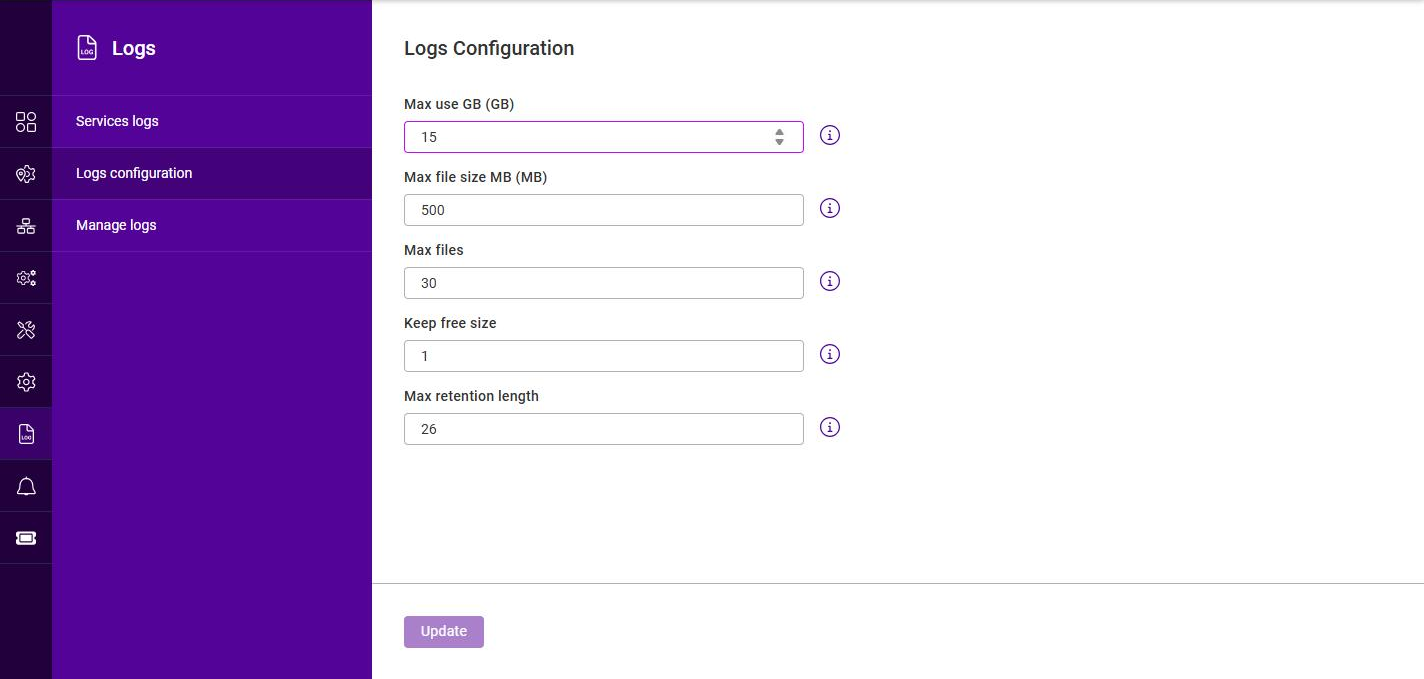
The Logs configuration page controls how much log data is retained on the appliance. When any of the configured limits is reached, the oldest log data is automatically rotated (removed) to stay within the limits.
To configure the log retention settings:
-
Using the WebUI, navigate to Settings > Log settings > Log configuration.
-
Configure the settings as required:
Setting Description Max use GB (GB)
The maximum amount of disk space, in GB, that the persistent journal may use.
Max file size MB (MB)
The maximum size, in MB, of an individual log file before it is rotated. The default is 500.
Max files
The maximum number of individual log files to retain.
Keep free size
The amount of disk space, in GB, to keep free. Log data is rotated to ensure at least this much free space remains. The default is 1.
Max retention length
The maximum length of time, in weeks, to retain log data. The default is 26.
The initial values of Max use GB and Max files are sized from the appliance’s log partition, so they vary between deployments - do not assume the values shown in the image above. -
Click Update.
External Logging
Logs generated on the appliance can be forwarded to one or more remote log servers, for example for central collection, long-term archival or analysis. Two types of remote destination can be configured, each on its own tab:
-
Journals - forwards the systemd journal to a remote collector over HTTP or HTTPS.
-
Syslogs - forwards logs to a remote syslog server over TCP, UDP or TLS.
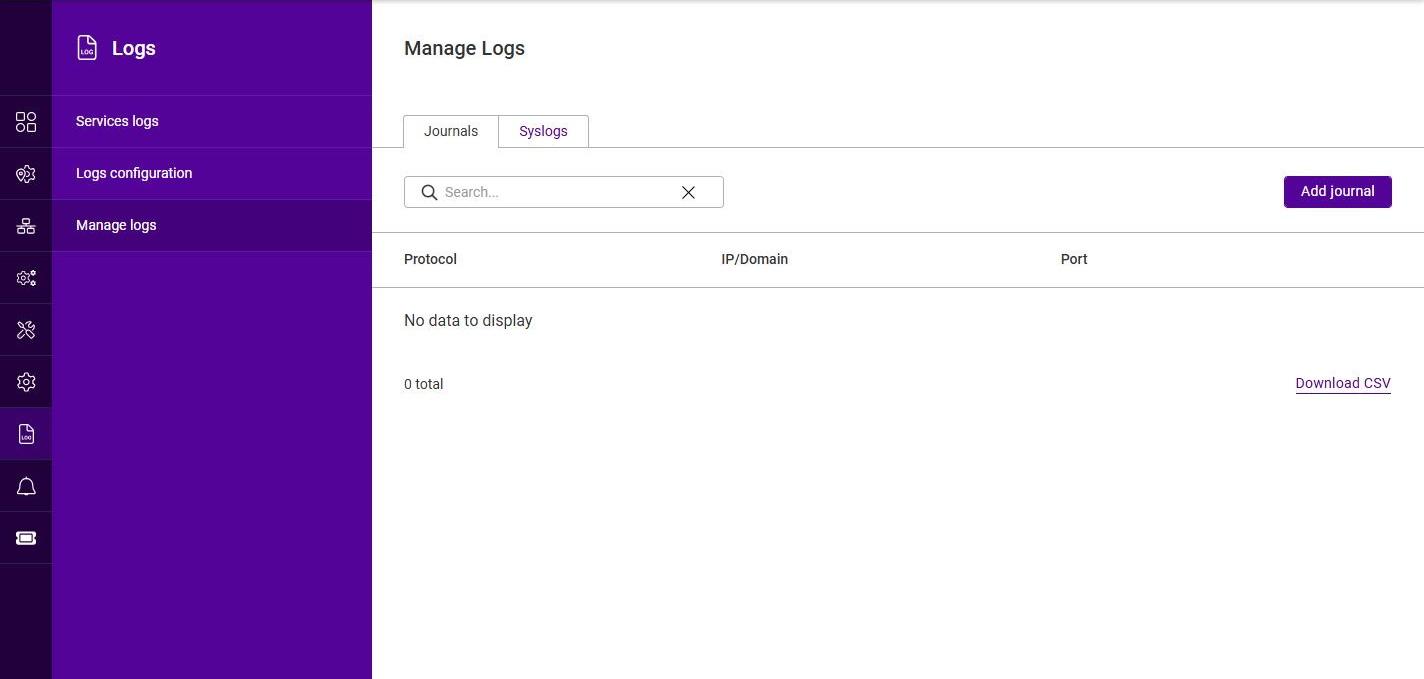
Each tab lists the configured destinations, showing the Protocol, IP/Domain and Port for each. The list can be filtered using the Search box and exported using the Download CSV link.
Journals
To add a journal (HTTP/HTTPS) destination:
-
Using the WebUI, navigate to Settings > Log settings > External Logging and select the Journals tab.
-
Click Add journal.
-
Select the Protocol, either HTTP or HTTPS.
-
Specify the IP/Domain of the remote server. An IP address or FQDN can be used.
-
Specify the Port that the remote server listens on.
-
Click Submit.
Syslogs
To add a syslog (TCP/UDP/TLS) destination:
-
Using the WebUI, navigate to Settings > Log settings > External Logging and select the Syslogs tab.
-
Click Add syslog.
-
Select the Protocol - TCP, UDP or TLS (TCP+TLS).
-
Specify the IP/Domain of the remote syslog server. An IP address or FQDN can be used.
-
Specify the Port that the remote syslog server listens on.
-
Click Submit.
To modify or delete a remote destination:
-
On the relevant tab, click the three dots menu next to the destination.
-
Click Edit to change its settings, or click Delete then Confirm to remove it.
Stats tracking
The appliance can record a traffic history for each Layer 7 service, so that past throughput can be graphed as well as the live figures shown on the Dashboard.
| This is not the HAProxy statistics page. That is a separate, live report served by HAProxy itself and is enabled under Settings > Configurations > Layer 7 using the Enable stats page setting. |
To change whether the history is recorded:
-
Using the WebUI, navigate to Settings > Stats tracking.

-
Select (or clear) the Collect Layer 7 statistics history checkbox.
-
Click Submit.
The recorded history is viewed from the Services list - open the actions menu for a Layer 7 service and select View graphing. The option is greyed out for Layer 4 and GSLB services, which keep no history.