View logs
The Services logs page displays the log entries generated by the appliance’s services. The services to include, the number of lines to retrieve and the point in time to start from can all be specified, and the results can be searched.
-
Using the WebUI, navigate to Network > View logs.
-
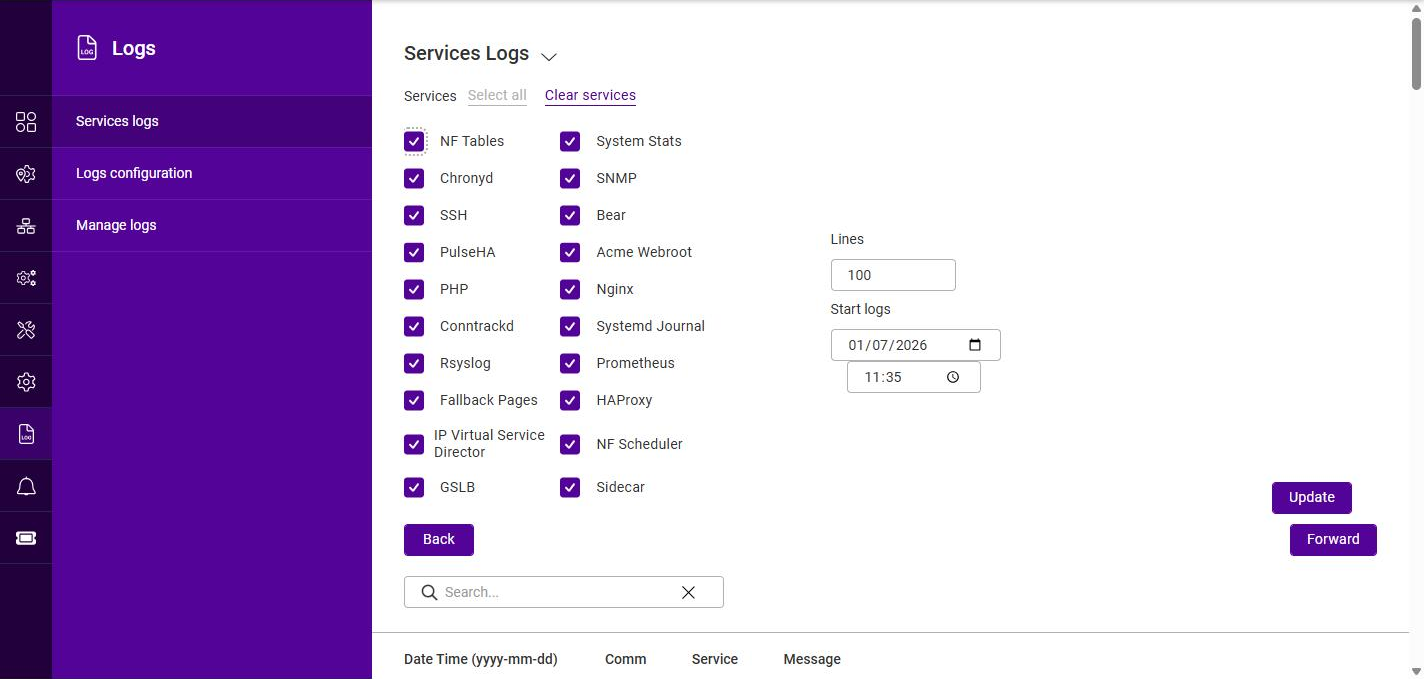
Under Services, select (check) the service(s) whose log entries should be displayed. Click Select all to select every service, or Clear services to deselect all of them.
The list begins with the appliance’s own services, described in the table below. Beneath them it continues with the other processes that have written to the journal - operating system components such as
systemd,NetworkManager,auditd,crondandsudo. Those entries are discovered from the log data itself, so which of them appear varies between appliances and over time, and each is listed under its raw process name rather than a friendly one. Long process names are shown truncated.The appliance’s own services are:
Service Description NF Tables
The appliance firewall (nftables).
System Stats
Collection of system resource statistics.
Chronyd
The NTP time synchronization service. See Date & time.
SNMP
The SNMP agent. See SNMP Configuration.
SSH
The SSH daemon.
WebSocket
Serves the real-time WebSocket connections that stream live status, health and performance data to the WebUI and the API.
PulseHA
The high availability (clustering) service. See High availability.
Acme Webroot
The ACME service used for automated (Let’s Encrypt) certificate issuance and renewal.
PHP
The PHP service used by the WebUI / API backend.
Nginx
The web server that serves the WebUI and API.
Conntrackd
The connection tracking daemon (used to synchronize connection state between cluster nodes).
Systemd Journal
The systemd journal (the underlying system log).
Rsyslog
The system logging service.
SCIM Endpoint
The SCIM (System for Cross-domain Identity Management) endpoint used for user/identity provisioning.
SAML Endpoint
The SAML endpoint used for SAML-based single sign-on.
OIDC Endpoint
The OpenID Connect (OIDC) endpoint used for OIDC-based single sign-on.
Prometheus
The Prometheus metrics exporter. See Prometheus.
Fallback Pages
The service that serves internal fallback pages. See Fallback pages.
HAProxy
The Layer 7 load balancing service. See Layer 7 Services.
IP Virtual Service Director
The Layer 4 load balancing service. See Layer 4 Services.
NF Scheduler
The firewall scheduling service.
GSLB
The Global Server Load Balancing service.
Sidecar
Internal appliance service.
-
In the Lines field, specify the maximum number of log lines to retrieve (the default is 100).
-
Under Start logs, select the Date and Time from which log entries should be displayed.
-
Click Update to retrieve the log entries matching the current selections. The entries are listed in the table at the bottom of the page:
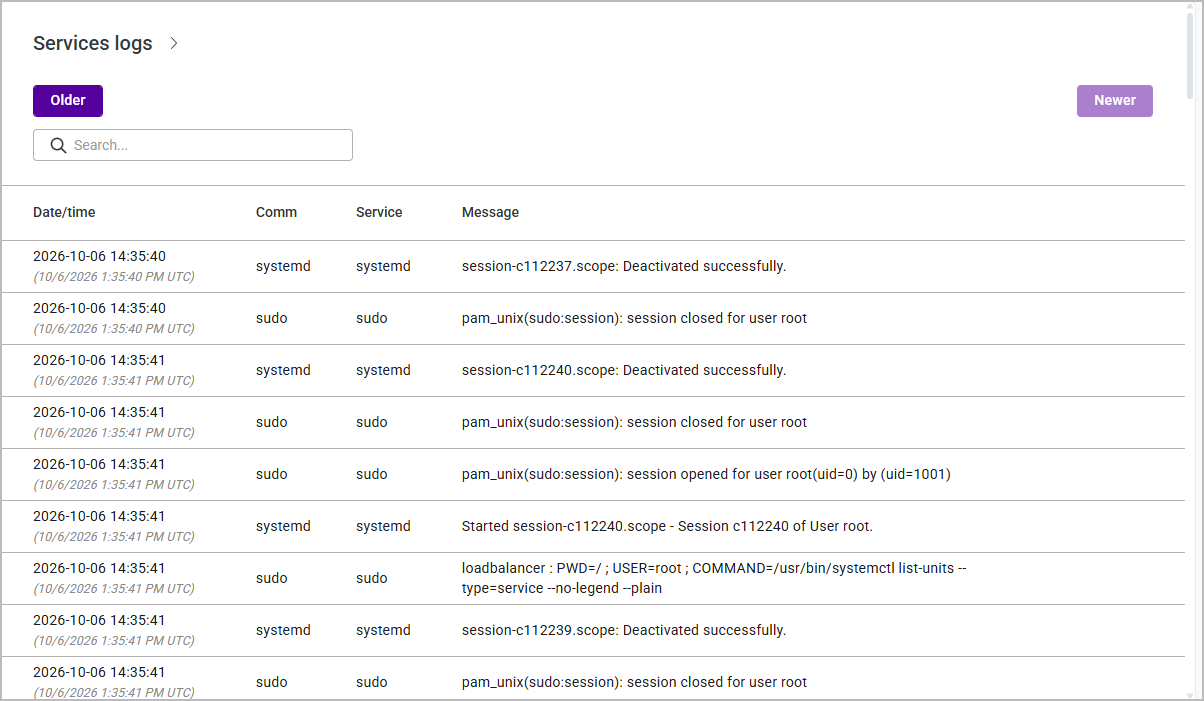
The chevron beside the Services logs heading collapses the service selection, which is useful for bringing the results table into view - the service list is long, because it includes every process discovered in the journal as well as the appliance’s own services. Column Description Date Time (yyyy-mm-dd)
The date and time the entry was logged.
Comm
The command (process) that generated the entry.
Service
The service the entry relates to.
Message
The log message text.
-
Use the Back and Forward buttons to page backwards and forwards through the log history relative to the currently displayed entries.
-
To locate specific entries, type into the Search box to filter the displayed results. Click the X to clear the search.
| By default, the Layer 7 (HAProxy) service logs service state, restarts, reloads and health checks only. To log errors or individual connections, raise the Log level under Settings > Configurations > Layer 7. Note that logging every connection on a busy Virtual Service is likely to rapidly exhaust the available log space. |