Layer 4 services
Introduction
Layer 4 Services are based on LVS (Linux Virtual Server). LVS implements transport layer load balancing inside the Linux kernel. It is used to direct requests for TCP/UDP based services to the Real Servers and makes services on the Real Servers appear as a Virtual Service on a single IP address.
With the exception of Layer 4 SNAT mode, Layer 4 services are transparent by default, i.e. the source IP address is maintained through the load balancer to the Real Servers.
Layer 4 persistence is based on source IP and is enabled by default. The timeout is reset each time the client makes a connection, so a 5 minute persistence setting could last for hours if the client is active and regularly refreshes their connection.
Multiple ports can be specified, for example 80 & 443. In this case persistence is useful to ensure that clients hit the same backend server for both HTTP & HTTPS traffic and also to prevent the client having to renegotiate the SSL connection.
| It’s not possible to configure a Service on the same IP address as any of the network interfaces. This ensures Services can "float" (move) between nodes in HA mode. |
Adding Layer 4 Services
Layer 4 Services are configured using a template based wizard. The wizard is split into 2 stages: Frontend Configuration (the Service that clients connect to) and Backend Configuration (the pool of Real Servers that requests are distributed to).
The wizard can be run in 2 modes, selected using the drop-down at the top of the left-hand menu:
| Mode | Description |
|---|---|
Default Mode |
Displays only the most commonly used settings. Recommended for a quick, standard deployment. |
Advanced Mode |
Displays all available settings. |
| The steps below use Advanced Mode so that all available settings are described. When using Default Mode, the advanced settings are hidden and sensible defaults are applied automatically. |
The wizard presents the following steps:
| Step | Sub-steps |
|---|---|
Step 1 Template Selection |
- |
Step 2 Frontend |
General and Floating IP |
Step 3 Backend |
General, Health, Fallback, Persistence (Advanced Mode only) and Real servers |
Real servers is the last step of the wizard, and carries the Submit button.
To add a new Layer 4 Service:
-
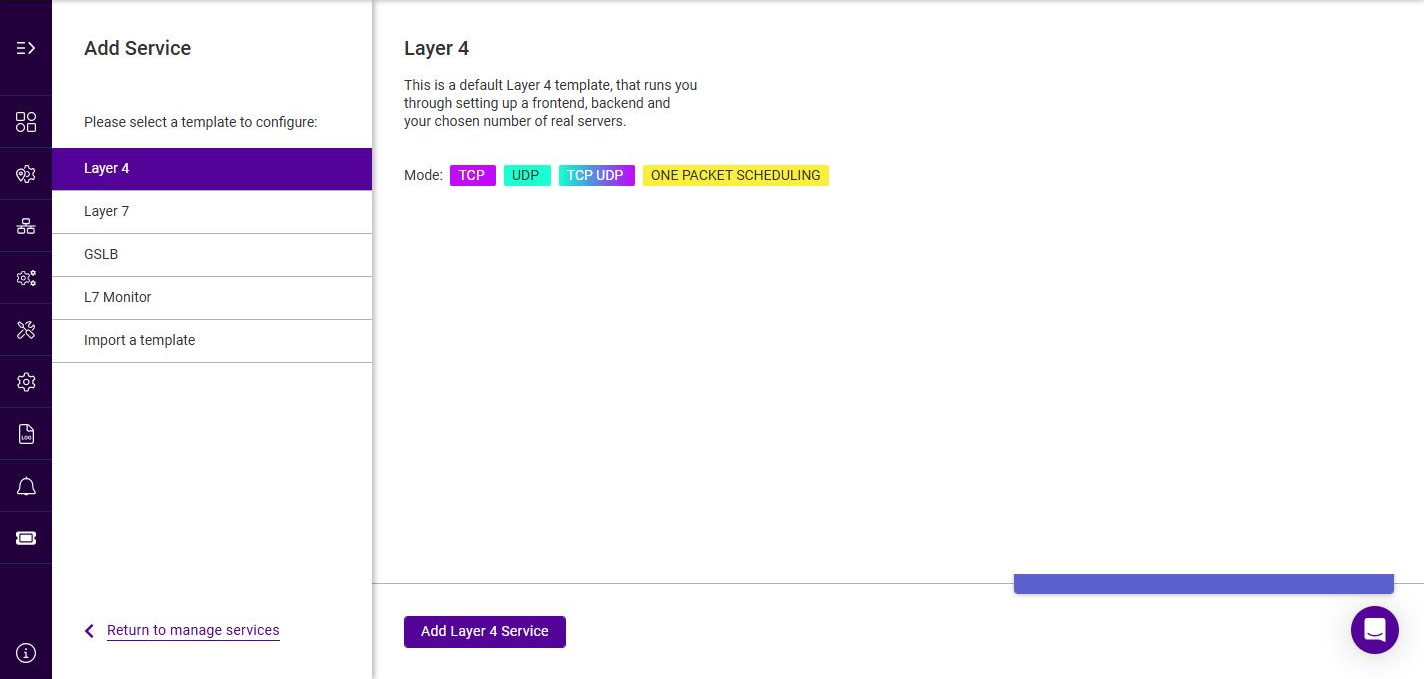
Using the WebUI, navigate to Services and click Add service.
-
Select the Layer 4 template, then click Add Layer 4 Service.
-
To display all settings, change the mode drop-down from Default Mode to Advanced Mode.
Frontend Configuration - General
-
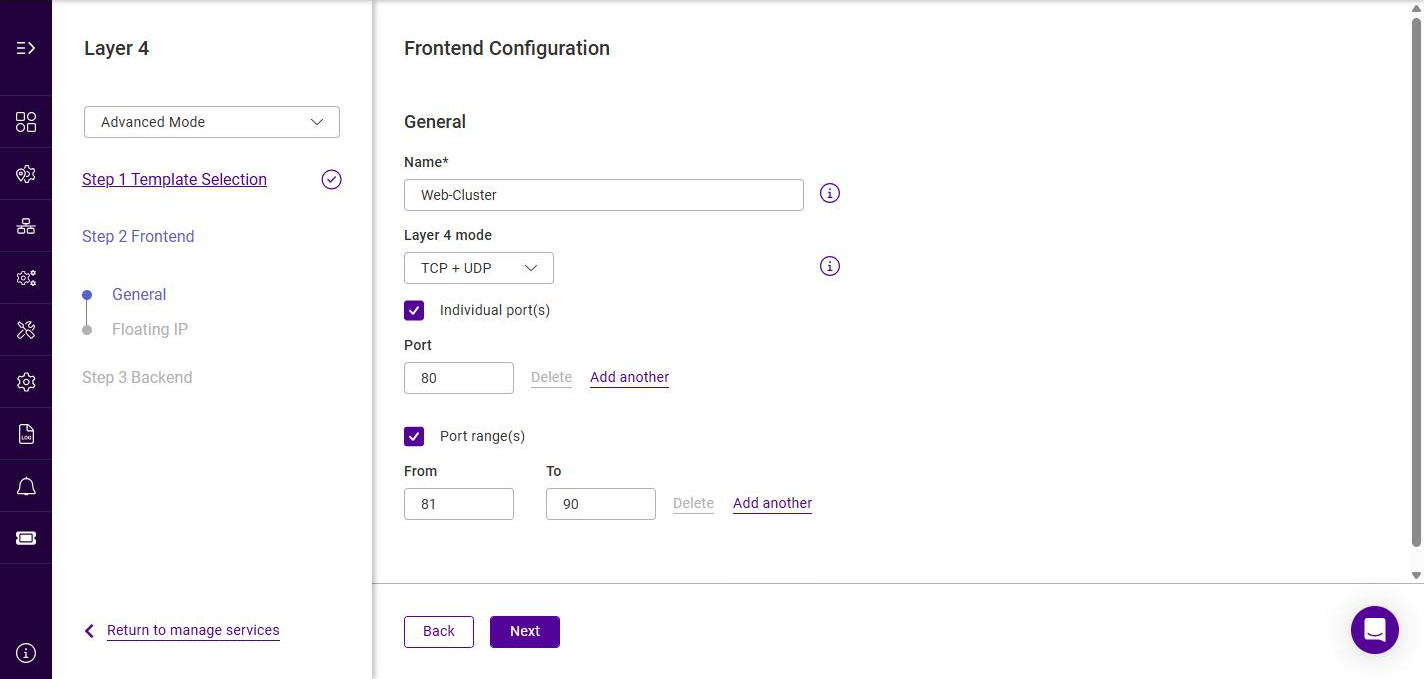
Specify a suitable Name for the service, e.g. Web-Cluster.
-
Select the required Layer 4 mode, the options are:
Layer 4 mode Description TCP + UDP
Enable both TCP and UDP. The default option.
TCP
Enable TCP only.
UDP
Enable UDP only.
-
Specify the port(s) that the service should listen on:
-
Use Individual port(s) to specify one or more discrete ports. The first port is pre-filled with 80 - change it if the service listens elsewhere. Click Add another to add additional ports.
-
Use Port range(s) to specify a contiguous range of ports (From / To). Click Add another to add additional ranges.
Multiple ports can be specified, for example 80 & 443. In this case persistence is useful to ensure that clients hit the same Real Server for both HTTP & HTTPS traffic.
-
-
Click Next.
Frontend Configuration - Floating IP
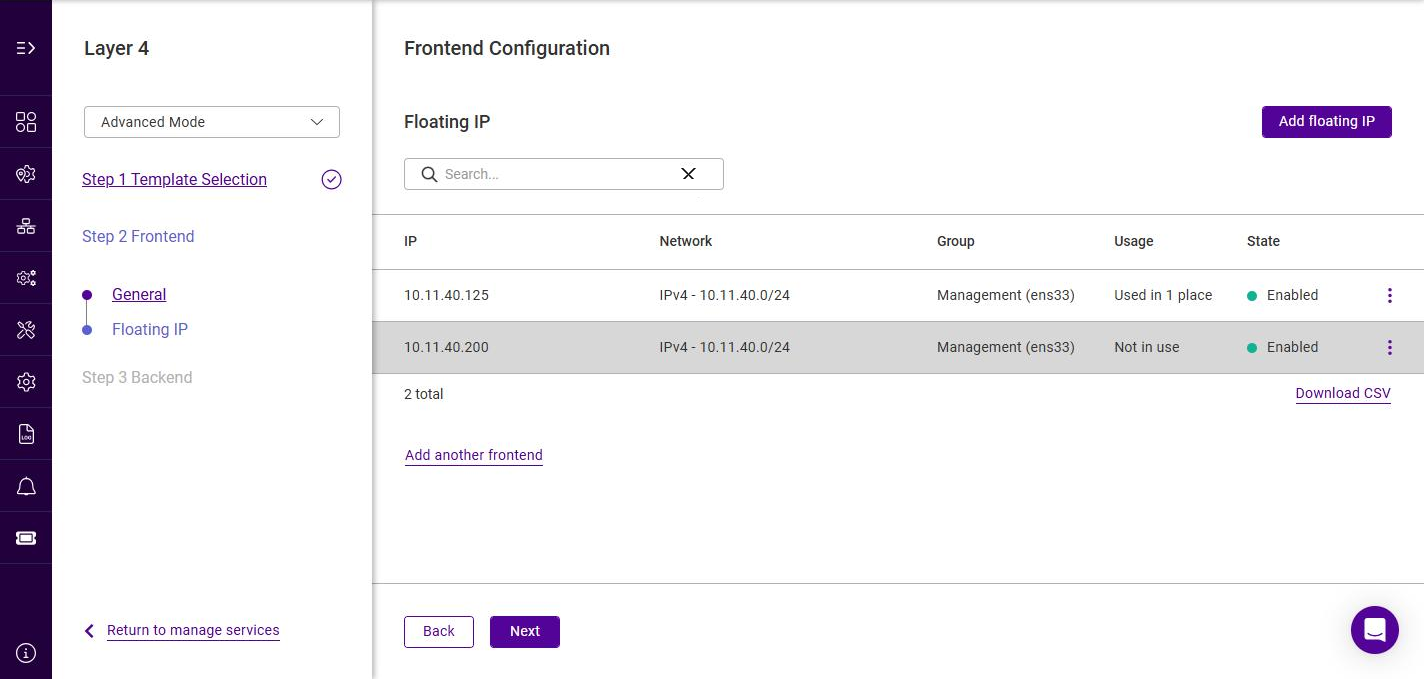
The Floating IP is the address that clients connect to. The list shows all configured Floating IPs, with the following columns:
| Column | Description |
|---|---|
IP |
The Floating IP address. |
Network |
The network the address belongs to. |
Group |
The IP group (subnet) the address was allocated from. |
Usage |
The services currently using the address. |
State |
Whether the address is currently up on an interface. |
-
If the required Floating IP already exists, click its row to select it (the row is highlighted when selected).
-
If the required Floating IP does not exist, click Add floating IP.
-
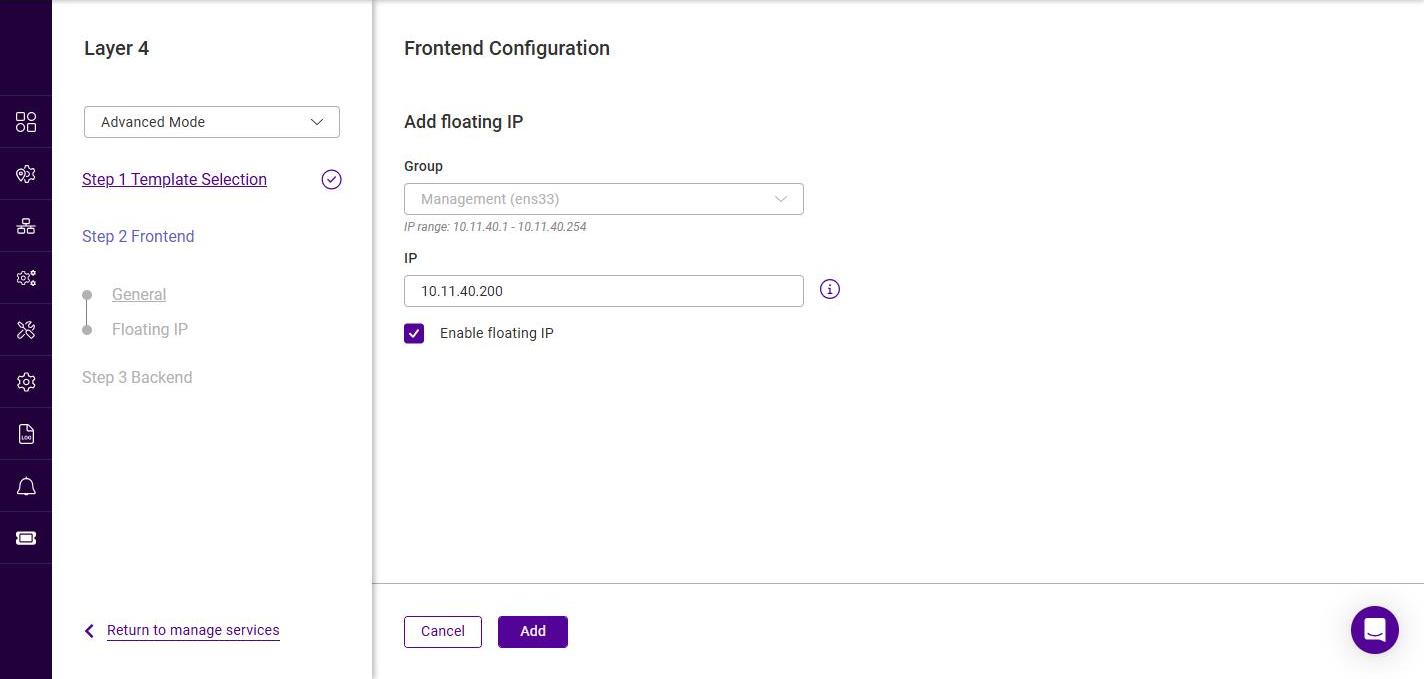
Select the Group (IP group / subnet) in which the Floating IP should be brought up. The valid IP range for the selected group is displayed below the field.
-
Specify a suitable IP address for the service, e.g. 10.11.40.200.
-
Leave Enable floating IP checked to bring the address up on the interface immediately.
-
Click Add.
For details on configuring IP groups, see Subnets. Floating IPs can also be managed independently - see Floating IPs.
-
-
Ensure the required Floating IP is selected, then click Next.
It’s not possible to configure a Service on the same IP address as any of the network interfaces. This ensures Services can "float" (move) between nodes in HA mode. An Add another frontend link is also available on this step. It defines a second frontend on the same service, and is outside the scope of the basic procedure described here.
Backend Configuration - General
-
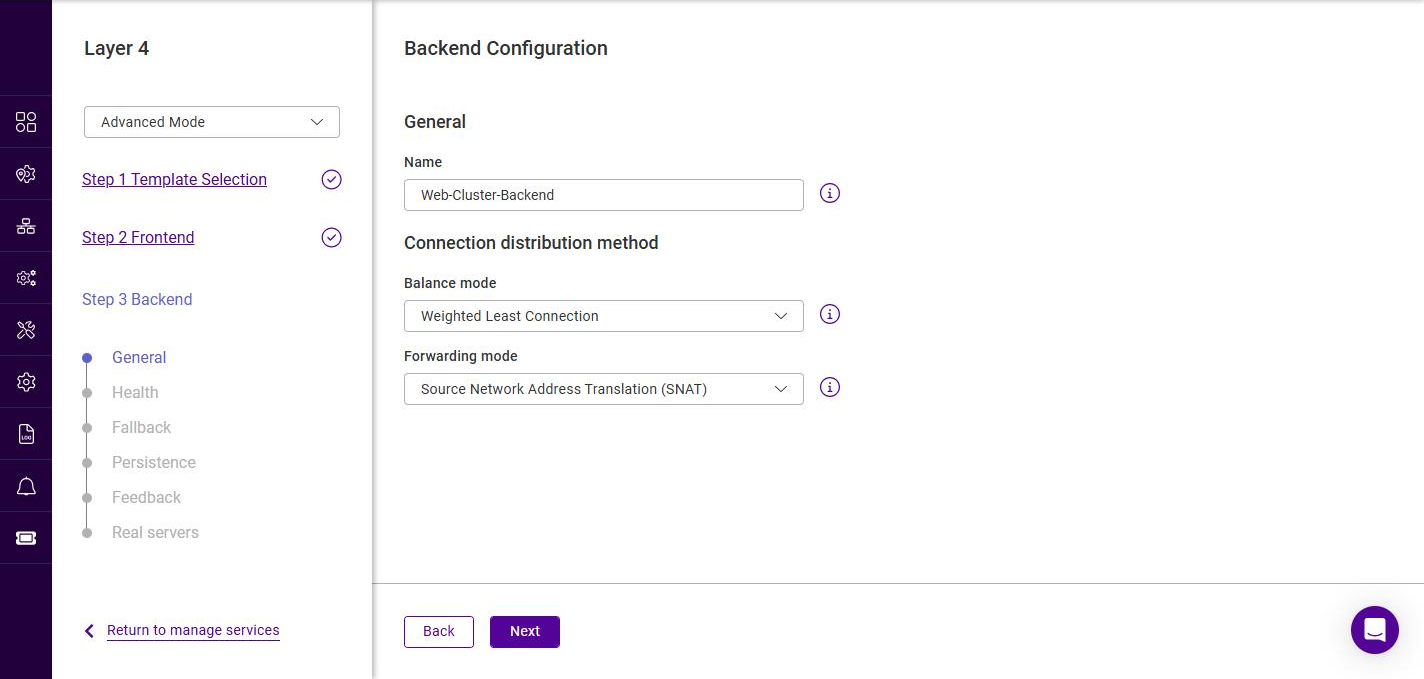
Specify a suitable Name for the backend, e.g. Web-Cluster-Backend. This field is required.
-
Under Connection distribution method, select the required Balance mode, the options are:
Balance mode Description Weighted Least Connection
Assign more jobs to servers with fewer jobs, relative to the Real Server’s weight. The default option.
Weighted Round Robin
Assign jobs to Real Servers proportionally to the Real Server’s weight. Servers with higher weights receive new jobs first and get more jobs than servers with lower weights. Servers with equal weights receive an equal distribution of new jobs.
Source Hash
Assign jobs to servers through looking up a statically assigned hash table by their source IP addresses. Because the same client address always hashes to the same Real Server, this mode provides a simple form of persistence.
-
Select the required Forwarding mode, the options are:
Forwarding mode Description Source Network Address Translation (SNAT)
Requires no Real Server changes but is not as fast as DR mode. It is also non-transparent and therefore loses the client source IP information. The default option.
Direct Routing
Requires the "ARP Problem" to be solved on each Real Server. For more information, see DR Mode.
Destination Network Address Translation (DNAT)
Requires each Real Server to have its default gateway set as the load balancer. For more information, see DNAT Mode.
-
Click Next.
Backend Configuration - Health
This step selects the health check the load balancer uses to decide whether each Real Server is available. When a Real Server fails its health check it is marked down and traffic is redirected to the remaining servers; once it passes again it is automatically returned to service.
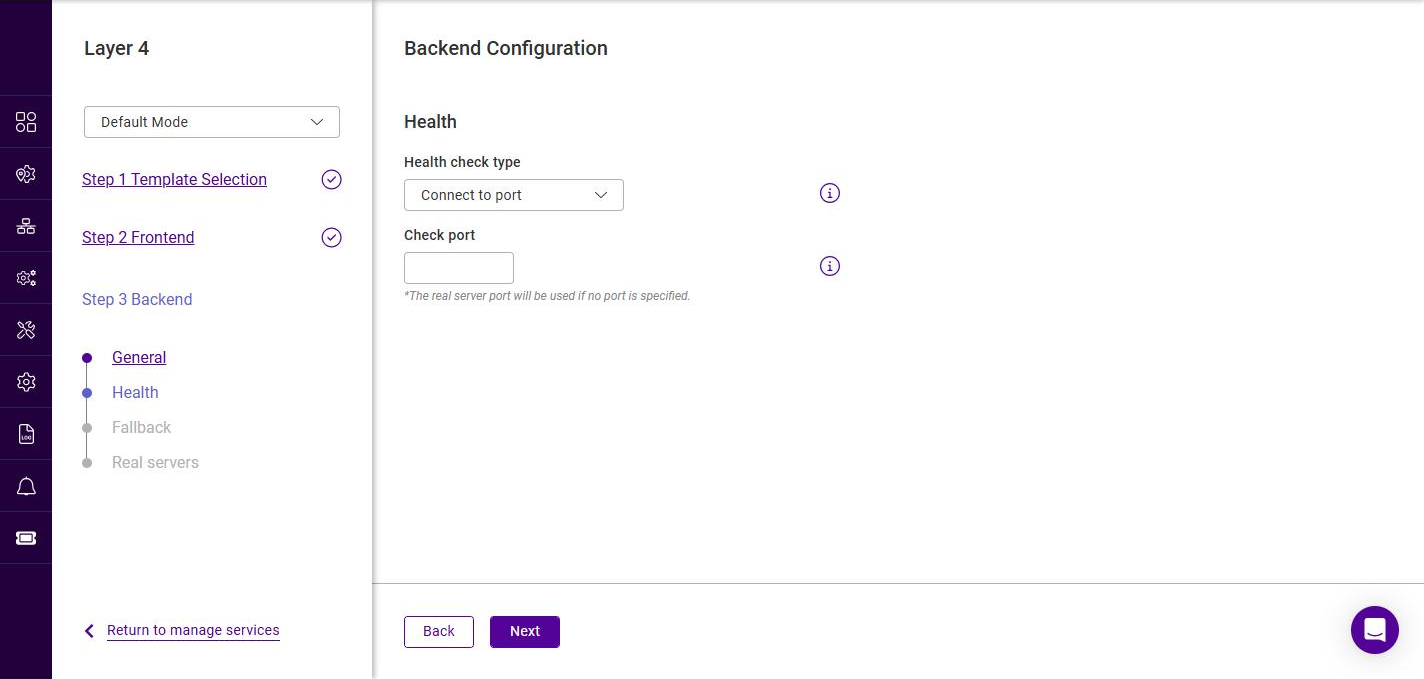
The check itself is selected from the appliance’s Healthchecks library - the same list that is shown under Manage services > Healthchecks - and its settings are then completed here, on this backend. The default selection is TCP connect.
-
Select the required Health check from the drop-down. The list contains every health check defined on the appliance, including the built-in checks that ship with the appliance and any custom checks that have been added.
-
Complete the fields shown beneath, under Parameters. The fields displayed depend on the health check selected - each check declares its own set of parameters, and the wizard renders one field per parameter, pre-filled with that parameter’s default value. For example:
Health check Parameters displayed TCP connect
Port to check and Timeout in seconds (default
2).Negotiate head http
Request path (default
/), Host header, Expected status code (default200), Port to check and Timeout in seconds (default2).Port to check is empty by default. When it is left empty the Real Server is checked on the port it is configured with, so it only needs completing when the health check must use a different port. -
Click Next.
| A health check is a shared object, but only partly so. The script it runs, and the parameters it exposes - their labels, types and default values - are defined once under Manage services > Healthchecks, and changing them affects every backend that uses the check. The parameter values are not shared: they are set here, on each backend. Two backends can therefore use the same health check with different ports, paths or timeouts without needing separate copies of it. For details of the built-in checks and how to add your own, see Healthchecks. |
| The Health check field is the same in Default Mode and Advanced Mode - the mode selector at the top-left of the wizard instead controls which backend steps are available. In Default Mode the backend steps are General, Health, Fallback and Real servers; Advanced Mode adds one further step, Persistence. |
Backend Configuration - Fallback
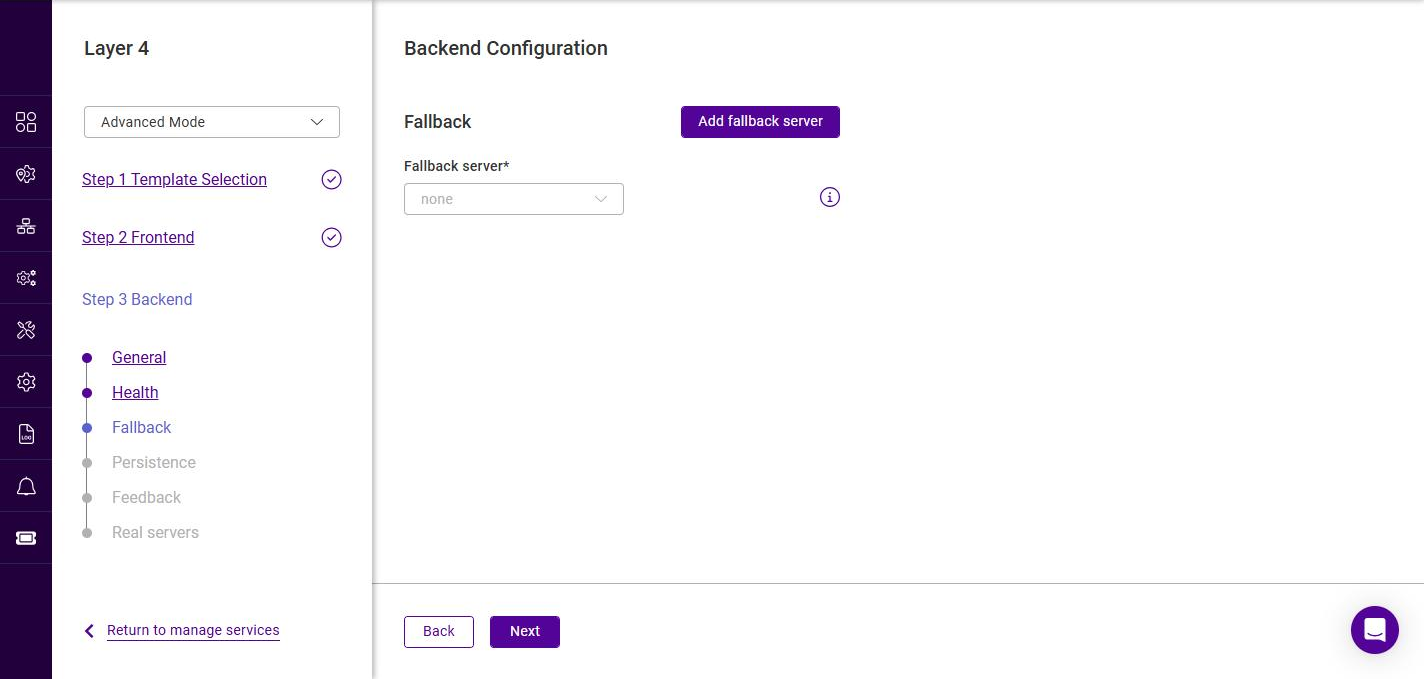
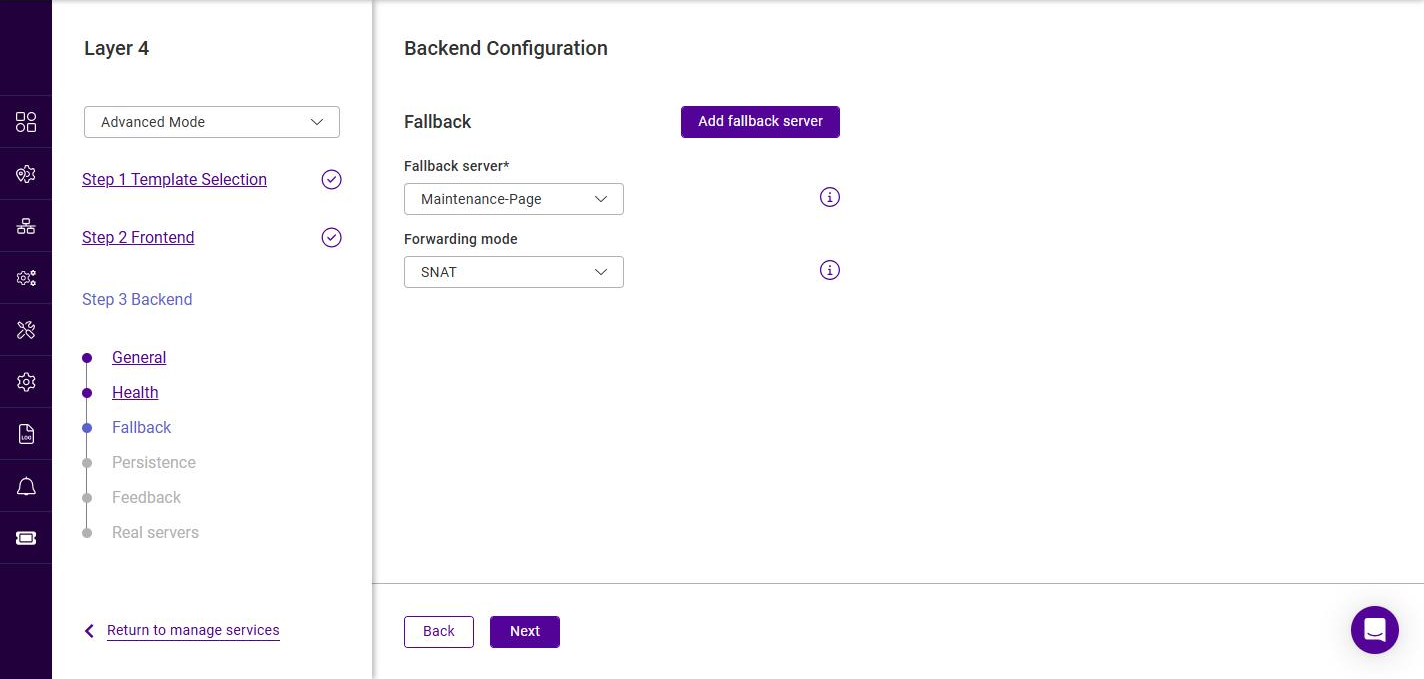
The fallback server is presented to clients when all Real Servers in the backend are down. This step is optional - to skip it, leave the Fallback server set to none and click Next.
-
If the required fallback server already exists, select it in the Fallback server list.
-
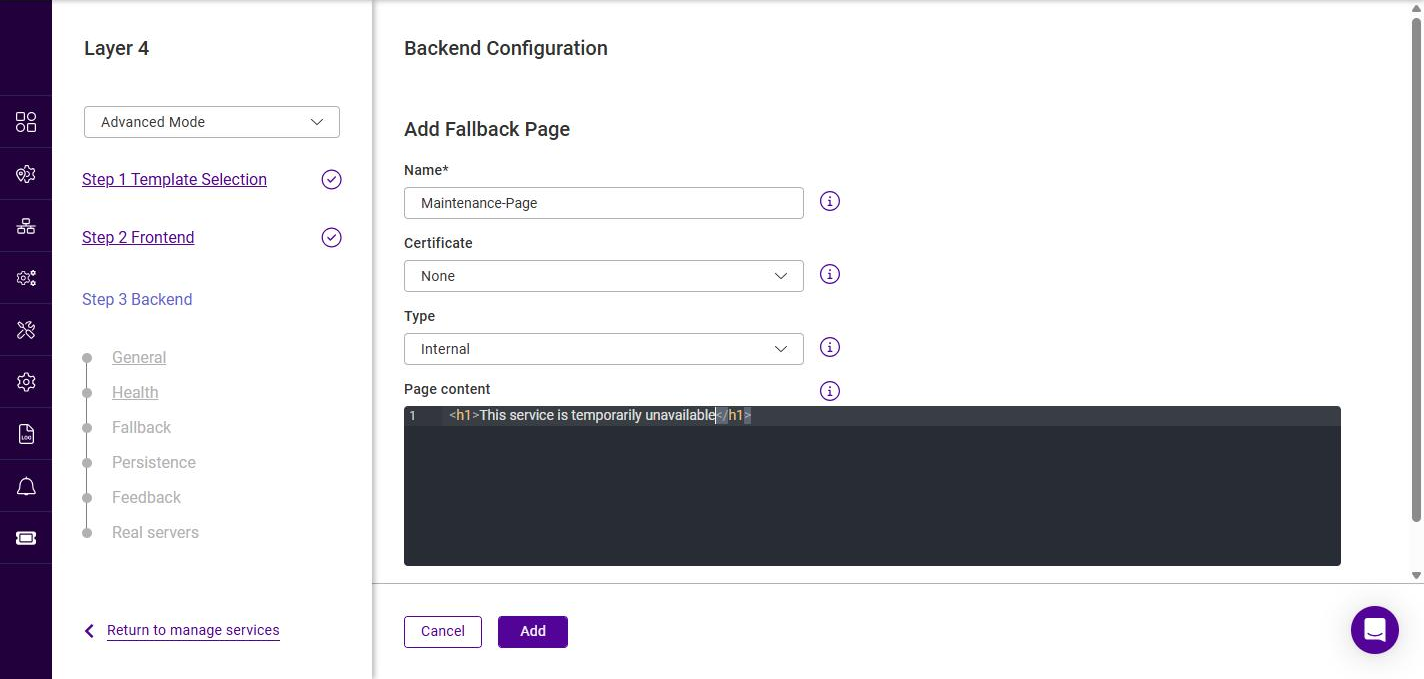
If the fallback server does not exist, click Add fallback server. The Add fallback page form is displayed.
-
Specify a suitable Name. This field is required.
-
Select a Certificate if the page should be served over HTTPS.
-
Select the Type:
-
If Internal is selected, enter the Page content (HTML) to serve in the editor.
-
If External is selected, specify the IP address and Port of the external fallback server.
-
-
Click Add.
-
-
Once a fallback server is selected, a Forwarding mode field is displayed.
-
Select the required Forwarding mode for the fallback server. The options are the same as for the backend - SNAT (default), Direct Routing and DNAT (see the Forwarding mode table above).
-
Click Next.
Backend Configuration - Persistence
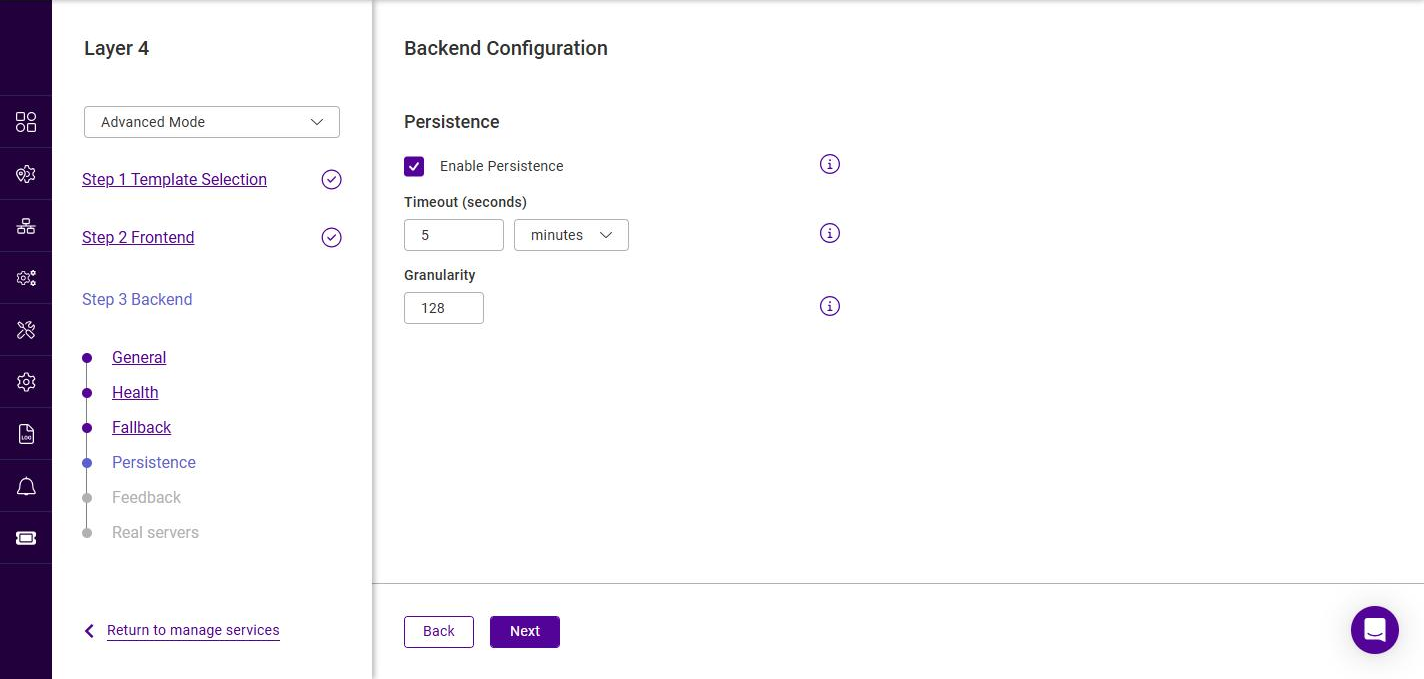
This step is only shown in Advanced Mode. Layer 4 persistence is based on the client source IP address.
-
Use the Enable Persistence checkbox to enable or disable persistence (enabled by default). Persistent connections are required for some protocols such as FTP and SIP, are beneficial when using SSL to avoid re-negotiation, and can be required with HTTP if your web application cannot keep state between Real Servers.
-
If enabled, set the required Timeout. Enter a value and select the unit (seconds, minutes, hours or days); the default is 5 minutes. The timeout is reset on every new client connection.
-
Click Next.
Backend Configuration - Real servers
-
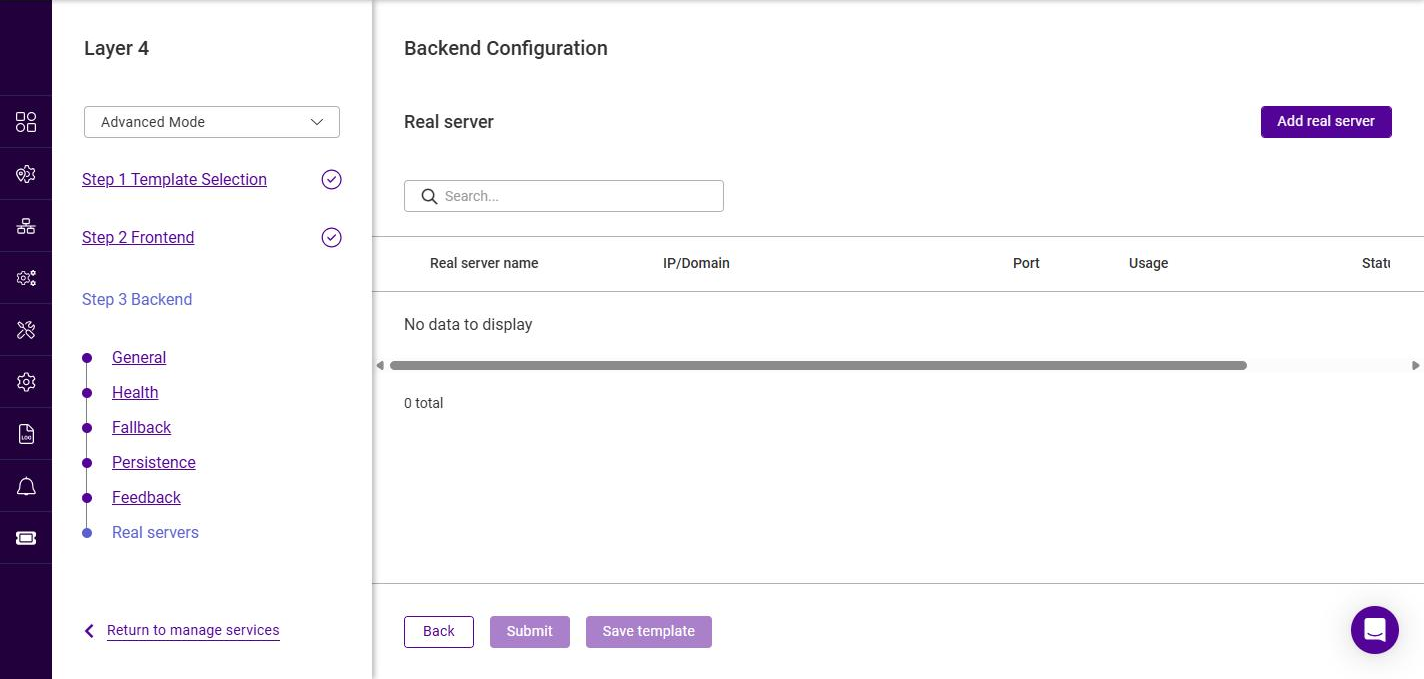
Click Add real server.
-
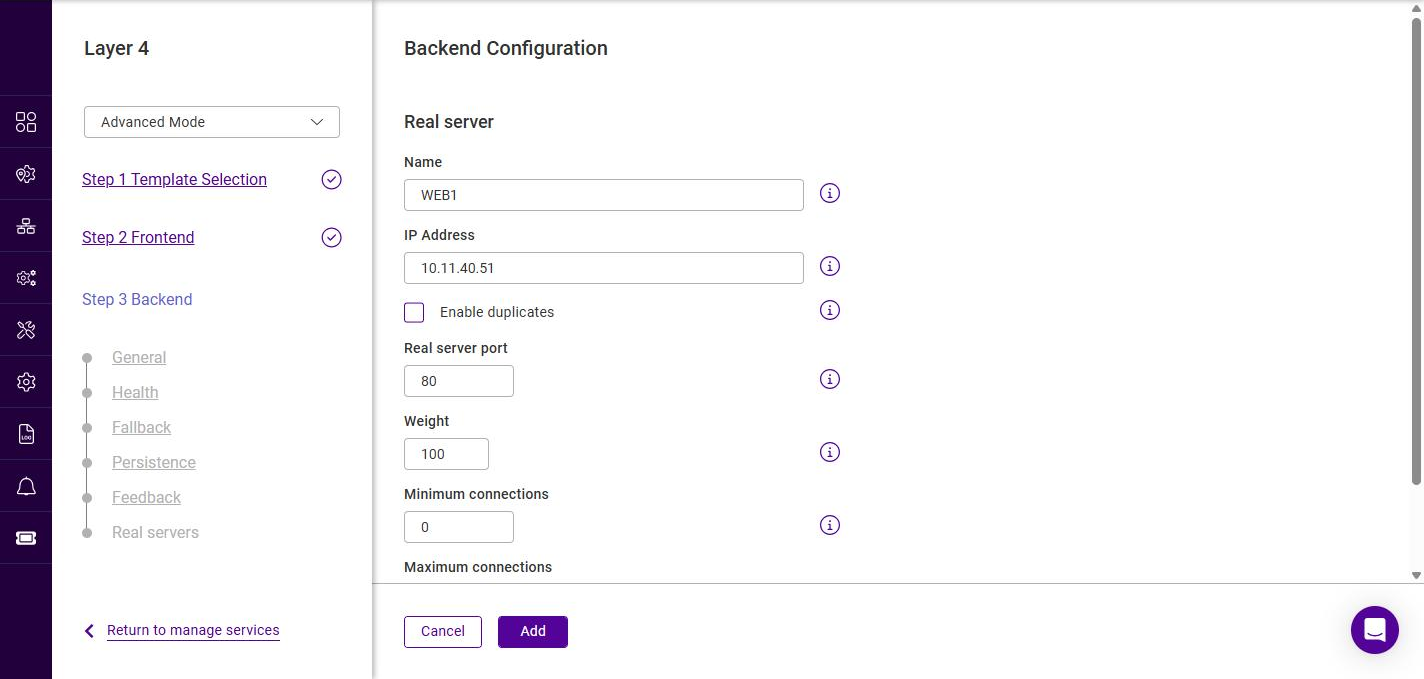
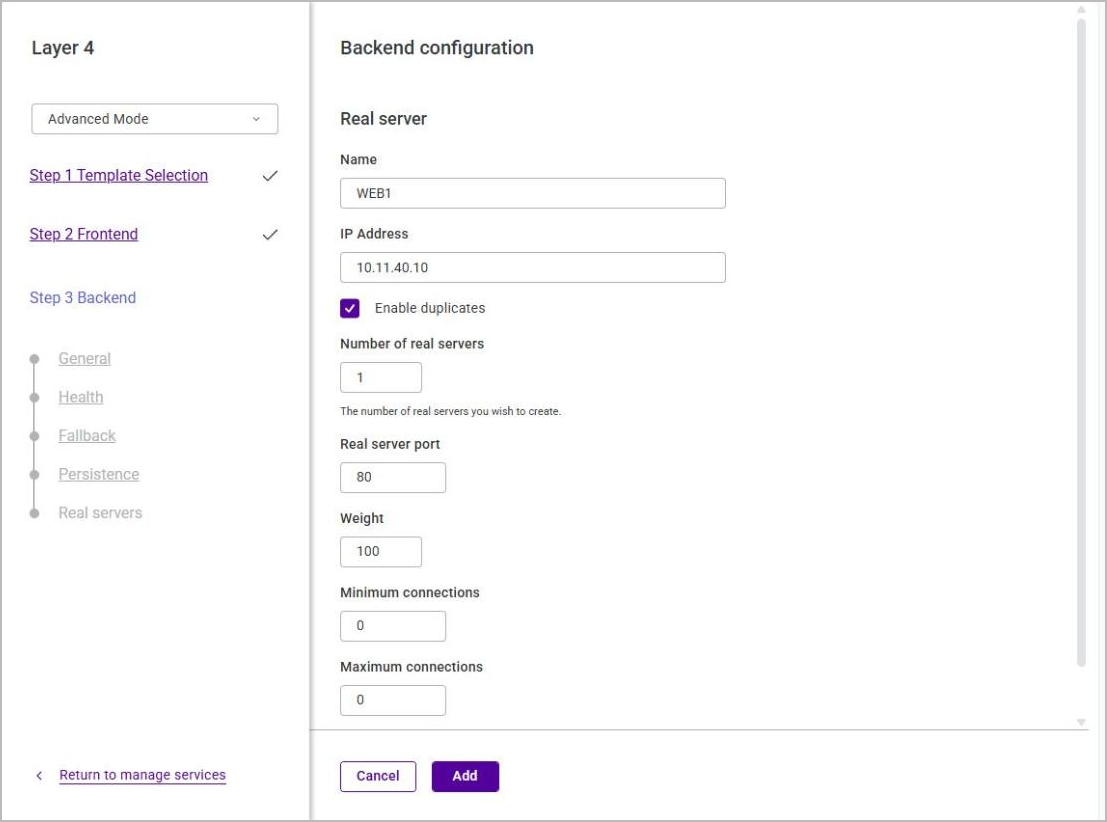
Configure the Real Server:
Setting Description Name
A suitable name for the Real Server, e.g. WEB1.
IP Address
The IP address of the Real Server.
Enable duplicates
Allows the same IP address to be added more than once, for example on different ports. Selecting this checkbox also reveals the Number of real servers field below it.
Number of real servers
The number of Real Servers to create from these settings, so that several can be added in one step rather than one at a time. The default is 1. Only shown when Enable duplicates is selected.
Real server port
The port the Real Server listens on. The field is pre-filled with 80 regardless of the port set for the frontend, so check it when the frontend uses a different port. Clear the field if the Real Server should be contacted on the same port that the client connected to. For a frontend with more than one port this is done for you - the field is disabled and no port is stored, see Multi-port VIPs.
Weight
An integer specifying the capacity of the server relative to the others in the pool. Valid values are 0 to 100, the default is 100. The higher the value, the more connections the server receives. A weight of 0 places the server in drain mode.
Minimum connections
The lower connection threshold of the server. Valid values are 0 to 65535. The default is 0, which means the threshold is not set. If set, the server receives new connections when its connection count drops below this threshold.
Maximum connections
The upper connection threshold of the server. Valid values are 0 to 65535. The default is 0, which means the threshold is not set.
Selecting Enable duplicates reveals the Number of real servers field, so that several identical Real Servers can be created in one step rather than added one at a time:
-
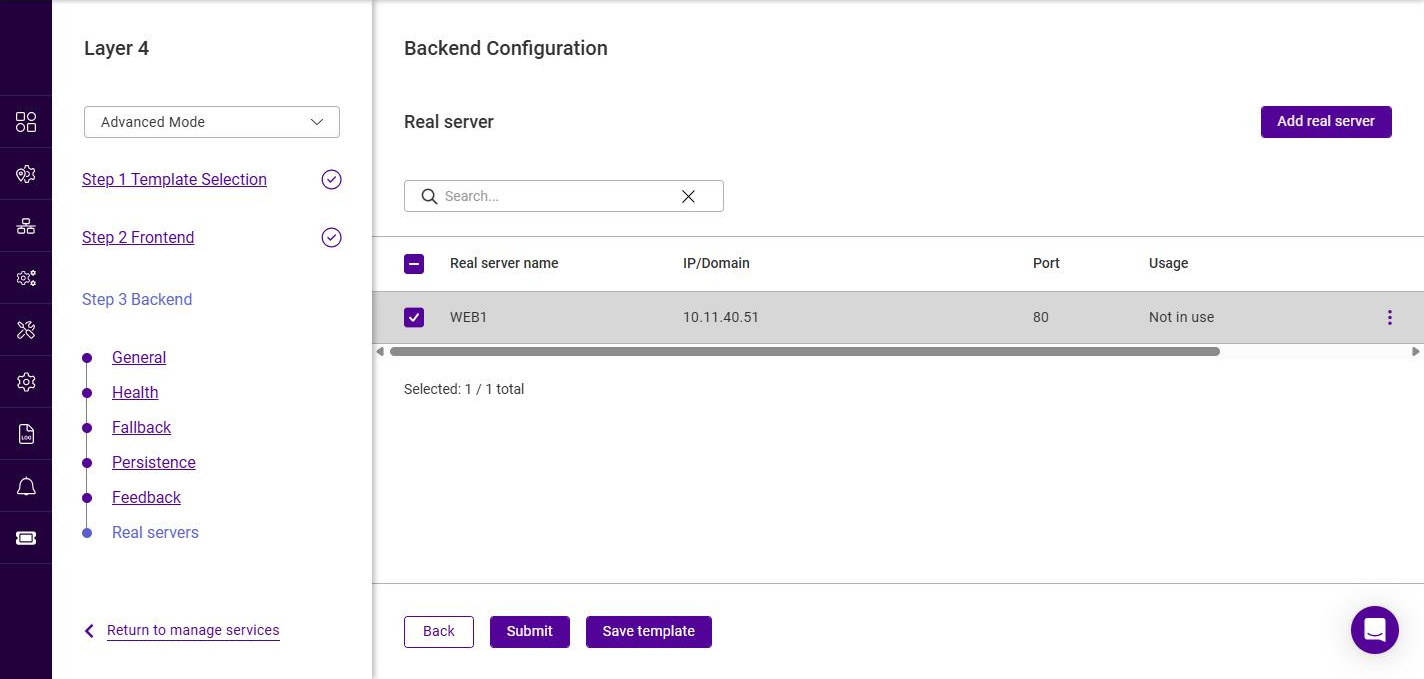
Click Add, then repeat to add additional Real Servers.
-
Ensure the required Real Servers are selected (checked).
| An Add another backend link is also available on this step. It adds a second backend to the service, and is outside the scope of the basic procedure described here. |
Submitting the Service
Real servers is the last step of the Layer 4 wizard.
-
Click Submit to create the service.
The new Layer 4 Service is now listed under Services. Its Status reads
Pendingwhile the change is applied, and then reflects the health reported by the backend once the firewall and load balancing services have been updated.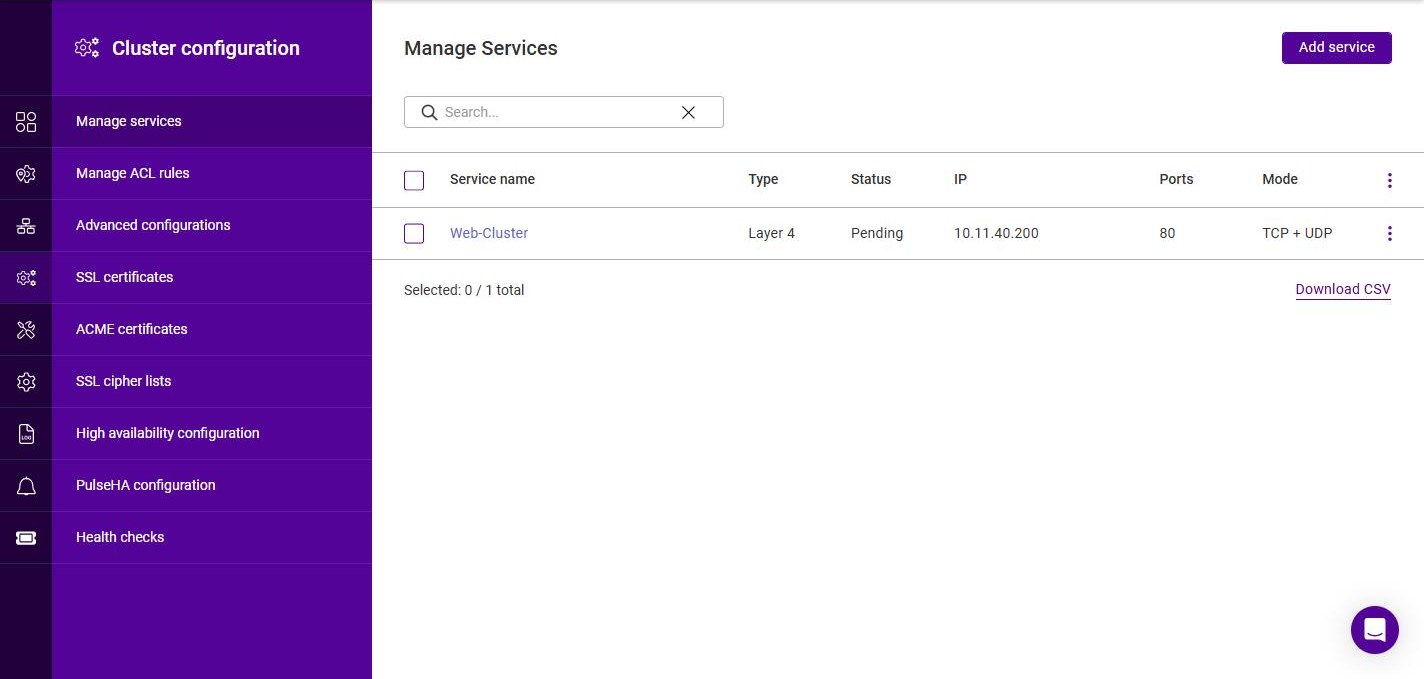
| A Layer 4 frontend uses a single ACL rule and the wizard creates it automatically. The rule links the frontend to the backend defined above and sends all traffic on the frontend to it. The rule can be reviewed at any time using the WebUI menu option ACL Rules - see ACL Rules. |
|
Submitting the service writes its configuration but does not activate it. A banner names the services left with a pending action. To apply them:
An outstanding update can also be applied from the Services list itself, using the Action required option on the service’s actions menu - see Services. |
Duplicating Layer 4 Services
An existing Layer 4 Service can be duplicated and used as the starting point for a new one. The duplicate must not clash with the source Service, so its Floating IP and/or port must be changed.
To duplicate an existing Layer 4 Service:
-
Navigate to Services.
-
Click the three dots menu next to the Service to be duplicated and click Duplicate.
-
In the Duplicate options dialog, choose whether to copy the Frontend only or the Entire service (the frontend together with a copy of each of its backends). Entire service is the default - the options behave exactly as described for Layer 7 under Duplicating Layer 7 Services.
-
Click Duplicate. The Layer 4 wizard opens, pre-filled with the source Service’s settings and with the Name set to
<service name> (duplicate). -
Change the Name if required, and change the Port on the General step and/or the Floating IP on the Floating IP step so that the new Service does not clash with the source.
At least one of the Floating IP and the port must be changed for the service to be created. -
Click Next to step through the remaining sections, then click Submit.