Layer 7 services
Introduction
Layer 7 services are based on HAProxy which is a fast and reliable proxying and load balancing solution for TCP, HTTP/1.1 and HTTP/2 applications.
Since HAProxy is a full proxy, Layer 7 services are not transparent by default, i.e. the client source IP address is lost as requests pass through the load balancer and instead are replaced by an IP address owned by the load balancer. This is the interface IP by default, but can also be set to any other IP address that the load balancer owns, for example the VIP address.
Multiple persistence methods (aka affinity/stickiness) are supported and can be enabled when needed.
Multiple ports can be specified, for example 80 & 443. In this case persistence is useful to ensure that clients hit the same backend server for both HTTP & HTTPS traffic and also prevent the client having to renegotiate the SSL connection.
| It’s not possible to configure a VIP on the same IP address as any of the network interfaces. This ensures services can "float" (move) between nodes when using an HA cluster. |
Adding Layer 7 Virtual Services
Layer 7 Services are configured using a template based wizard. The wizard is split into 2 stages: Frontend Configuration (the Virtual Service that clients connect to) and Backend Configuration (the pool of Real Servers that requests are distributed to).
The wizard can be run in 2 modes, selected using the drop-down at the top of the left-hand menu:
| Mode | Description |
|---|---|
Default Mode |
Displays only the most commonly used settings. Recommended for a quick, standard deployment. |
Advanced Mode |
Displays all available settings, including the additional HTTP connection frontend step and the full set of backend options. |
| The steps below use Advanced Mode so that all available settings are described. When using Default Mode, the advanced settings are hidden and sensible defaults are applied automatically. |
The wizard presents the following steps:
| Step | Sub-steps |
|---|---|
Step 1 Template Selection |
- |
Step 2 Frontend |
General, Floating IP, Headers, SSL (only when SSL termination is enabled), Certificates (only when SSL termination is enabled), HTTP connection (Advanced Mode only) and Backends |
Step 3 Backends |
Shown when a new backend is defined from the Backends sub-step using Add backend. The sub-steps are General, Headers, Health, Connection options, Layer 7 advanced, Persistence and Real servers (Connection options and Layer 7 advanced are Advanced Mode only). |
Acls steps |
One step per selected backend, added only when two or more backends are selected - see Configuring the ACL Rules. |
To add a new Layer 7 Service:
-
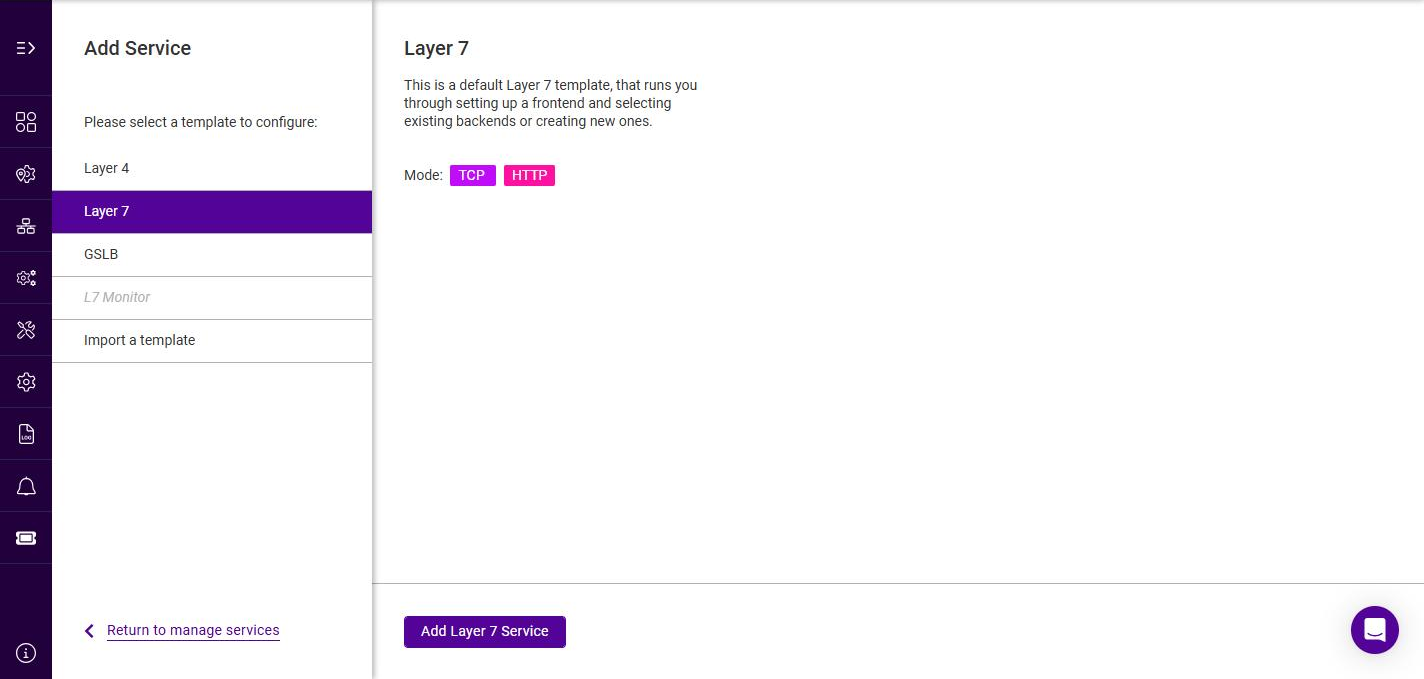
Using the WebUI, navigate to Services and click Add service.
-
Select the Layer 7 template, then click Add Layer 7 Service.
-
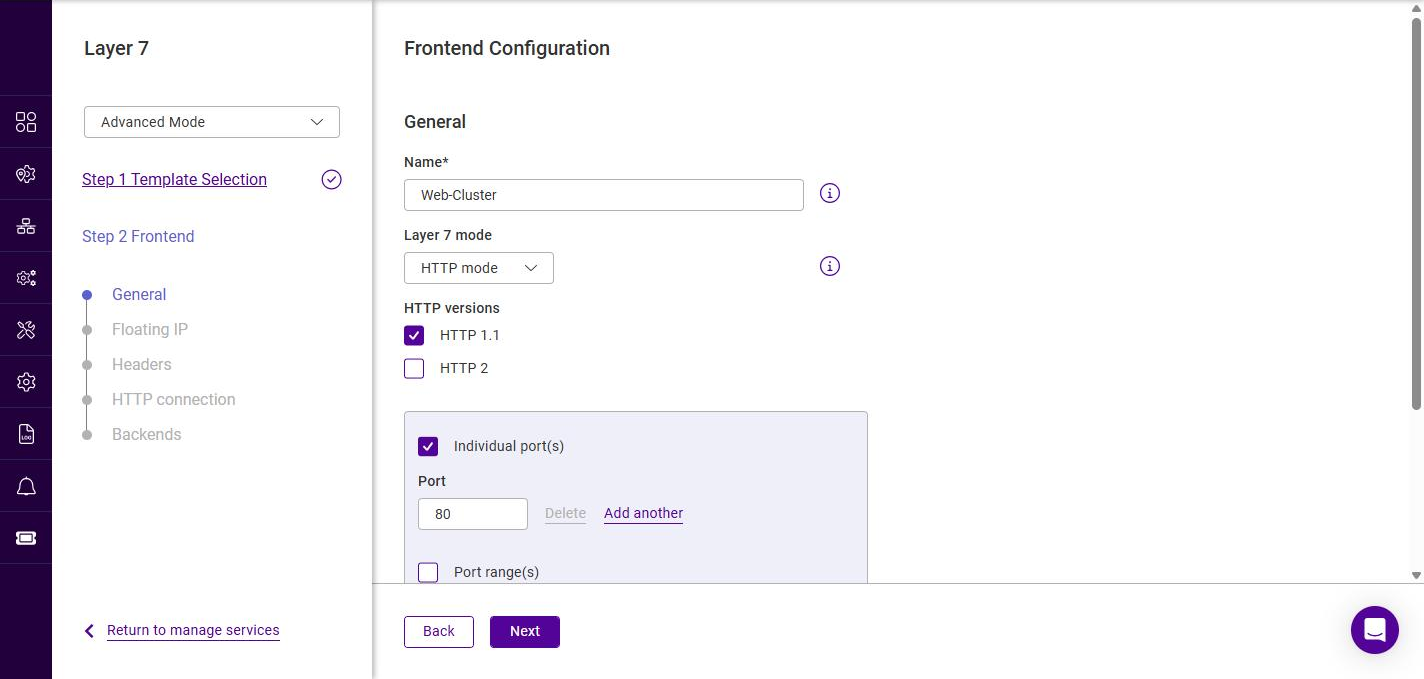
To display all settings, change the mode drop-down from Default Mode to Advanced Mode.
Frontend Configuration - General
-
Specify a suitable Name for the service, e.g. Web-Cluster.
-
Select the required Layer 7 mode, the options are:
Layer 7 mode Description HTTP mode
Use this mode if the Virtual Service will handle only HTTP traffic. This allows more flexibility in the processing of connections. When using persistence types such as HTTP Cookie, HTTP mode must be selected. In addition, the HAProxy log will show more information on the client requests and Real Server responses.
TCP mode
Use this mode to support all non-HTTP traffic such as HTTPS, RPC, RDP, FTP, SIP etc.
-
For HTTP mode Services, select the required HTTP versions (HTTP 1.1 and/or HTTP 2).
-
Specify the port(s) that the service should listen on:
-
Use Individual port(s) to specify one or more discrete ports. Click Add another to add additional ports.
-
Use Port range(s) to specify a contiguous range of ports.
-
-
Under SSL ports, the following additional options are available:
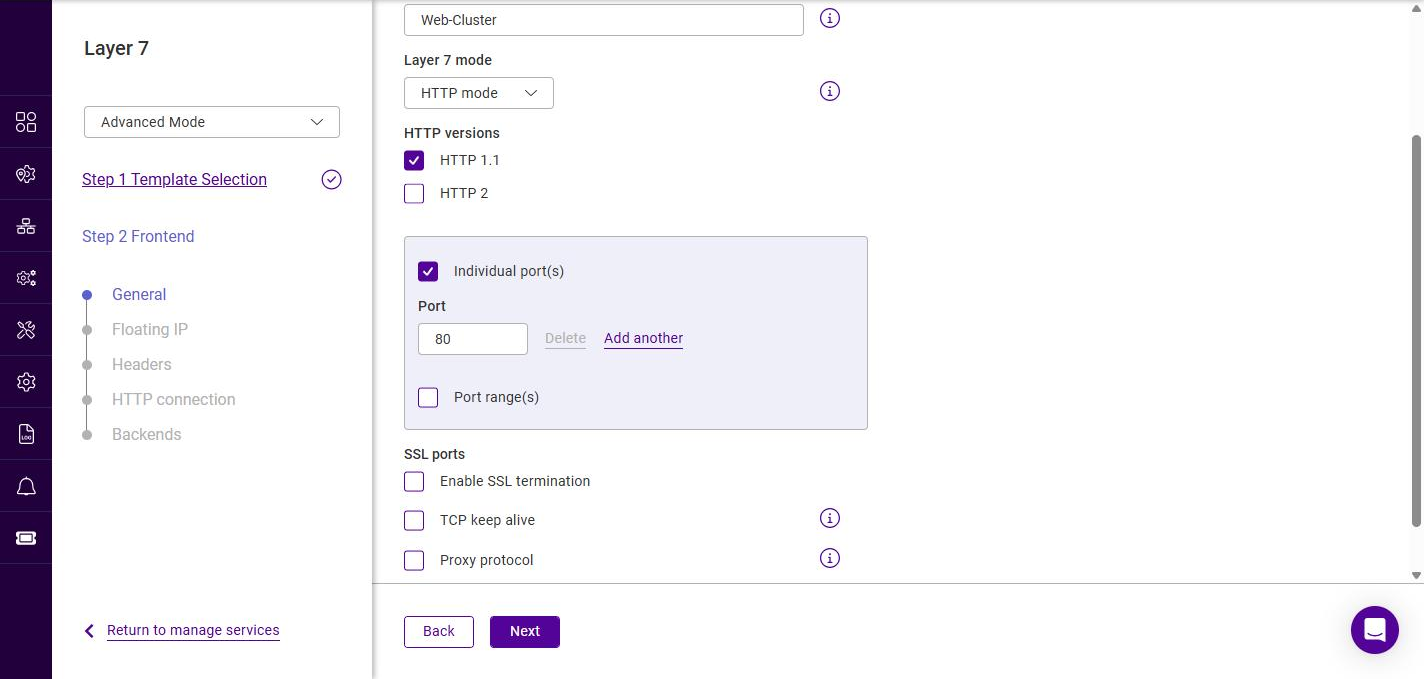
Setting Description Enable SSL termination
When enabled, the load balancer terminates the SSL/TLS connection. A separate set of HTTPS port(s) is exposed, and 2 additional wizard steps (SSL and Certificates) are added to the Frontend Configuration. For more information, see SSL/TLS Termination - Concepts.
TCP keep alive (Advanced)
Enables the transmission of TCP keep-alive packets on both the client and the server sides of the connection.
Proxy protocol (Advanced)
Configures the Layer 7 VIP to expect Proxy Protocol headers for all incoming connections.
In Default Mode this section contains only Enable SSL termination; TCP keep alive and Proxy protocol are shown in Advanced Mode only. Enabling SSL termination reveals an Individual port(s) / Port range(s) field for the HTTPS port(s). This must not clash with the plain-text port specified above, e.g. set the SSL port to 443. 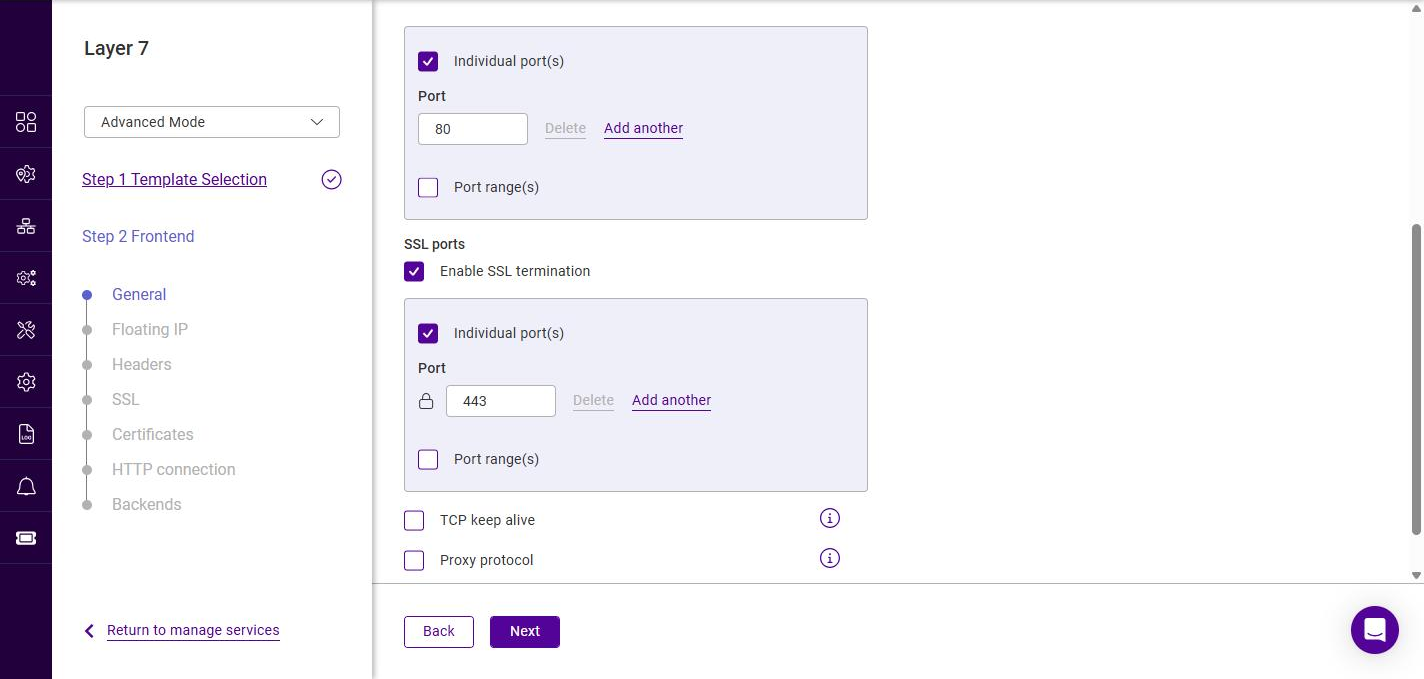
-
Click Next.
Frontend Configuration - Floating IP
The Floating IP (FIP) is the address that clients connect to. The list shows all configured Floating IPs.
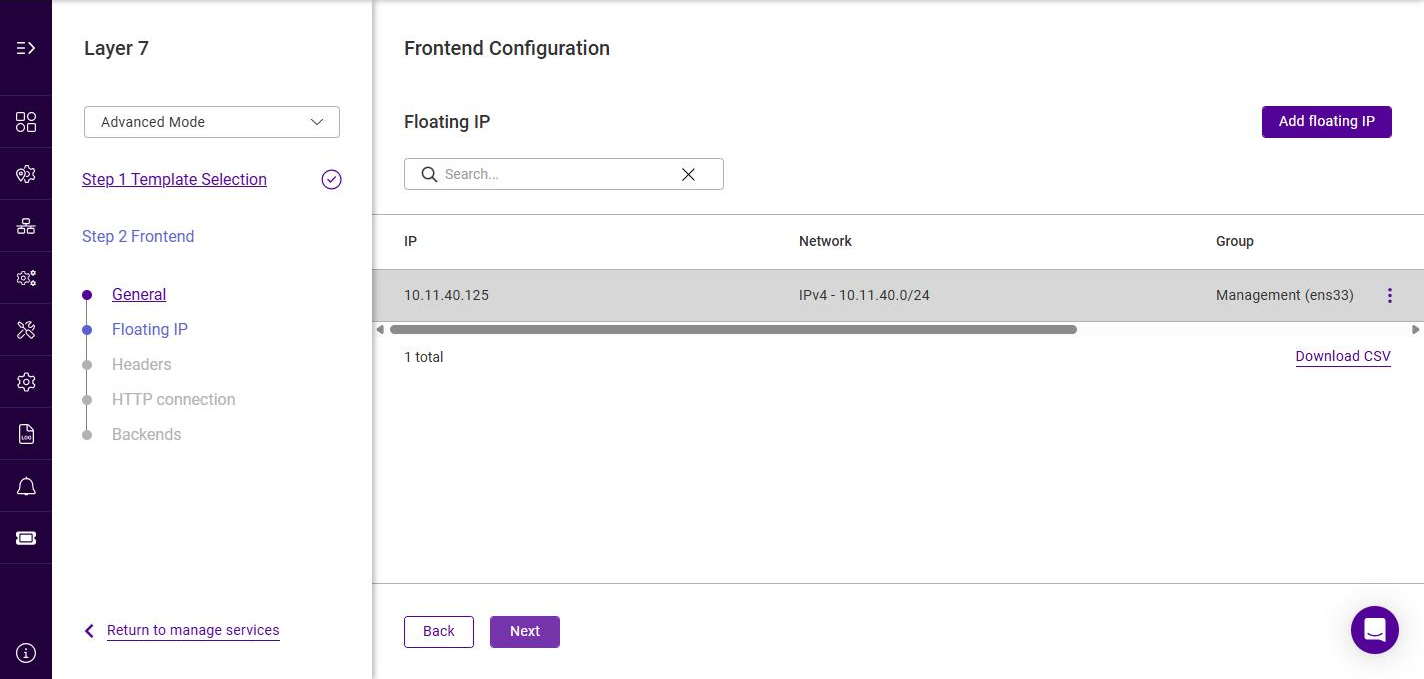
-
If the required Floating IP already exists, click its row to select it (the row is highlighted when selected).
-
If the required Floating IP does not exist, click Add floating IP.
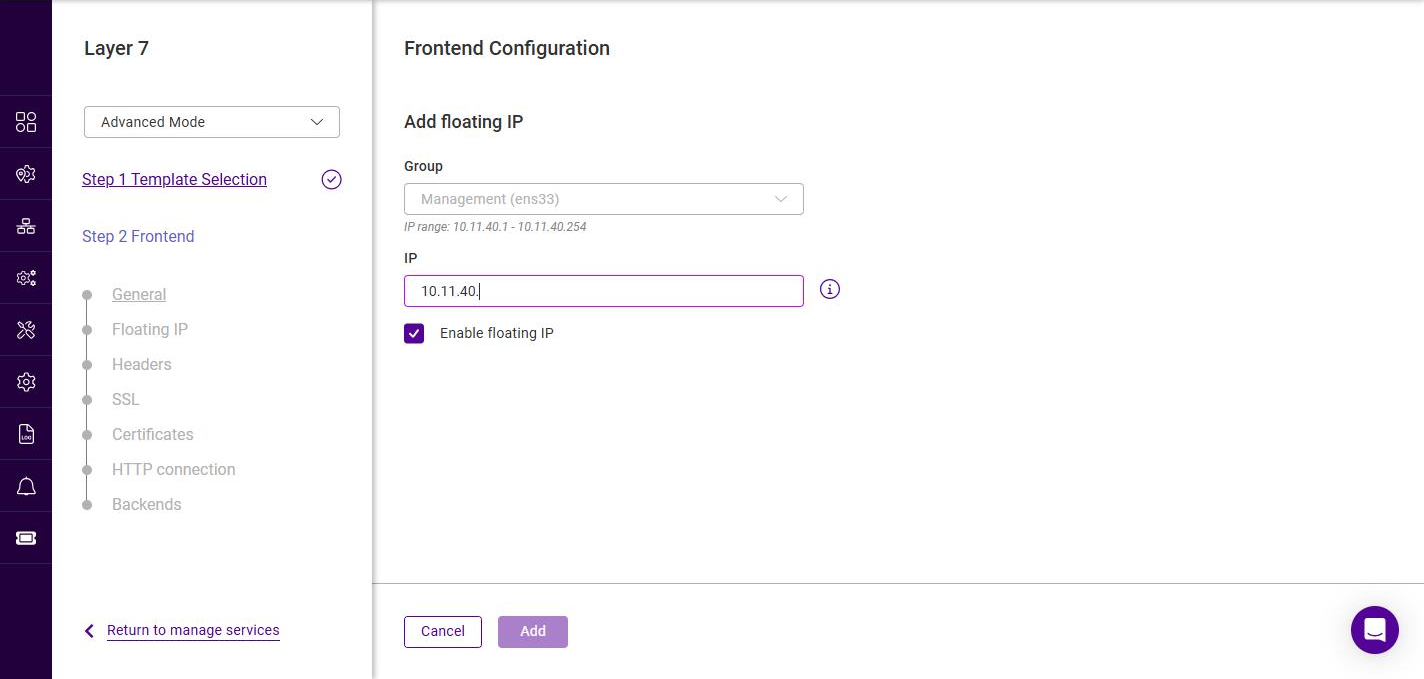
-
Select the Group (IP group / subnet) in which the Floating IP should be brought up. The valid IP range for the selected group is displayed below the field.
-
Specify a suitable IP address for the service, e.g. 10.11.40.125.
-
Leave Enable floating IP checked to bring the address up on the interface immediately.
-
Click Add.
Floating IPs can also be managed independently under Network > Floating IPs.
-
-
Ensure the required Floating IP is selected, then click Next.
Frontend Configuration - Headers
For HTTP mode Services, HTTP header rules can be added, set, deleted, and replaced. The Headers step is optional - to skip it, simply click Next.
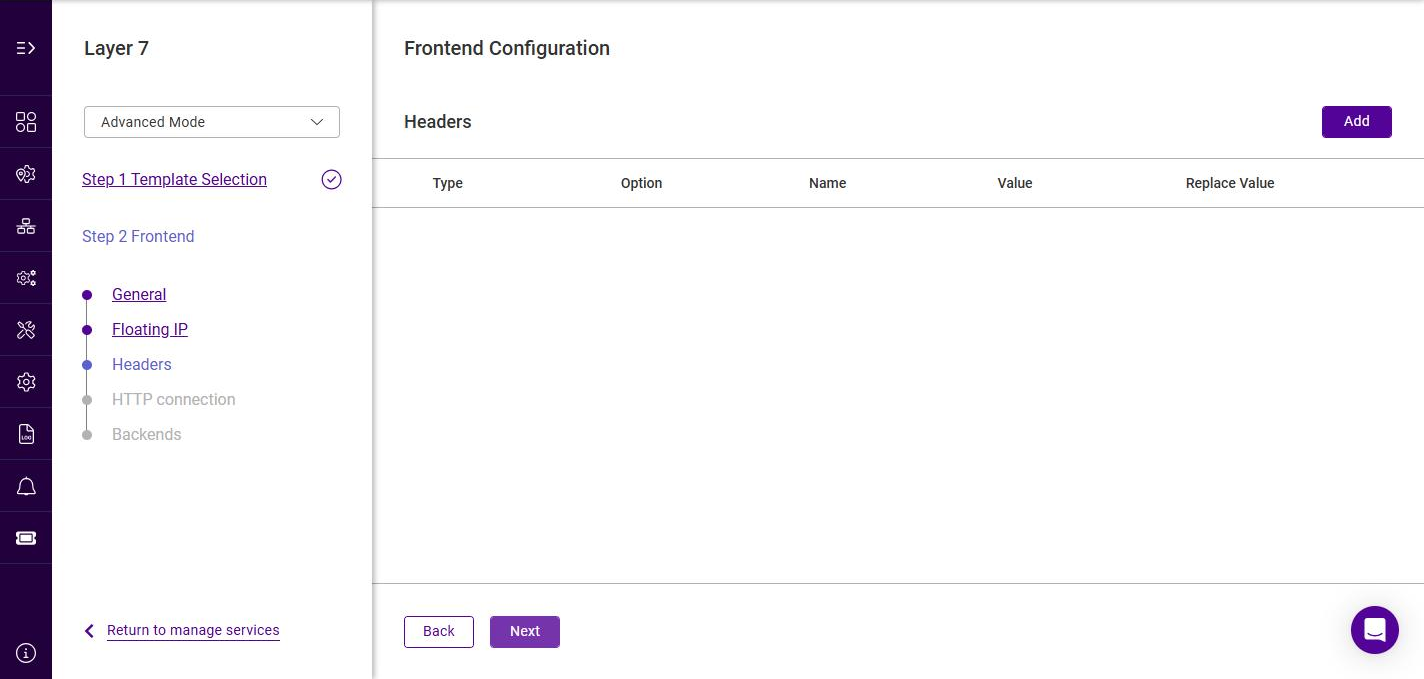
-
To add a header rule, click Add.
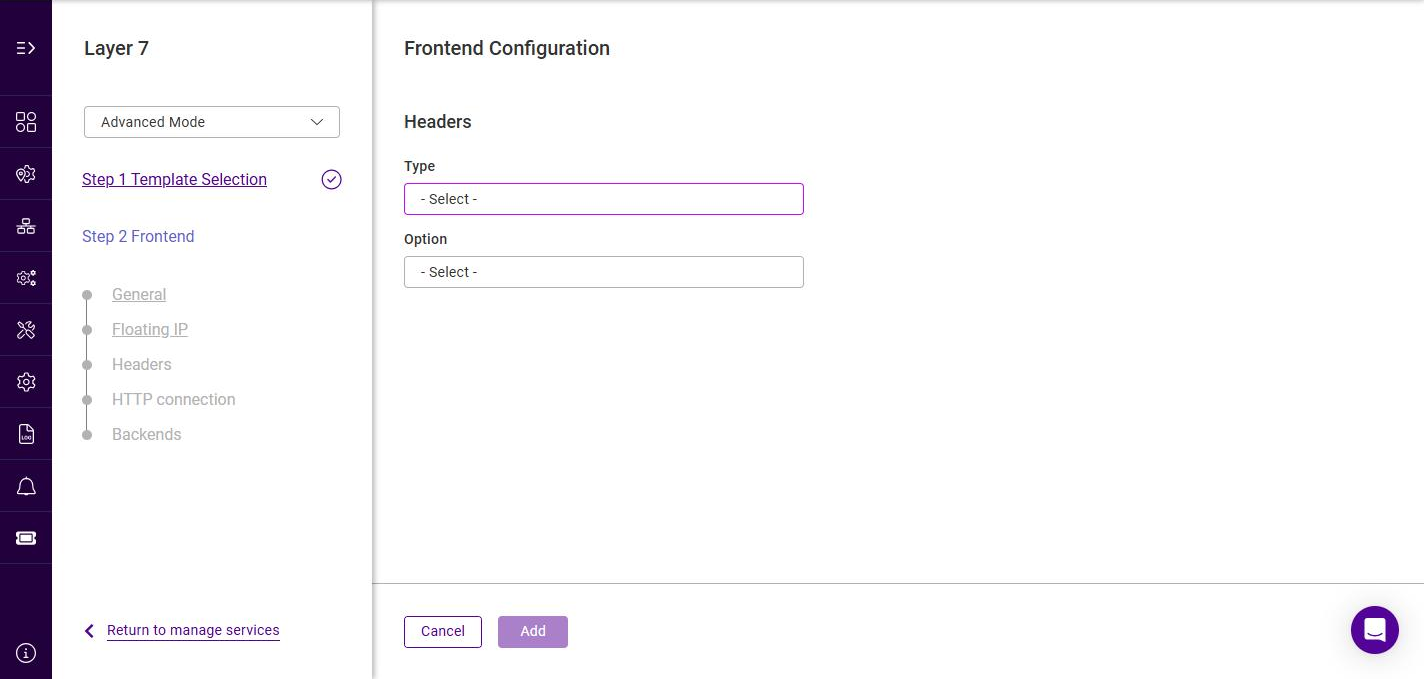
-
Select the header Type, the options are:
Type Description Request
Affect specified HTTP header fields in HTTP request messages.
Response
Affect specified HTTP header fields in HTTP response messages.
-
Select the required Option, the options are:
Option Description Add
Append an HTTP header field. If a header field of the same name already exists then an additional header field will still be appended.
Set
Append an HTTP header field. If a header field of the same name already exists then it is first removed before a new one is appended. This is useful for handling security information which external users must not be able to set themselves.
Delete
Remove all HTTP header fields of a specified name.
Replace
Perform a regular expression powered "find and replace" operation on all HTTP header field values of a specified name.
-
Specify the required header fields. Which fields are shown depends on the Option selected:
Option Fields Add
Name and Value.
Set
Name and Value.
Delete
Name only - no value is needed, since all header fields of that name are removed.
Replace
Name, followed by a Value section containing two boxes: replace (the regular expression to match within the existing header value) and with (the replacement text).
+ image::images/admin-manual/l7-add-header-fields.png[scaledwidth=95%]
-
Click Add, and repeat to add additional header rules.
For examples of using headers, see HTTP Headers - Configuration Examples. -
Click Next.
|
The SSL and Certificates steps described below are only displayed when Enable SSL termination was selected on the General step. If SSL termination was not enabled, the wizard skips them and proceeds to the HTTP connection step in Advanced Mode, or directly to the Backends step in Default Mode. |
Frontend Configuration - SSL
This step controls how the load balancer terminates the SSL/TLS connection presented to clients.
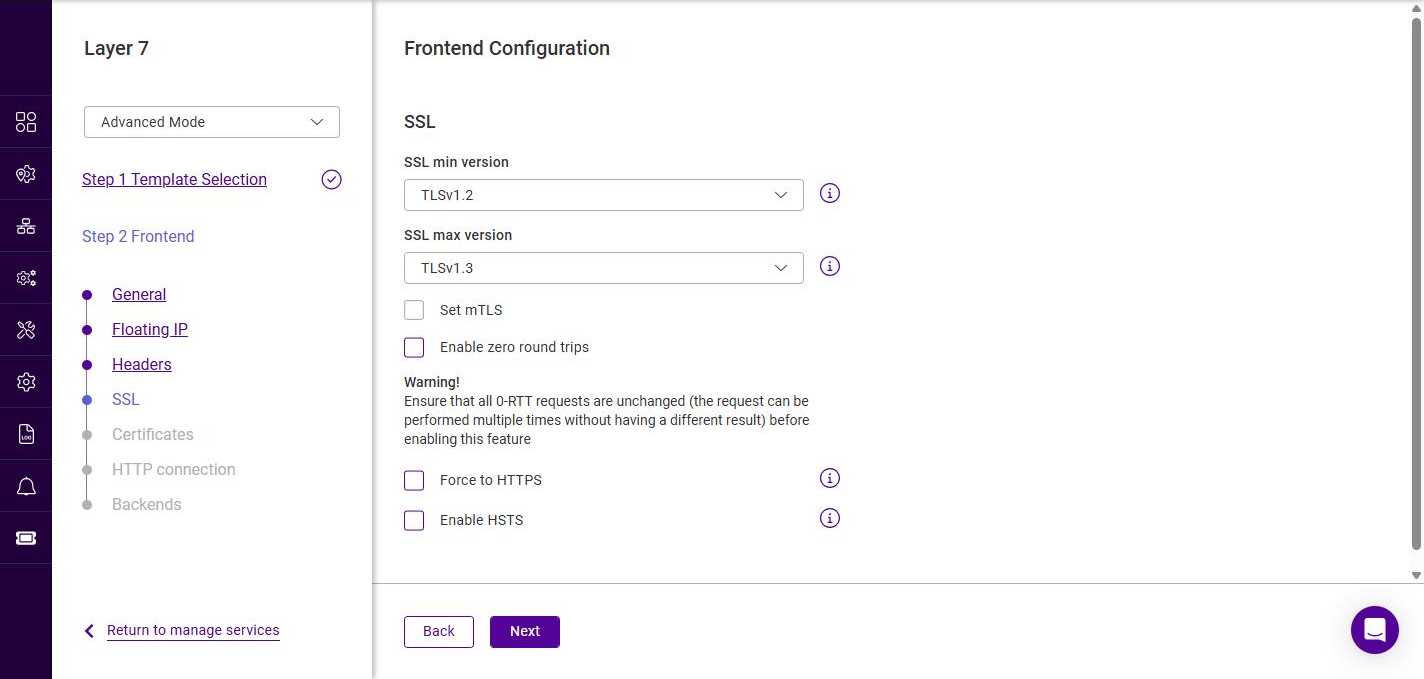
-
Configure the SSL settings as required:
Setting Description SSL min version
The minimum TLS protocol version the load balancer will negotiate with clients. The options are TLSv1.0, TLSv1.1, TLSv1.2 (default) and TLSv1.3.
SSL max version
The maximum TLS protocol version the load balancer will negotiate with clients. The options are TLSv1.0, TLSv1.1, TLSv1.2 and TLSv1.3 (default).
Set mTLS
Enables mutual TLS (mTLS), requiring clients to present a valid client certificate. The CA certificate(s) used to validate client certificates must be available on the appliance before mTLS can be enabled - until at least one CA certificate has been added the Set mTLS checkbox is greyed out. See CA Certificates.
Enable zero round trips
Enables TLS 1.3 0-RTT (zero round trip time) early data, reducing latency for resumed sessions.
Warning: ensure that all 0-RTT requests are idempotent (the request can be performed multiple times without producing a different result) before enabling this feature.Force to HTTPS
Automatically redirects plain-text HTTP requests received on the service to HTTPS.
Enable HSTS
Adds an HTTP Strict Transport Security (HSTS) response header, instructing browsers to only connect to the service over HTTPS.
For background on the SSL termination modes (SSL offloading, SSL bridging, SSL passthrough), see SSL/TLS Termination - Concepts. -
Click Next.
Frontend Configuration - Certificates
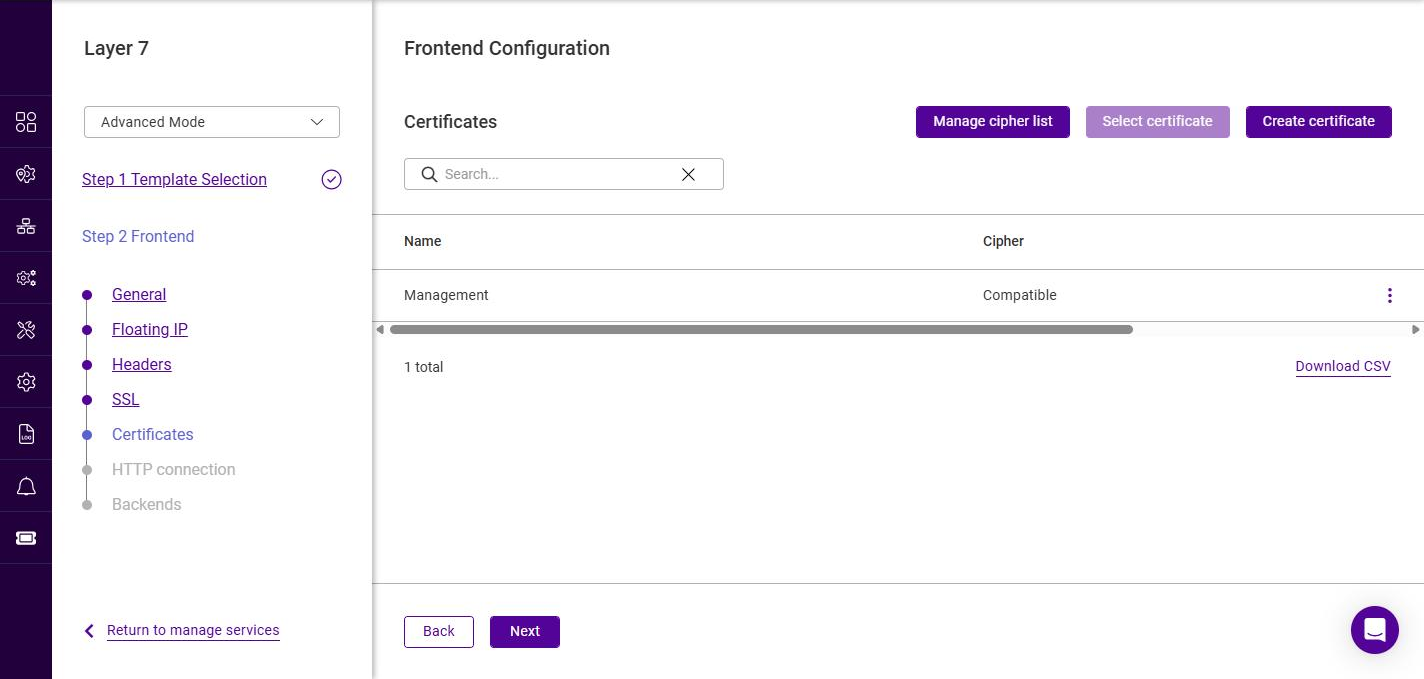
This step selects the SSL certificate(s) that the service presents to clients, together with the cipher list to use. At least one certificate must be added before the wizard can continue.
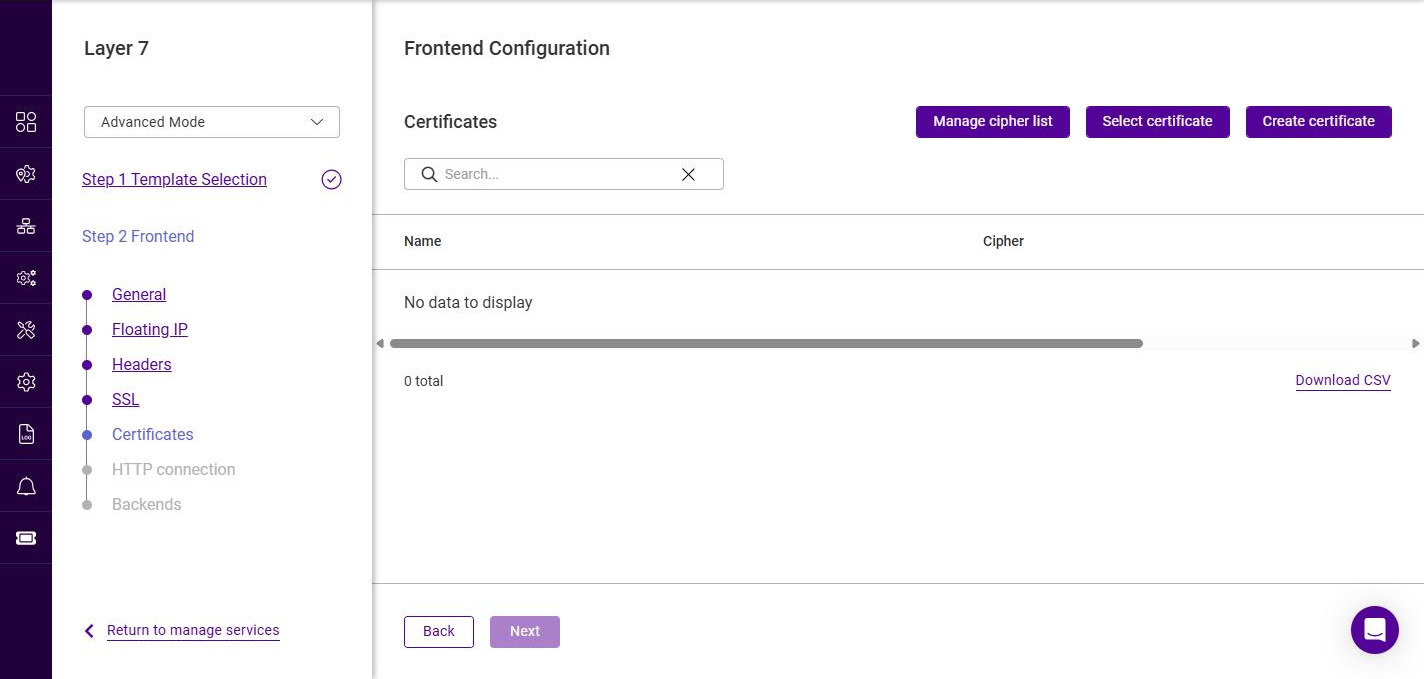
The following actions are available:
| Action | Description |
|---|---|
Manage cipher list |
Opens the cipher list manager, where the predefined cipher lists can be viewed and custom lists created. See Cipher lists. |
Select certificate |
Associates an existing certificate (and a cipher list) with this service - see below. |
Create certificate |
Opens the SSL certificate manager so that a new certificate can be uploaded or generated - see below. |
Selecting an existing certificate
-
Click Select certificate.
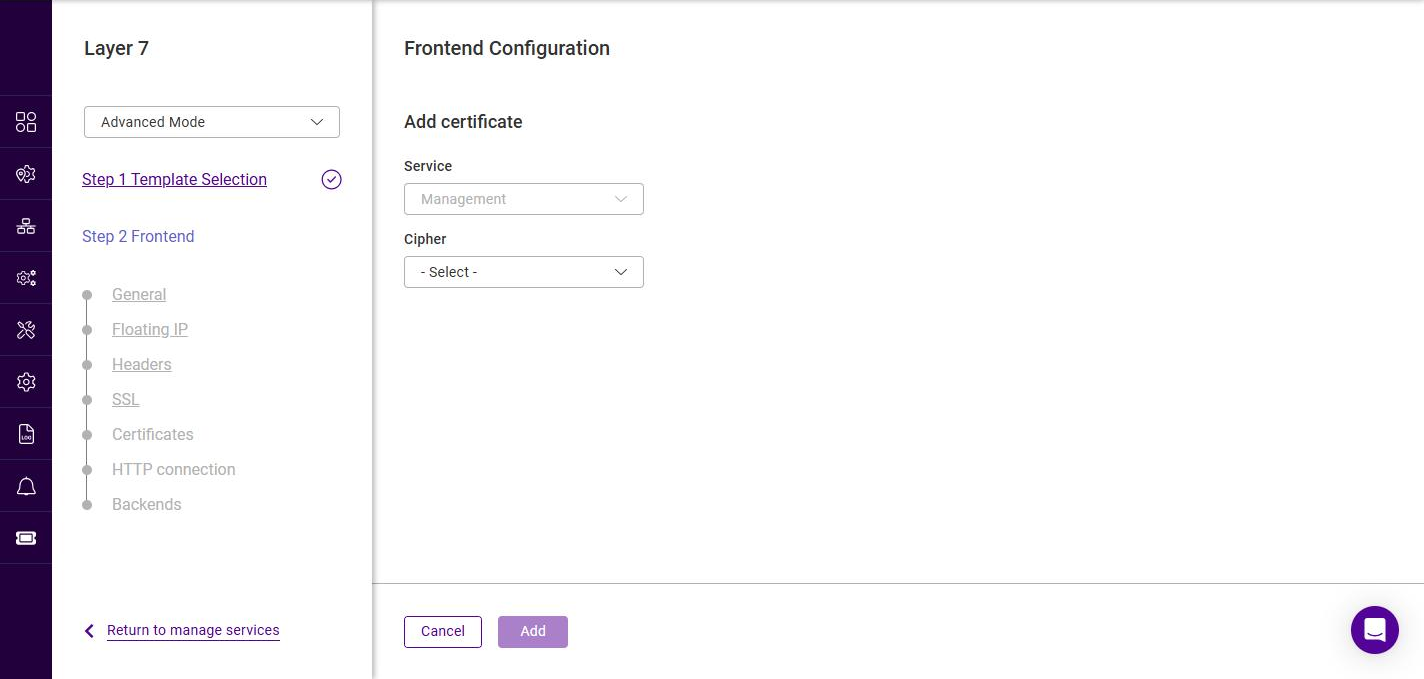
-
In the Add certificate form that opens, select the certificate to present in the Certificate field. If only one certificate exists on the appliance it is pre-selected and the field is greyed out.
-
Select the required Cipher list. The predefined lists are:
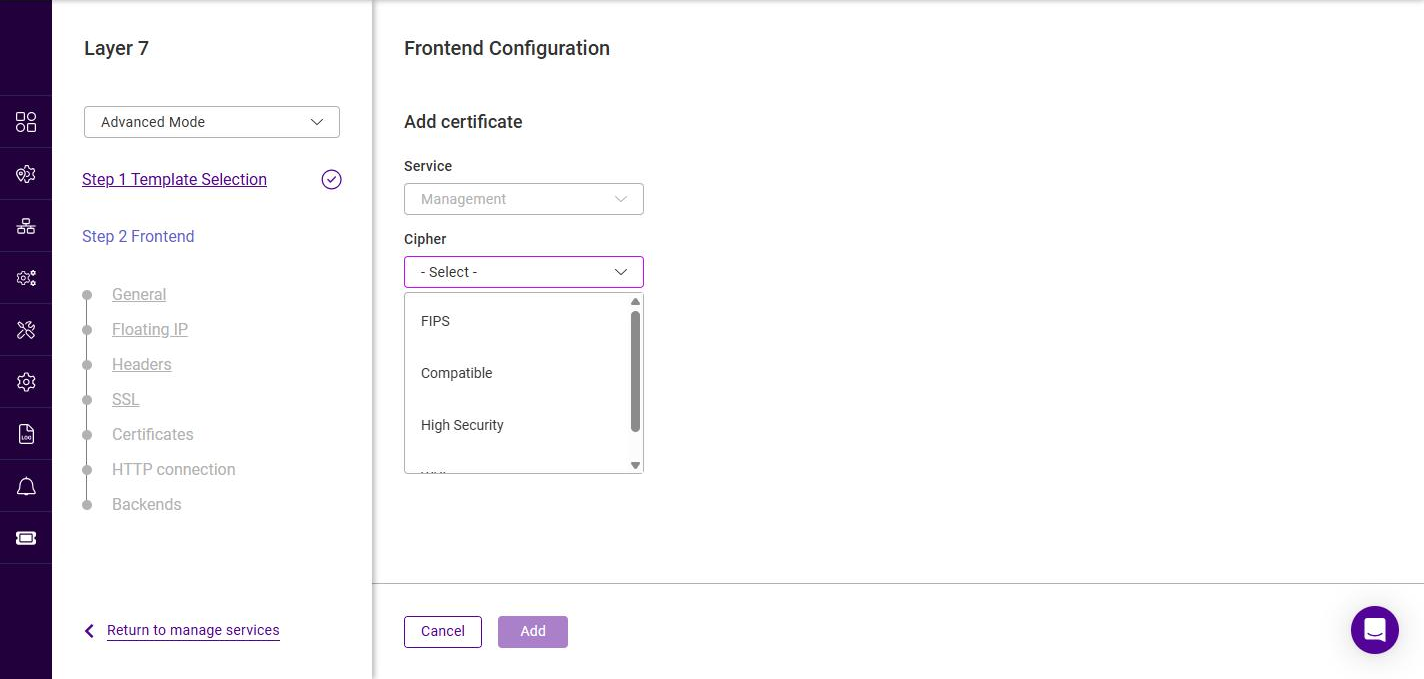
Cipher list Description FIPS
A FIPS 140-2 compliant cipher list.
Compatible
A broad cipher list that maximizes compatibility with older clients.
High Security
A restricted cipher list offering the strongest security, at the expense of compatibility with older clients.
WUI
The cipher list used by the appliance WebUI.
For details on creating and modifying custom cipher lists, see Cipher lists. -
Click Add. The certificate is added to the list for this service, which shows its Name, the Cipher list selected for it and its Valid to expiry date.
Creating a new certificate
If the required certificate does not yet exist, click Create certificate. This opens the SSL certificate manager (with Certs, CSR, CA and CRL tabs) where certificates can be uploaded or generated.
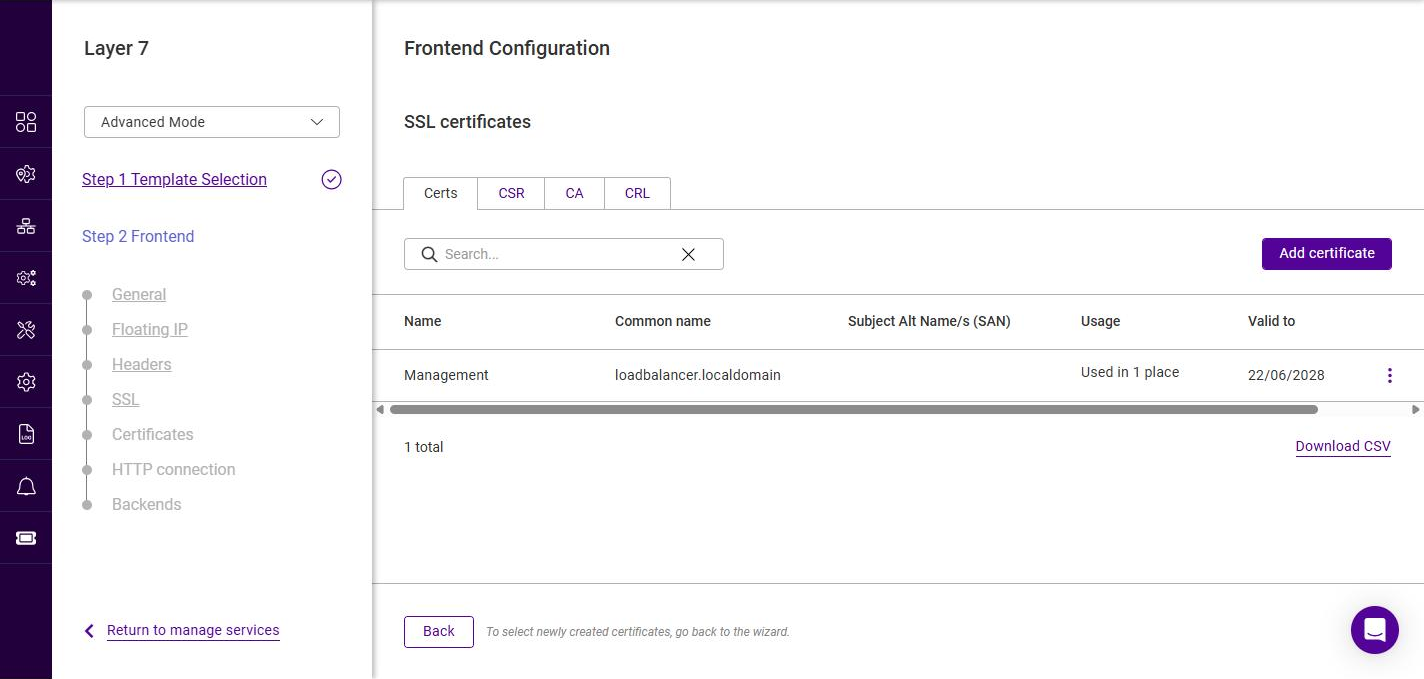
Once the certificate has been created, click Back to return to the wizard, then use Select certificate to associate it with the service. For full details on generating a CSR, uploading certificates and creating PEM files, see SSL Certificate.
-
Once at least one certificate has been added, click Next.
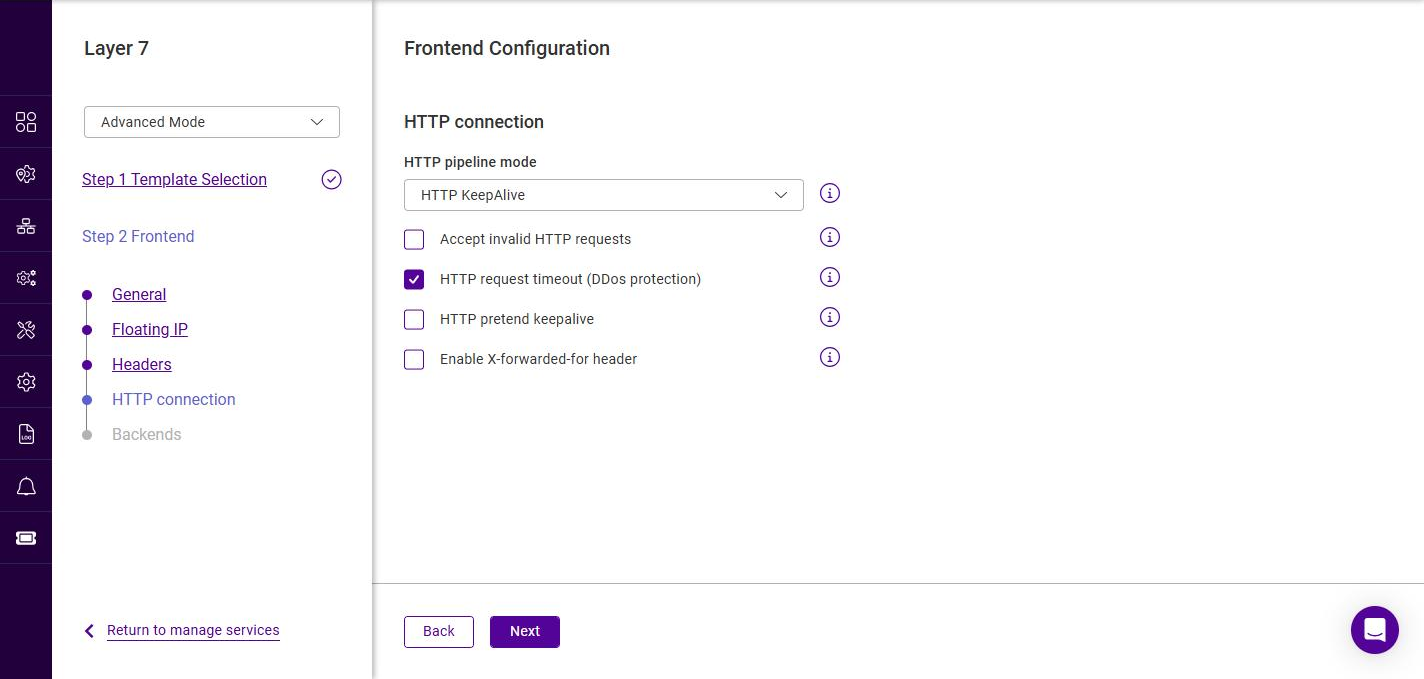
Frontend Configuration - HTTP connection
This step is only shown in Advanced Mode for HTTP mode Services.
-
Configure the connection handling options as required:
Setting Description HTTP pipeline mode
Controls how connections are kept open. The options are HTTP KeepAlive (default), Http Close and HTTP Server Close.
Accept invalid HTTP requests
Allows non-standard requests that would otherwise be rejected.
HTTP request timeout (DDos protection)
Enables a timeout on the receipt of the full HTTP request, providing protection against slow-request (DDoS) attacks. Enabled by default.
HTTP pretend keepalive
The load balancer presents a keep-alive connection to the client while using a close connection to the Real Server.
Enable X-forwarded-for header
Adds an X-Forwarded-For header containing the client source IP address to requests sent to the Real Servers.
-
Click Next.
Frontend Configuration - Backends
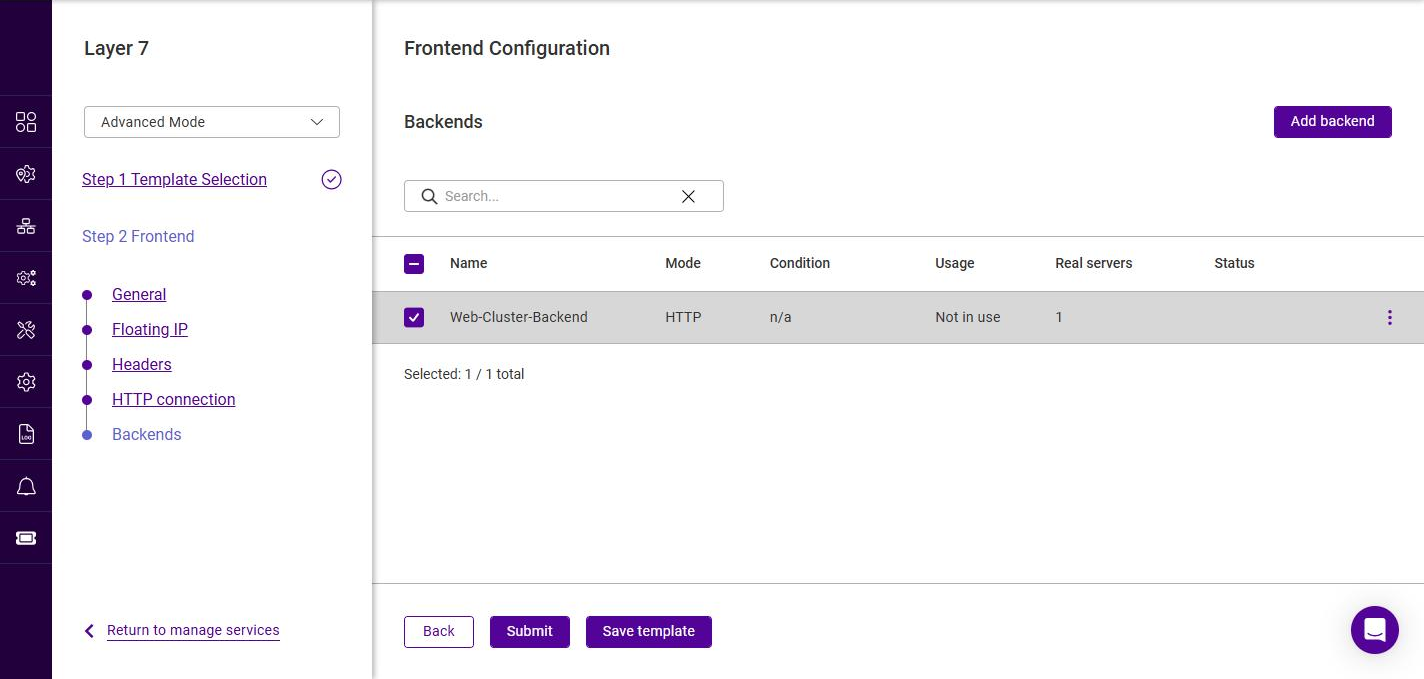
The Backends step lists every backend (Real Server pool) defined on the appliance, each with a checkbox. Check the backends that this frontend should use - an existing backend can be attached here without creating a new one, as described in Selecting the Backends.
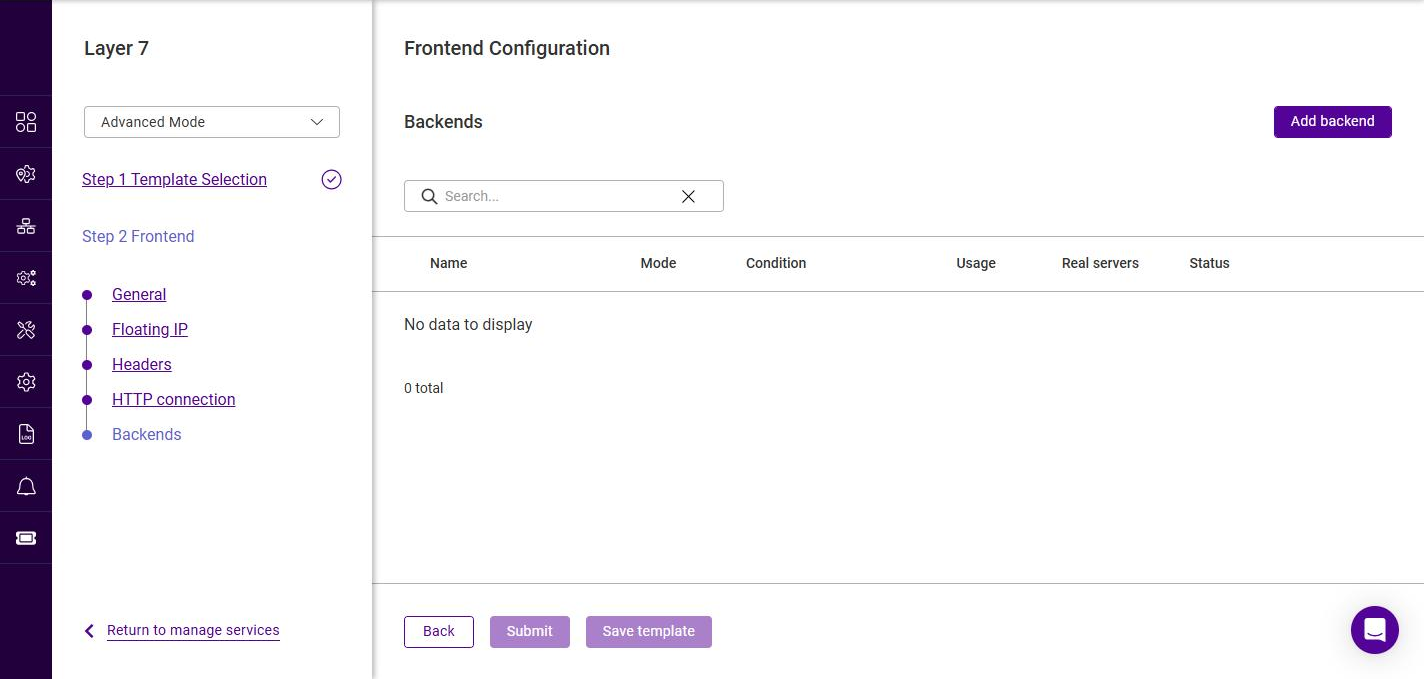
The following information is shown for each backend:
| Column | Description |
|---|---|
Name |
The name of the backend. |
Mode |
The Layer 7 mode of the backend - HTTP or TCP. |
Condition |
The ACL condition that directs traffic to this backend. |
Usage |
The frontends that currently use the backend. |
Real servers |
The number of Real Servers the backend contains. |
Status |
The current health status of the backend. |
-
If a new backend is required, click Add backend. This opens the Backend Configuration wizard described below. This step is optional - if a suitable backend already exists, simply check it instead.
Backend Configuration - General
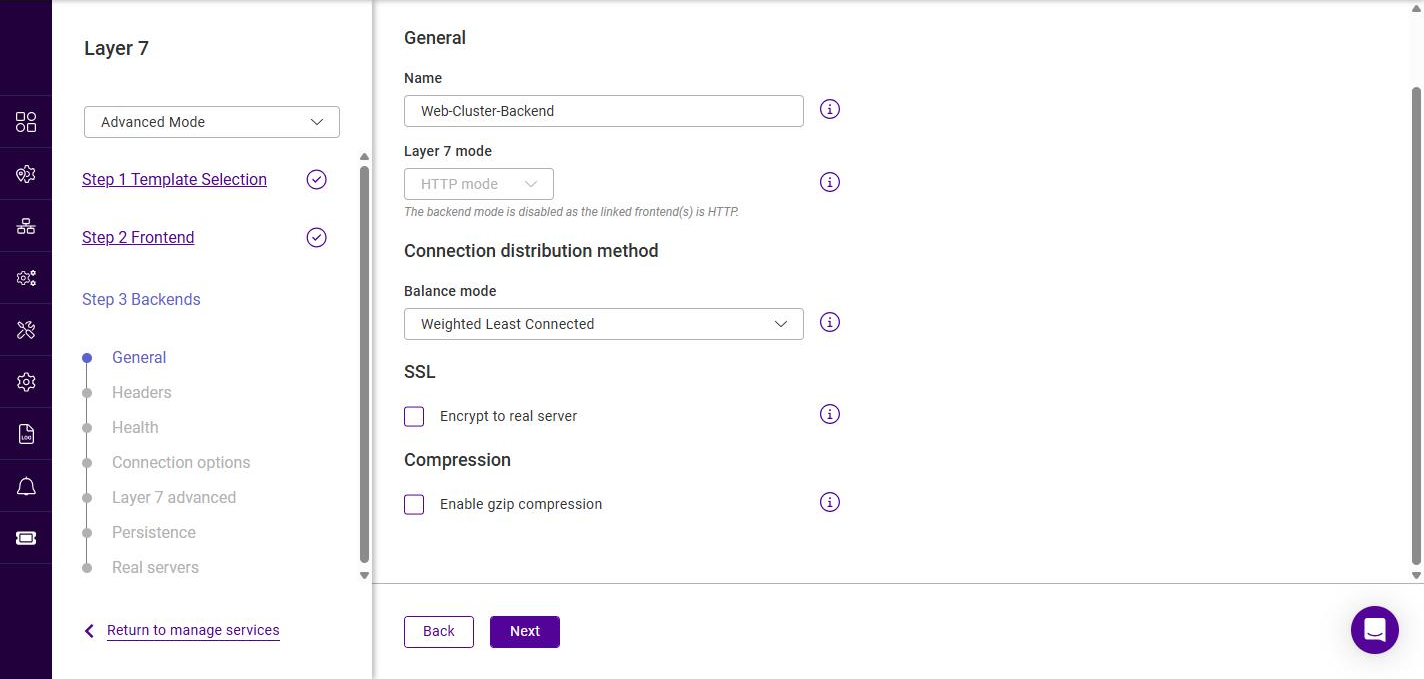
-
Specify a suitable Name for the backend, e.g. Web-Cluster-Backend.
-
The Layer 7 mode is locked to match the linked frontend(s) and cannot be changed in this wizard - the message "The backend mode is disabled as the linked frontend(s) is HTTP" is displayed beneath the field. It stays locked for as long as the backend is linked to a frontend; the mode of a running service is changed on the frontend instead, as described in Changing the Layer 7 mode of an existing service.
-
Select the required Balance mode (the connection distribution method), the options are:
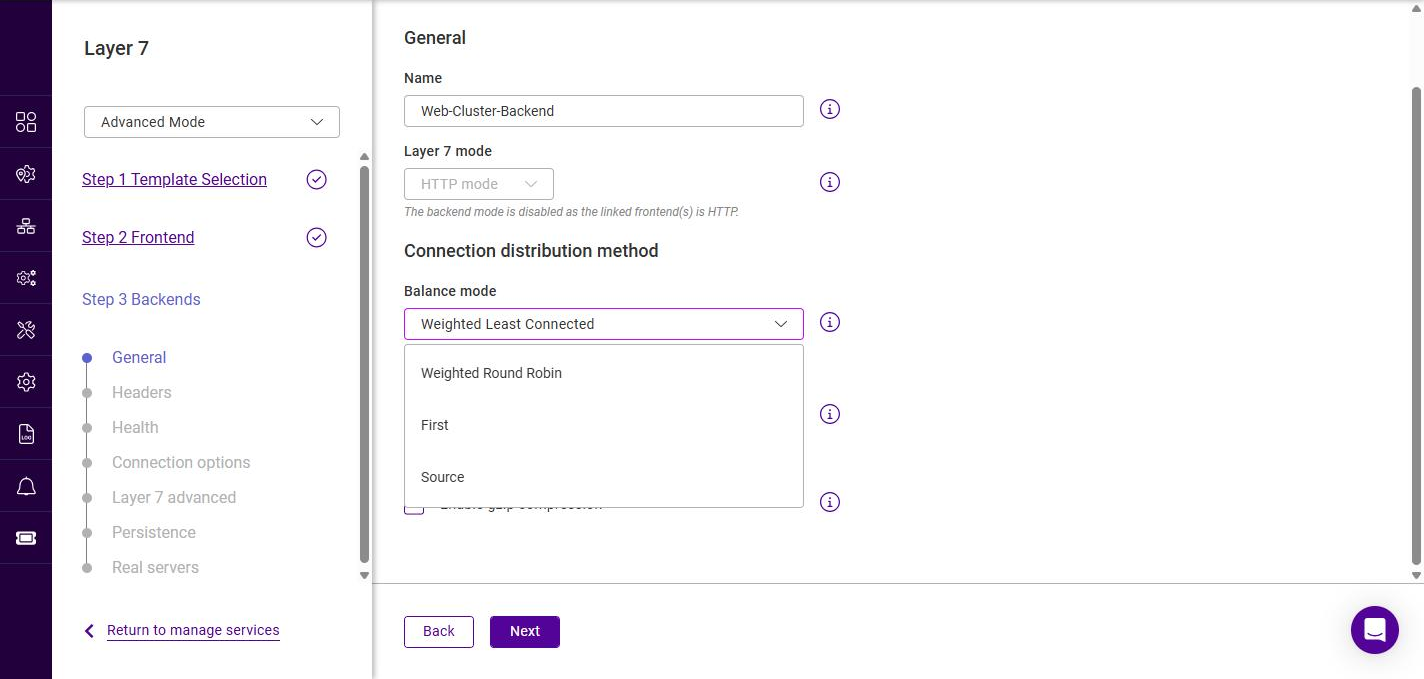
Balance mode Description Weighted Least Connected
New connections are sent to the Real Server with the fewest active connections, taking server weights into account. The default and recommended option.
Weighted Round Robin
Connections are distributed across the Real Servers in turn, taking server weights into account.
First
Connections are sent to the first available Real Server until it reaches its connection limit, then to the next, and so on.
Source
The Real Server is selected based on a hash of the client source IP address, providing a simple form of persistence.
-
If communication between the load balancer and the Real Servers must be encrypted, enable Encrypt to real server under SSL.
-
To compress responses, enable Enable gzip compression under Compression (Advanced Mode only).
-
Click Next.
| The backend also has a Headers step, identical in operation to the frontend Headers step described above. Configure backend header rules if required, then click Next. |
Backend Configuration - Health
This step configures the health checks the load balancer uses to decide whether each Real Server is available. When a Real Server fails its health check it is marked down and traffic is redirected to the remaining servers; once it passes again it is automatically returned to service.
Layer 7 services are built on HAProxy. For low-level detail on the underlying health check directives (for example option httpchk, http-check expect, option mysql-check and the inter, rise and fall server keywords), refer to the HAProxy 2.4 configuration manual at docs.haproxy.org/2.4.
|
Default Mode and Advanced Mode
The fields shown on the Health step depend both on the selected Healthcheck type and on whether the backend wizard is in Default Mode or Advanced Mode. The mode is set using the selector at the top-left of the wizard.
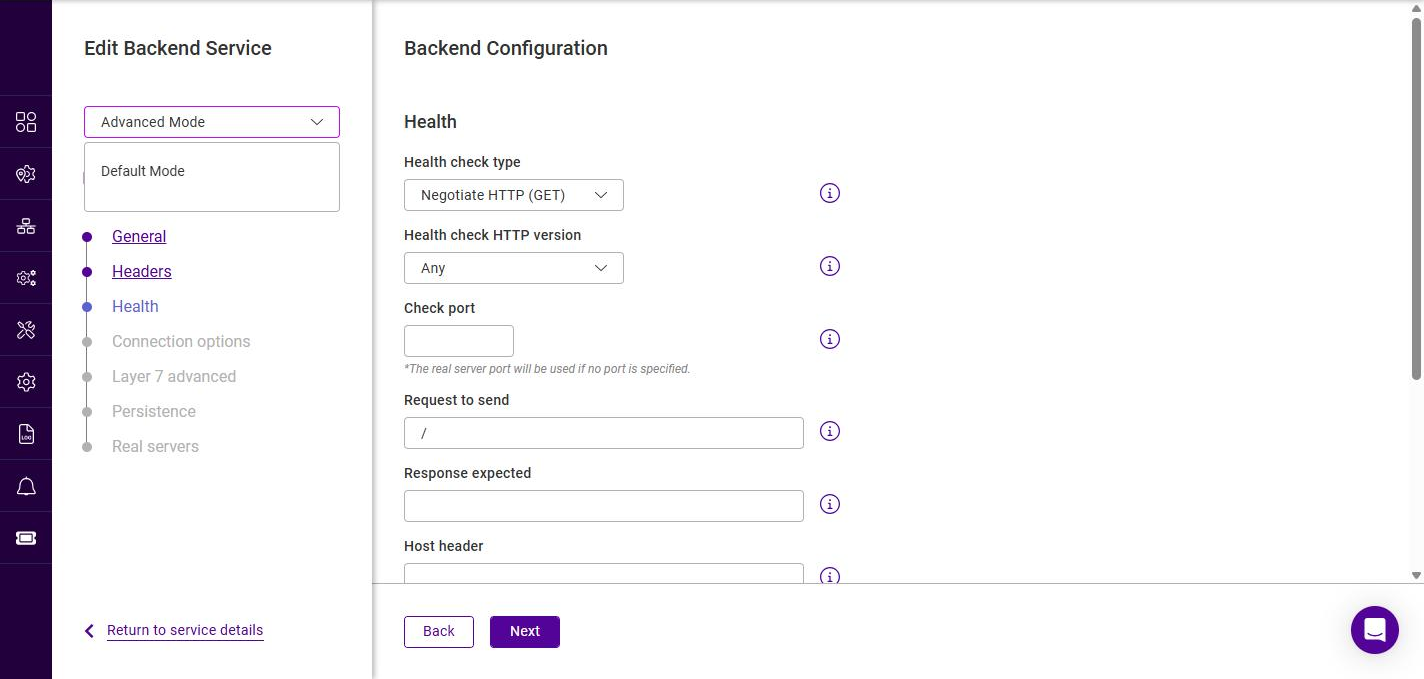
Default Mode shows only the essential fields for the selected check type. Advanced Mode additionally:
-
exposes the extra wizard steps Connection options and Layer 7 advanced (see the following sections), and
-
reveals the health check timing fields Interval, Rise and Fall for every check type, plus the Check port and Host header fields for the Negotiate checks.
Unless otherwise stated, the timing fields (Interval, Rise and Fall) described below are only available in Advanced Mode; in Default Mode the appliance defaults are used.
Selecting the healthcheck type
-
Select the required Healthcheck type:
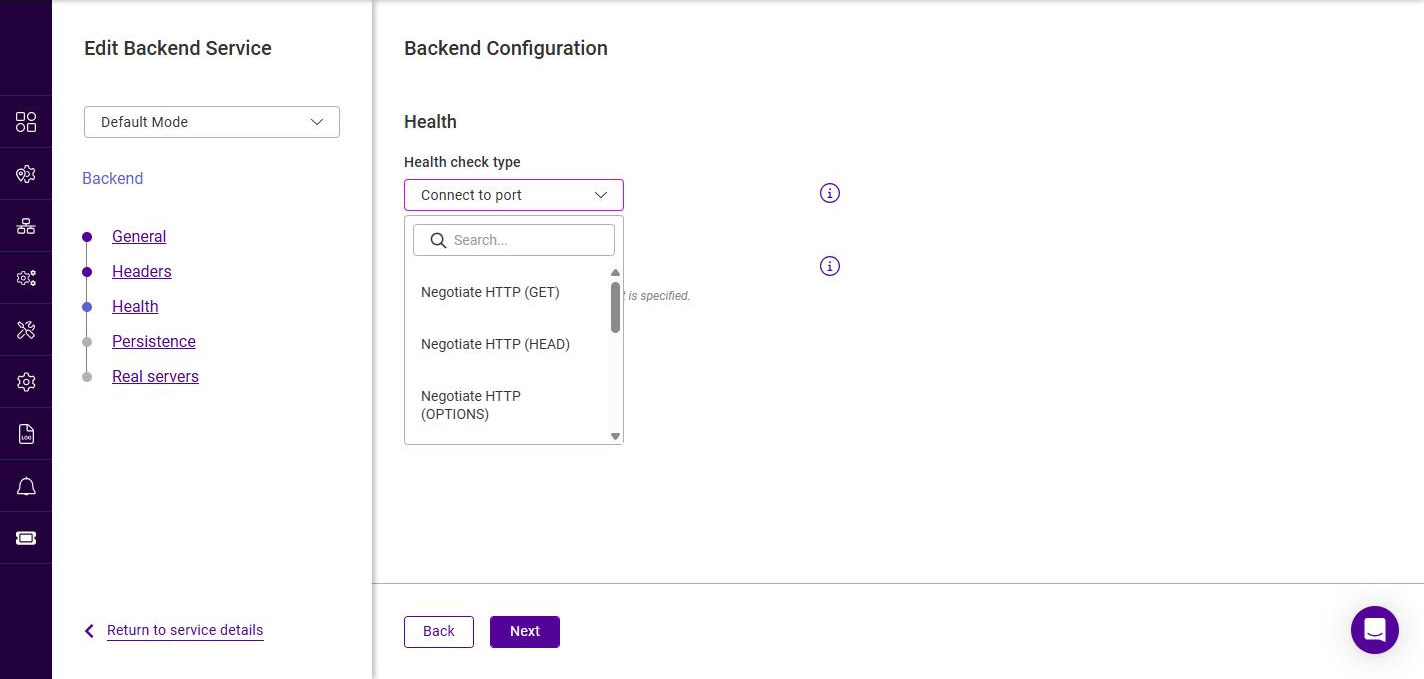
Healthcheck type Description Connect to port
The default check. The load balancer opens a TCP connection to the check port; if the connection is accepted the Real Server is considered up. This is a fast, protocol-agnostic check suitable for any TCP-based service, but it only confirms that the port is open — not that the application behind it is healthy.
Negotiate HTTP (GET)
Sends an HTTP
GETrequest to the Real Server and marks it up only if the expected response is returned.GETretrieves the full page, allowing the returned content to be matched against the Response expected string. Use this when the health of the application — not just the port — must be verified.Negotiate HTTP (HEAD)
As Negotiate HTTP (GET), but sends a
HEADrequest.HEADreturns the same headers aGETwould return but without the response body, making it lighter weight while still confirming that the page is served.Negotiate HTTP (OPTIONS)
As Negotiate HTTP (GET), but sends an
OPTIONSrequest. The Real Server is marked up if the web server returns a validOPTIONSresponse. This is the lightest of the HTTP checks.Negotiate HTTPS (GET)
Identical to Negotiate HTTP (GET) but the request is sent over SSL/TLS. Use this when the Real Servers only accept encrypted connections.
Negotiate HTTPS (HEAD)
Identical to Negotiate HTTP (HEAD) but sent over SSL/TLS.
Negotiate HTTPS (OPTIONS)
Identical to Negotiate HTTP (OPTIONS) but sent over SSL/TLS.
External Script
Runs a custom script on the load balancer to determine Real Server health. Use this when none of the built-in checks can express the required test. The script must already exist on the appliance.
MySQL
Performs a MySQL-specific health check. The check completes a MySQL protocol handshake (and closes the session cleanly) without producing an error or aborted-connect entry on the database server. It requires a dedicated MySQL user — see the note below.
No checks, always on
Disables health checking entirely. All Real Servers are permanently considered up and traffic is sent to them regardless of their actual state. Use with caution.
Configuring the selected healthcheck type
The fields that appear once a check type is selected are described below. Where the Default Mode and Advanced Mode views differ, both are shown.
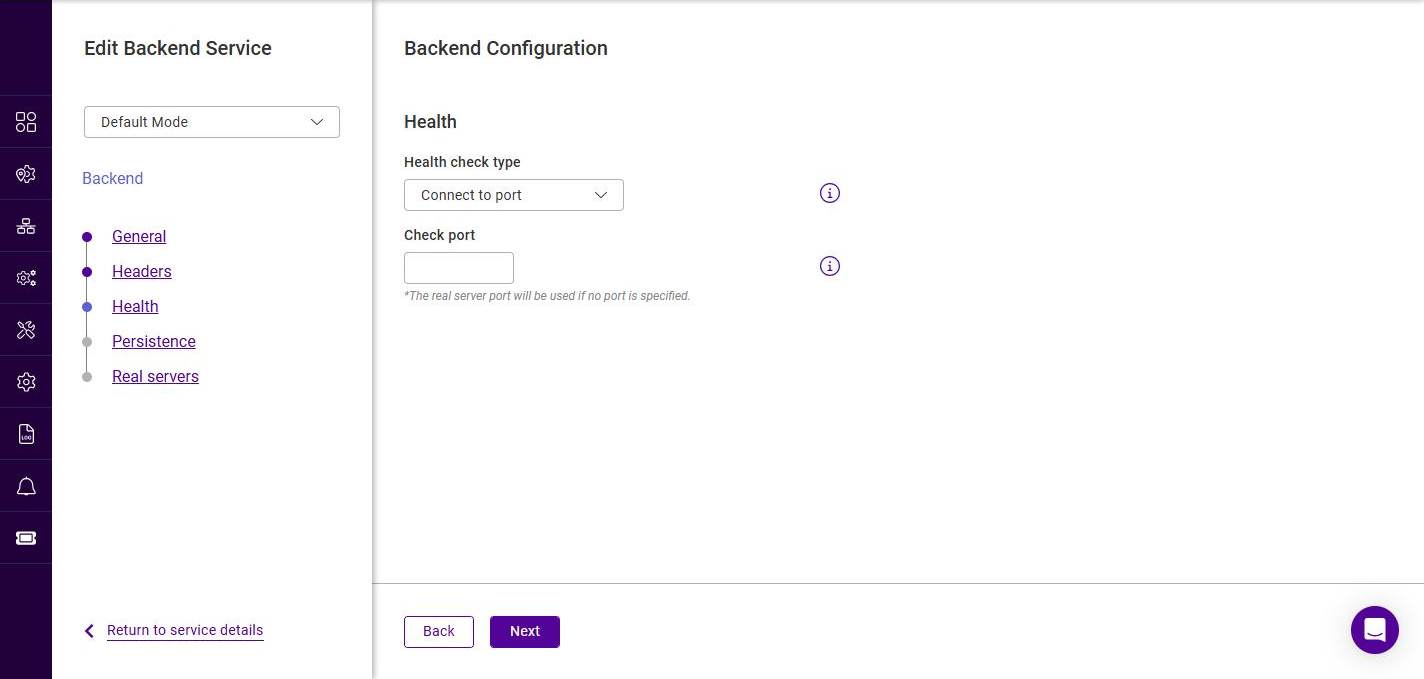
Connect to port
In Default Mode, only the Check port field is shown:
In Advanced Mode, the Interval, Rise and Fall timing fields are added:
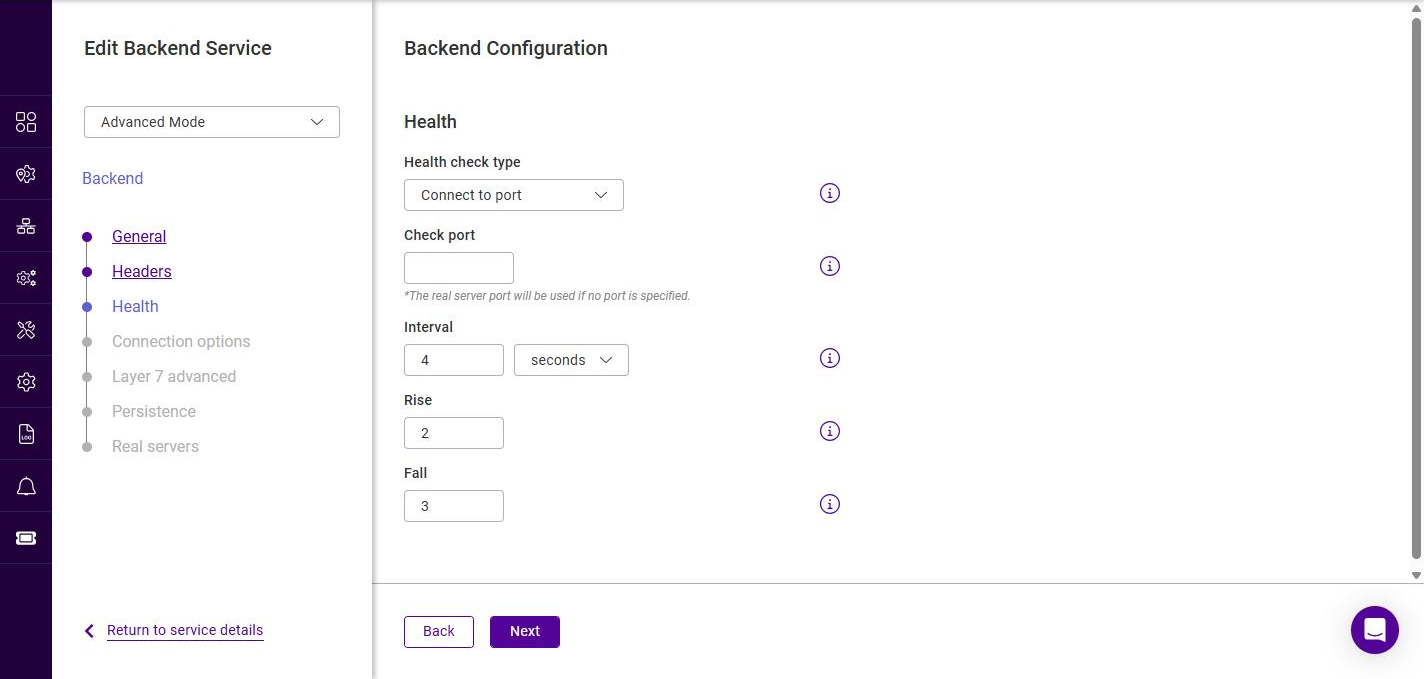
| Setting | Description |
|---|---|
Check port |
The TCP port to connect to. If left blank, the Real Server port is used. |
Interval (Advanced) |
How often the health check is performed, specified as a value and unit (e.g. 4 seconds). |
Rise (Advanced) |
The number of consecutive successful checks required before a Real Server is marked up. |
Fall (Advanced) |
The number of consecutive failed checks required before a Real Server is marked down. |
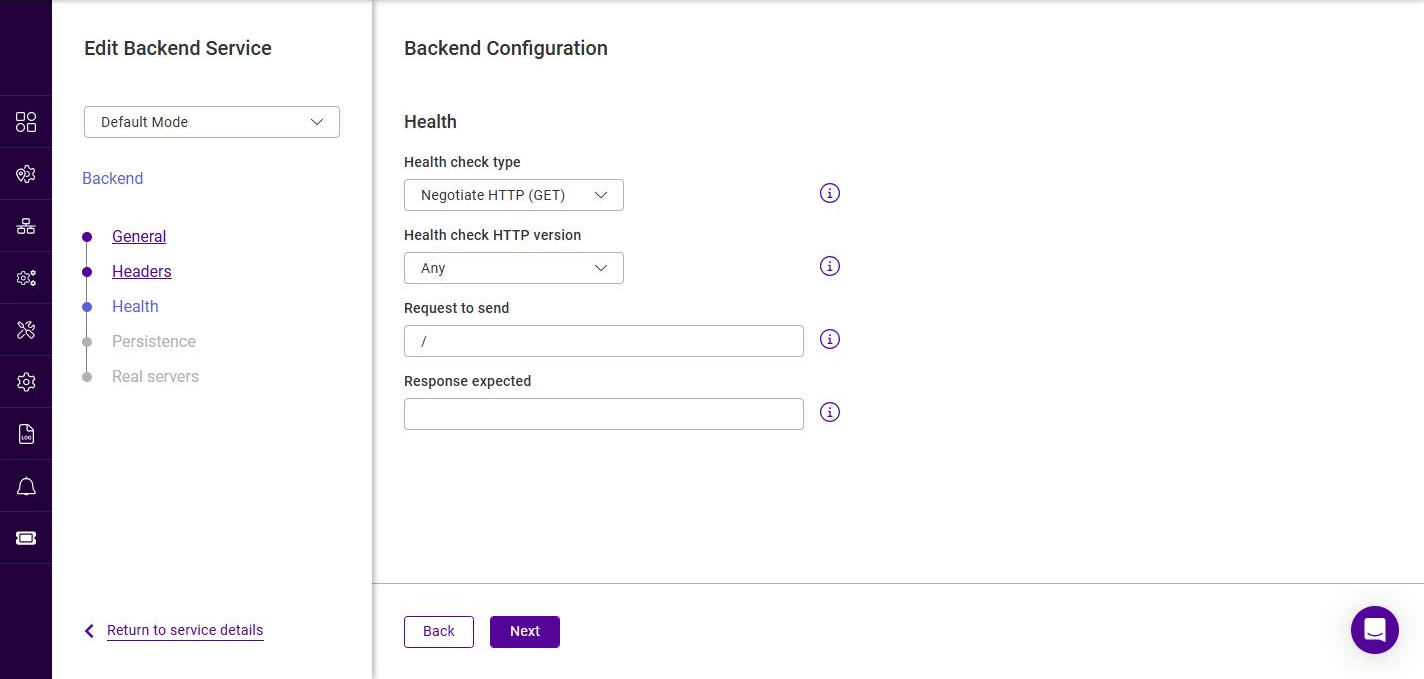
Negotiate HTTP / HTTPS (GET / HEAD / OPTIONS)
The six Negotiate check types share almost the same set of fields; the protocol (HTTP or HTTPS) and
request method (GET, HEAD or OPTIONS) differ, and only the two GET variants offer the
Response expected field - a HEAD or OPTIONS request returns no response body to match against. In
Default Mode the following fields are shown:
In Advanced Mode the Check port, Host header, Interval, Rise and Fall fields are added:
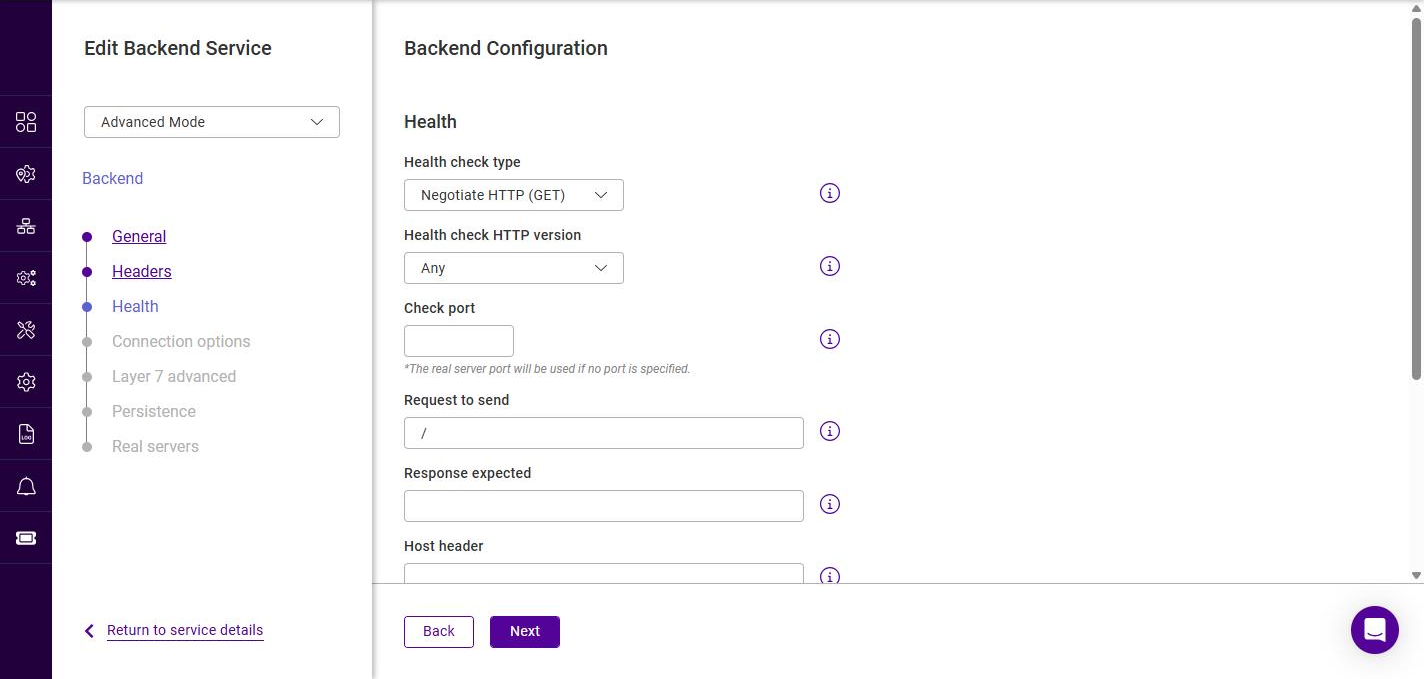
| Setting | Description |
|---|---|
Healthcheck HTTP version |
The HTTP version used for the check request. The field opens on - Select - with no version chosen; the options are HTTP/1.1, HTTP/2 and Any. Select HTTP/1.1 or HTTP/2 if the Real Server requires a specific version, or Any to let the check negotiate. |
Request to send |
The URI requested by the check, |
Response expected (GET only) |
An optional string that must be present in the response for the check to pass (for example an HTTP status code such as |
Negate response expected (GET only) |
Inverts the Response expected match. When checked, the Real Server is marked up only if the Response expected string is absent from the response, and marked down if it is present. Like Response expected, this field is shown in both Default Mode and Advanced Mode, and is offered only by the two GET variants. |
Check port (Advanced) |
The port to send the check request to. If left blank, the Real Server port is used. |
Host header (Advanced) |
The value of the |
Interval (Advanced) |
How often the health check is performed (value and unit). |
Rise (Advanced) |
The number of consecutive successful checks required before a Real Server is marked up. |
Fall (Advanced) |
The number of consecutive failed checks required before a Real Server is marked down. |
External Script
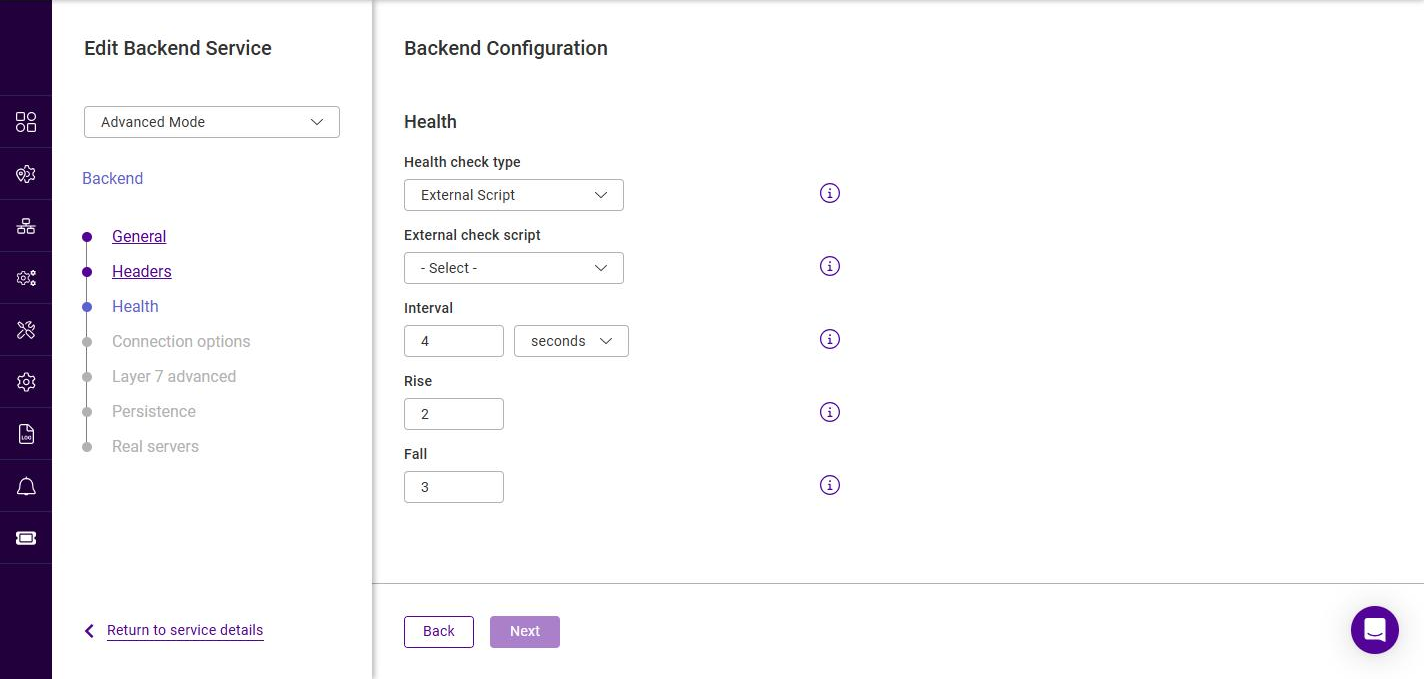
The External Script check runs a script stored on the appliance. In Advanced Mode the timing fields are also shown:
| Setting | Description |
|---|---|
External check script |
Selects the script used to determine Real Server health, from the appliance’s Healthchecks library - the same list that is shown under Manage services > Healthchecks. The default selection is TCP connect. The script’s exit status determines whether the server is considered up or down. |
Parameters |
The fields displayed beneath the selected script. They depend on the script selected - each health check declares its own parameters, and the wizard renders one field per parameter, pre-filled with that parameter’s default value. For the default TCP connect script these are Port to check and Timeout in seconds. The parameter values are set here, on this backend; the parameters themselves are defined with the check under Healthchecks. |
Interval (Advanced) |
How often the script is run (value and unit). |
Rise (Advanced) |
The number of consecutive successful runs required before a Real Server is marked up. |
Fall (Advanced) |
The number of consecutive failed runs required before a Real Server is marked down. |
MySQL
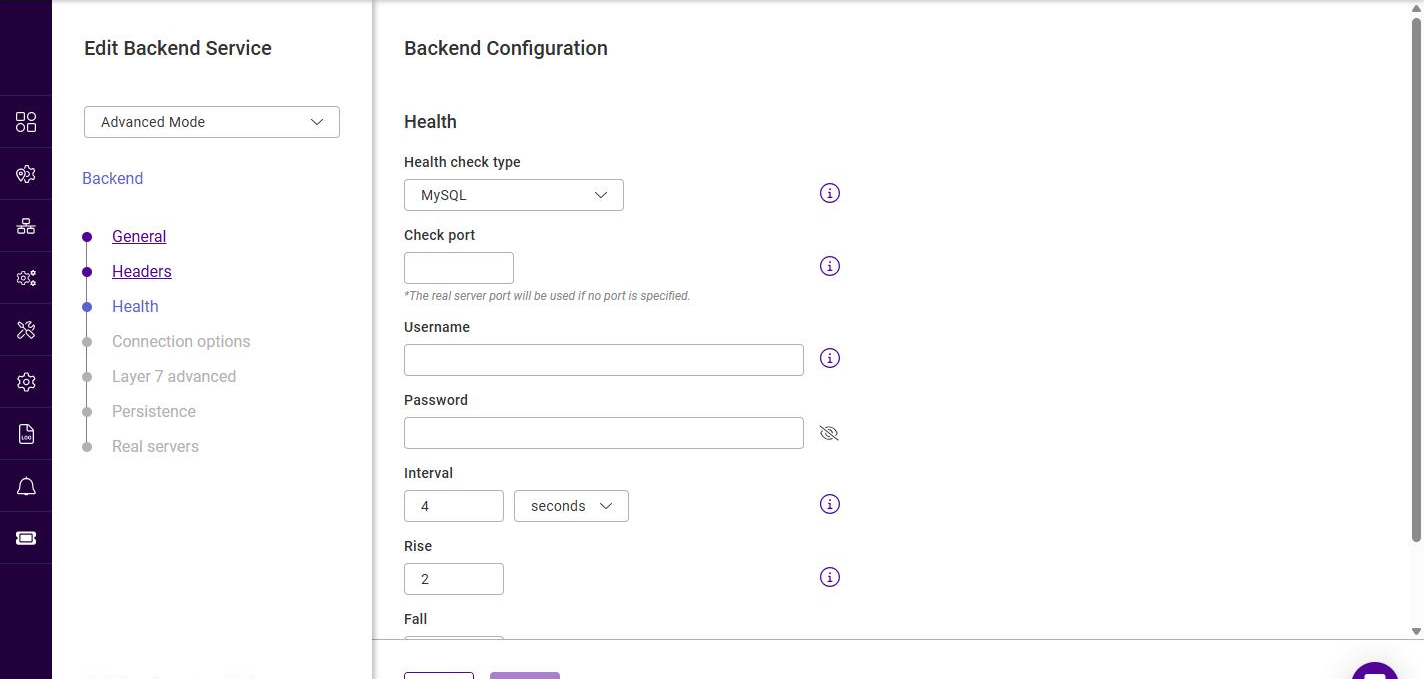
The MySQL check verifies that a MySQL database server is responding. In Advanced Mode the timing fields are also shown:
| Setting | Description |
|---|---|
Check port (Advanced) |
The port the MySQL server is listening on. If left blank, the Real Server port is used. |
Username |
The MySQL user the check authenticates as. |
Password |
The password for the MySQL user (leave blank if the user has no password). |
Interval (Advanced) |
How often the health check is performed (value and unit). |
Rise (Advanced) |
The number of consecutive successful checks required before a Real Server is marked up. |
Fall (Advanced) |
The number of consecutive failed checks required before a Real Server is marked down. |
| The MySQL check requires a user that is allowed to connect but needs no specific privileges. On the database server, such a user can be created with, for example: |
USE mysql;
INSERT INTO user (Host,User) values ('','');
FLUSH PRIVILEGES;
No checks, always on
This type has no additional fields. All Real Servers in the backend are permanently treated as up.
Once the health check has been configured, click Next.
Backend Configuration - Connection options
This step is only shown in Advanced Mode.
-
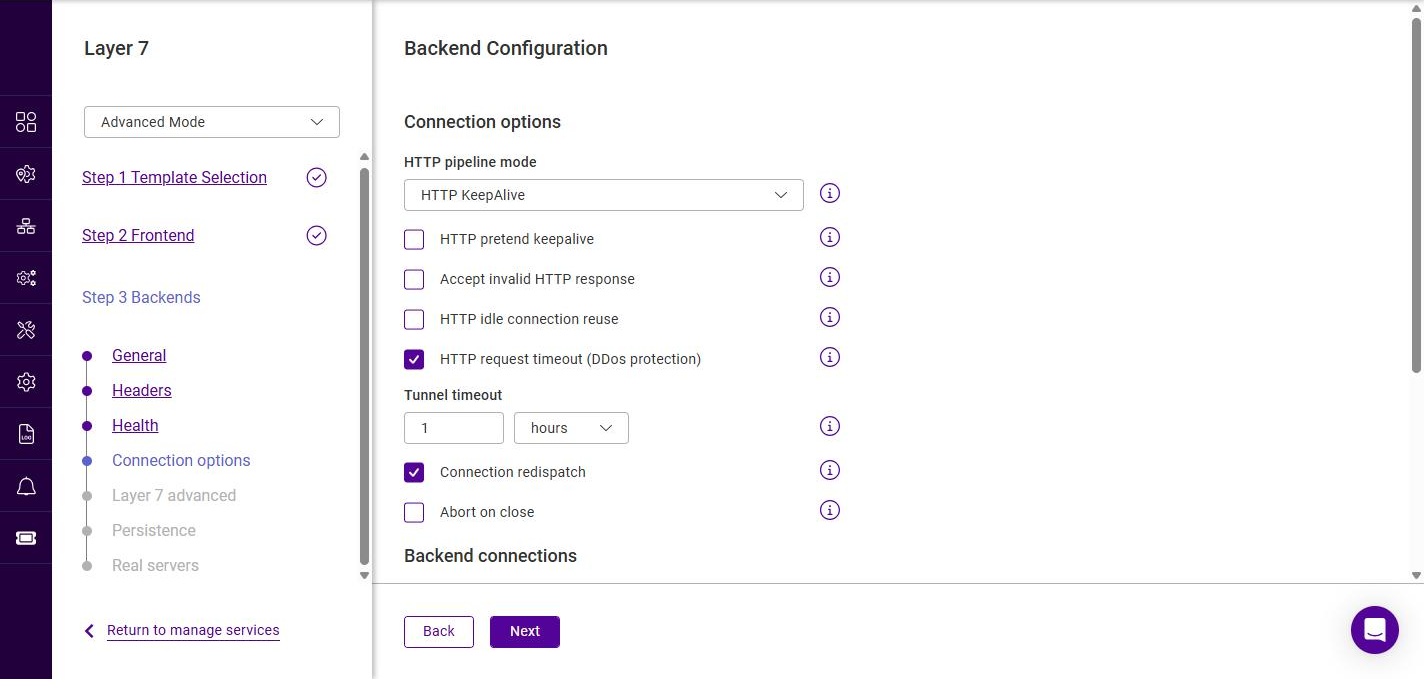
Configure the connection options as required:
Setting Description HTTP pipeline mode
Controls how backend connections are kept open (HTTP KeepAlive, Http Close, HTTP Server Close).
HTTP pretend keepalive
Presents a keep-alive connection to the client while using a close connection to the Real Server.
Accept invalid HTTP response
Allows non-standard responses from the Real Servers that would otherwise be rejected.
HTTP idle connection reuse
Allows idle backend connections to be reused for subsequent requests.
HTTP request timeout (DDos protection)
Enables a timeout on the receipt of the full HTTP request. Enabled by default.
Tunnel timeout
The maximum inactivity time on a tunneled (e.g. WebSocket) connection (value and unit). The default is 1 hours.
Connection redispatch
If a connection to a Real Server fails, the connection is redispatched to a different Real Server. Enabled by default.
Abort on close
Aborts the backend request if the client closes the connection before a response is received.
-
Under Backend connections, configure:
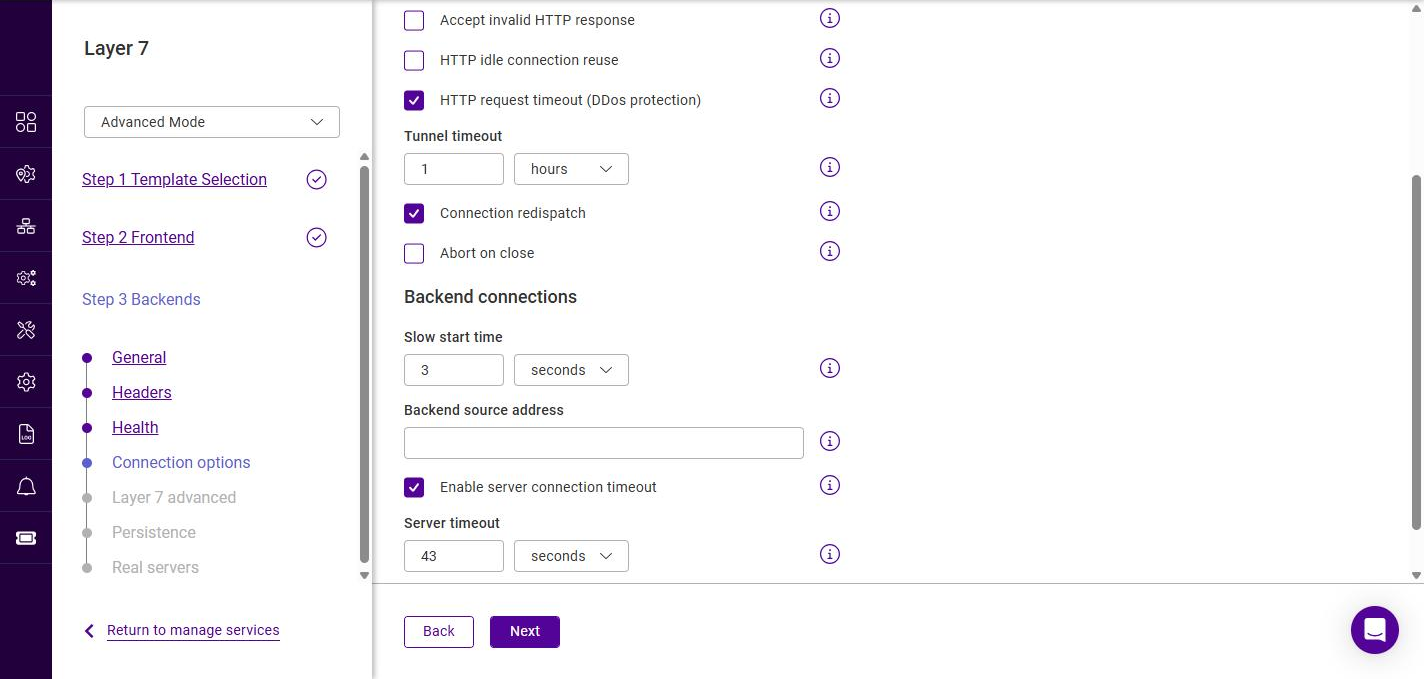
Setting Description Slow start time
The period over which a newly-online Real Server has its weight gradually ramped up to full (value and unit). The default is 3 seconds.
Backend source address
The source IP address used by the load balancer when connecting to the Real Servers. Leave blank to use the interface default.
Enable server connection timeout
Enables a timeout on the connection to the Real Servers. Enabled by default.
Server timeout
The maximum inactivity time on the server side of the connection (value and unit). The default is 43 seconds.
-
Click Next.
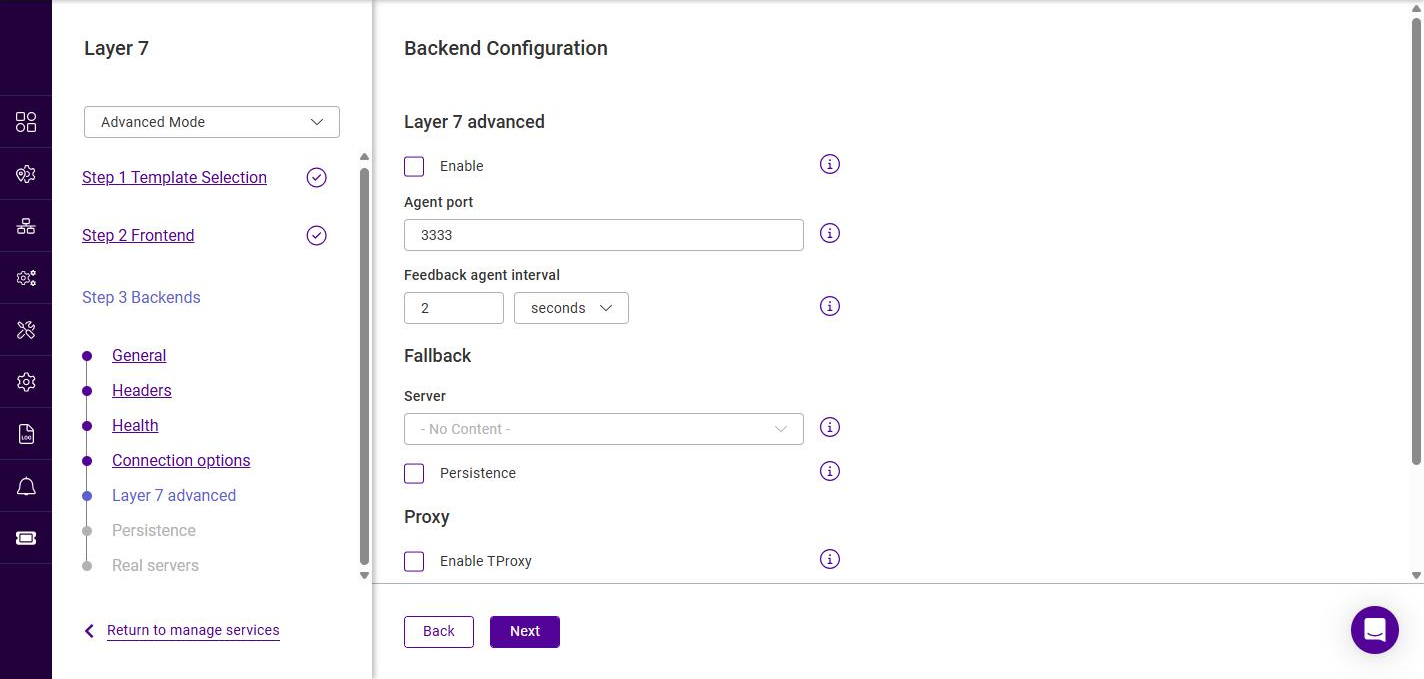
Backend Configuration - Layer 7 advanced
This step is only shown in Advanced Mode and groups the feedback, fallback and proxy settings.
-
Configure the settings as required:
Section / Setting Description Layer 7 advanced - Enable
Enables the use of runtime data from the feedback agent installed on each Real Server to influence load balancing. For details on the feedback agent, see Server Feedback Agent.
Layer 7 advanced - Agent port
The port the feedback agent listens on. The default is 3333.
Layer 7 advanced - Feedback agent interval
How often the feedback agent is polled (value and unit).
Fallback - Server
The fallback (sorry) server presented to clients when all Real Servers in the backend are down.
Fallback - Persistence
Applies persistence to the fallback server.
Fallback - Kill Connections
Forcibly terminates active client connections to the server.
Proxy - Enable TProxy
Enables transparent proxy so that the Real Servers see the original client source IP address. Requires the Real Servers to route return traffic via the load balancer.
Proxy - Send proxy protocol
Sends a Proxy Protocol header to the Real Servers. The options are Disabled (default), Send Proxy v1, Send Proxy v2, Send Proxy v2SSL and Send Proxy v2SSLCN.
-
Click Next.
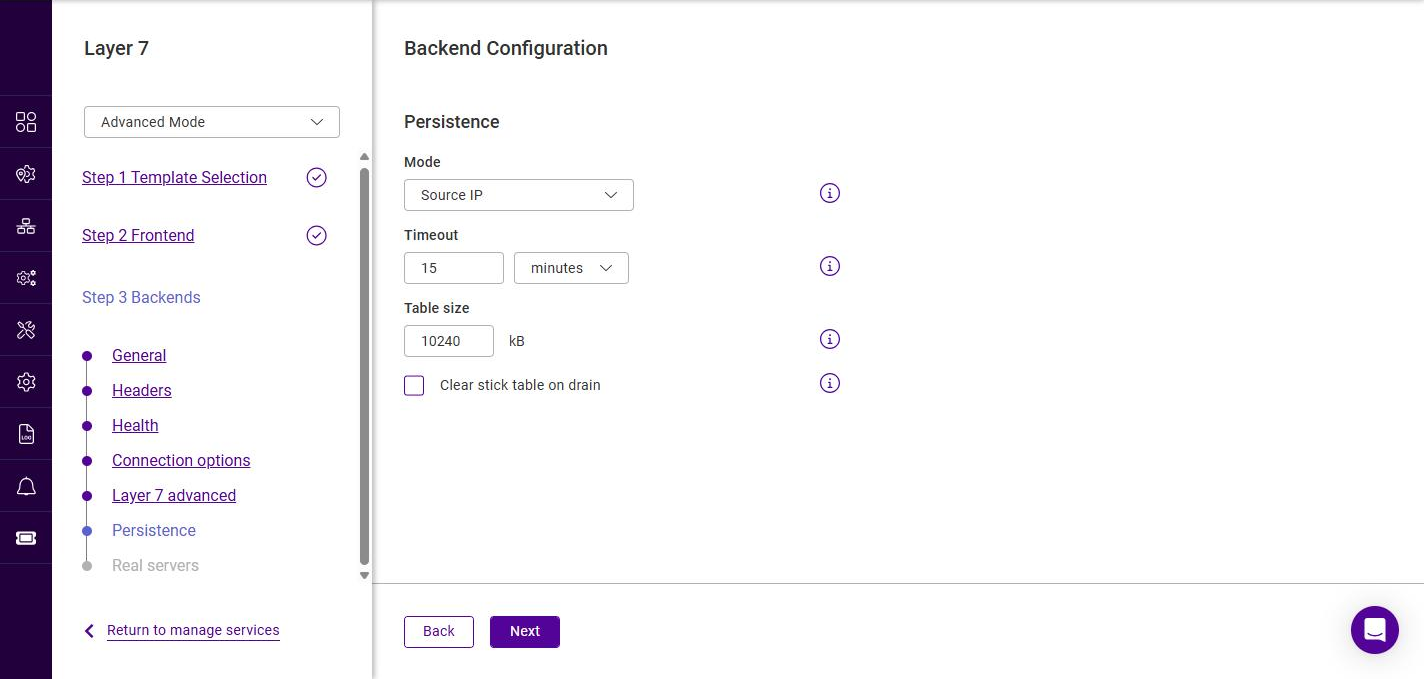
Backend Configuration - Persistence
-
Select the persistence Mode:
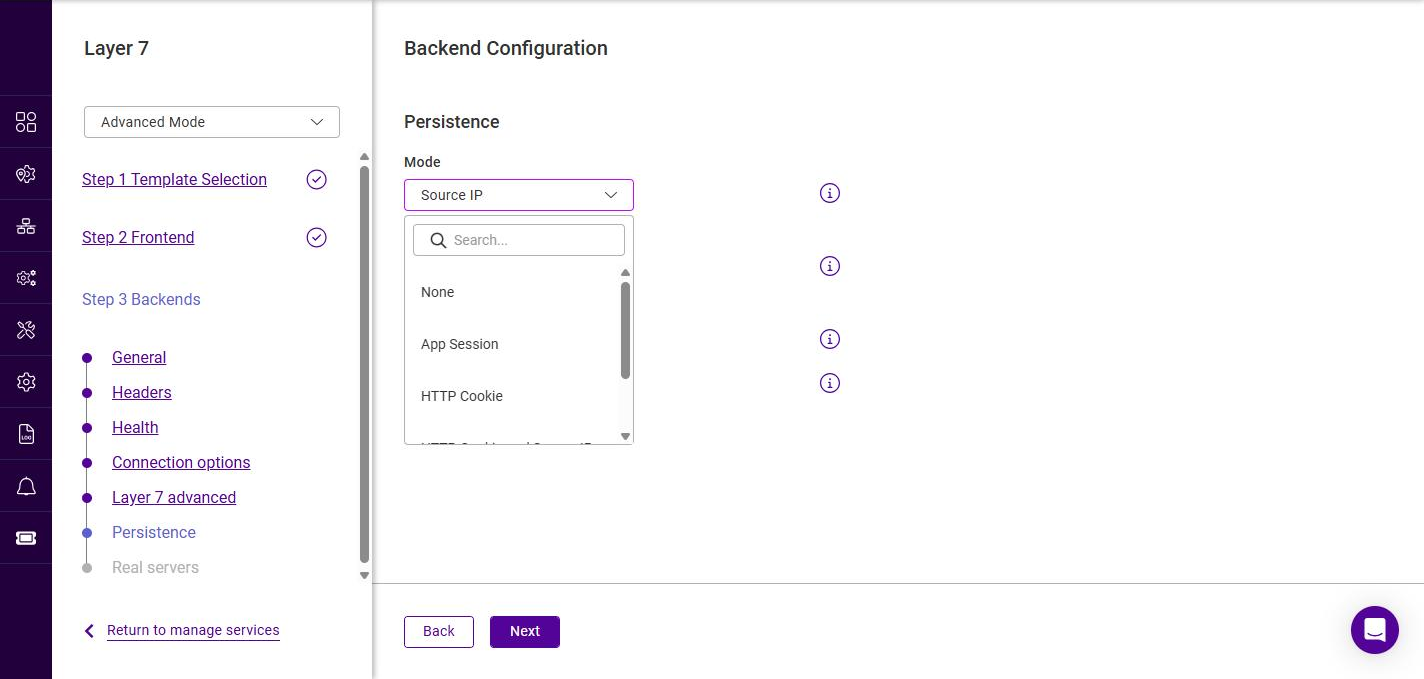
Mode Description None
No persistence; each request is load balanced independently.
Source IP
Clients are pinned to a Real Server based on their source IP address. The default mode.
App Session
Persistence based on an application session cookie already issued by the application.
HTTP Cookie
Persistence is maintained using an HTTP cookie inserted by the load balancer.
HTTP Cookie and Source IP
Combines HTTP Cookie persistence with Source IP as a fallback.
X-Forwarded-For
Persistence based on the client address in the X-Forwarded-For header. Use this when the load balancer sits behind another proxy or CDN, so that the original client address is used rather than the address of the upstream proxy.
-
Configure the associated settings. The fields shown depend on the mode selected - None has no further settings, and the stick table fields are not offered for HTTP Cookie, which stores its state in the client’s cookie rather than in a table on the appliance:
Setting Shown for Description Application cookie name
App Session
The name of the application’s own session cookie that the load balancer should track, e.g.
JSESSIONID.HTTP cookie name
HTTP Cookie, HTTP Cookie and Source IP
The name of the cookie the load balancer inserts to identify the Real Server.
HTTP cookie max idle
HTTP Cookie, HTTP Cookie and Source IP
How long the cookie remains valid without further requests. The default is
30m.HTTP cookie max life
HTTP Cookie, HTTP Cookie and Source IP
The maximum lifetime of the cookie, regardless of activity. The default is
12h.XFF IP position
X-Forwarded-For
Which address in the X-Forwarded-For header to use, counting from the end of the list. The default is
-1, the last (right-most) address.Timeout
All except None and HTTP Cookie
The persistence timeout. The timeout is reset on every new client connection (value and unit). The default is 15 minutes.
Table size
All except None and HTTP Cookie
The size of the stick table used to record persistence entries. The default is 10240 kB.
Clear stick table on drain
All except None and HTTP Cookie
Clears the persistence entries for a Real Server when it is drained. Unchecked by default.
-
Click Next.
Backend Configuration - Real servers
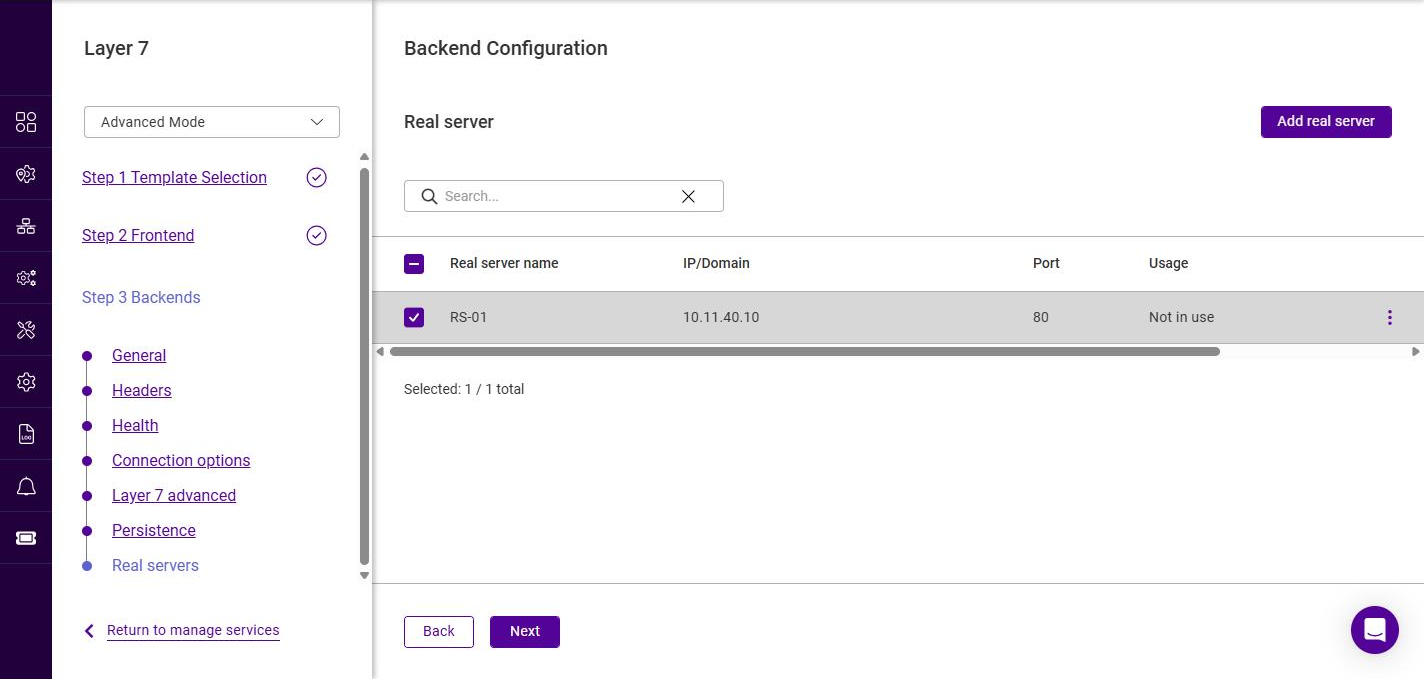
-
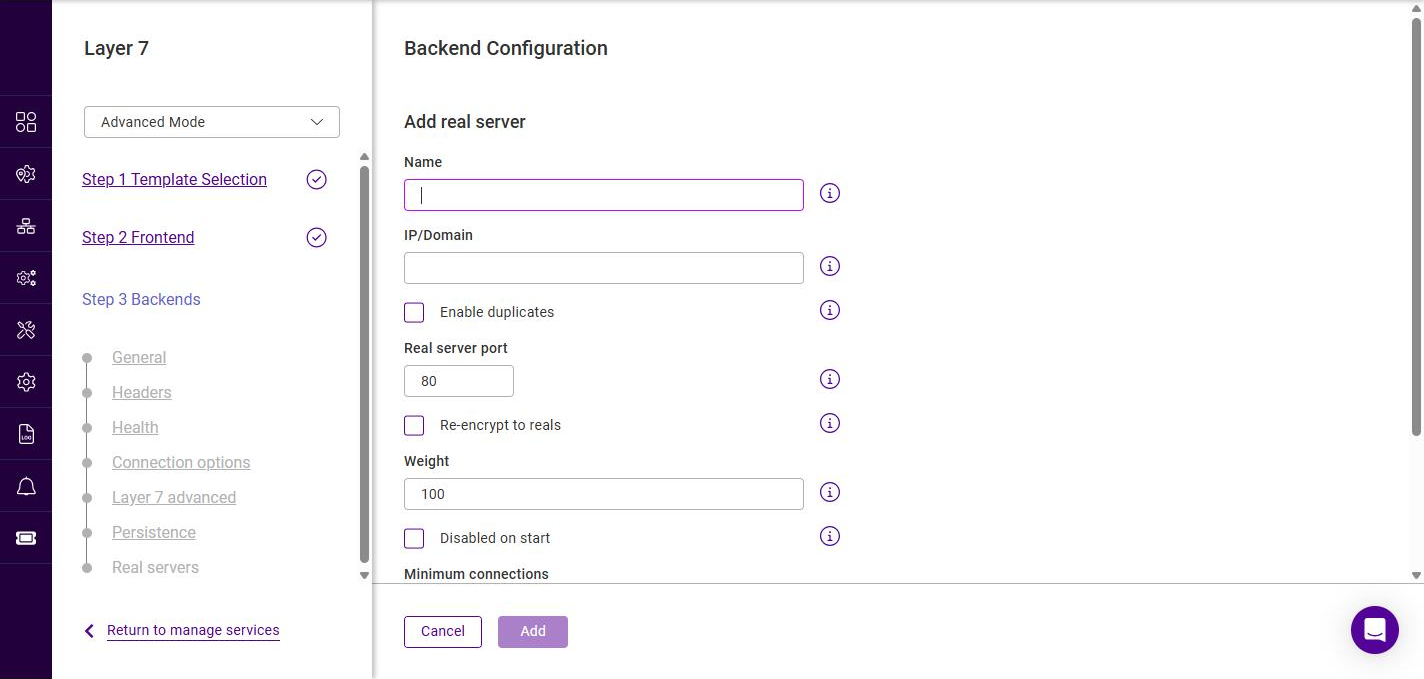
Click Add real server.
-
Configure the Real Server:
Setting Description Name
A suitable name for the Real Server, e.g. RS-01.
IP/Domain
The IP address or domain name of the Real Server, e.g. 10.11.40.10.
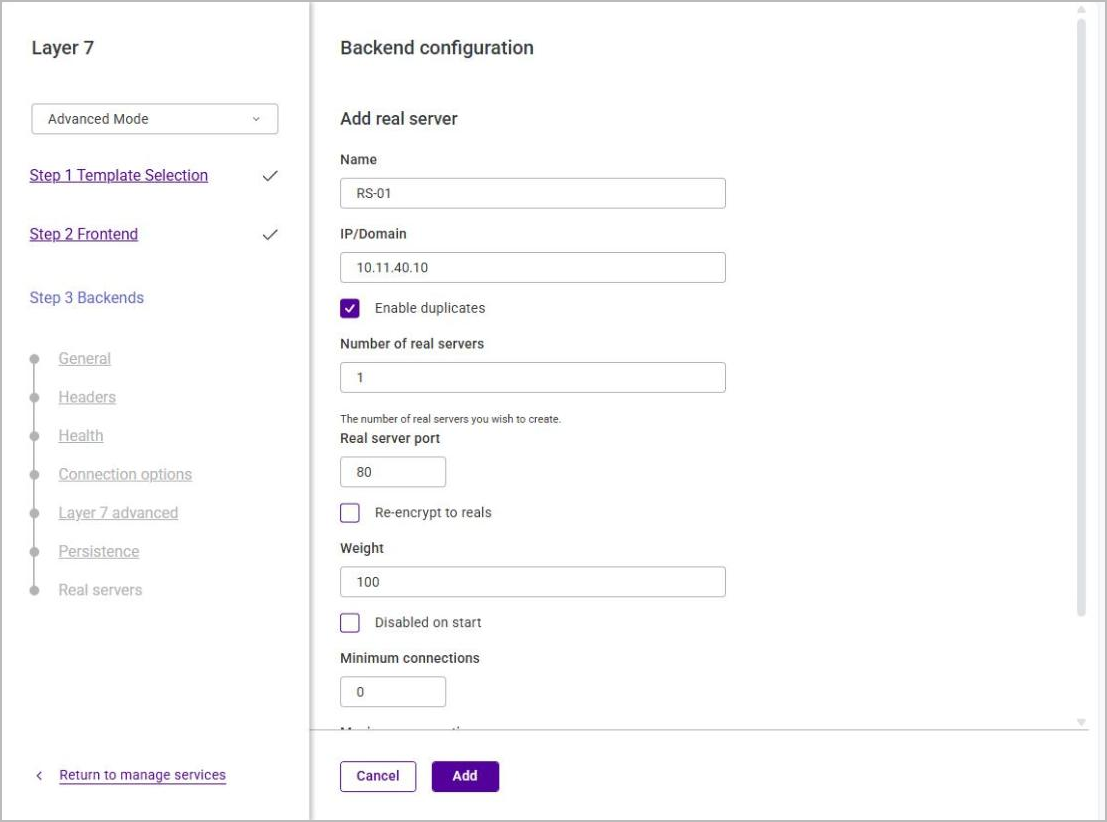
Enable duplicates
Allows the same IP/Domain to be added more than once (on different ports). Selecting this checkbox also reveals the Number of real servers field below it.
Number of real servers
The number of Real Servers to create from these settings, so that several can be added in one step rather than one at a time. The default is 1. Only shown when Enable duplicates is selected.
Real server port
The port the Real Server listens on. The default is 80.
Re-encrypt to reals
Re-encrypts traffic to this Real Server (used with SSL backends).
Weight
An integer specifying the capacity of the server relative to the others in the pool. Valid values are 0 to 256, the default is 100. The higher the value, the more connections the server receives. A weight of 0 places the server in drain mode.
Disabled on start
Adds the Real Server in a disabled state.
Minimum connections
The lower connection threshold of the server. Valid values are 0 to 65535; 0 means not set.
Maximum connections
The upper connection threshold of the server. Valid values are 0 to 65535; 0 means not set.
As on the Layer 4 wizard, selecting Enable duplicates reveals the Number of real servers field, so that several identical Real Servers can be created in one step rather than added one at a time:
-
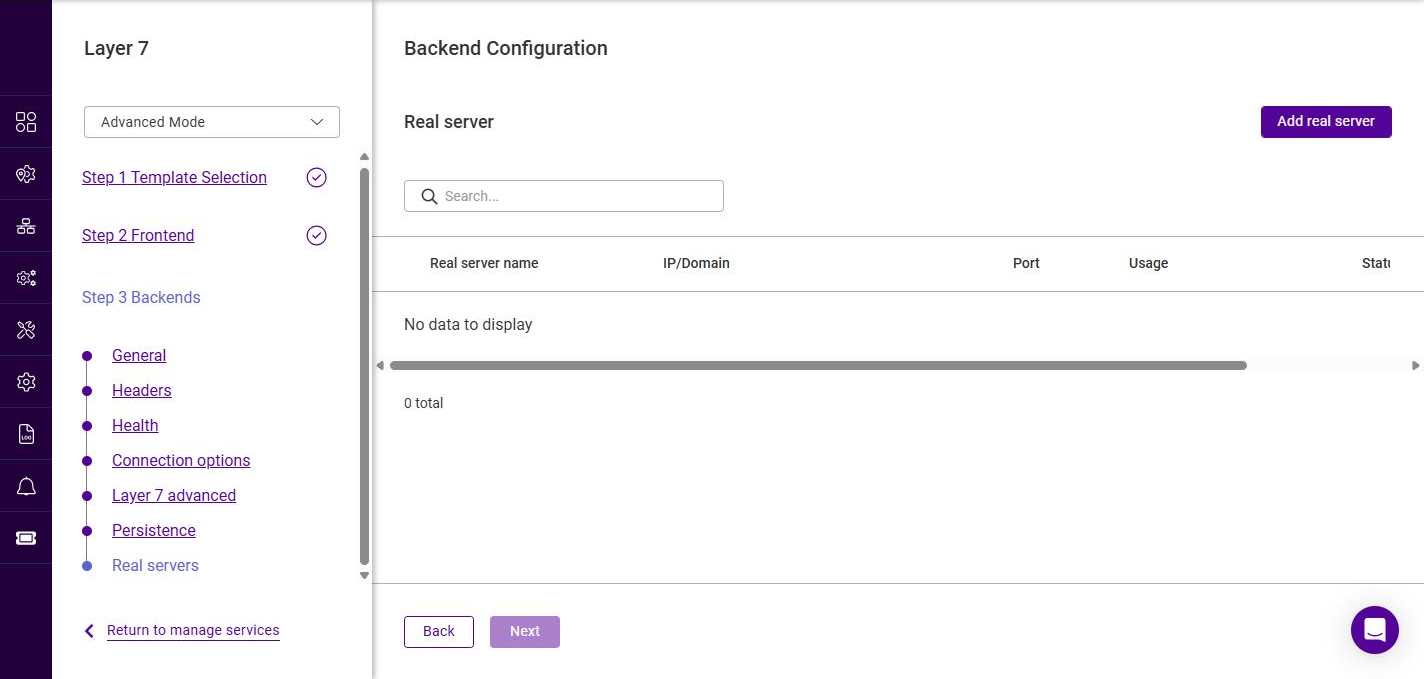
Click Add, then repeat to add additional Real Servers, e.g. RS-02 / 10.11.40.20.
-
Ensure the required Real Servers are selected (checked), then click Next.
Selecting the Backends
The newly defined backend is now shown in the frontend’s Backends list.
-
Select (check) the backend(s) that this frontend should use.
-
Then either:
-
If a single backend is selected, click Submit to create the service, or
-
If two or more backends are selected, click Next to define which requests are sent to each backend, as described in Configuring the ACL Rules.
-
| When a single backend is selected the wizard does not present an ACLs step. A default rule that sends all traffic on the frontend to that backend is created automatically. |
Configuring the ACL Rules
When two or more backends are selected, the wizard adds one Acls step for each of them, e.g. Step 3 Acls and Step 4 Acls. Each step defines the rule that sends matching requests to one of the selected backends, using the same rule builder as the ACL Rules menu option - see ACL Rules for full details of the condition types available. The steps follow the order in which the backends were checked on the Backends step.
The first Acls step is pre-set to the Default condition, making the first of the selected backends the one that handles any request no other rule has matched. Its From and To fields are fixed, so only a Name remains to be filled in:
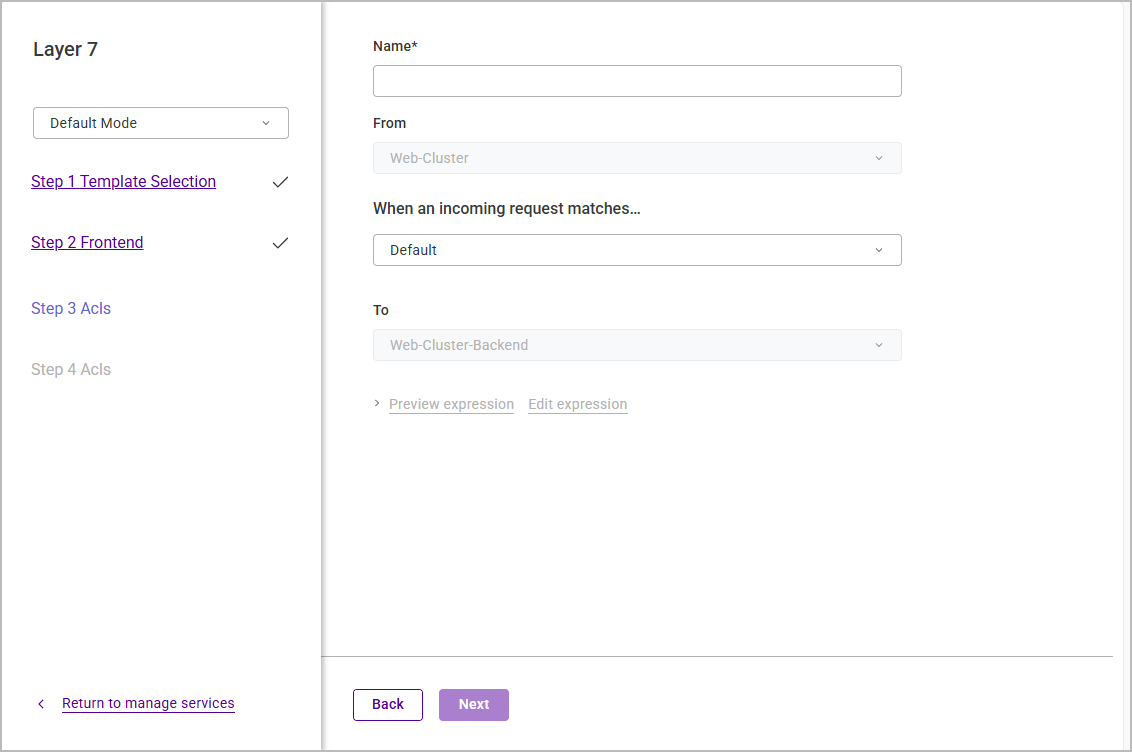
The default rule is named <frontend name> default - for the example above,
Web-Cluster default. The name can be changed afterwards from ACL Rules.
|
| The Default condition is not offered on the remaining Acls steps, because a frontend can only have one default rule. |
Each of the remaining Acls steps defines the rule for one of the other selected backends:
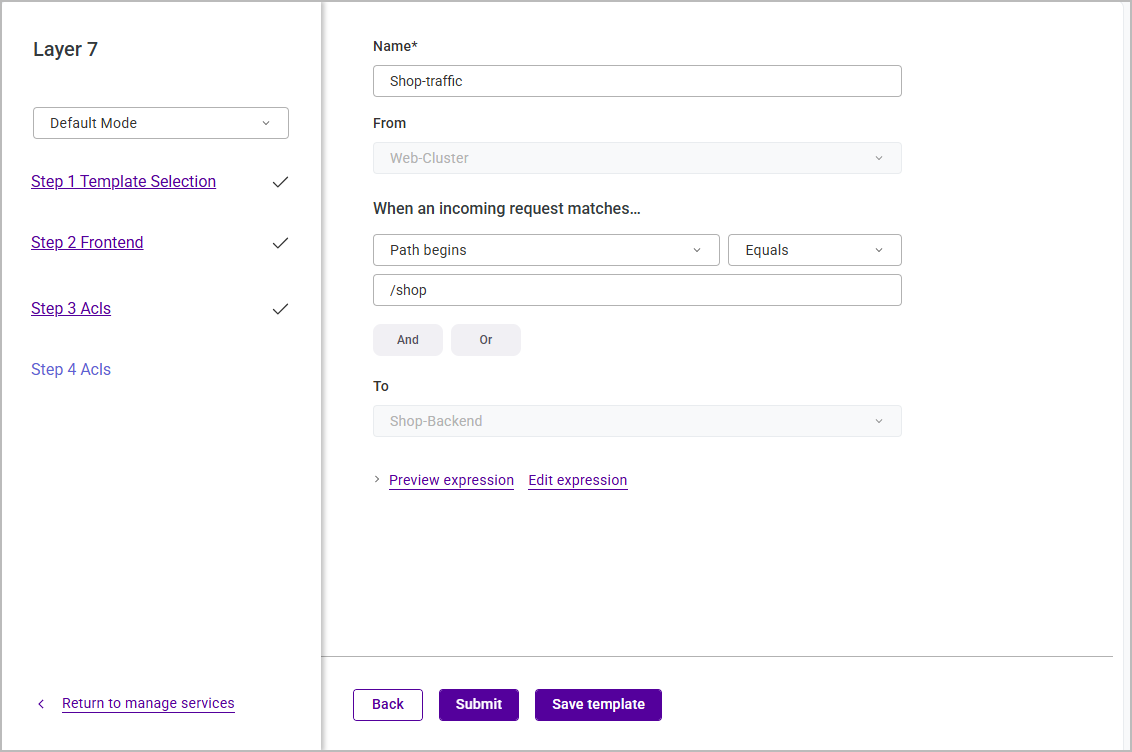
-
Specify a Name for the rule (required).
-
The From field is fixed to the frontend being configured.
-
Under When an incoming request matches…, select the condition type, the comparison and the value the request is tested against. Click And or Or to test more than one property of the request - see Combining Conditions.
-
The To field shows the backend that requests matching this rule are sent to. It is fixed to the backend that the step configures, so no action needs to be selected - the action is always Use Backend.
-
Optionally, click Preview expression to check the configuration the rule will generate, or Edit expression to write the expression by hand - see Previewing & Editing the Expression.
-
Click Next to move to the next backend’s Acls step.
Submitting the Service
-
Once the ACL rule(s) have been configured, click Submit to create the service.
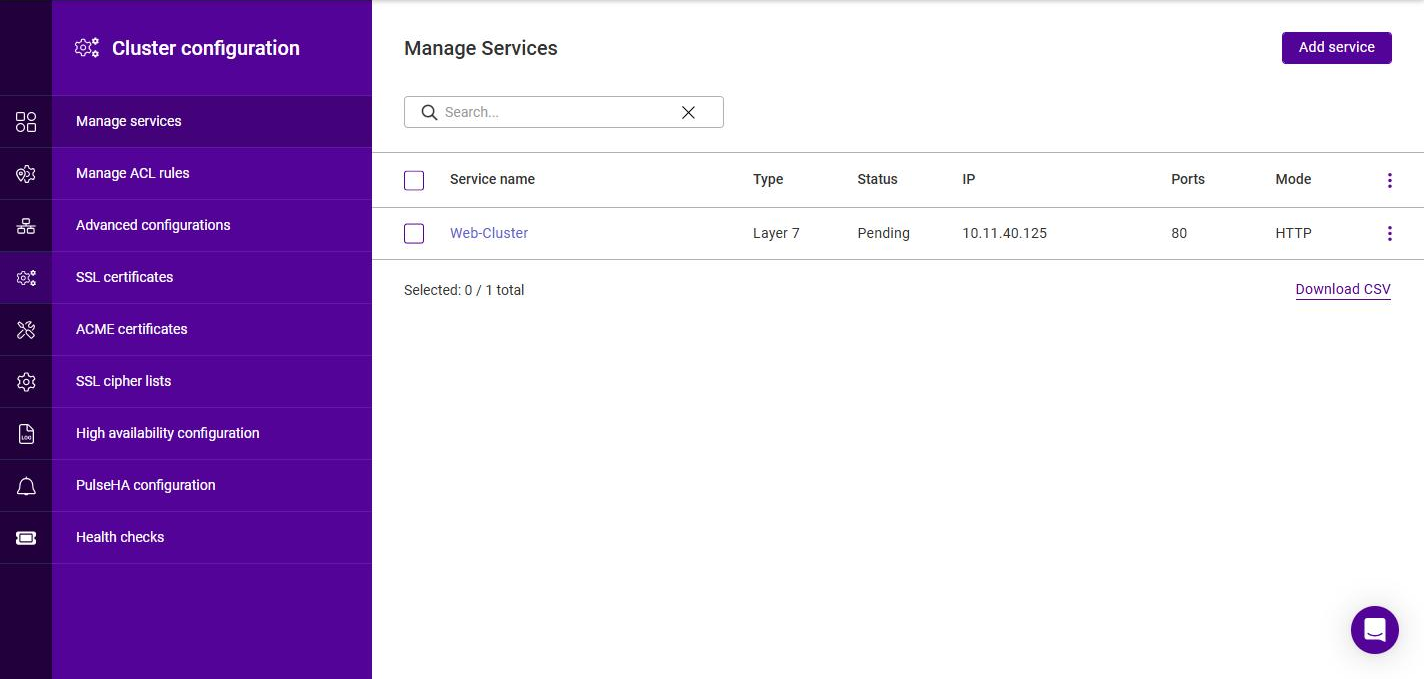
The new Layer 7 Service is now listed under Services. Its Status reads
Pendingwhile the first health check runs, and then reflects the health reported by the backend -Onlineonce a Real Server is responding, orFailureif none are.
|
Submitting the service writes its configuration but does not activate it. A banner names the services left with a pending action. To apply them:
On a newly configured appliance HAProxy is not yet running, so only NF Tables is listed - HAProxy is started automatically when the first Layer 7 service is submitted. See Applying the New Settings and System services. An outstanding update can also be applied from the Services list itself, using the Action required option on the service’s actions menu - see Services. |
Duplicating Layer 7 Services
An existing Layer 7 Service can be duplicated and used as the starting point for a new one. The duplicate must not clash with the source Service, so its Floating IP and/or port must be changed.
To duplicate an existing Layer 7 Service:
-
Navigate to Services.
-
Click the three dots menu next to the Service to be duplicated and click Duplicate.
-
In the Duplicate options dialog, choose what to copy:
Option Description Frontend only
Copies the frontend alone. The appliance’s existing backends are listed on the Backends step but none are selected, so the backend(s) the new Service should use must be chosen there.
Entire service
Copies the frontend and its backends. A copy of each backend is created, named
<backend name> (duplicate), and the copies are already selected for the new frontend. This is the default. -
Click Duplicate. The Layer 7 wizard opens, pre-filled with the source Service’s settings. The Name is pre-filled as
<service name> (duplicate). -
Change the Name if required, and change the Port on the General step and/or the Floating IP on the Floating IP step so that the new Service does not clash with the source.
At least one of the Floating IP and the port must be changed. -
Click Next to step through the remaining sections, then click Submit.
Modifying Layer 7 Services
Frontend
-
Navigate to Services.
-
Click the three dots menu next to the service to be modified and select Edit.
-
Select the section to be modified in the area to the left. Make the changes required, click Next to step through the remaining sections, then click Submit to save the changes.
Backend
-
Navigate to Services.
-
Click on the service to be modified.
-
Click Edit backend.
-
Select the section to be modified in the area to the left. Make the changes required, click Next to step through the remaining sections, then click Submit to save the changes.
Changing the Layer 7 mode of an existing service
A frontend and the backend(s) linked to it must share the same Layer 7 mode, but the lock between them is one-way. A backend’s Layer 7 mode is greyed out for as long as it is linked to a frontend, with the message "The backend mode is disabled as the linked frontend(s) is HTTP" (or "is TCP", as applicable), while the frontend’s own mode can still be changed. The mode is therefore changed on the frontend:
-
Navigate to Services, click the three dots menu next to the service and select Edit.
-
On the General step, change the Layer 7 mode.
Changing the mode alters the steps offered by the wizard - the Headers step is present for HTTP mode and absent for TCP mode - so step through to the end rather than assuming the section list is unchanged. -
Click Next through to the Backends step. The backends that were linked to the frontend are no longer listed: the step offers only backends whose own mode matches the new mode of the frontend, so the list may read "No data to display" and Submit remains greyed out until at least one backend is selected.
-
Select an existing backend of the new mode, or click Add backend to create one, then click Submit.
-
Apply the pending changes as described in System services.
The Mode column on the Manage services page reports the frontend’s mode, so it shows the new value once the change has been submitted.