Administration
The Administration group covers who may access the appliance and how it is licensed and kept up to date - user accounts and their roles, the appliance license, software updates, and authentication against an external directory.
Users & Groups
Access to the WebUI is controlled through users, roles and groups. This is managed on the Users & Groups page.
User management
User accounts, together with the roles and groups that control their permissions, are managed from Settings > Users & Groups. The page provides three tabs: Users, Roles and Groups.
When first deployed, the appliance includes a single system administrator account. This account is created when the setup wizard is run and is assigned the default System Admin role.
Adding a user
Additional user accounts can be added as required. The permissions available to each user are determined by the role(s) and/or group(s) assigned to them, either directly or via group membership.
To add a user:
-
Using the WebUI, navigate to Settings > Users & Groups and select the Users tab.
The Users tab lists the existing accounts:
Column Description Name
The user’s first and last name.
Email
The user’s email address, which is also the username used to log in.
Status
Whether the account is enabled or disabled.
Roles
The role(s) assigned directly to the user.
Groups
The group(s) the user is a member of.
Login Type
How the user authenticates - Local for an account held on the appliance, or the external directory the account is authenticated against. See Authentication.
Last logged in
The date and time the user last logged in. An account that has never logged in shows
-.OTP enabled
Whether one-time password (OTP) authentication is enabled for the account.
Has org key
Whether the user holds an organization key. The cell is left empty for users who do not.
-
Click the Add user button.
-
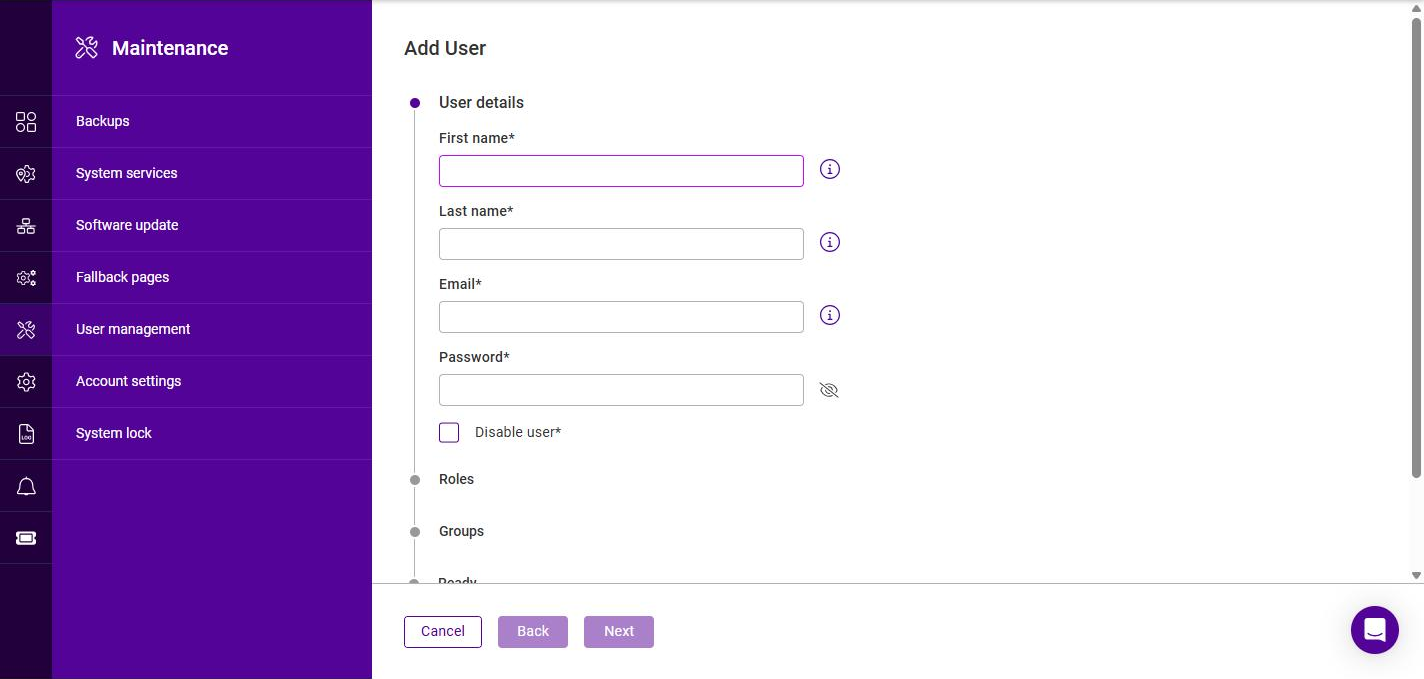
Under User details, specify the First name, Last name, Email, Password and Login Type for the new user. To create the account in a disabled state, select Disable user. Click Next.
-
Under Roles, select the role(s) to assign to the user, then click Next.
At least one role or group must be assigned to the user. -
Under Groups, select the group(s) the user should be a member of (if required), then click Next.
-
Under Ready, review the summary and click Submit.
| For more information on roles and groups, see Users & Groups below. |
Roles
A role defines a set of permissions. The appliance includes one default role, System Admin, which grants full access to all data and settings. Additional custom roles can be created to provide more granular access.
To create a new role:
-
Using the WebUI, navigate to Settings > Users & Groups and select the Roles tab.
-
Click the Add role button.
-
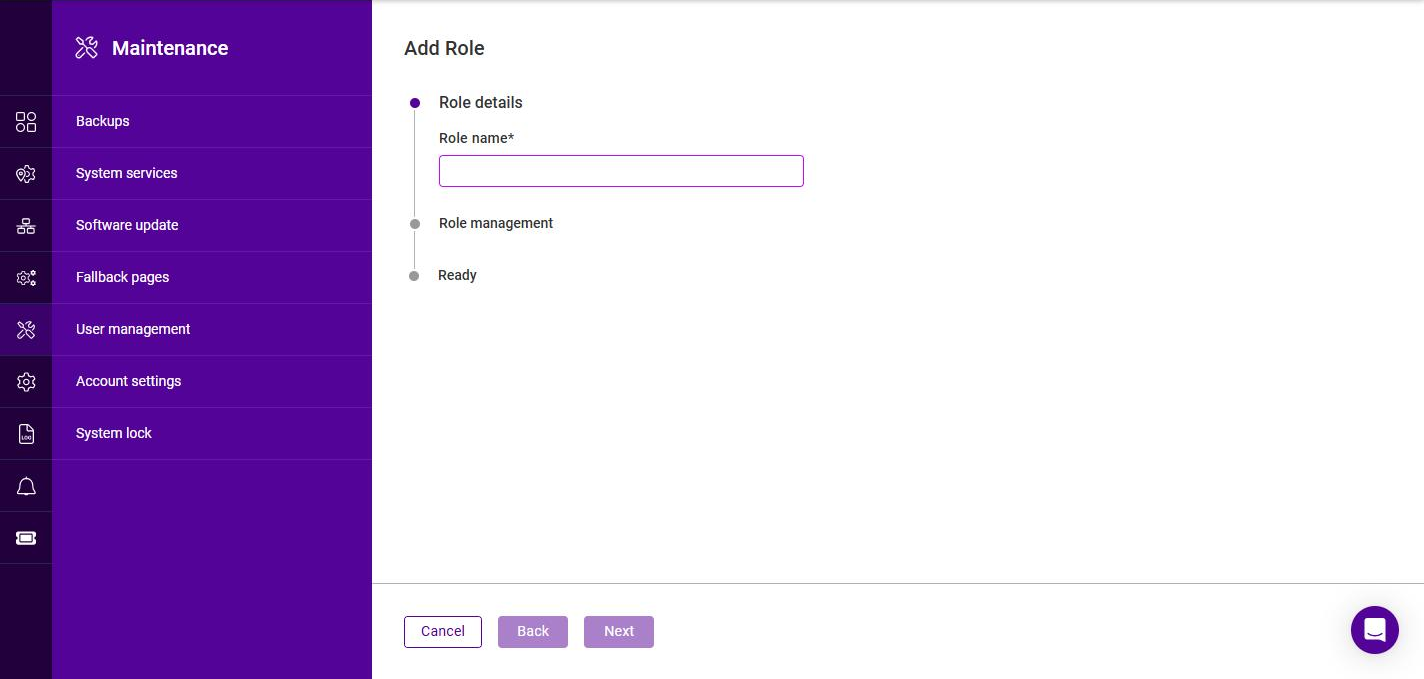
Specify an appropriate Role name, then click Next.
-
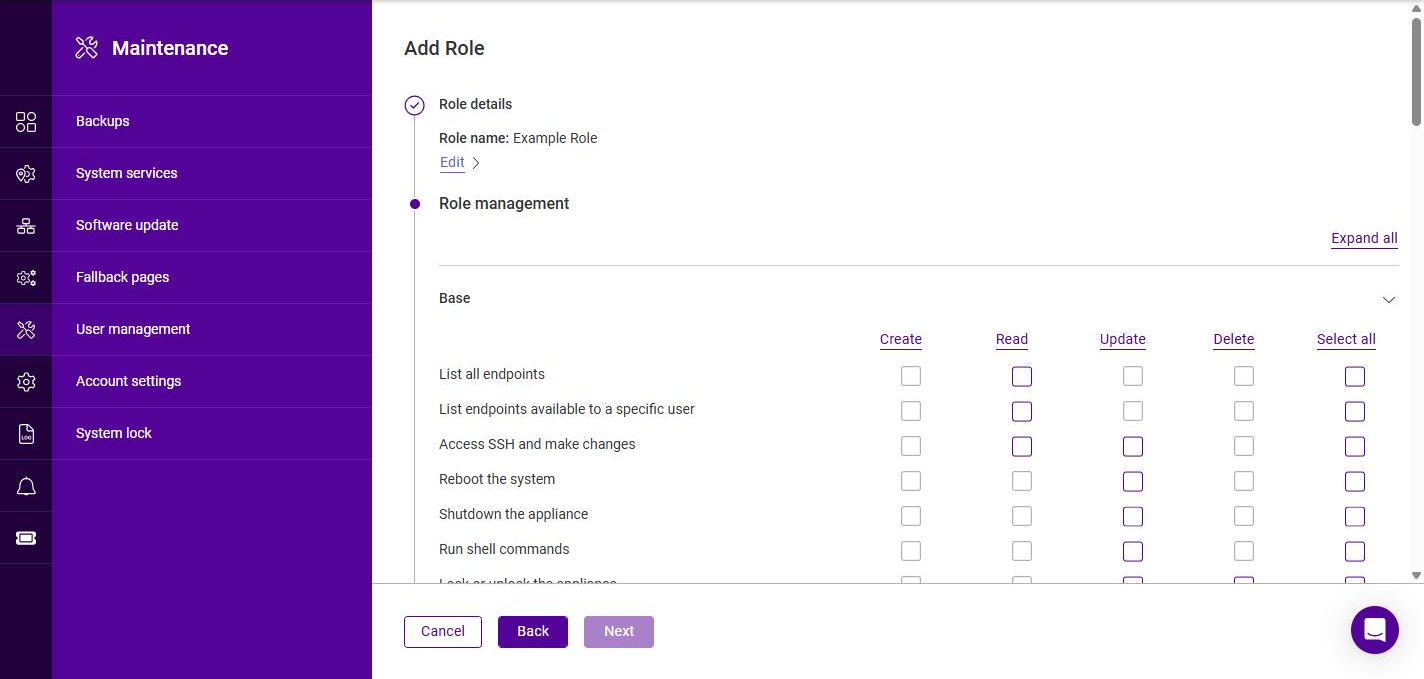
Under Role management, define the permissions for the role. Permissions are organized into categories (e.g. Base, RBAC, Certificates, HAProxy, Backups, and so on). Click Expand all to display every category, or expand the relevant category individually. Each category provides Create, Read, Update and Delete checkboxes (or Select all) along with additional, more granular options.
-
Select the required permissions, then click Next.
-
Review the summary under Ready, then click Submit.
To modify, duplicate or delete a role:
-
On the Roles tab, click the three dots menu next to the relevant role.
-
Click Edit to change its permissions, Duplicate to create a new role based on it, or click Delete then Confirm to remove it.
| The default System Admin role cannot be edited or deleted, but it can be duplicated and used as the basis for a custom role. |
Groups
A group associates one or more roles with a set of users, enabling permissions to be assigned based on group membership. The appliance includes one default group, System Admin, which holds the system administrator account created by the setup wizard and the System Admin role.
To create a group:
-
Using the WebUI, navigate to Settings > Users & Groups and select the Groups tab.
-
Click the Add group button.
-
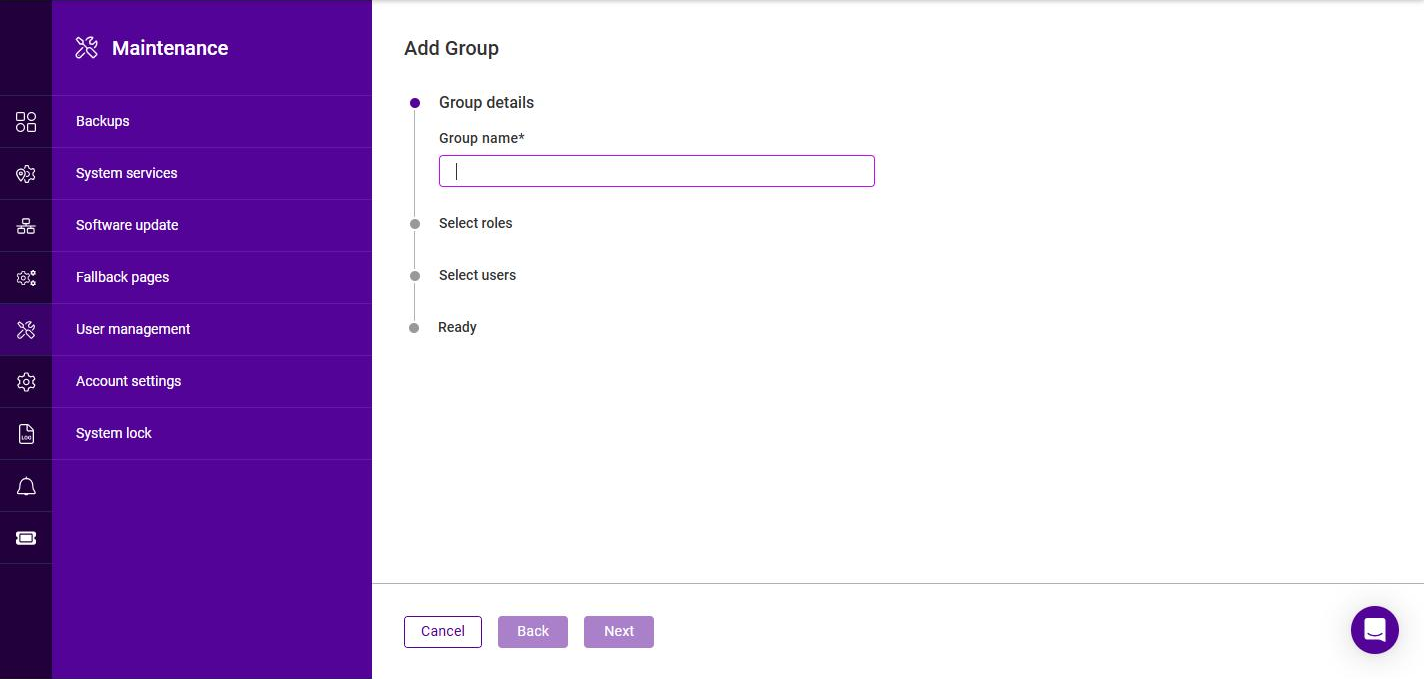
Specify an appropriate Group name, then click Next.
-
Under Select roles, select the role(s) to associate with the group, then click Next.
-
Under Select users, select the user(s) to add to the group, then click Next.
-
Review the summary under Ready, then click Submit.
To modify or delete a group:
-
On the Groups tab, click the three dots menu next to the relevant group.
-
Click Edit to change its roles or members, or click Delete then Confirm to remove it.
License & Billing
Appliance Licensing
Endurance is licensed per appliance. On initial deployment the appliance starts a free 30 day trial which is fully functional - no feature or throughput restrictions are applied - and which includes full support. Nothing needs to be installed or activated to use the trial.
Licenses are held against your account in the Loadbalancer.org ADC Portal and are issued from there to individual appliances. A full license is applied to the appliance itself from Settings > License & Billing, using your Portal account.
Checking the License Status
The current status is reported in two places:
-
The License details widget on the Dashboard, which shows the License type, the License expiry date, the appliance’s Device ID and whether Updates are licensed.
-
The License & Billing page, which shows the same details together with the license itself and the options for applying one.
While the trial is running a banner is also displayed across the top of the WebUI reading "Your free trial ends in N days.", along with an Activate license link that opens the License & Billing page.
Licenses in the ADC Portal
The licenses held on your account are managed in the Loadbalancer.org ADC Portal. When you log in, the Overview page summarizes your licensing at a glance:
| Figure | Description |
|---|---|
Active licenses |
The number of licenses currently active on the account, split into global and site licenses. |
ADCs covered |
The number of ADCs across the account that those licenses cover. |
Renewals due |
The number of licenses due for renewal within the next 60 days. |
Needs attention |
The number of licenses that are expiring or have been disabled. |
Upcoming renewals and Recent activity are listed beneath these figures, with links to the full list of licenses and to the licensing audit log.
To view the licenses that cover appliances, select Licensing > ADC. If the account has no licenses yet, the page reports "No ADC licenses on your account yet" - click Contact sales to arrange one. Once licenses are present, the Need more licenses? button at the top right of the page can be used to request additional licenses.
For more information on the Portal, see the ADC Portal Manual.
Applying a Full License
-
Using the WebUI, navigate to Settings > License & Billing.
-
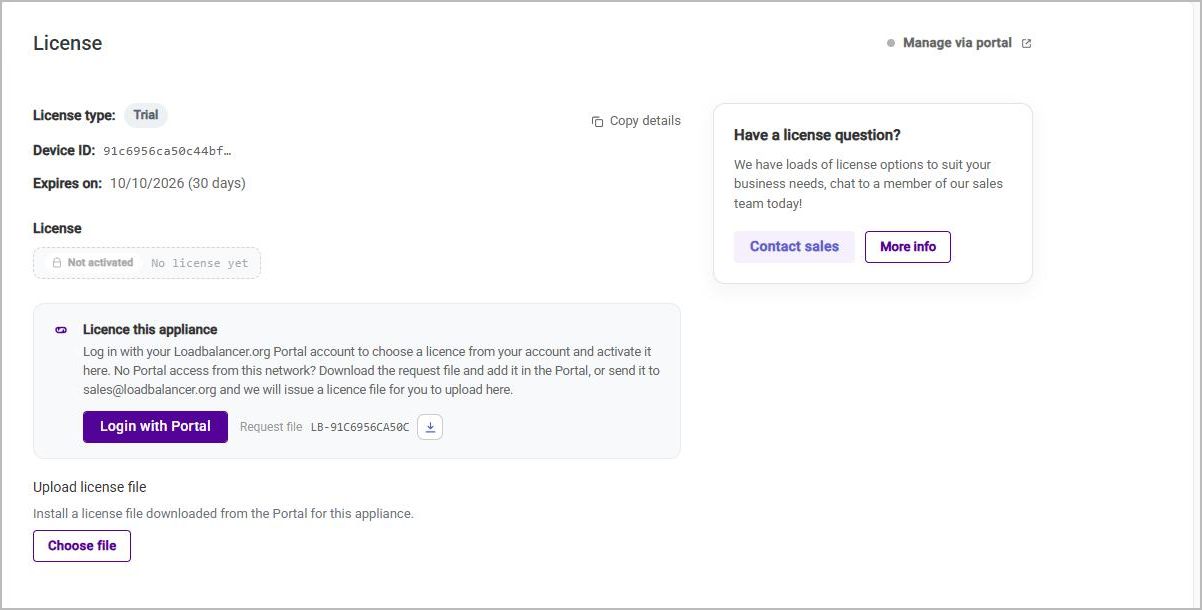
The page reports the current License type, the appliance’s Device ID and the date on which the license or trial Expires on. The Copy details link copies these to the clipboard.
-
Apply the license using whichever of the following methods suits the appliance’s network access:
| Method | Description |
|---|---|
Login with Portal |
Used when the appliance is able to reach the Portal. Log in with your Loadbalancer.org Portal account and choose a license from your account - it is then issued to this appliance and installed automatically. |
Request file |
Used when the appliance has no Portal access from its network. Click the download icon next to Request file to save the file, then either add it in the Portal or send it to sales@loadbalancer.org. A license file is issued in return. |
Upload license file |
Click Choose file and select a license file that has been downloaded from the Portal or supplied for this appliance. Files with a .json, .lic, .licence or .license extension are accepted. |
The indicator alongside Manage via portal at the top right of the page shows whether the appliance is currently managed from the Portal. Once a license has been issued through the Portal the appliance is managed there, and its license can be maintained from your Portal account.
License Status Messages
The banner at the top of the WebUI reports the state of the trial or license:
| Message | Meaning |
|---|---|
Your free trial ends in N days. |
The appliance is running on its initial 30 day trial. |
Your free trial has ended. This appliance is not licensed. |
The trial has run out and no license has been applied. |
Your license expires in N days. |
A license is installed and is approaching its expiry date. |
Your license has expired. You have N days of grace before it stops being honored. |
The license has expired but is still being honored for a limited grace period. |
Your license has expired. This appliance is not licensed. |
The license has expired and the grace period has passed. |
An appliance that is not licensed reports "This appliance is not licensed. Add a license from your Portal account so it can receive updates and support."
Software updates
Appliance Software Update
We recommend that the appliance is kept up to date to ensure that you benefit from the latest bug fixes, security updates and feature improvements. Both online and offline update are supported.
| Services may need to be restarted/reloaded after the update process completes or in some cases a full appliance restart may be required. |
Online Update
The appliance periodically contacts the Loadbalancer.org update server (update.loadbalancer.org) and checks for updates. If an update is found, a notification will be displayed on the main dashboard in the SYSTEM UPDATES widget as shown in the example below:
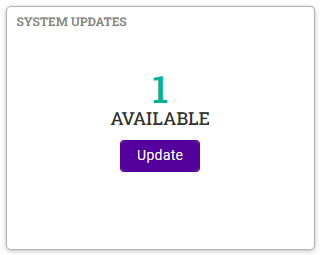
Click Update. Details of the update package(s) available will be displayed as shown in the example below:
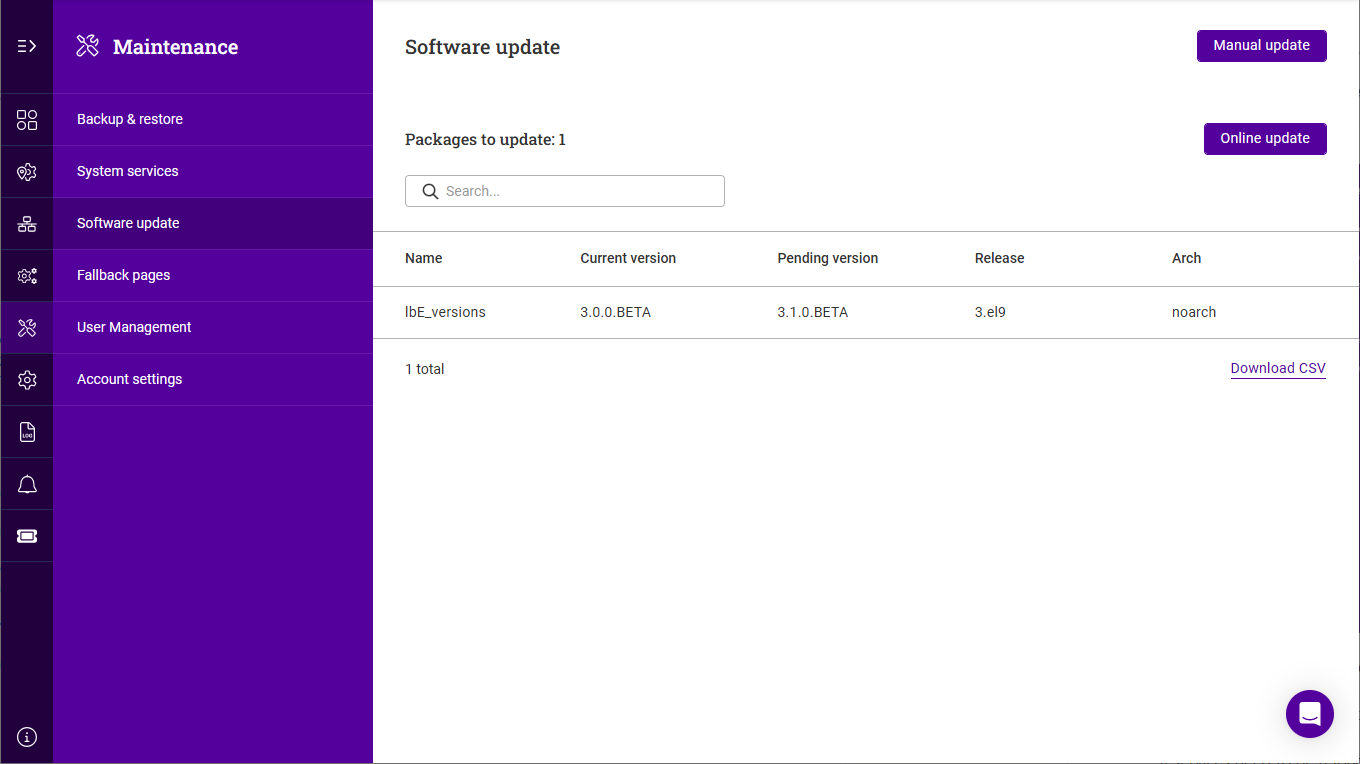
Click Online update, then click Confirm in the popup to start the update process.
The update process can take several minutes depending on download speed and the number of updates.
If services need to be reloaded/restarted or the appliance needs a full restart, you’ll be prompted accordingly.
Offline Update
If the appliance does not have access to the Internet, offline update can be used. To check if updates are available, please contact our support team.
To perform an offline update:
-
Using the WebUI, navigate to: Settings > Software updates.
-
Click Manual update.
-
Click Choose file, then browse to and select the update file, or drag and drop it onto the upload area. The file must be a
.tar.gzarchive. -
Click Submit to start the update.
-
If services need to be reloaded/restarted or the appliance needs a full restart, you’ll be prompted accordingly.
Authentication
By default, user accounts are held locally on the appliance as described in Users & Groups. The Settings > Authentication page allows the appliance to authenticate WebUI users against an external directory instead, using either LDAP or RADIUS. Once external authentication is configured, a user’s Login Type reflects the directory they are authenticated against rather than Local.
Directory groups are mapped to appliance groups, so the roles and permissions a user receives are still controlled by the appliance’s own role-based access control.
LDAP configuration
To authenticate users against an LDAP directory:
-
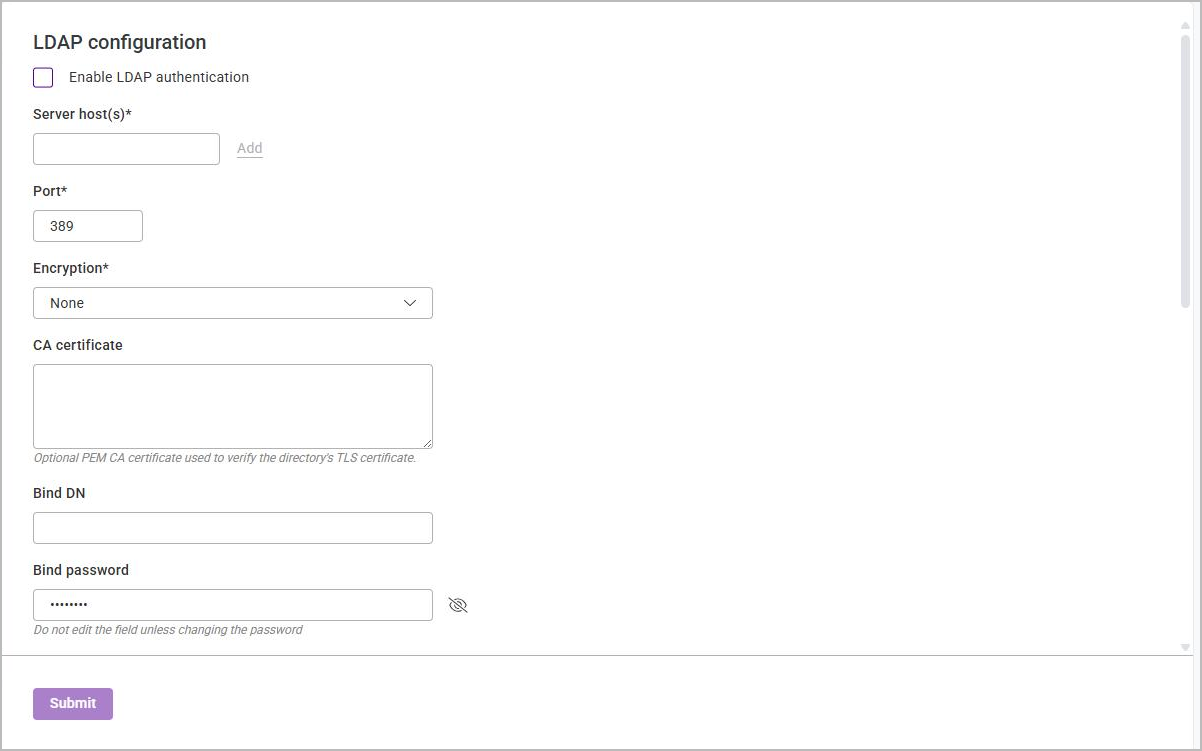
Using the WebUI, navigate to Settings > Authentication > LDAP.
-
Check Enable LDAP authentication and complete the following settings:
Setting Description Server host(s)*
The hostname or IP address of the LDAP server. Click Add to specify additional servers for resilience.
Port*
The port the LDAP server listens on. The default is 389.
Encryption*
The transport security used for the connection. The options are None (the default), LDAPS (SSL) and StartTLS.
CA certificate
An optional PEM-encoded CA certificate, pasted into the box, used to verify the directory’s TLS certificate when an encrypted connection is used.
Bind DN
The distinguished name of the account the appliance uses to search the directory.
Bind password
The password for the bind account. Leave this field untouched unless the password is being changed.
Base DN*
The point in the directory tree at which user searches begin.
User search filter*
The LDAP filter used to locate a user record, where
%sis replaced by the name the user logged in with. The default is(|(mail=%s)(userPrincipalName=%s)).Unique ID attribute*
The directory attribute that uniquely identifies the user. The default is
objectGUID.Email attribute
The directory attribute holding the user’s email address. The default is
mail.First name attribute
The directory attribute holding the user’s first name. The default is
givenName.Last name attribute
The directory attribute holding the user’s last name. The default is
sn.Group membership mode*
How the appliance determines which directory groups a user belongs to. The options are memberOf attribute (the default) and Group search filter. memberOf attribute needs no further configuration - the appliance reads the user’s
memberOfattribute. Selecting Group search filter reveals an additional Group search filter field.Group search filter
The LDAP filter used to find the groups a user belongs to. Only shown when Group membership mode is set to Group search filter.
Fallback group
The appliance group assigned to an authenticated user whose directory groups do not match any of the mappings below. The default is System Admin.
Fields marked * are required. -
Under Directory group to appliance group mappings, click Add Mapping and map each directory group to the appliance group whose roles its members should receive.
-
Under Connection test, click Test connection to confirm the appliance can reach and bind to the directory.
-
Click Submit.
RADIUS Configuration
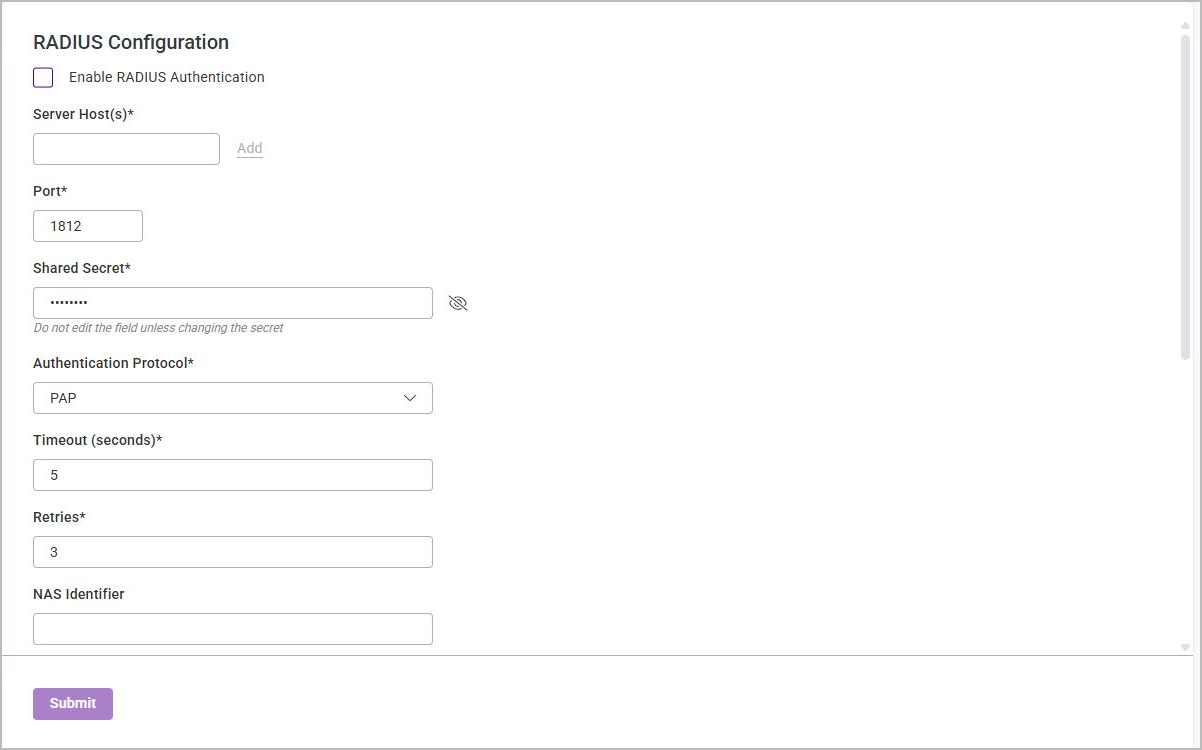
To authenticate users against a RADIUS server:
-
Using the WebUI, navigate to Settings > Authentication > RADIUS.
-
Check Enable RADIUS Authentication and complete the following settings:
Setting Description Server Host(s)*
The hostname or IP address of the RADIUS server. Click Add to specify additional servers for resilience.
Port*
The port the RADIUS server listens on. The default is 1812.
Shared Secret*
The shared secret configured on the RADIUS server for this appliance. Leave this field untouched unless the secret is being changed.
Authentication Protocol*
The RADIUS authentication protocol to use. The options are PAP (the default), CHAP and MS-CHAPv2.
Timeout*
How long to wait for a response from the RADIUS server. Enter a value and select the unit; the default is 5 seconds.
Retries*
The number of times a request is retried before the server is considered unavailable. The default is 3.
NAS Identifier
The NAS identifier the appliance presents to the RADIUS server.
Group Reply Attribute
The RADIUS reply attribute that carries the user’s group membership. The default is
Filter-Id.Email Attribute
The reply attribute holding the user’s email address.
First Name Attribute
The reply attribute holding the user’s first name.
Last Name Attribute
The reply attribute holding the user’s last name.
Fallback Group
The appliance group assigned to an authenticated user whose reply attributes do not match any of the mappings below. The default is System Admin.
Fields marked * are required. -
Under Reply Attribute to Group Mappings, click Add Mapping and map each reply attribute value to the appliance group whose roles the matching users should receive.
-
Under Connection Test, click Test Connection to confirm the appliance can reach the RADIUS server.
-
Click Submit.