Account
This chapter covers the appliance’s system, administration and maintenance functions, grouped under Settings in the WebUI - the Account settings for the logged in user, the General configuration shared by every service, the Administration settings covering users, licensing, updates and authentication, and the Tools & Maintenance options used to run, inspect and recover the appliance. The menu is opened using the Settings option at the foot of the primary menu.
The Account group holds the settings for the currently logged in user - their own details and interface preferences, and the personal access tokens they hold for API access - together with the appliance node’s own system settings.
Account settings
The details and interface preferences for the currently logged in user can be changed here.
To modify account settings:
-
Using the WebUI, navigate to Settings > Account settings.
-
Update the First name, Last name and Email as required.
-
To change your password, enter and confirm a new Password. Leave the password fields blank to keep your current password.
-
Under Extras, the Tab to help user interface preference can be enabled. A Theme selector is also present but is not yet available.
-
Click Submit.
Personal access tokens
A personal access token lets a script or integration call the appliance API as you, without an interactive login. Each token carries its own expiry and its own list of permitted endpoints, so a script can be given exactly the access it needs and no more.
A token can never exceed the permissions of the user who created it - if your own access is later reduced, the token is reduced with it. For the API itself, see Application Programming Interface (API).
Viewing personal access tokens
-
Using the WebUI, navigate to Settings > Personal access tokens.
The list shows the following for each token:
| Column | Description |
|---|---|
Description |
The name given to the token when it was created. |
Scope |
The number of API endpoints the token is permitted to use, for example 1 endpoint. |
Status |
The state of the token, for example Active. |
Expires |
The date the token stops working. |
Created |
The date the token was created. |
Creating a personal access token
-
Using the WebUI, navigate to Settings > Personal access tokens.
-
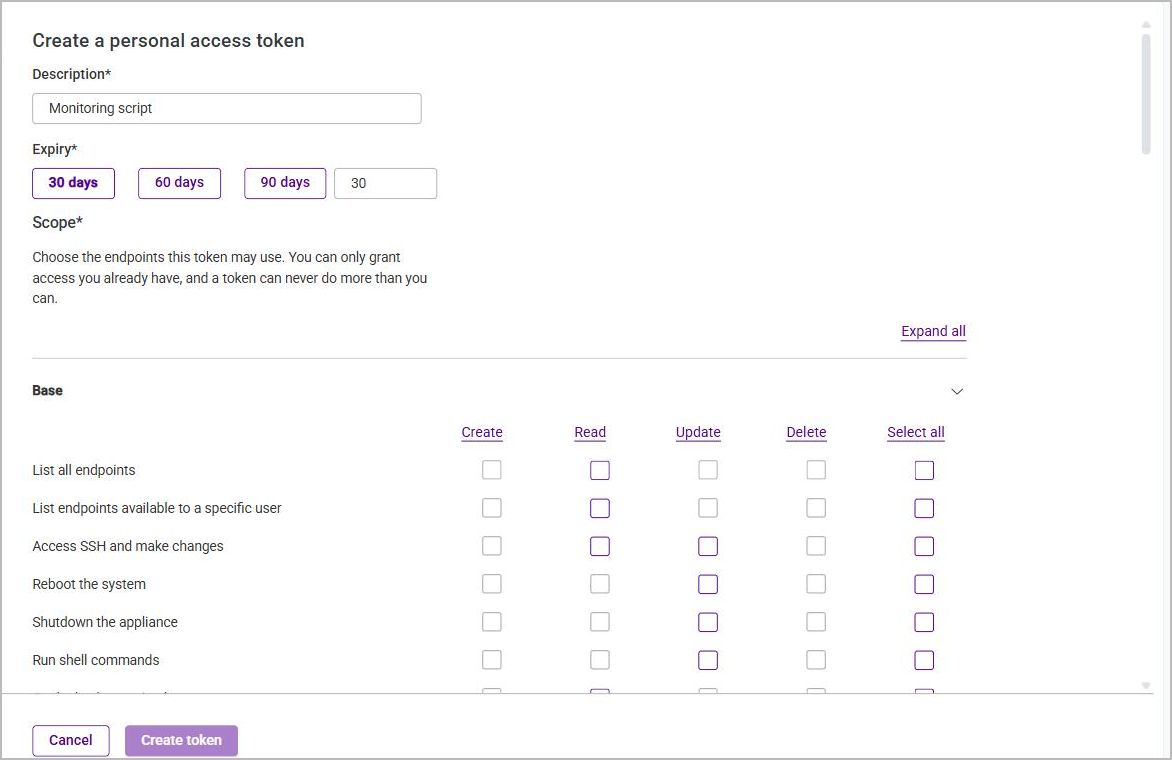
Click Create token.
-
Enter a Description. Use something that identifies what will be using the token, so that it can be recognized later.
-
Set the Expiry. Click 30 days, 60 days or 90 days, or type a number of days into the adjacent field.
-
Under Scope, choose the endpoints the token may use. The endpoints are arranged in collapsible groups - Base, RBAC, Local Users, HAProxy, GSLB and so on - and each group lists its endpoints with a Create, Read, Update and Delete checkbox alongside. Click a group to expand it, or Expand all to open every group.
-
Select the individual permissions the token requires. Only the operations an endpoint supports can be selected; the rest are greyed out.
-
Select all at the end of a row grants every available operation for that endpoint.
-
-
Click Create token.
-
The token is displayed once, under the heading Copy your token now. Copy it and store it somewhere safe.
This is the only time the token is shown. Once the dialog is closed the value cannot be retrieved again - if it is lost, the token must be revoked and a new one created. -
Click I’ve saved my token to close the dialog.
Revoking a personal access token
Tokens cannot be edited. To withdraw a token, revoke it and create a replacement if one is needed.
-
Using the WebUI, navigate to Settings > Personal access tokens.
-
Click the three dots menu next to the relevant token and select Revoke.
-
Click Confirm.
| Revoking a token takes effect immediately and cannot be undone. Anything still using the token will stop working, and the token is removed from the list. |
System settings
The System settings menu contains the appliance’s date & time, user interface and low-level physical configuration.
Date & time
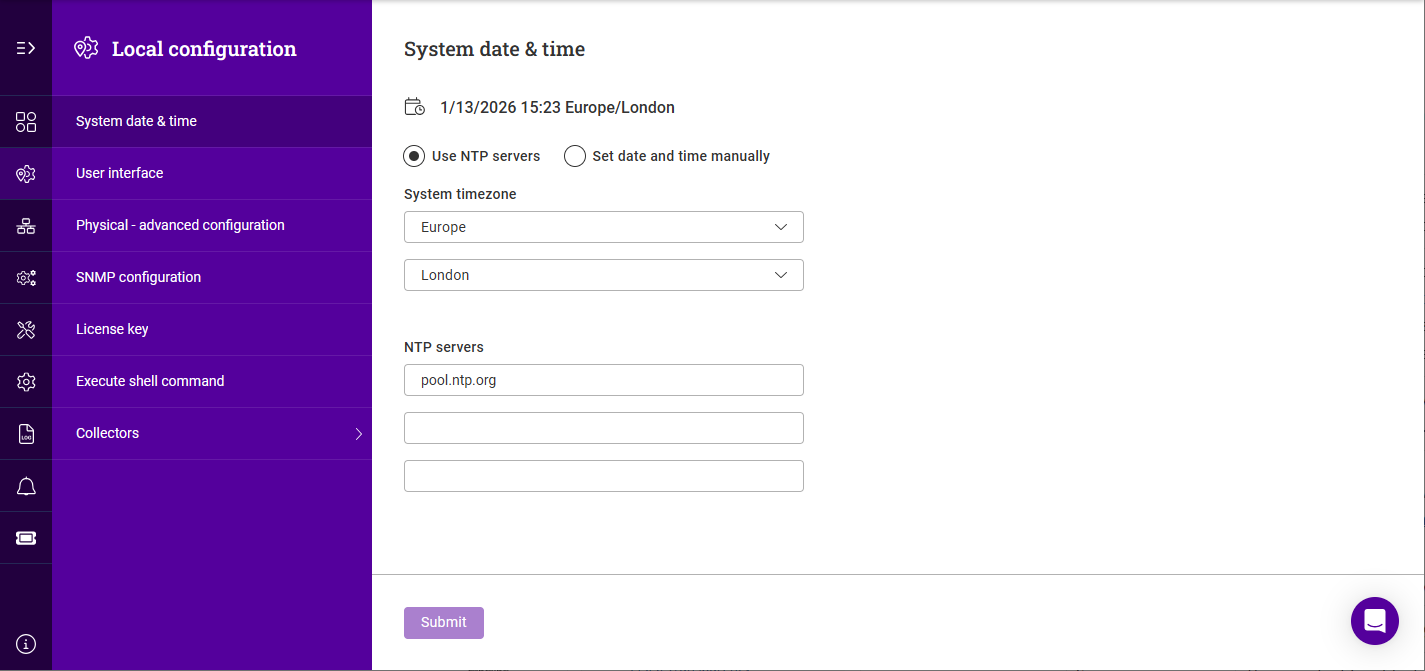
The system date and time can be configured automatically using NTP or set manually.
To configure NTP:
-
Using the WebUI, navigate to Settings > System settings > Date & time.
-
Select Use NTP servers.
-
Select the required System timezone settings.
-
Specify the NTP servers. Both IP addresses and FQDNs can be used.
-
Click Submit.
To manually specify the date and time:
-
Select Set date and time manually.
-
Select the required System timezone settings.
-
Configure the Date and Time.
-
Click Submit.
User interface
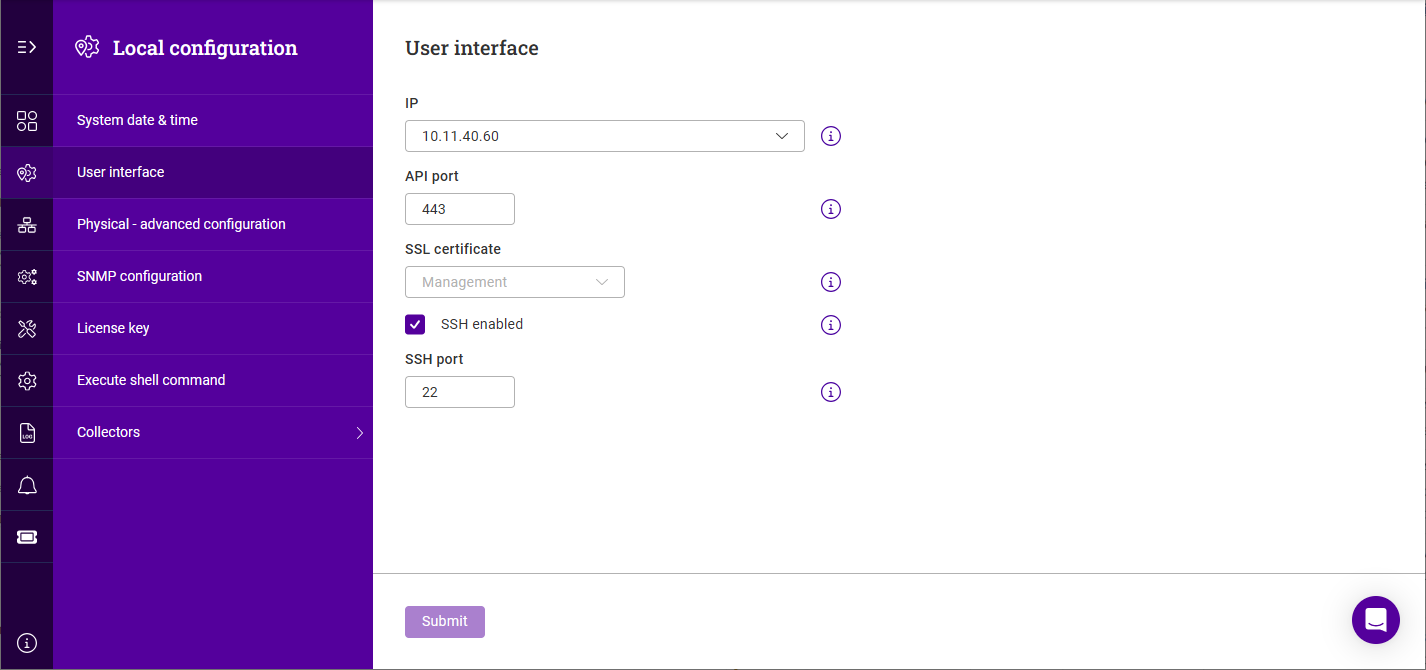
To configure user interface settings:
-
Using the WebUI, navigate to Settings > System settings > User interface.
-
Select the required IP address. The drop-down is populated with static IPs.
-
Set the required API port.
-
Select the required SSL certificate.
-
If SSH access is required, check the SSH enabled checkbox and specify the SSH port.
-
Click Submit.
Physical advanced config
Hostname & domain
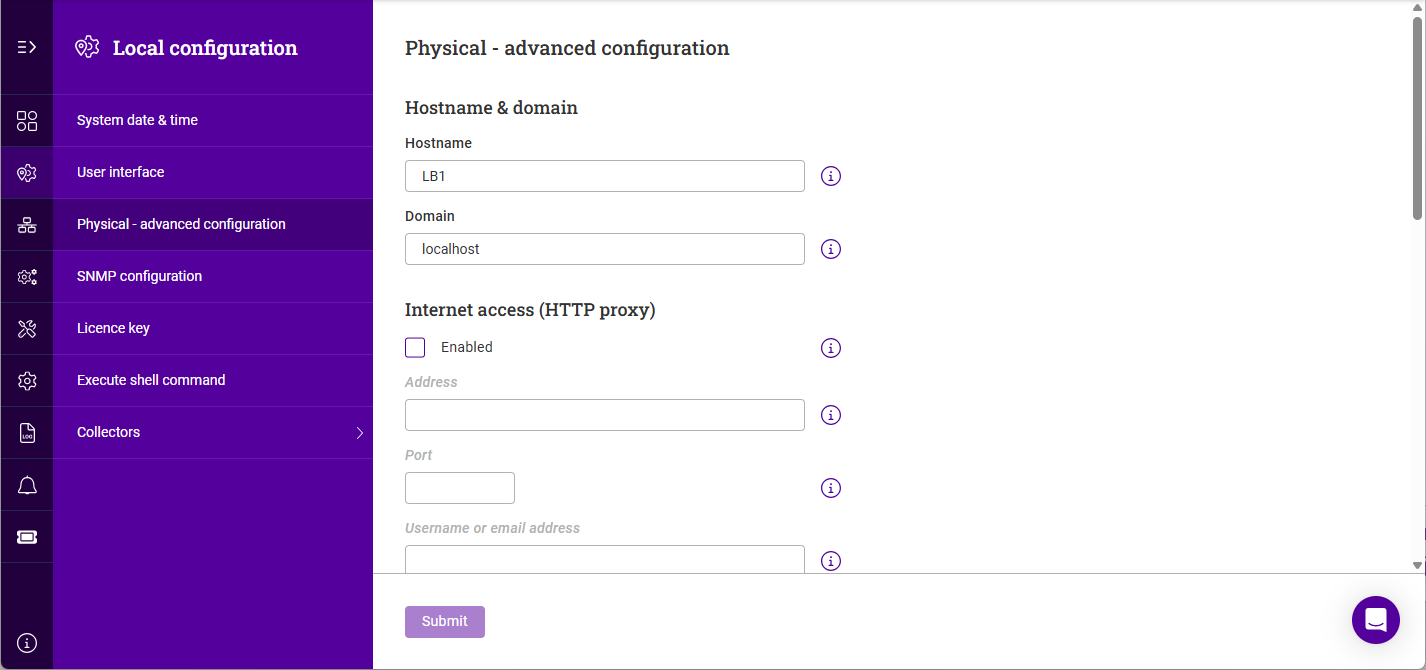
To configure the hostname and domain:
-
Using the WebUI, navigate to Settings > System settings > Physical advanced config.
-
Specify the Hostname and Domain.
-
Click Submit.
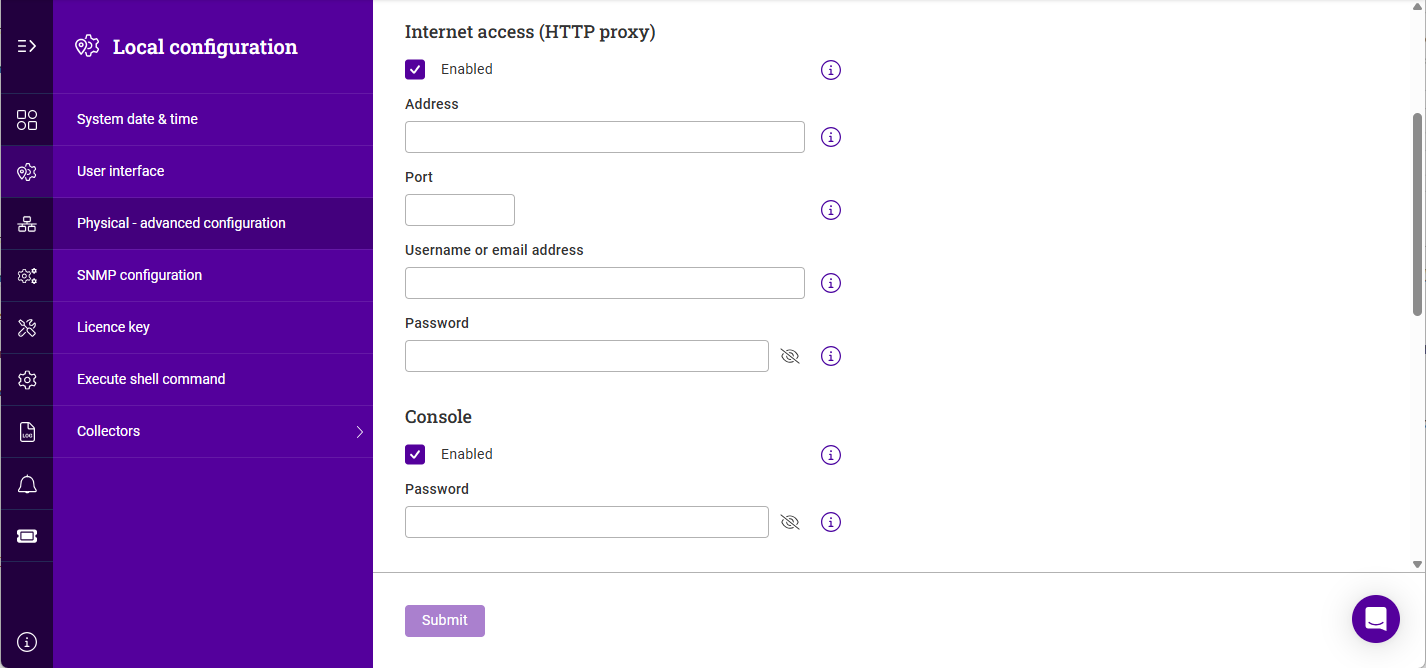
Internet access (HTTP proxy)
To configure a proxy server to use for Internet access:
-
Using the WebUI, navigate to Settings > System settings > Physical advanced config.
-
Scroll to the Internet access (HTTP proxy) section.
-
Enable (check) the Enabled checkbox.
-
Specify the Address of the proxy server. An IP address or FQDN can be used.
-
Specify the Port of the proxy server.
-
If authentication is used, specify the Username or email address and the Password.
-
Click Submit.
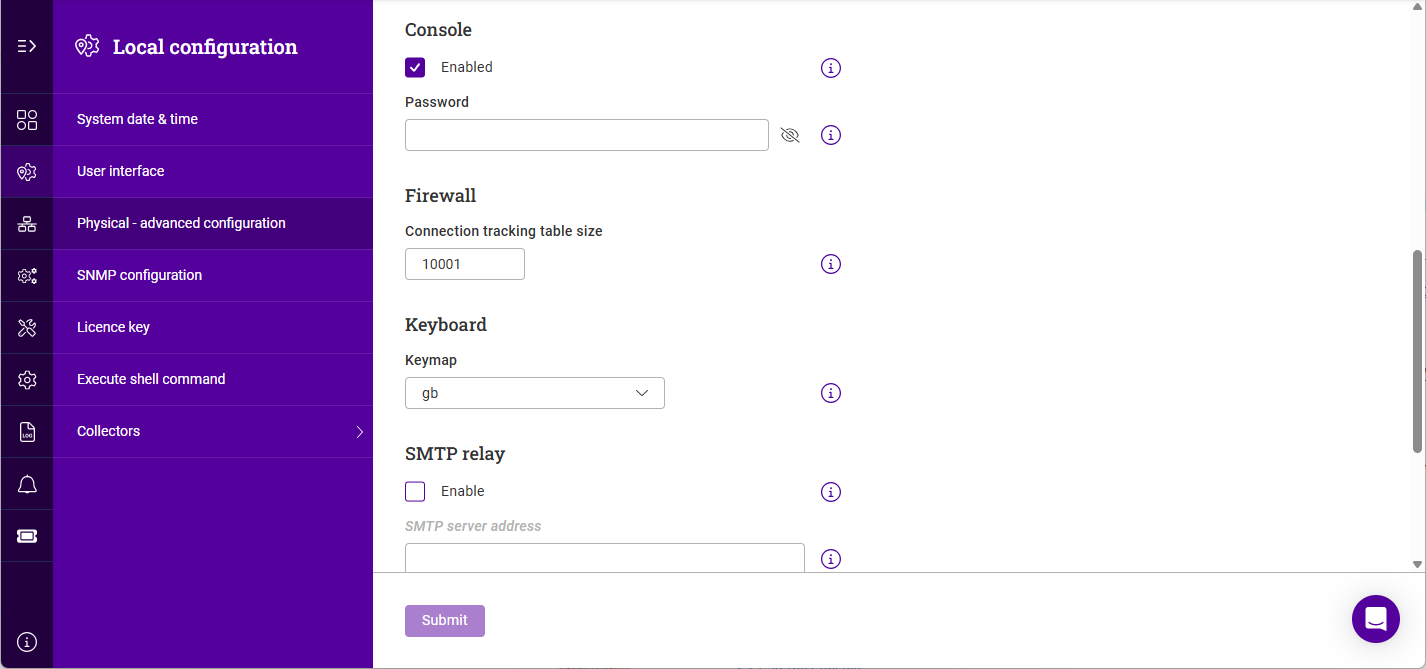
Console
To enable console & SSH access:
-
Using the WebUI, navigate to Settings > System settings > Physical advanced config.
-
Scroll to the Console section.
-
Enable (check) the Enabled checkbox.
-
Specify a Password for the "loadbalancer" user.
-
Click Submit.
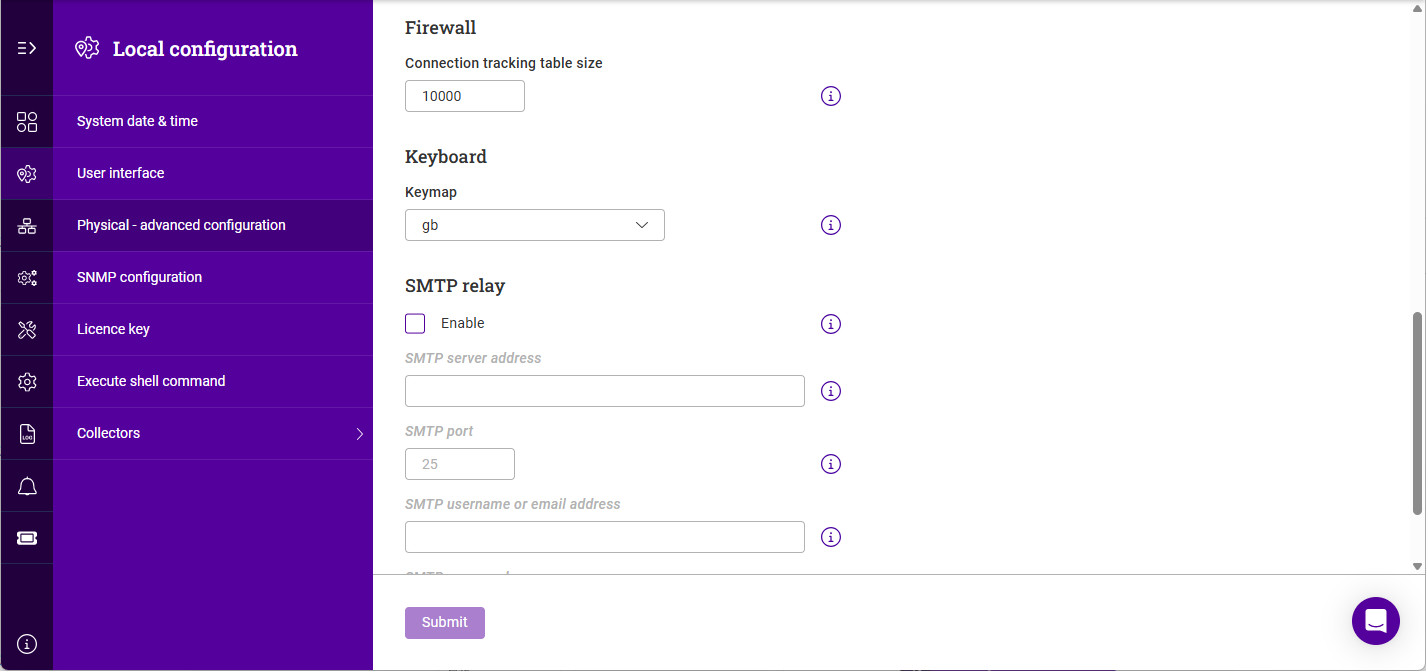
Connection tracking
To set the connection tracking table size for this node:
-
Using the WebUI, navigate to Settings > System settings > Physical advanced config.
-
Scroll to the Connection tracking section.
-
Specify the Connection tracking table size.
-
Click Submit.
| The table size is per node. The connection state timeouts are appliance-wide and are set elsewhere - the Connection state timeouts (shared by every node) link in this section opens the Connection tracking page under Settings > Configurations. |
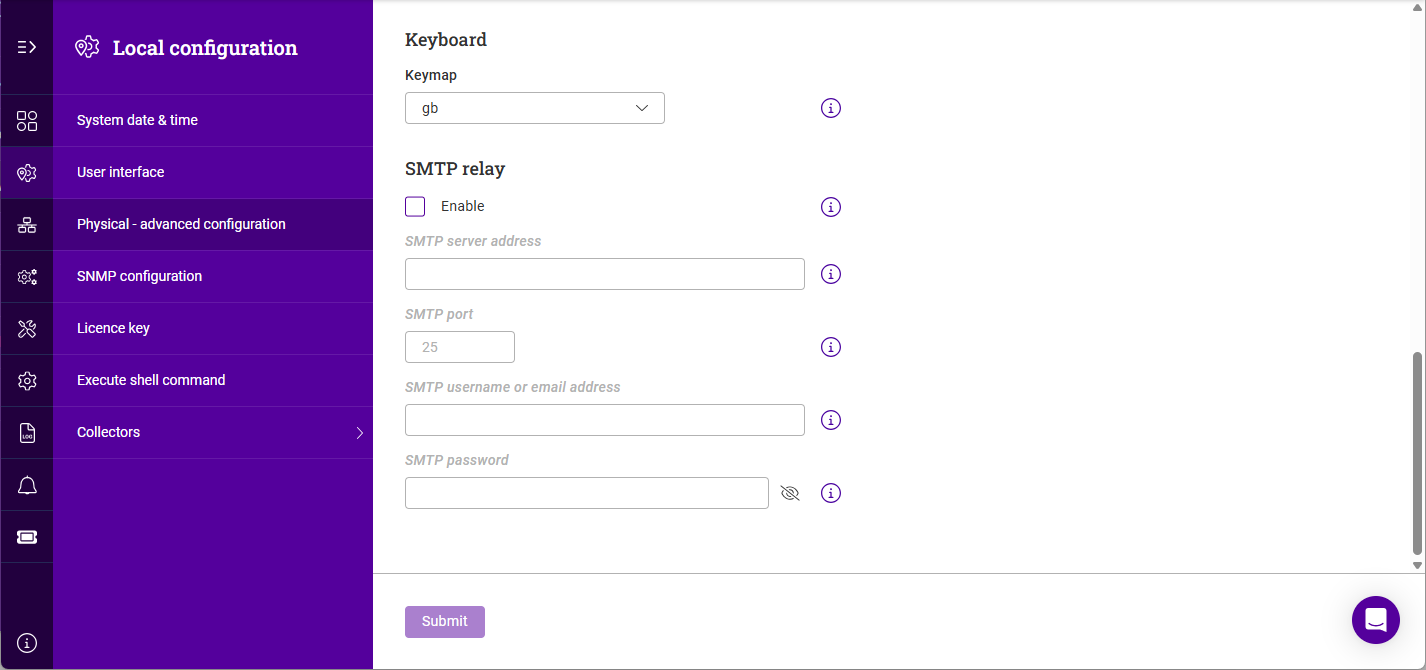
Keyboard
-
Using the WebUI, navigate to Settings > System settings > Physical advanced config.
-
Scroll to the Keyboard section.
-
Select the required Keymap. This is a pair of drop-downs - the first selects the language (e.g. English (UK)), the second the layout variant within that language (e.g. gb).
-
Click Submit.
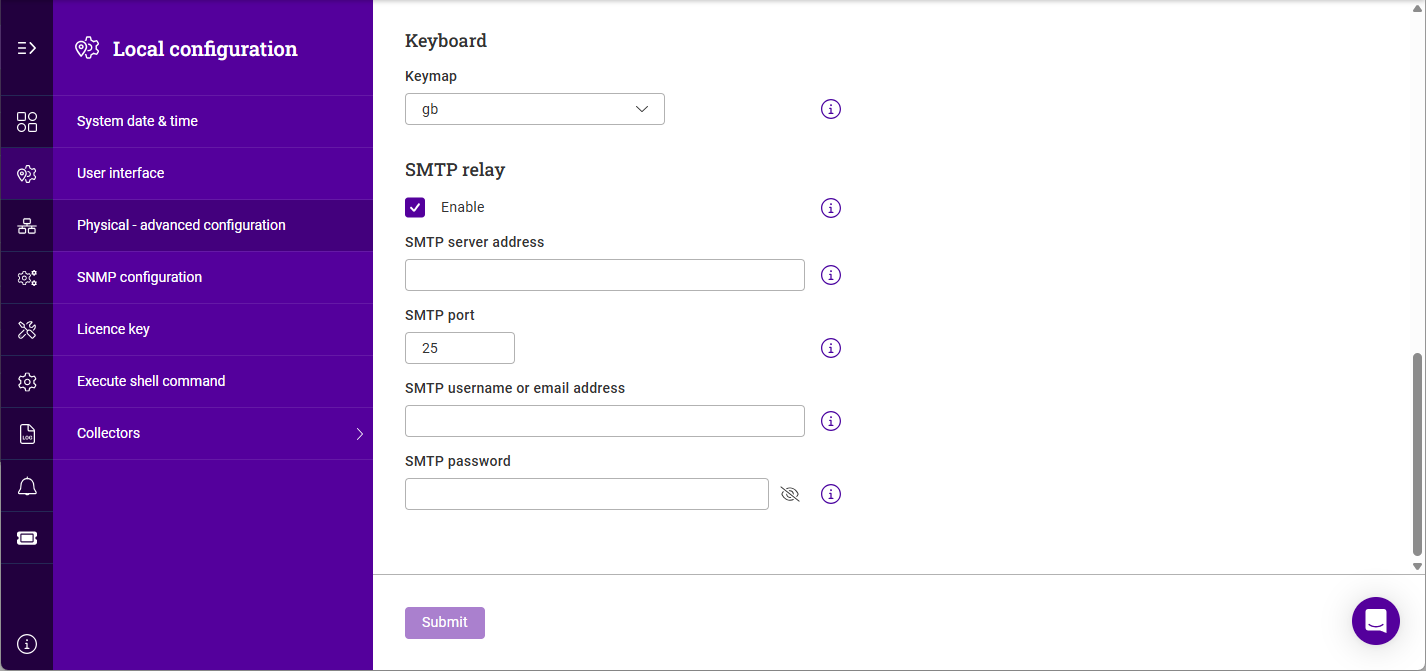
SMTP relay
To configure an SMTP relay server:
-
Using the WebUI, navigate to Settings > System settings > Physical advanced config.
-
Scroll to the SMTP Relay section.
-
Enable (check) the Enable checkbox.
-
Specify the SMTP server address of the relay server. An IP address or FQDN can be used.
-
Specify the SMTP port of the relay server.
-
If authentication is used, specify the SMTP username or email address and the SMTP password.
-
Click Submit.
Portal management
The Loadbalancer.org ADC Portal is a secure, cloud-based platform for monitoring and managing ADCs from Loadbalancer.org and other vendors from a single place, providing centrally controlled backups, software updates, real-time CVE alerts and secure remote access.
Communication between the Portal and the ADCs on a network is handled by a Shuttle - a sidecar agent that provides the channel between the two. An Endurance appliance can act as the Shuttle for its network, and the Portal management page is where this is configured. At least one Shuttle must be adopted by the Portal before any ADC can be added to it.
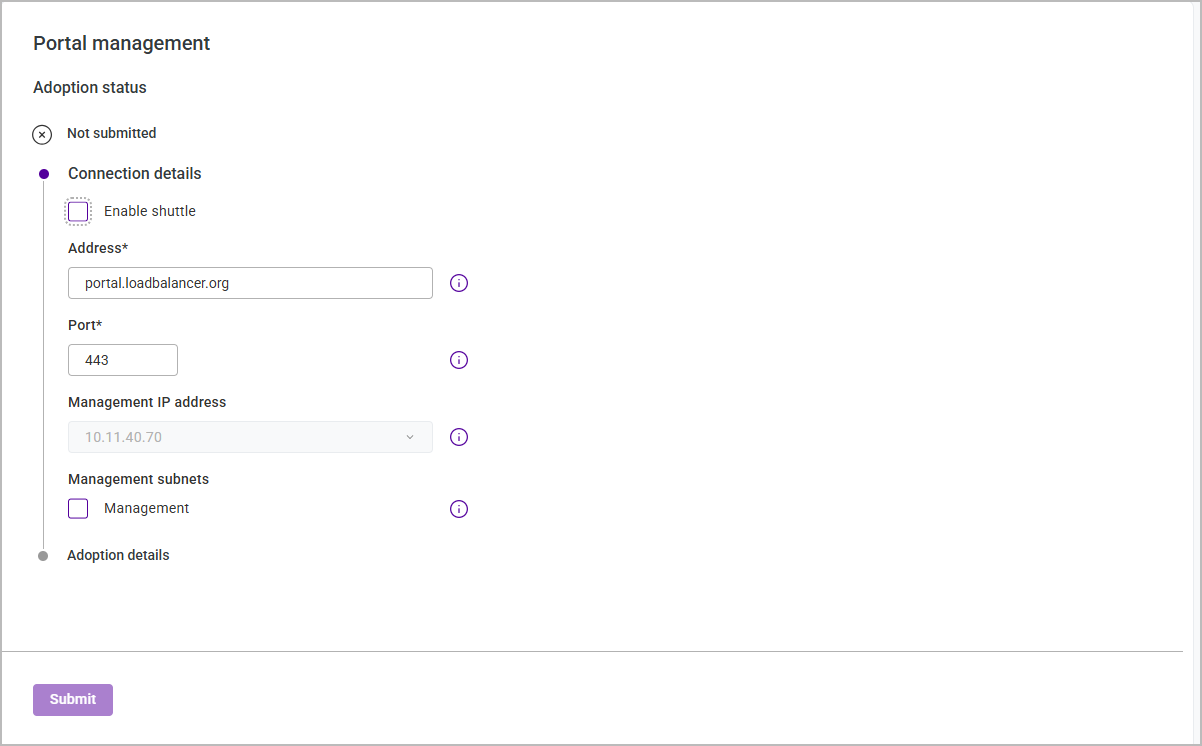
The page is arranged as a series of steps - the current Adoption status, the Connection details described below, and the Adoption details that record the outcome. On an appliance that has not yet been submitted, the status reads Not submitted.
To configure the appliance as a Shuttle:
-
Using the WebUI, navigate to Settings > System settings > Portal management.
-
Enable (check) the Enable shuttle checkbox.
-
Specify the Address of the Portal that the appliance will connect to - a hostname or an IP address can be used. The default is portal.loadbalancer.org.
-
Specify the Port used for the connection. The default is 443.
-
Select the Management IP address - the static IP that the appliance will use to connect to the Portal. The drop-down is populated with the appliance’s static IPs.
-
Under Management subnets, check each subnet that the appliance should use to reach the ADCs being managed.
-
Click Submit.
The adoption must then be approved in the Portal itself before the Shuttle becomes active.
| For the Portal-side steps - approving the Shuttle and adding ADCs to the Portal - and for full details of the Portal, see the ADC Portal Manual. |