Viewing a service
This chapter covers the load balanced services the appliance provides - how existing services are viewed and managed from the Manage services page, and how Layer 4, Layer 7 and GSLB services are added, duplicated and modified.
It also covers the topics that support them: DR Mode Considerations, which explains the ARP problem that DR mode introduces and how to solve it on each operating system; DNAT Mode Considerations, which covers the routing changes DNAT mode depends on; transparency at Layer 7; the SSL/TLS termination options; HTTP header configuration examples; and the L7 monitor.
The Services menu option opens the Manage services page, which lists every configured service along with its Type (Layer 4, Layer 7 or GSLB), Status, IP address, Ports and Mode. Existing services can be viewed and managed from this page, and new services are created here.
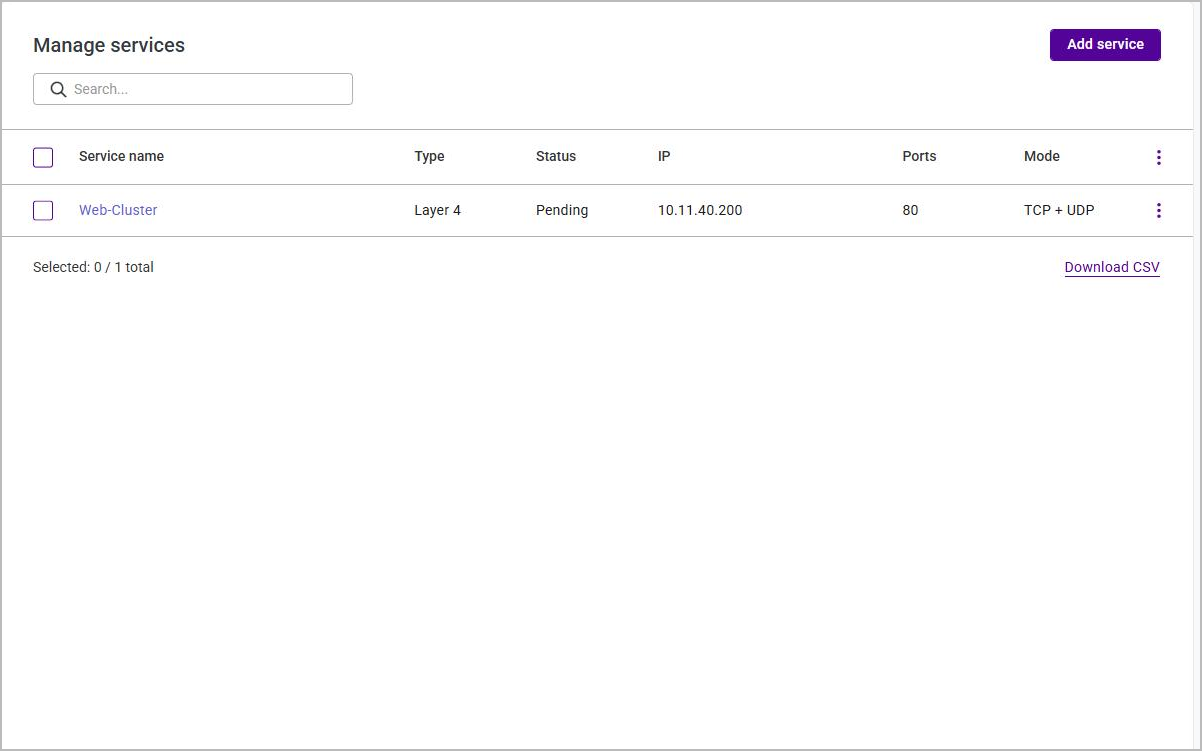
The Search box filters the list. Each row has a checkbox - a counter above the list shows how many of the total are currently selected - and Download CSV exports the list. Clicking a service name opens its Service details page.
The menu at the end of each row provides the following actions:
| Action | Description |
|---|---|
Action required |
Applies the configuration change that is outstanding for the service, without going to System services. A confirmation dialog names the change, for example "Are you sure you want to update nftables, this may take a minute or two." - click Confirm to apply it. |
View stick table |
Displays the persistence (stick) table entries currently held for the service. |
View graphing |
Opens the historical traffic graphs for the service. Only Layer 7 services keep a history, so on a Layer 4 or GSLB service the option is greyed out and reads "Historical graphs are only available for Layer 7 services." The history is recorded only while Stats tracking is enabled. |
Online |
Returns the service to normal operation. |
Drain |
Stops new connections being sent to the service while allowing existing connections to complete. |
Halt |
Immediately stops the service, dropping existing connections. |
Edit |
Re-opens the service in the configuration wizard. |
Duplicate |
Creates a copy of the service, which can then be renamed and modified. |
Delete |
Removes the service. |
To create a new service, click Add service and select the required template. The following templates are available:
-
Layer 4 Services - high-performance, transport-layer load balancing based on LVS.
-
Layer 7 Services - flexible, content-aware load balancing based on HAProxy.
-
GSLB Services - Global Server Load Balancing based on Polaris.
-
L7 Monitor - sets up a frontend monitor. A Layer 7 service in HTTP mode must already exist to use this template; until one does, the template is greyed out and cannot be selected.
-
Import a template - creates a service by importing a previously exported service template file from your local machine.
Having selected a template, step through the configuration wizard. The sections below describe the Layer 4, Layer 7 and GSLB service types in detail.
| When stepping through a service wizard, a Save template option is also available. This exports the current service configuration as a template file, which can later be re-imported using the Import a template option above. |
Clicking the name of a service on the Manage services page opens its Service details page. This is the day-to-day view of a running service - it shows the service’s current health and traffic, and gives access to its backends and Real Servers without stepping back through the configuration wizard.
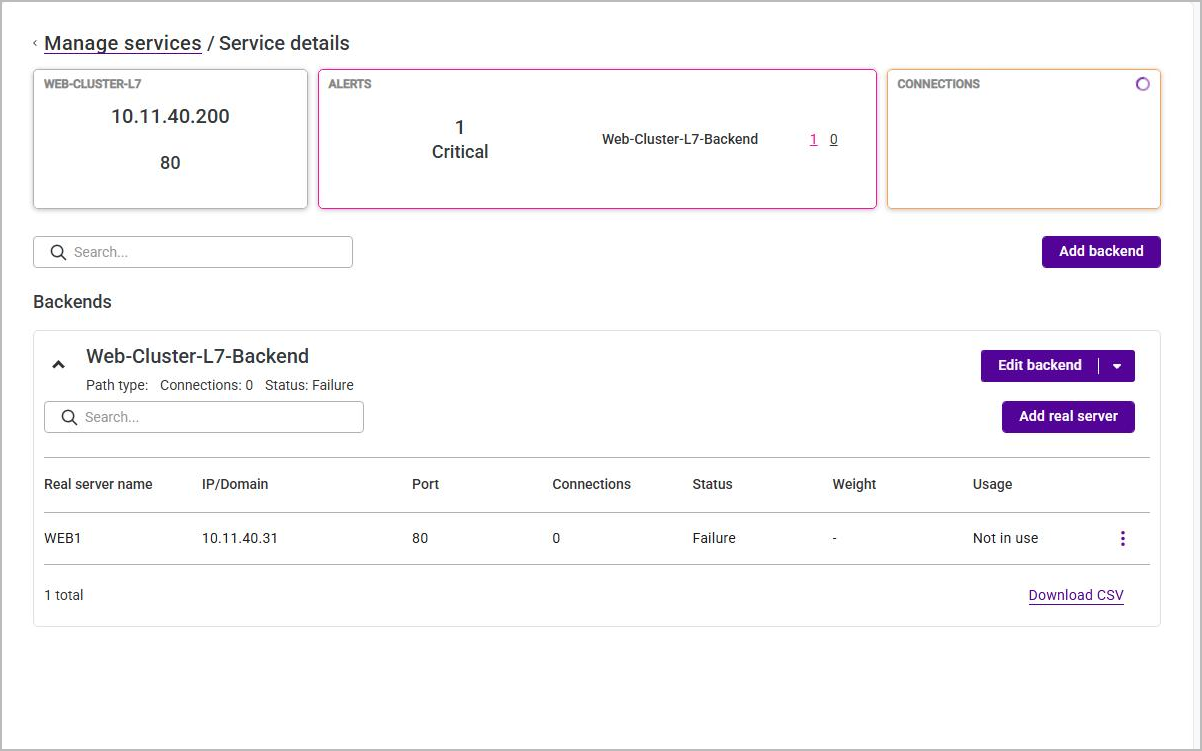
Three tiles are displayed across the top of the page (a GSLB service shows only the first two, and its first tile gives the domain and its time to live rather than an address and port):
| Tile | Description |
|---|---|
(service name) |
The service’s IP address and the port(s) it listens on. |
Alerts |
The number of outstanding alerts for the service. When the service is healthy this reads 0 with the message "Everything is looking good"; otherwise it shows a count of critical alerts broken down by backend. |
Connections |
The current number of connections to the service. |
Below the tiles is a searchable list of the service’s backends, with an Add backend button above it. Each backend is shown as a panel giving its name and Status (and, for Layer 7 services, its path condition and connection count), together with the following controls:
-
Edit backend - a split button. The main action re-opens the backend for editing; the attached menu sets the backend’s state (Online, Drain or Halt), performs Duplicate or Delete, or applies an outstanding configuration change with Action required.
-
Add real server - adds a Real Server to this backend.
Expanding a backend lists its Real Servers:
| Column | Description |
|---|---|
Real server name |
The name of the Real Server. |
IP/Domain |
The IP address or hostname of the Real Server. |
Port |
The port the Real Server is contacted on. |
Connections |
The current number of connections to the Real Server. |
Status |
The health status reported by the Real Server’s health check. |
Weight |
The Real Server’s weight, used by the weighted balance modes. |
The menu at the end of each Real Server row provides the per-server actions - Action required, Online, Drain, Halt, Edit, Duplicate and Delete - and Download CSV exports the Real Server list.