Tools & maintenance
The Tools & Maintenance group provides the operational tools used to run, inspect and recover the appliance - running commands, managing its services, viewing the generated configuration, collecting metrics, taking backups, serving fallback pages, locking the configuration and generating a support bundle.
Terminal command
-
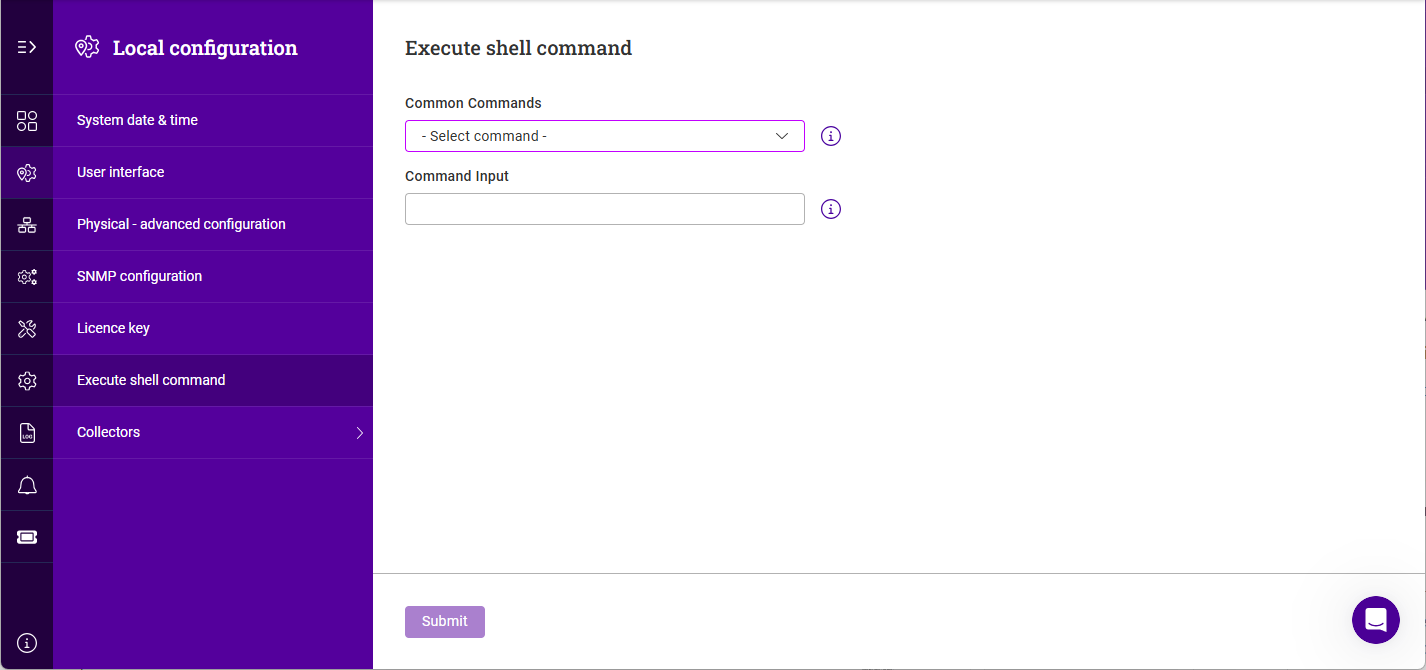
Using the WebUI, navigate to Settings > Terminal command.
-
Either select a command from the Common commands dropdown or enter your own using the Command input field.
-
Click Submit to run the command. Command output will be displayed in the area below the Command input field, together with a Copy output link that copies the output to the clipboard.
Commands run from this page are subject to a 30 second timeout, after which they are terminated. Commands that take longer than this - for example an snmpwalk over a large MIB subtree - must be run from the console or over SSH instead. The page also rejects any command containing shell metacharacters - including ;, &, |, <, >, ? - reporting *Command had Dangerous Characters, so pipes, redirection and wildcards cannot be used here.
|
System services
The key services running on the appliance are listed here, and can be manually reloaded or restarted. This is normally only required when a new configuration is added or an existing configuration is modified.
Each service is listed along with its current State (Active or Inactive). The Action column shows the action outstanding for that service, as a clickable link - for example Restart where a configuration change is pending and the service must be restarted to pick it up. Services that are not in use show a greyed-out Disabled, and services with nothing outstanding leave the column empty.
To reload or restart a service:
-
Using the WebUI, navigate to Settings > System services.
-
Click the three dots menu next to the service.
-
Select the required action. Depending on the service, one or more of Update, Reload and Restart will be available.
The Restart load balancer button (top right) restarts the load balancing services; the adjacent drop-down also provides a Shutdown load balancer option. When the appliance is part of a cluster, select the Propagate across cluster checkbox before performing an action to apply it to all appliances in the cluster.
When one or more services are reporting an error, a View error log button appears alongside it. It opens an Error log window listing the messages reported by any service that is in an error state, for example:
The service is running but is not accepting connections on /run/lb-websocket/websocket.sock.
Restart it to rebind the socket.
Click Copy to copy the text to the clipboard, or Close to dismiss the window.
View configs
The View configs menu provides a convenient, read-only view of the underlying configuration of every system component and load balancing service on the appliance. It’s useful for confirming that a service has been configured as expected and for diagnosing configuration or network issues, as it shows exactly how each component has been set up. For more information on using these views when troubleshooting, see Diagnostics & Troubleshooting.
| The pages under View configs are read-only. Configuration changes are made using the relevant WebUI menu (for example Network or Services); any changes made are then reflected in the corresponding View configs page. |
Viewing a Configuration
-
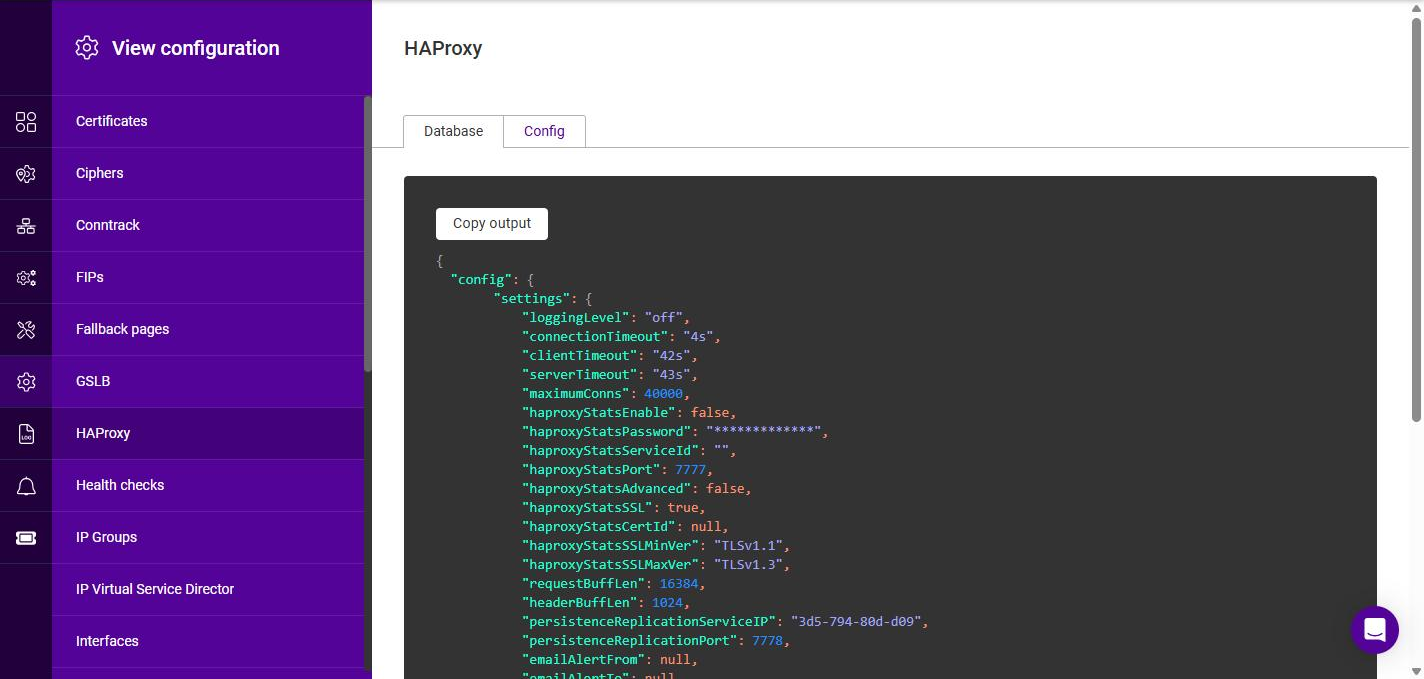
Using the WebUI, navigate to Settings > View configs.
-
From the submenu, select the component or service whose configuration you’d like to view, e.g. HAProxy.
-
The configuration is displayed in the panel on the right. For most components the configuration is presented as it is stored in the appliance database, on the Database tab.
-
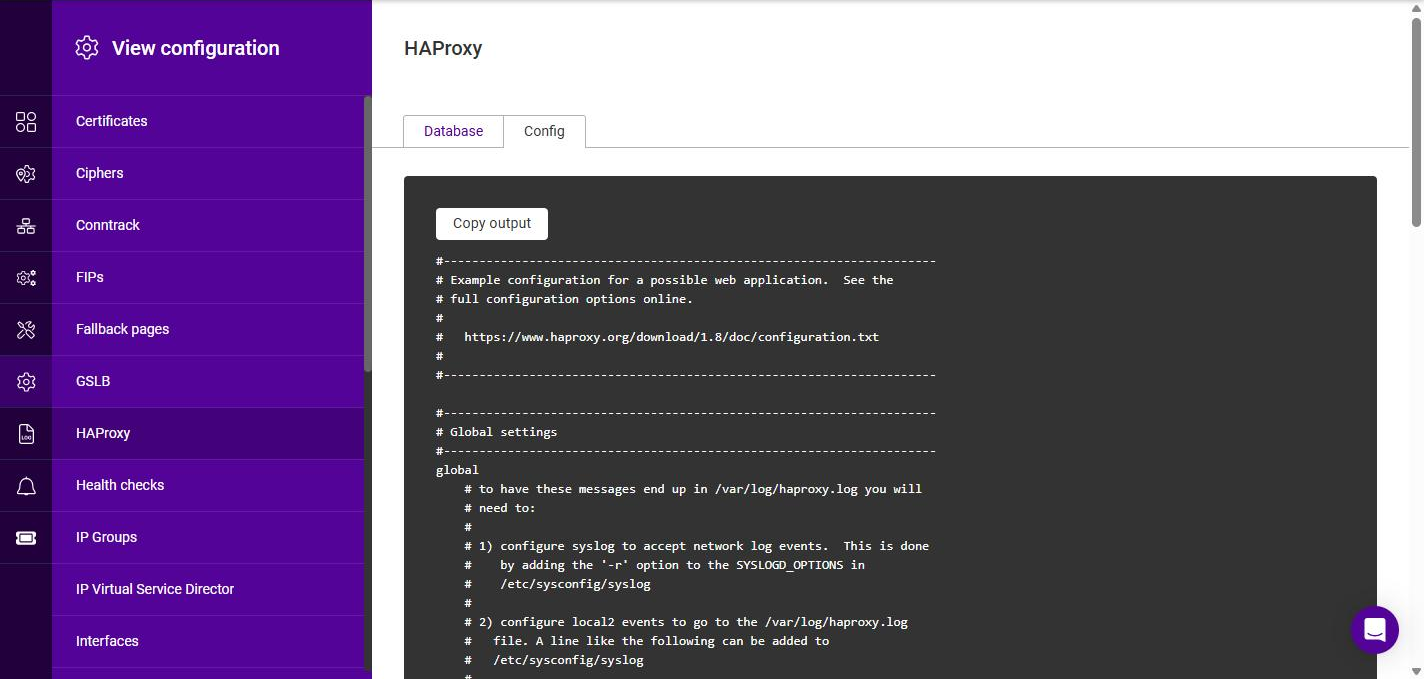
Where a component also generates its own configuration file - or has additional configuration or live runtime state - one or more extra tabs are displayed. Use the tabs at the top of the panel to switch between the available views. For example, the HAProxy page provides an additional Config tab that shows the generated HAProxy configuration file:
-
Click Copy output to copy the currently displayed configuration to the clipboard.
Available Configuration Views
The following configuration views are available. Where the relevant setting is configured elsewhere in the WebUI, the applicable section of this manual is referenced.
| View | Tabs | Description |
|---|---|---|
Certificates |
Database |
The SSL/TLS certificates held on the appliance. See SSL Certificate. |
Ciphers |
Database |
The configured SSL cipher lists. See Cipher lists. |
Conntrack |
Database, Config |
The connection tracking (conntrackd) configuration, used to synchronize connection state between cluster nodes. See HA Node Communication. |
Fallback pages |
Database |
The configured fallback pages. See Fallback pages. |
FIPs |
Database |
The configured Floating IPs. See Floating IPs. |
GSLB |
Database, Polaris Lb, Polaris topology |
The Global Server Load Balancing (Polaris) configuration, including the generated Polaris load balancing and topology files. See GSLB Services. |
HAProxy |
Database, Config |
The Layer 7 configuration, including the generated HAProxy configuration file (Config tab). See Layer 7 Services. |
Health Checks |
Database |
The configured health checks. See Healthchecks. |
Interfaces |
Database |
The network interface configuration. See Interfaces. |
IP groups |
Database |
The configured IP groups (subnets). See Subnets. |
IP Virtual Service Director |
Database, Config |
The Layer 4 configuration, including the generated director configuration file (Config tab). See Layer 4 Services. |
LDAP |
Database |
The LDAP authentication configuration. See Authentication. |
Licence |
Database |
The appliance license. See Appliance Licensing. (The WebUI spells this view Licence, although the menu option it relates to is License & Billing.) |
Local Users |
Database |
The locally held user accounts. See Users & Groups. |
Logs |
Database |
The log retention configuration. See Log configuration. |
NF Tables |
Loaded Rules |
The live firewall (nftables) ruleset currently loaded on the appliance. |
OIDC |
Database |
The OpenID Connect (OIDC) single sign-on configuration. |
Prometheus |
Database |
The Prometheus collector configuration. See Prometheus. |
PulseHA |
Database |
The high availability (clustering) configuration. See High availability. |
RADIUS |
Database |
The RADIUS authentication configuration. See Authentication. |
RBAC |
Database |
The users, roles and groups that control access to the appliance (role-based access control). See Users & Groups. |
Regions |
Database |
The configured regions. See Regions. |
Routes |
Database |
The appliance routing table. See Routing. |
SAML |
Database |
The SAML single sign-on configuration. |
Service IPs |
Database |
The configured Service IPs. See Service IPs. |
Sidecar |
Database |
The configuration of the internal appliance management service (sidecar). |
SIPs |
Database |
The configured Static IPs. See Static IPs. |
SNMP |
Database |
The SNMP configuration. See SNMP Configuration. |
System |
Database |
System-level node settings, including hostname, date & time and user interface settings. See System settings. |
Collectors & Integrations
The Collectors & Integrations menu configures SNMP and the Prometheus metrics collector.
SNMP
| A Service IPs must be available first before configuring SNMP. |
Until SNMP has been configured, the page shows only the message "Nothing configured."
To configure SNMP:
-
Using the WebUI, navigate to Settings > Collectors & Integrations > SNMP.
-
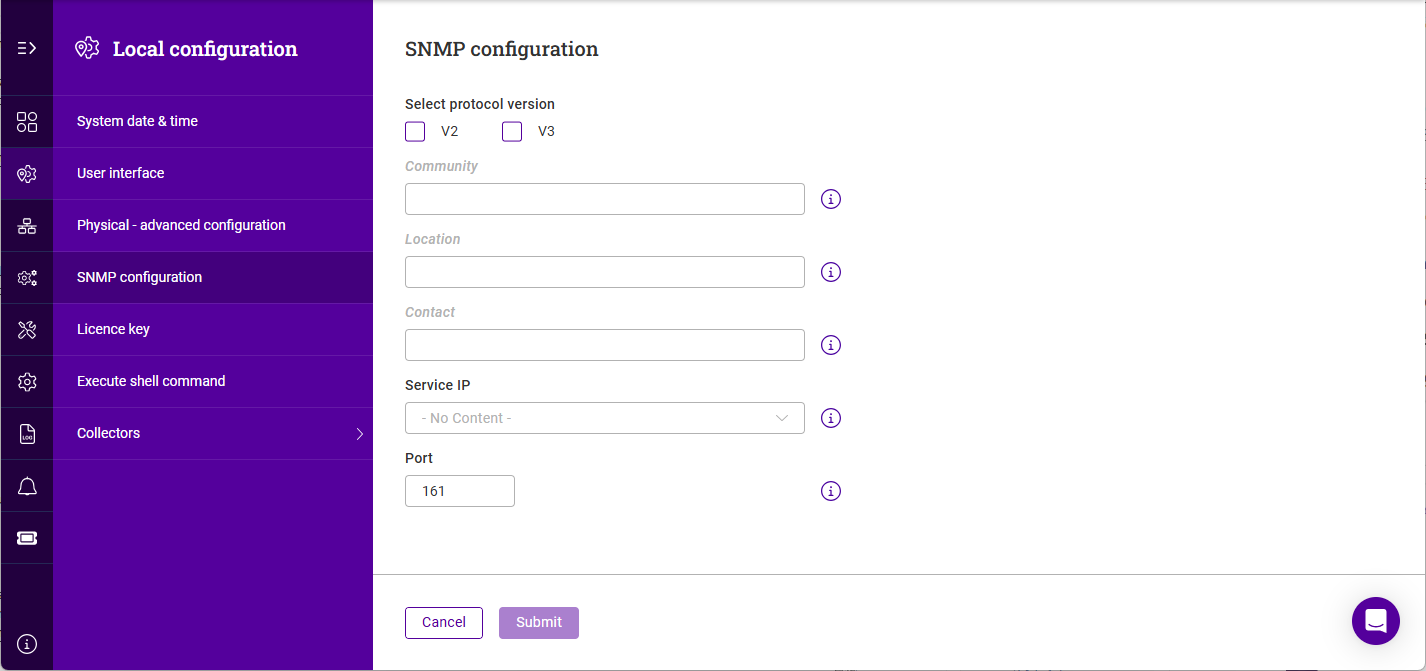
Click Add SNMP settings.
-
Configure the settings as required:
Setting Description Select protocol version
The SNMP version(s) the agent should answer on - V2 and/or V3. Both are unchecked by default, and at least one must be selected. Selecting V3 alone hides the Community field, since community strings do not apply to SNMPv3.
Community
The SNMPv2 community string. Only shown when V2 is selected.
Location
A free-text description of the appliance’s physical location. This is returned as
sysLocation.Contact
A free-text administrative contact. This is returned as
sysContact.Service IP
The Service IP the SNMP agent listens on, selected from the drop-down.
Port
The UDP port the SNMP agent listens on. The default is 161.
-
Click Submit.
Once SNMP has been configured the page shows a summary of the current settings - the protocols in use, and the Community, Location and Contact values - and the button changes from Add SNMP settings to Edit SNMP settings. Click Edit SNMP settings to change any of the values above.
| There is no explicit delete option. To remove the SNMP configuration entirely, click Edit SNMP settings, clear both the V2 and V3 checkboxes and click Submit - the page returns to showing "Nothing configured." |
SNMPv3 Users
When V3 is selected, a Users section is displayed beneath the summary. SNMPv3 authenticates each request against a named user rather than a shared community string, so at least one user must be added before SNMPv3 can be used.
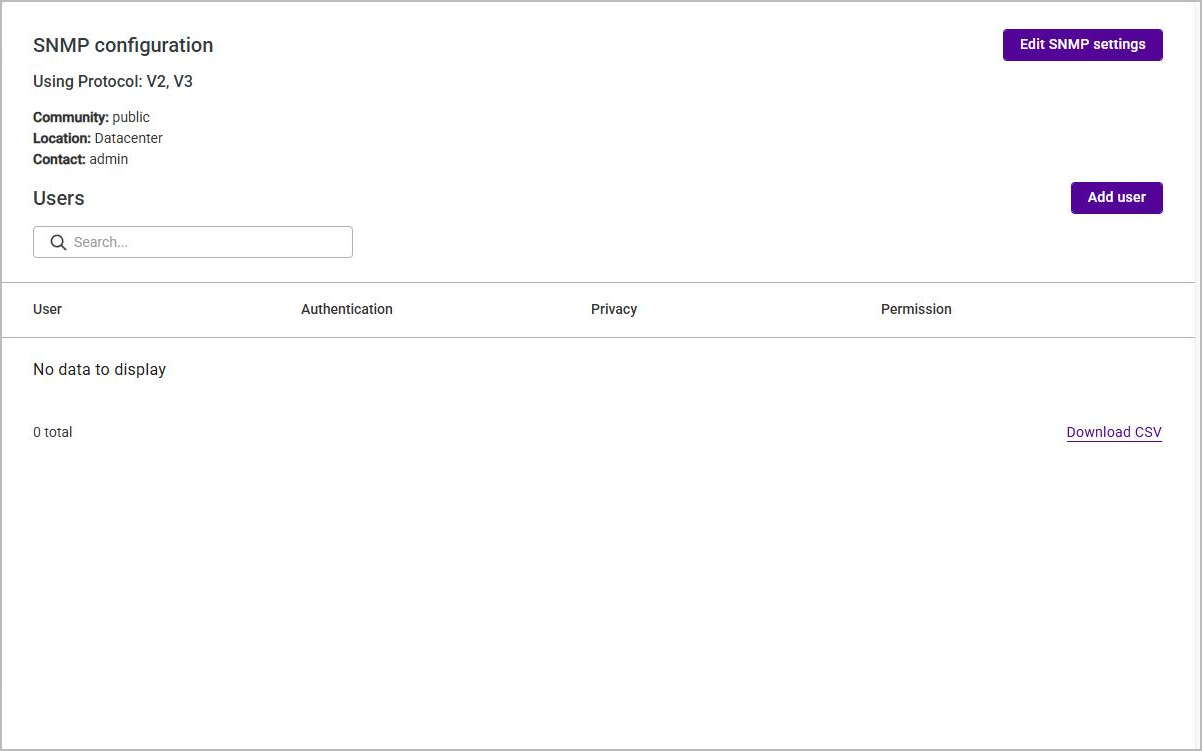
The list shows the User, Authentication algorithm, Privacy algorithm and Permission for each user. The Search box filters the list and Download CSV exports it.
To add an SNMPv3 user:
-
On the SNMP configuration page, click Add user.
-
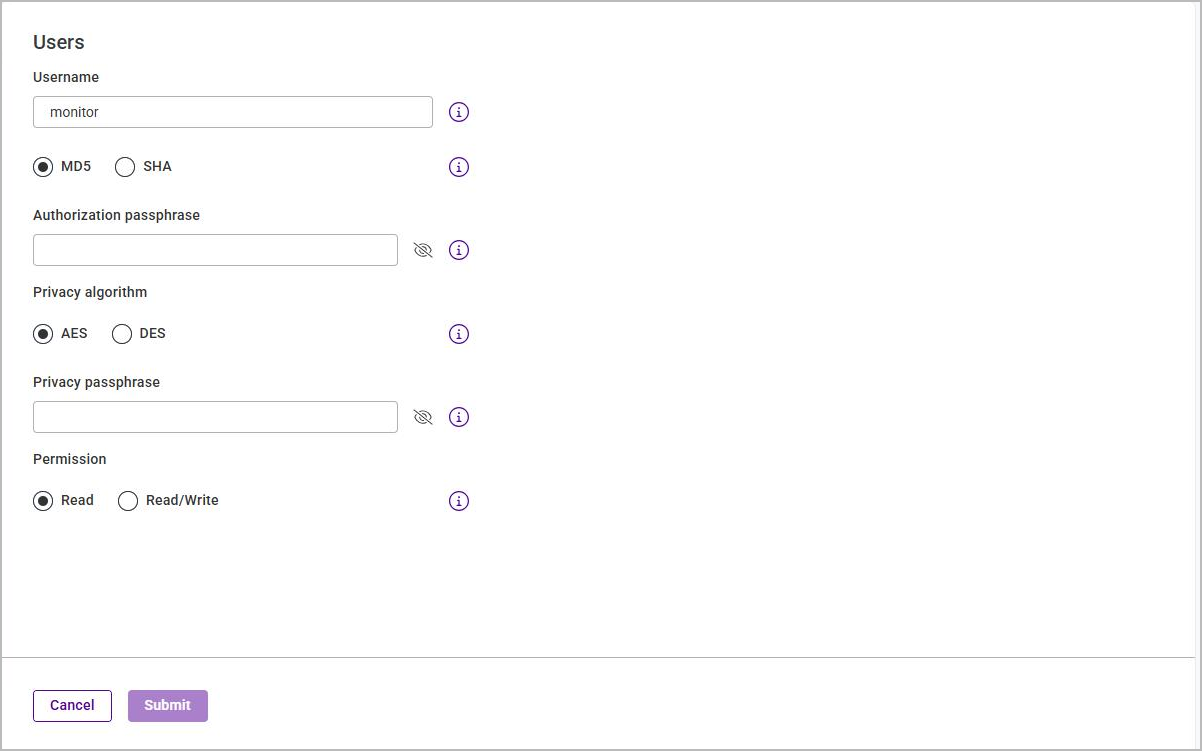
Configure the user:
Setting Description Username
The SNMPv3 user name (the USM user name). This field is required.
(unlabelled)
The hashing algorithm used to authenticate the user - MD5 or SHA. The default is MD5; SHA is the stronger choice. This pair of radio buttons sits directly below Username and currently has no caption on screen.
Authorization passphrase
The authentication passphrase for the user. This field is required.
Privacy algorithm
The cipher used to encrypt the payload - AES or DES. The default is AES. Note that the agent currently uses AES regardless of this setting, so a user configured for DES must still be queried with -x AES; see SNMPv3.
Privacy passphrase
The encryption passphrase for the user. This field is required - SNMPv3 users are always registered as authPriv, so a privacy passphrase must be supplied even if the monitoring system is only going to authenticate.
Permission
The access level granted to the user - Read or Read/Write. The default is Read.
-
Click Submit.
| The username and both passphrases must match the values configured in your monitoring system - see SNMPv3 for a worked example. |
Prometheus
The Prometheus collector can provide both Layer 7 (HAProxy) and local node metrics.
To enable the Prometheus Collector:
| A Service IPs must be available first before configuring Prometheus. |
-
Using the WebUI, navigate to Settings > Collectors & Integrations > Prometheus.
-
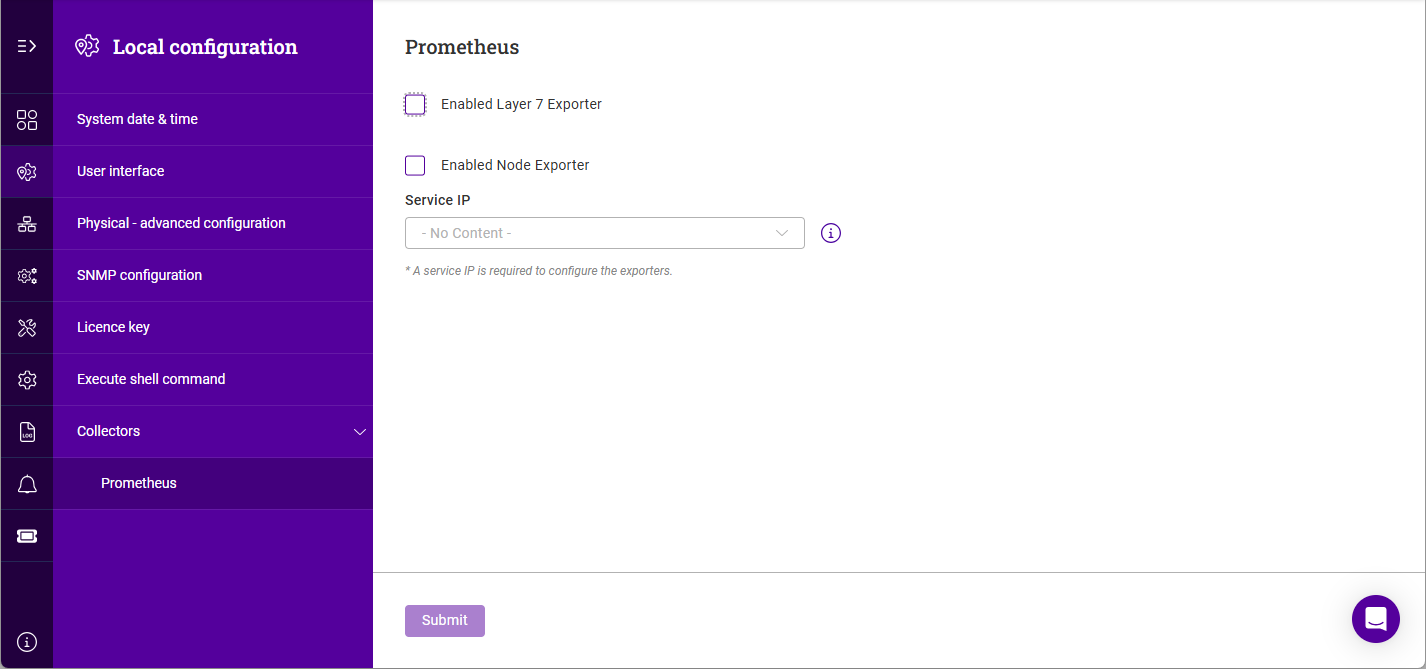
Enable (check) the Enabled layer 7 exporter checkbox to provide Layer 7 metrics. An Exporter port field is revealed, defaulting to 9090 - update the port if required.
-
Enable (check) the Enabled node exporter checkbox to provide local node metrics. This also reveals its own Exporter port field, defaulting to 9100 - update the port if required.
-
Select the required Service IP.
-
Click Submit.
Backup & Restore
The current appliance configuration can be downloaded as a backup archive at any time. In addition, an automatic backup entry is recorded each time the configuration is changed, providing a history of all additions, modifications and deletions.
To download a backup of the current configuration:
-
Using the WebUI, navigate to Settings > Backup & Restore.
-
Click Download backup.
-
A backup archive containing the current configuration is generated and downloaded to your browser’s default download location.
Auto backup
Each time the configuration is changed, an entry is automatically added to the Auto backup list. Every entry shows a Description of the change, the type of Change (Added, Edited or Deleted), and the Date & time it occurred.
Use the Search box to filter the list, or click Download CSV to export the entries.
Fallback pages
A fallback page is displayed to clients when all of the Real Servers associated with a Virtual Service are unavailable (i.e. down or taken offline). Multiple fallback pages can be configured and each one can be associated with one or more Virtual Services.
A fallback page can either be served directly by the appliance (Internal) or be provided by a separate server (External).
To add a fallback page:
-
Using the WebUI, navigate to Settings > Fallback pages.
-
Click Add fallback page.
-
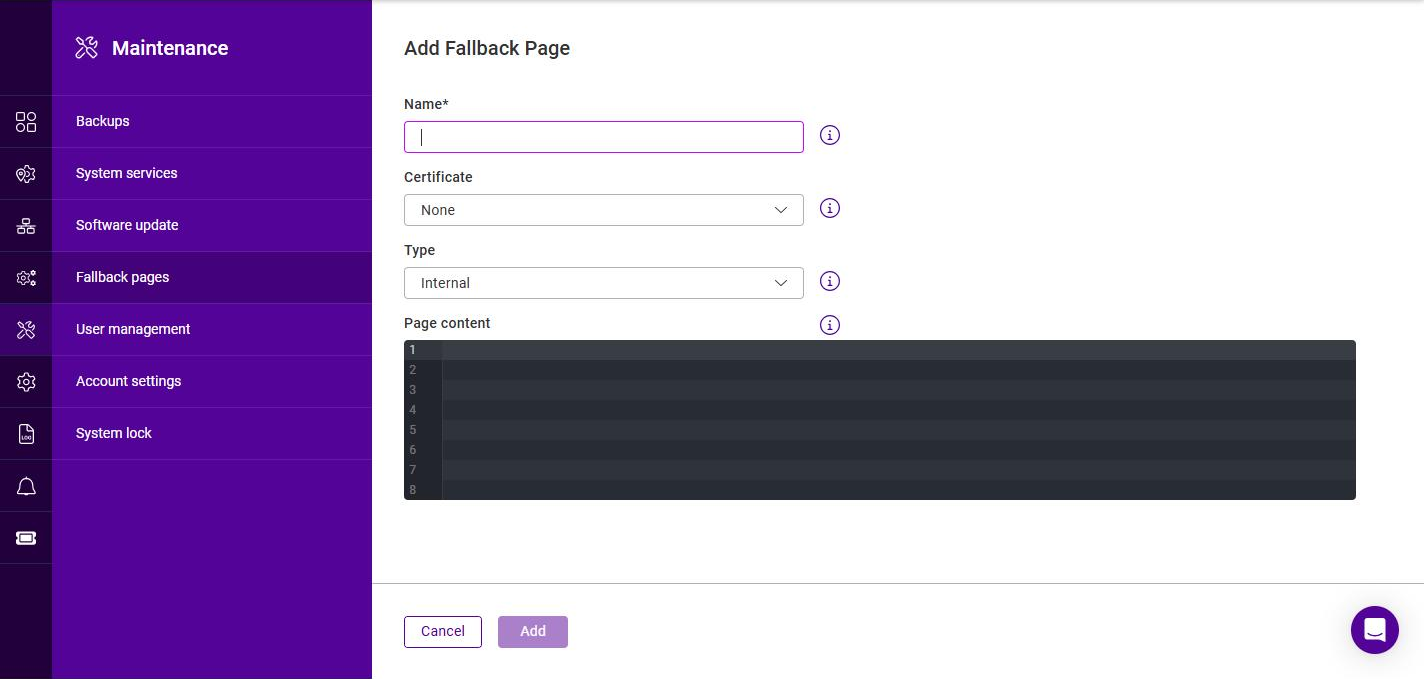
Enter an appropriate Name for the fallback page.
-
If the page should be served over HTTPS, select the relevant Certificate.
-
Select the Type:
-
If Internal is selected, enter the required content in the Page content editor.
-
If External is selected, specify the IP address and Port of the external fallback server.
-
-
Click Add.
To modify or delete a fallback page:
-
Using the WebUI, navigate to Settings > Fallback pages.
-
Click the three dots menu next to the relevant fallback page.
-
Click Edit to change its settings (update the relevant setting(s), then click Update), or click Delete then Confirm to remove it.
System lock
The appliance can be locked to prevent configuration changes from being made, for example during planned maintenance or while updates are being applied. When locked, the configuration is protected and no changes can be made until the appliance is unlocked.
The lock state is also shown in the top bar of every page as Unlocked or Locked; clicking the indicator opens this page. See The Top Bar.
To lock the appliance:
-
Using the WebUI, navigate to Settings > System lock.
-
Select the System is locked checkbox.
-
Select a Reason for lock: Under maintenance, Locked for updates or Custom message. If Custom message is selected, enter the message to be displayed (maximum 160 characters).
-
Click Submit.
To unlock the appliance:
-
Using the WebUI, navigate to Settings > System lock.
-
Clear the System is locked checkbox.
-
Click Submit.
Support download
The Support download page generates a diagnostics bundle that can be downloaded and sent to Loadbalancer.org support to assist with troubleshooting.
-
Using the WebUI, navigate to Settings > Support download.
The page reports the Recommended download size that has been selected for you, together with the current disk and memory usage, and the appliance’s Release version, Client version and API version.
-
Click Download to generate and download the support bundle.