Configuring a simple layer 7 test environment
This example builds a simple Layer 7 load balanced service using the WebUI. It assumes that the appliance has been deployed and its network settings configured, as described in steps 1 to 3 above.
The Test Environment
The following diagram and table describe the environment used in this example:
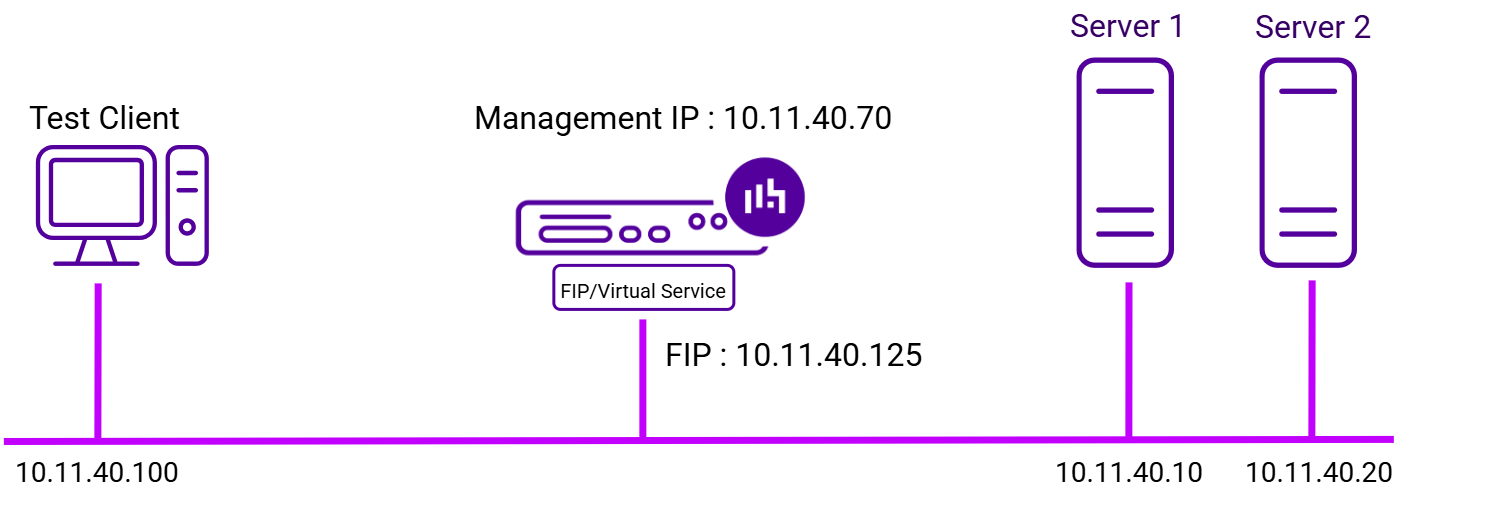
| IP Address | Device | Notes |
|---|---|---|
10.11.40.100 |
Test Client |
|
10.11.40.70 |
Load Balancer |
the load balancer’s management IP address |
10.11.40.125 |
Load Balancer |
the FIP/Service address (floating IP) - the address clients connect to |
10.11.40.10 |
Web Server 1 |
the first Real Server |
10.11.40.20 |
Web Server 2 |
the second Real Server |
| These addresses are used for the example environment throughout this manual. Substitute the addresses used on your own network. |
Creating the Service
Services are configured using a template based wizard. This example uses the default Layer 7 template and leaves every setting that is not mentioned at its default value - the full set of options is described in Layer 7 Services.
-
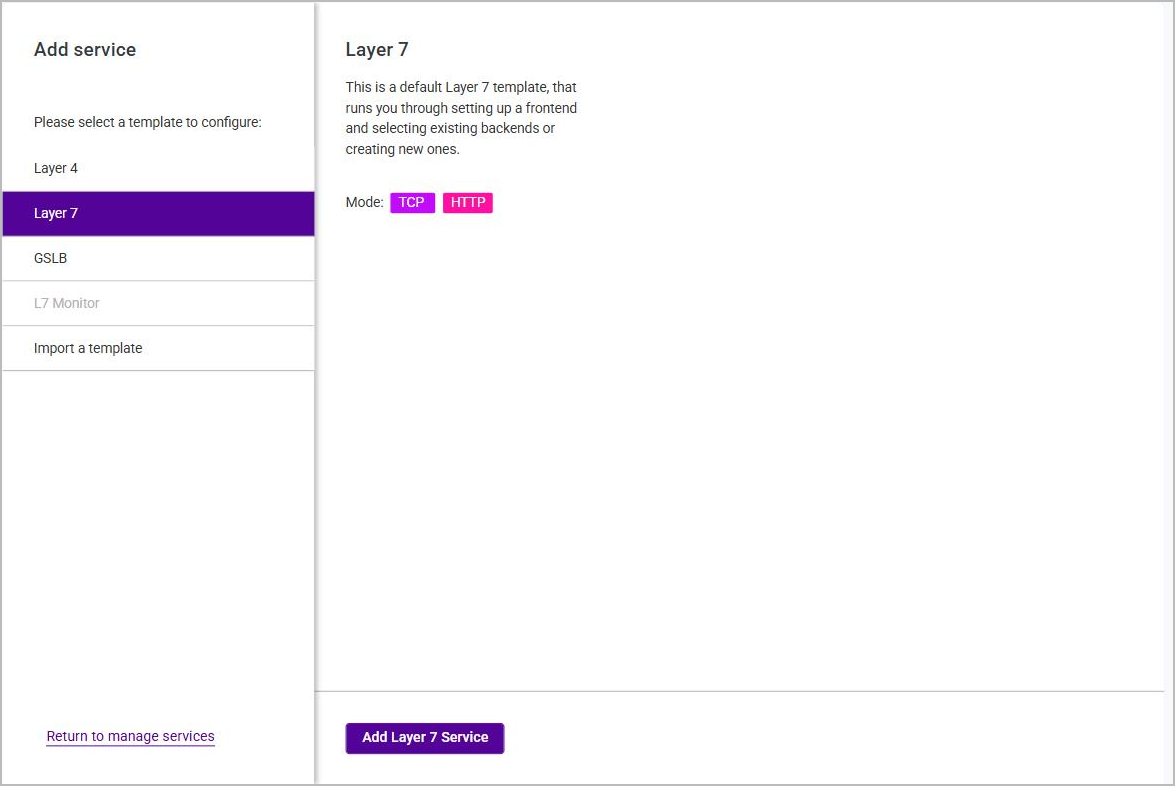
Using the WebUI, navigate to Services and click Add service.
-
Click Add Layer 7 Service.
-
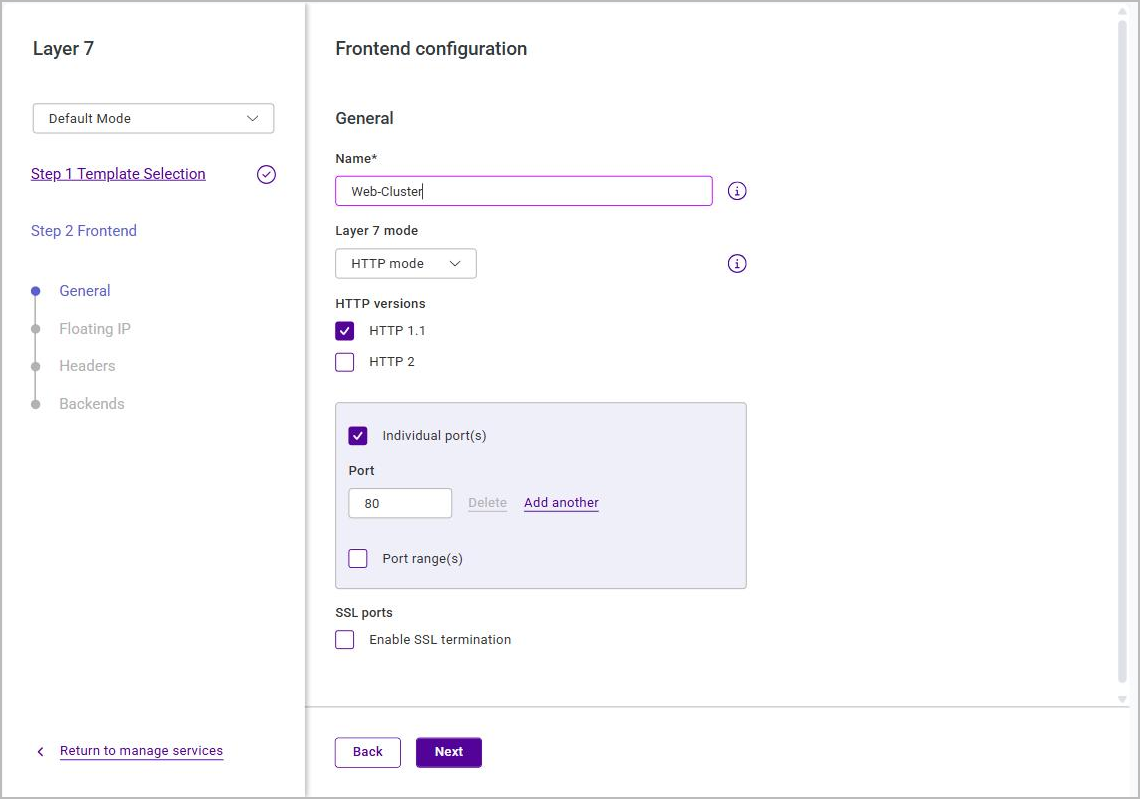
Specify a suitable name for the service, e.g. Web-Cluster.
-
Leave all other settings at their default value.
-
Click Next.
-
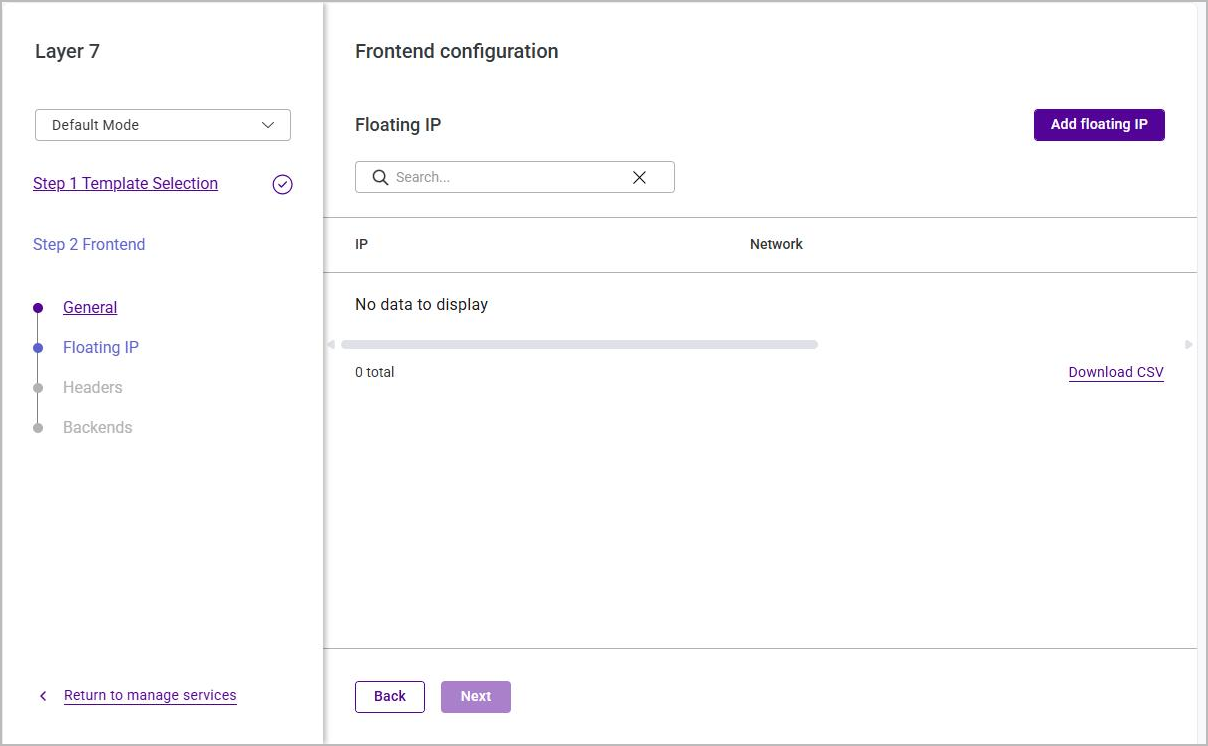
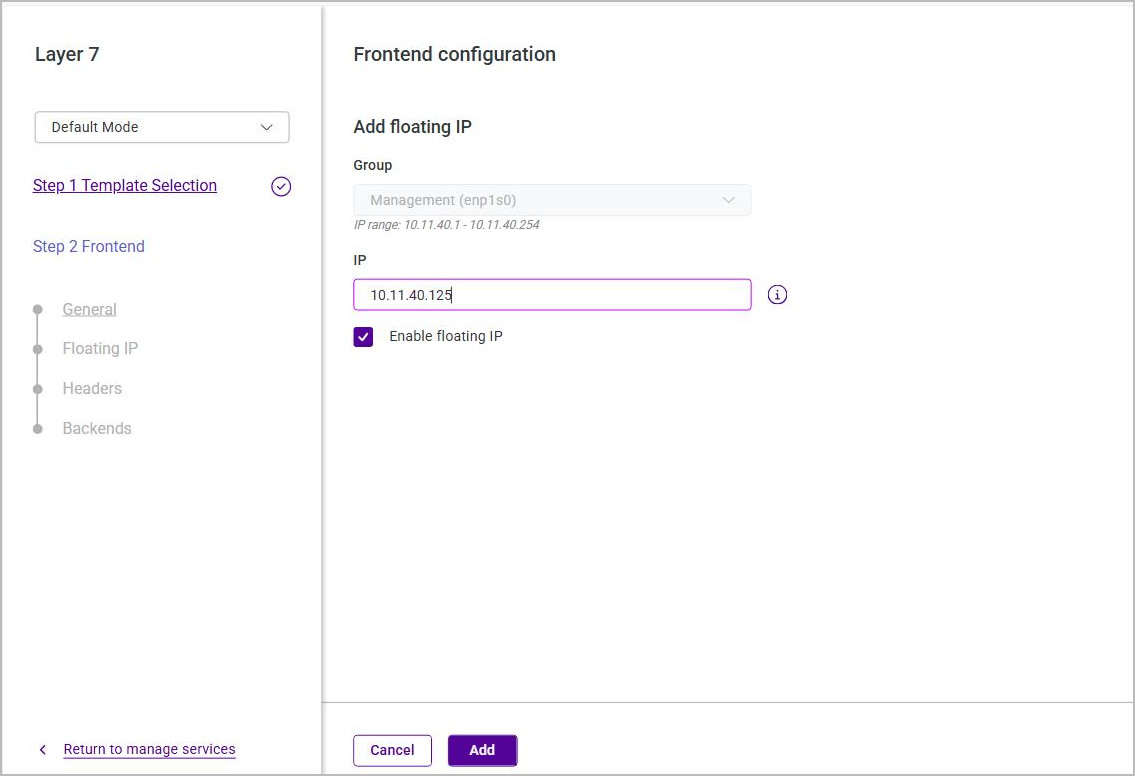
Click Add floating IP.
-
Specify a suitable IP address for the service, e.g. 10.11.40.125.
-
Click Add.
-
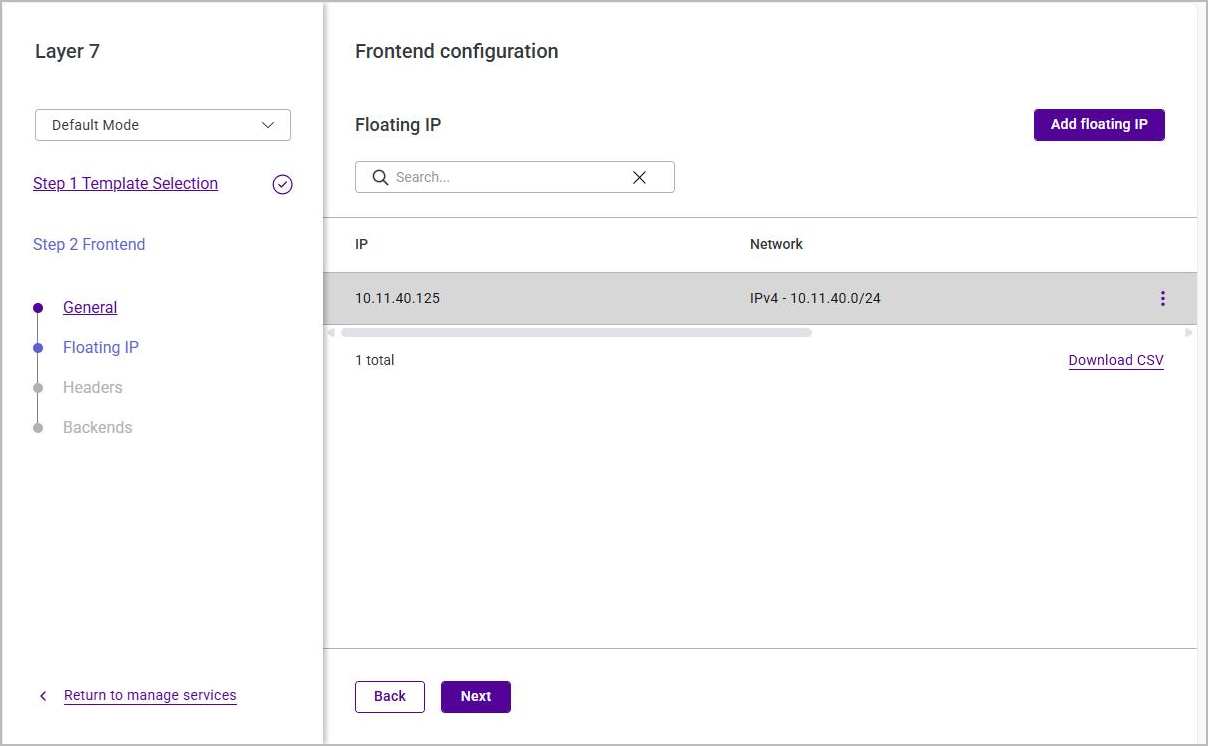
Ensure that the Floating IP is selected and click Next until the Backends screen is displayed.
-
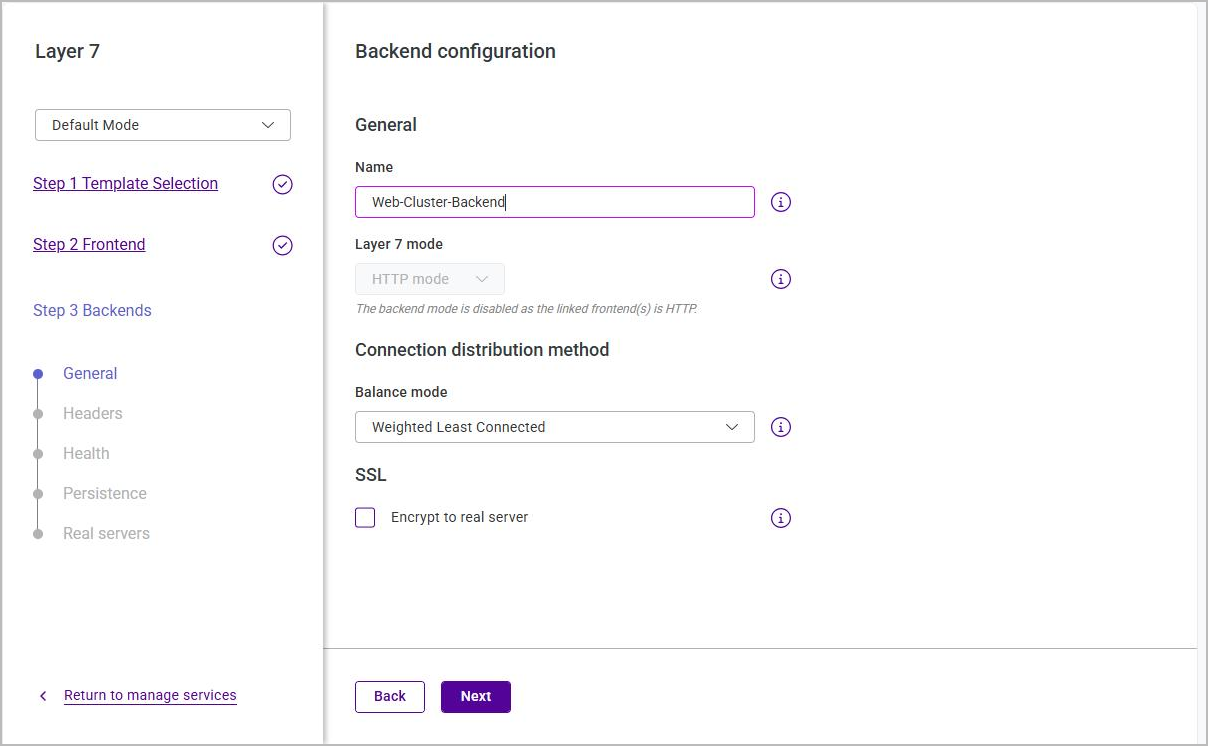
Click Add backend.
-
Specify a suitable Name, e.g. Web-Cluster-Backend.
-
Leave all other settings at their default value.
-
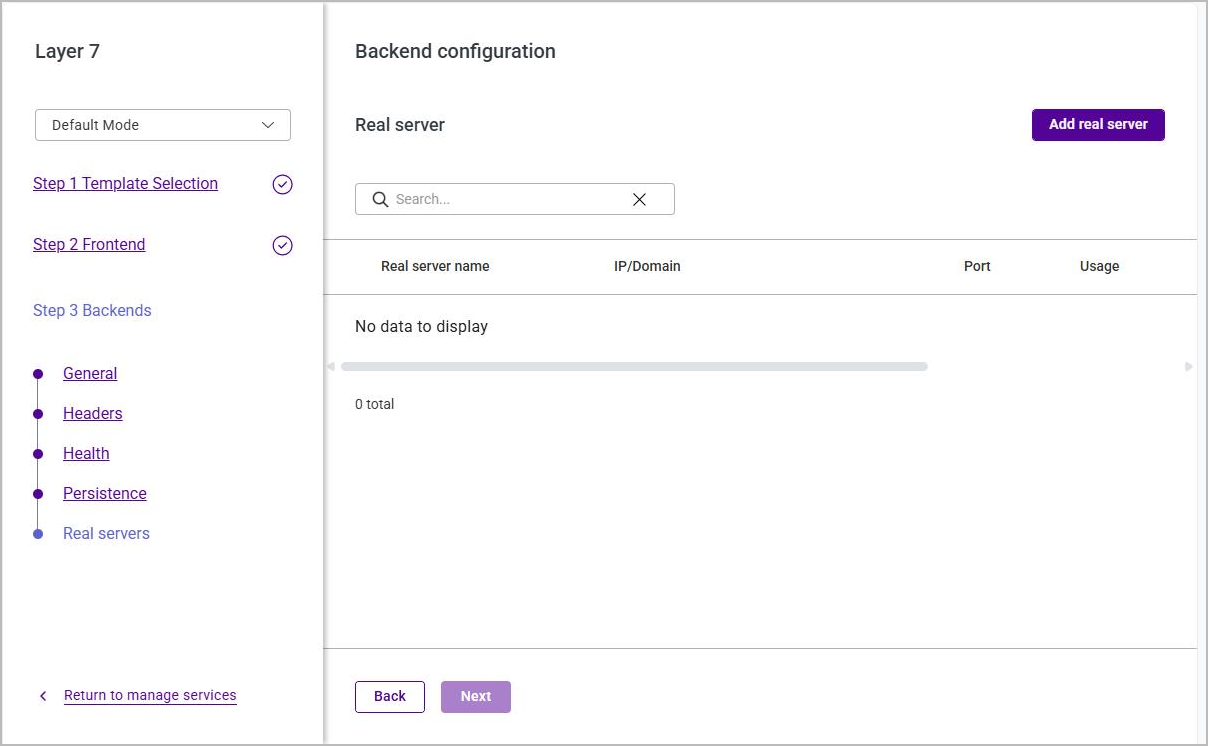
Click Next until the Backend Configuration / Real server screen is displayed.
-
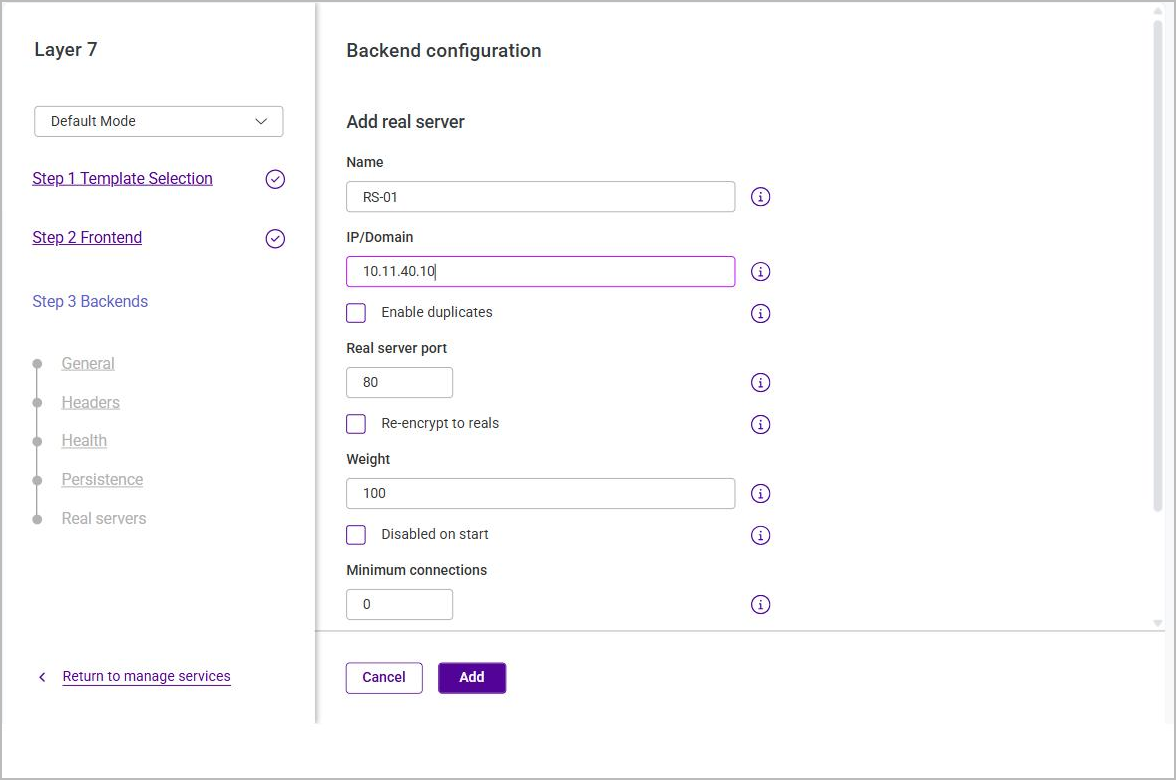
Click Add real server.
-
Specify a suitable Name, e.g. RS-01.
-
Specify the IP/Domain of the first Real Server, e.g. 10.11.40.10.
-
Leave all other settings at their default value.
-
Click Add.
-
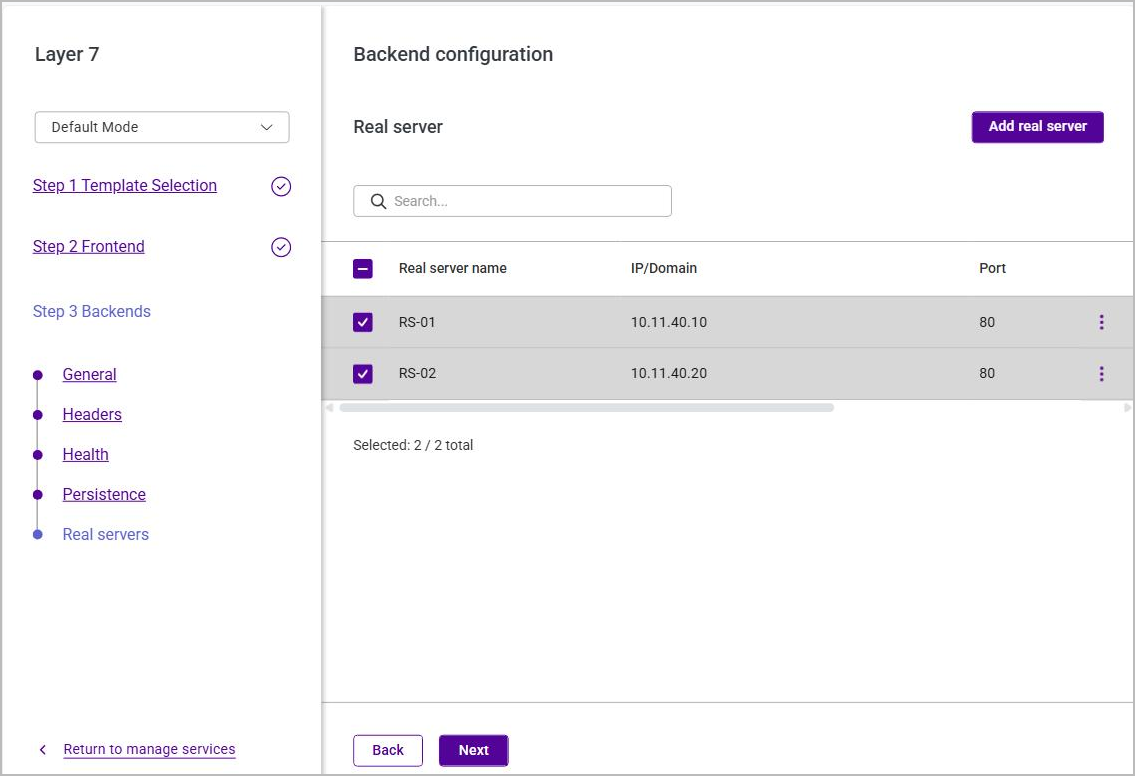
Repeat these steps to add the second Real Server, e.g. RS-02 / 10.11.40.20.
-
Click Next, then click Submit to create the service.
Applying the New Settings
Submitting the service writes its configuration but does not activate it. Every system service whose configuration was changed is left with a pending action, and these must be applied to finalize the new configuration. A banner at the top of the WebUI names the services that are waiting.
For the first service on a new appliance only NF Tables (the firewall service) is left with an action to apply. HAProxy, the underlying service used for Layer 7 services, is not yet running at this point, so it is started automatically when the service is submitted and needs no manual action. The banner sometimes names HAProxy alongside NF Tables even so - the services that actually need applying are the ones listed with an action on the System services page.
-
Using the WebUI, navigate to Settings > System services.
-
In the NF Tables row, click Update in the Action column.
The same change can also be applied without leaving the Services list, using the Action required option on the service’s actions menu.
| Applying the pending changes is required every time a service is added or changed, not only the first time - but which services are listed depends on what is already running. Once HAProxy is up, adding or changing another Layer 7 service leaves both NF Tables (Update) and HAProxy (Reload) pending. When more than one service is waiting, an Apply all button appears at the top of the page showing the number of pending changes, e.g. Apply all (2), which applies them together. For more detail, see System services. |
Checking the Service
-
In the WebUI, click Dashboard.
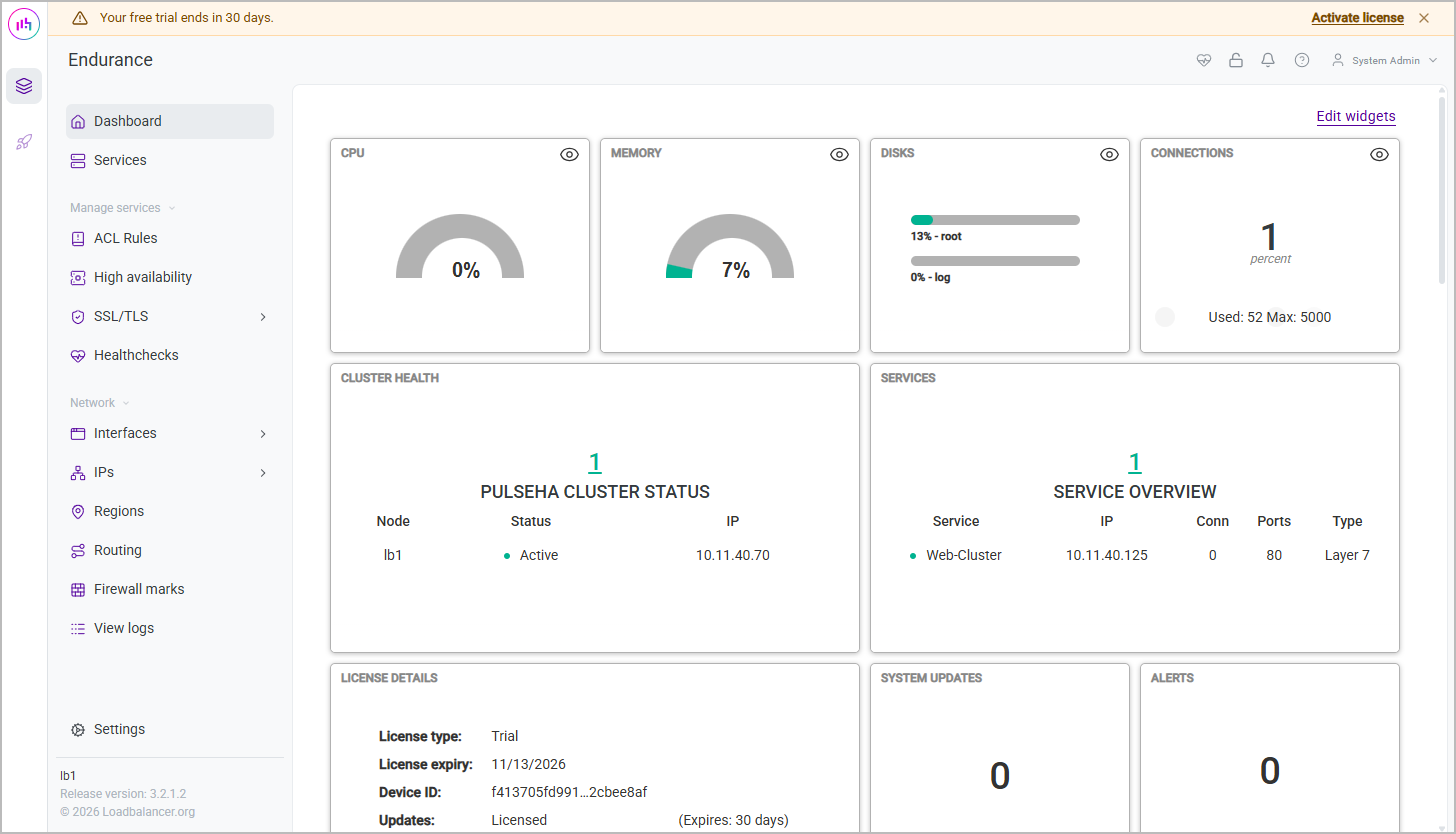
The Services widget now lists the Web-Cluster service under Service overview. The figures above the table count the configured services by health status - Online (green), Maintenance (amber) and Failure (magenta). Only Web-Cluster has been added and it is healthy, so a single 1 is shown, in green. The widget is described in full in Dashboard.
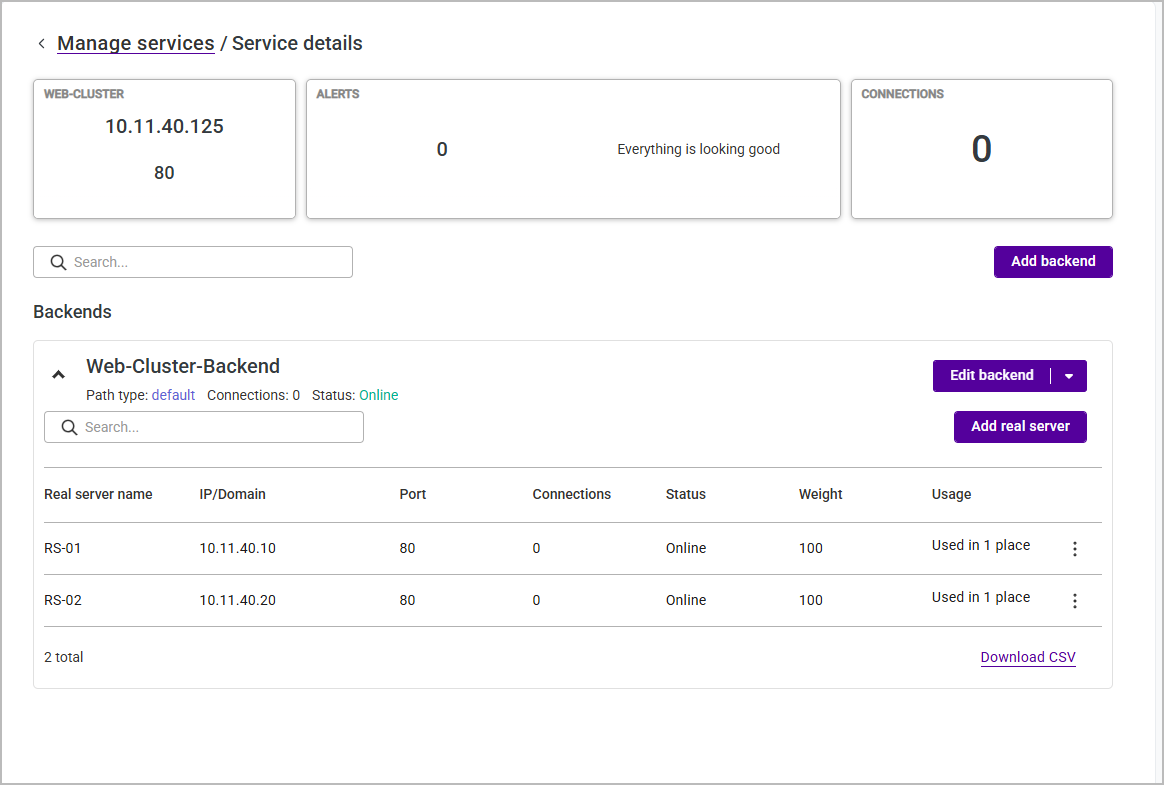
Clicking the service name opens its Service details page, which lists the backend and its Real Servers together with their current status - see Viewing a Service.
To verify that traffic is being load balanced, browse to the FIP/Service address (10.11.40.125 in this example) and confirm that the page served by each Real Server is returned:
-
Halt RS-01 using the three dots menu next to the Real Server, then refresh the browser and verify that the content is served by RS-02.
-
Bring RS-01 back online, halt RS-02, then refresh the browser and verify that the content is served by RS-01.
| If a Real Server does not come up, or the counts in the Services widget do not add up to the number of configured services, see Diagnosing Virtual Service Issues for how to identify and correct the fault. |
Modifying the Service
A service can be reopened in the wizard at any time. The frontend and the backend are edited separately:
-
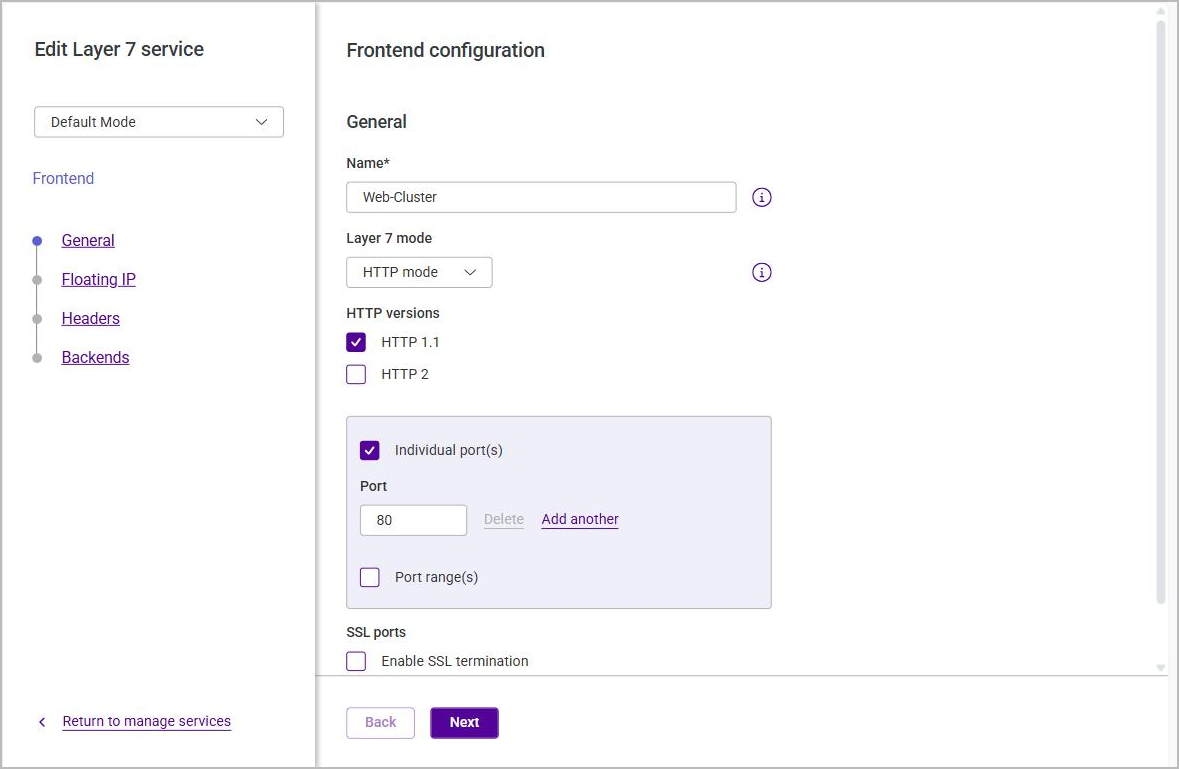
To modify the frontend, navigate to Services, click the three dots menu next to the service and select Edit.
-
To modify the backend, navigate to Services and click the name of the service to open its Service details page, then click Edit backend.
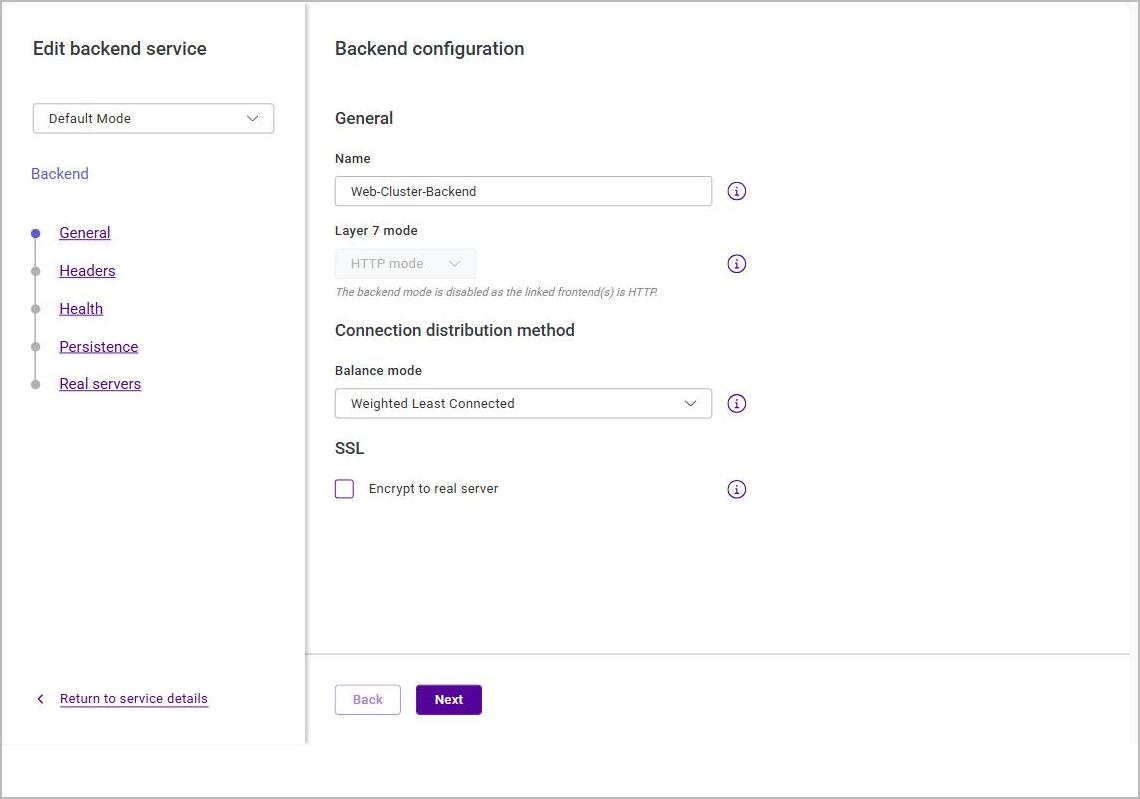
In both cases, select the section to be changed in the area to the left, make the changes required, click Next to step through the remaining sections, then click Submit to save the changes.